
Points clés
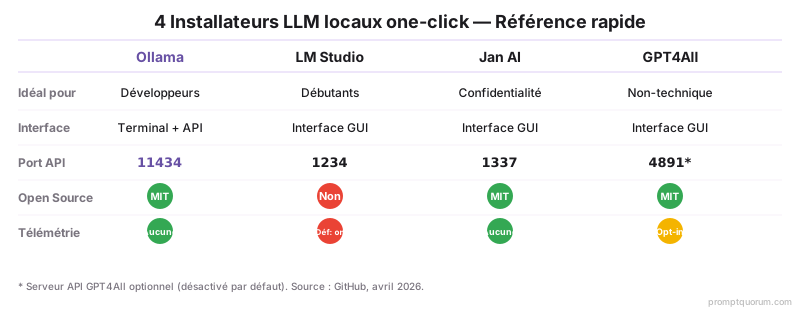
- Ollama: meilleur pour développeurs -- terminal-first, API compatible OpenAI, 200+ modèles, s'exécute comme service de fond.
- LM Studio: meilleur pour débutants avec GUI -- chat intégré, navigateur de modèles, serveur local sur port 1234.
- Jan AI: meilleur pour les utilisateurs soucieux de confidentialité -- entièrement hors ligne, open source, pas de télémétrie, historique de chat stocké localement.
- GPT4All: configuration la plus simple de tous les quatre -- programme d'installation unique, hors ligne par défaut, conçu pour les utilisateurs non-techniques.
- Les quatre outils utilisent llama.cpp et supportent le même format GGUF. Vous pouvez basculer entre eux sans retélécharger les modèles.
Qu'est-ce qui rend un outil LLM local « One-Click » ?
Un installateur LLM local one-click regroupe trois choses dans un seul téléchargement : le moteur d'inférence (généralement llama.cpp), un gestionnaire de modèles qui gère les téléchargements et le stockage, et une interface utilisateur (interface de chat, serveur API ou les deux).
Sans ces outils, exécuter un LLM local nécessite une compilation manuelle de llama.cpp, une conversion de poids de modèle, une configuration des paramètres de mémoire et une gestion des fichiers de modèle. Les installateurs one-click éliminent tout cela.
En avril 2026, les quatre outils couverts ici -- Ollama, LM Studio, Jan AI et GPT4All -- utilisent llama.cpp comme backend d'inférence partagé et le format GGUF pour les fichiers de modèle. Cela signifie qu'un modèle que vous téléchargez pour un outil peut être utilisé par un autre -- vous n'avez jamais besoin de télécharger des copies dupliquées.
À quoi Ollama convient-il le mieux ?
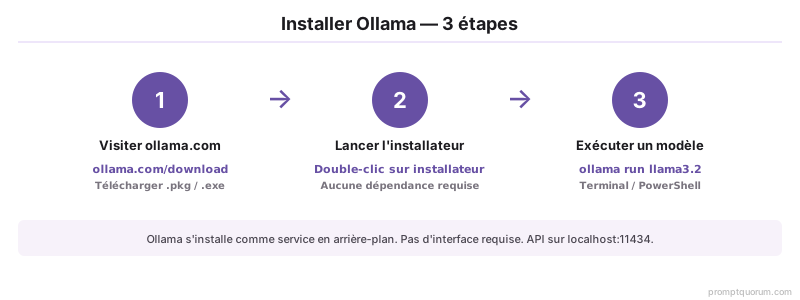
**Ollama s'exécute comme un service de fond et expose une API REST compatible OpenAI sur `http://localhost:11434`.** Il n'a pas sa propre interface graphique -- vous interagissez avec lui via le terminal ou via des interfaces tierces comme Open WebUI.
Ollama maintient une bibliothèque de modèles curée sur ollama.com/library avec environ 200 modèles. Chaque modèle est extrait avec une seule commande : `ollama pull llama3.1:8b`. Les modèles sont stockés dans `~/.ollama/models`.
| Attribut | Valeur |
|---|---|
| Plate-forme | macOS, Windows, Linux |
| Interface | Terminal + API REST |
| Bibliothèque de modèles | ~200 modèles curés |
| API | Compatible OpenAI sur localhost:11434 |
| Prise en charge GPU | NVIDIA CUDA, AMD ROCm, Apple Metal |
| Open source | Oui (licence MIT) |
Comment installez-vous Ollama ?
# macOS / Linux
curl -fsSL https://ollama.com/install.sh | sh

# Puis exécutez un modèle
ollama run llama3.2
Pourquoi LM Studio est-il meilleur pour les débutants ?
LM Studio est une application de bureau avec une interface de chat intégrée, un navigateur de modèles qui recherche Hugging Face directement, et un mode serveur local. C'est l'option GUI la plus soignée et le meilleur choix pour les utilisateurs qui ne veulent pas utiliser un terminal.
Contrairement à la bibliothèque curée d'Ollama, LM Studio peut télécharger n'importe quel modèle GGUF depuis Hugging Face -- donnant accès à des milliers de modèles, y compris des fine-tunes et des variantes de quantification non disponibles dans la bibliothèque Ollama.
| Attribut | Valeur |
|---|---|
| Plate-forme | macOS, Windows, Linux (AppImage) |
| Interface | GUI de bureau + serveur local |
| Source de modèles | Hugging Face (tout GGUF) |
| API | Compatible OpenAI sur localhost:1234 |
| Prise en charge GPU | NVIDIA CUDA, AMD ROCm, Apple Metal |
| Open source | Non (gratuit pour usage personnel) |
Pourquoi Jan AI est-il meilleur pour la confidentialité ?
Jan AI est une application de bureau entièrement open source (licence MIT) construite spécifiquement pour les utilisateurs qui veulent un contrôle total sur leurs données. Tout l'historique de chat est stocké localement dans des fichiers JSON simples. Aucune télémétrie n'est collectée. L'application fonctionne entièrement hors ligne après le téléchargement initial du modèle.
Jan AI inclut une interface de chat intégrée, un système d'extension et un serveur compatible OpenAI. Son hub de modèles couvre les principaux modèles ouverts (Llama, Mistral, Gemma) avec des liens de téléchargement directs Hugging Face.
| Attribut | Valeur |
|---|---|
| Plate-forme | macOS, Windows, Linux |
| Interface | GUI de bureau + serveur API |
| Source de modèles | Hub intégré + Hugging Face |
| API | Compatible OpenAI sur localhost:1337 |
| Télémétrie | Aucune -- entièrement hors ligne possible |
| Open source | Oui (licence MIT) -- github.com/janhq/jan |
Pourquoi GPT4All est-il la configuration la plus simple ?
GPT4All, développé par Nomic AI, est conçu pour le public le plus large possible. Le programme d'installation est un seul exécutable sans dépendances. Après l'installation, un navigateur de modèles vous permet de télécharger et exécuter des modèles en un seul clic -- aucun terminal requis à aucun moment.
GPT4All supporte une fonctionnalité « LocalDocs » qui vous permet de chatter avec vos propres documents (PDFs, fichiers texte) en utilisant RAG (retrieval-augmented generation) sans aucune configuration supplémentaire. Cela le rend particulièrement utile pour les requêtes de base de connaissances sur les collections de documents privés.
| Attribut | Valeur |
|---|---|
| Plate-forme | macOS, Windows, Linux |
| Interface | GUI de bureau |
| Source de modèles | Bibliothèque de modèles GPT4All (~50 modèles) |
| LocalDocs | Oui -- RAG intégré sur fichiers locaux |
| API | Serveur compatible OpenAI sur localhost:4891 (optionnel) |
| Open source | Oui (licence MIT) |
Comment ces quatre installateurs se comparent-ils ?
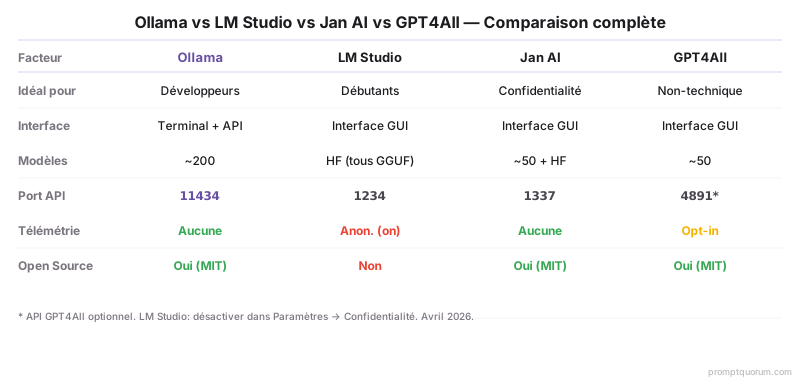
| Critère | Ollama | LM Studio | Jan AI | GPT4All |
|---|---|---|---|---|
| Meilleur pour | Développeurs, usage API | Débutants, utilisateurs GUI | Utilisateurs soucieux de confidentialité | Utilisateurs non-techniques |
| Interface | Terminal + API | App de bureau | App de bureau | App de bureau |
| Nombre de modèles | ~200 | Milliers (HuggingFace) | ~50 + HuggingFace | ~50 |
| Port API | 11434 | 1234 | 1337 | 4891 (optionnel) |
| Télémétrie | Aucune collectée | Analytique anonyme | Aucune | Opt-in seulement |
| Open source | Oui (MIT) | Non | Oui (MIT) | Oui (MIT) |
Quel installateur one-click devriez-vous choisir ?
- Choisissez Ollama si vous êtes un développeur qui veut scripter, automatiser ou intégrer les modèles locaux dans les applications. Voir Comment installer Ollama pour la configuration.
- Choisissez LM Studio si vous préférez une GUI de bureau soignée et voulez accès à la gamme complète des modèles GGUF de Hugging Face. Voir Comment installer LM Studio pour la configuration.
- Choisissez Jan AI si la confidentialité des données est votre priorité absolue -- pas de télémétrie, entièrement hors ligne, entièrement open source.
- Choisissez GPT4All si vous voulez l'expérience la plus simple possible sans commandes terminal, ou si vous voulez un chat de document intégré (LocalDocs) sans configuration supplémentaire.
- En avril 2026, les quatre outils peuvent coexister sur la même machine -- ils utilisent différents ports par défaut (11434, 1234, 1337, 4891) et des répertoires de stockage de modèles séparés. Les modèles au format GGUF peuvent être partagés entre eux.
Installateurs one-click en France, en Suisse et au Québec
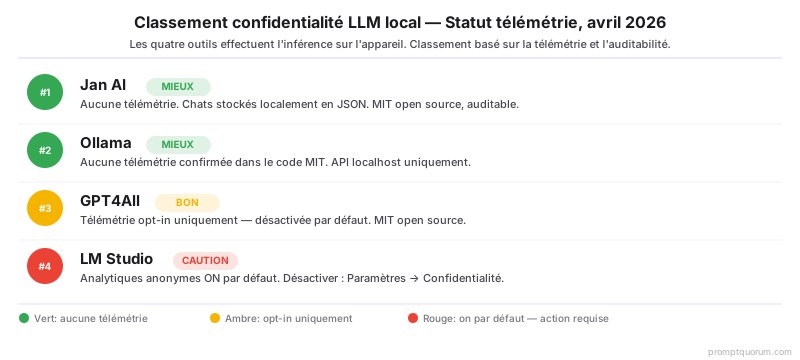
France / RGPD / CNIL: Tous les quatre outils exécutent l'inférence entièrement sur l'appareil -- aucun texte de prompt, contexte ou sortie n'est transmis à des serveurs externes pendant l'inférence. Pour les professionnels français traitant des données personnelles en vertu du RGPD, le classement par conformité est : (1) Jan AI -- entièrement open source MIT, pas de télémétrie, entièrement auditable; (2) Ollama -- open source MIT, pas de télémétrie confirmée, API localhost par défaut; (3) GPT4All -- open source, télémétrie opt-in uniquement, LocalDocs traite les documents entièrement hors ligne; (4) LM Studio -- source fermée, analytique anonyme activée par défaut (désactiver: Paramètres → Confidentialité → Envoyer les données d'utilisation anonymes → off). Pour les entreprises françaises traitant des données sensibles, Jan AI ou Ollama sont recommandés.
Suisse / Protection des données: Les lois suisses sur la protection des données (FADP) exigent que le contrôle des données reste en Suisse. Les quatre outils satisfont à cette exigence en exécutant l'inférence localement. Les chemins de stockage sont : Ollama: `~/.ollama/models/`, LM Studio: `~/Library/Application Support/LM Studio/`, Jan AI: `~/jan/models/`, GPT4All: `~/Library/Application Support/nomic.ai/GPT4All/` sur macOS. Ces chemins peuvent être inclus dans la documentation de conformité suisse.
Québec / PIPEDA: Les quatre outils conviennent aux exigences de confidentialité de Québec (équivalent du RGPD en français). Jan AI ou Ollama sont les premiers choix pour les équipes québécoises en raison de l'auditabilité open source et du support francophone croissant dans les communautés de développement.
Erreurs courantes lors du choix d'un installateur LLM local
- Installer les quatre outils et les exécuter simultanément: Les quatre outils utilisent des plages de port qui peuvent entrer en conflit (11434, 1234, 1337, 4891). L'exécution de plusieurs outils à la fois provoque des conflits de port et gaspille de la RAM. Choisissez un outil comme principal et ne démarrez les autres que si nécessaire.
- Choisir LM Studio sans désactiver la télémétrie: LM Studio collecte l'analytique d'utilisation anonyme par défaut. Pour une utilisation sensible à la confidentialité, désactiver immédiatement : Paramètres → Confidentialité → Envoyer les données d'utilisation anonymes → off. Jan AI et Ollama ne collectent aucune télémétrie par défaut -- aucune action nécessaire.
- Utiliser GPT4All pour l'intégration API: Le serveur API optionnel de GPT4All fonctionne mais est moins fiable et moins documenté qu'Ollama. Pour toute application qui appelle un LLM local via API, utilisez Ollama (localhost:11434). GPT4All est mieux gardé comme interface de chat uniquement.
- Télécharger les modèles séparément pour chaque outil: Les quatre outils utilisent le format GGUF. Un modèle téléchargé pour un outil peut être réutilisé par les autres -- vous n'avez pas besoin de copies séparées. Dans Ollama, pointez vers un fichier GGUF local avec `ollama create`. Dans LM Studio et Jan AI, parcourez le fichier dans l'écran de gestion des modèles.
- S'attendre à ce que le système d'extension de Jan AI soit prêt pour la production: Le système de plugin et d'extension de Jan AI est conçu pour l'expérimentation, pas pour les charges de travail en production. Pour la RAG en production, construisez un pipeline dédié avec Ollama et une base de données vectorielle.
Questions fréquemment posées
Quel installateur LLM local est le meilleur pour les débutants ?
GPT4All pour l'expérience la plus simple -- programme d'installation unique, pas de terminal, téléchargements de modèles en un clic. LM Studio pour les débutants qui veulent plus de choix de modèles et un serveur API local. Ollama n'est pas recommandé pour les débutants car il n'a pas d'interface graphique.
Quel outil LLM local est le plus privé ?
Jan AI -- entièrement open source licence MIT, pas de télémétrie, tout l'historique de chat stocké localement en JSON simple, fonctionne entièrement hors ligne. Ollama est aussi entièrement privé sans télémétrie (confirmé dans le code source). LM Studio collecte l'analytique anonyme par défaut -- désactiver dans les paramètres. GPT4All est télémétrie opt-in uniquement.
Puis-je utiliser les quatre outils sur la même machine ?
Oui, mais ne lancez qu'un à la fois pour éviter les conflits de port. Chaque outil utilise un port par défaut différent (Ollama: 11434, LM Studio: 1234, Jan AI: 1337, GPT4All: 4891). Ils peuvent coexister sur disque sans conflit. Les fichiers de modèle GGUF peuvent être partagés entre les outils.
Quelle est la différence entre Ollama et LM Studio ?
Ollama est terminal-first sans GUI -- s'exécute comme un service de fond et expose une API REST. LM Studio est une application de bureau avec une interface de chat intégrée et un navigateur de modèles. Les deux exposent une API compatible OpenAI. Ollama est mieux pour les développeurs et l'automatisation ; LM Studio est mieux pour les utilisateurs occasionnels qui veulent chatter avec les modèles directement.
Jan AI supporte-t-il tous les mêmes modèles qu'Ollama ?
Le hub intégré de Jan AI couvre les modèles majeurs (Llama, Mistral, Gemma) mais a moins de modèles curés que la bibliothèque de 200+ d'Ollama. Cependant, Jan AI supporte les téléchargements GGUF directs depuis Hugging Face, donnant accès à la même gamme de modèles que LM Studio. Ollama supporte les importations GGUF personnalisées via Modelfile.
La fonctionnalité LocalDocs de GPT4All est-elle fiable ?
Pour la simple Q&A sur documents (poser des questions sur un ou quelques PDFs), LocalDocs fonctionne bien sans configuration supplémentaire. Pour les grandes collections de documents ou les pipelines RAG en production nécessitant une récupération précise, une configuration dédiée avec Ollama plus une base de données vectorielle est plus fiable. LocalDocs est conçu pour l'usage personnel, pas les charges de travail en entreprise.
Quel outil a la meilleure bibliothèque de modèles ?
LM Studio a la plus grande bibliothèque de modèles accessible -- il recherche tout Hugging Face, donnant accès à des milliers de modèles GGUF, y compris les fine-tunes, fusions et variantes de quantification. La bibliothèque curée d'Ollama d'environ 200 modèles est plus petite mais plus facile à naviguer. GPT4All et Jan AI ont les plus petites bibliothèques intégrées (environ 50 modèles chacun).
Ces outils fonctionnent-ils hors ligne après la configuration ?
Oui, les quatre fonctionnent entièrement hors ligne après le téléchargement initial du modèle. Les fichiers de modèle sont stockés localement et l'inférence s'exécute sur votre matériel. Aucune connexion Internet n'est requise pendant l'utilisation. Seuls les téléchargements de modèles et les vérifications de mise à jour (optionnelles) nécessitent l'accès à Internet.
Quel outil est le meilleur pour se connecter à VS Code ?
Ollama -- son API compatible OpenAI sur localhost:11434 s'intègre directement avec Continue.dev dans VS Code et Cursor sans configuration supplémentaire. Le serveur local de LM Studio sur localhost:1234 fonctionne aussi avec Continue.dev. Le serveur de Jan AI sur localhost:1337 est compatible mais moins couramment utilisé dans les configurations IDE.
Y a-t-il des outils open source ?
Ollama (licence MIT), Jan AI (licence MIT) et GPT4All (licence MIT) sont tous entièrement open source. LM Studio est une freeware source fermée -- gratuit pour usage personnel mais pas open source. Pour les environnements réglementés nécessitant l'auditabilité du code source, Jan AI et Ollama sont les choix conformes.
Sources
- Contributeurs Ollama. (2026). "Ollama GitHub." https://github.com/ollama/ollama -- Code source confirmant aucune collecte de télémétrie et licence MIT. Bibliothèque de modèles sur ollama.com/library.
- LM Studio. (2026). "Documentation LM Studio." https://lmstudio.ai/docs -- Documentation officielle des fonctionnalités, politique de confidentialité et guide de configuration du serveur local.
- Jan AI. (2026). "Jan AI GitHub." https://github.com/janhq/jan -- Code base open source MIT, confirmation de confidentialité et documentation du système d'extension.
- Nomic AI. (2026). "Documentation GPT4All." https://docs.gpt4all.io/ -- Documentation officielle de LocalDocs, bibliothèque de modèles et guide de configuration du serveur API.