
关键要点
- Ollama在`http://localhost:11434/v1`公开与OpenAI API完全兼容的REST API。
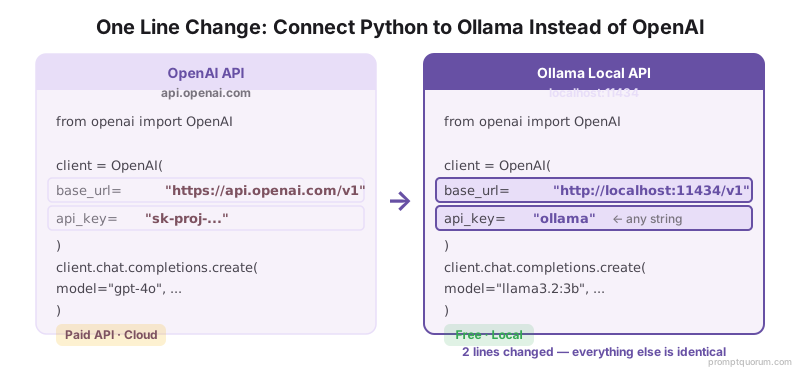
- 使用OpenAI Python库:将`api_key="openai"`改为`api_key="ollama"`,设置`base_url="http://localhost:11434/v1"`即可。
- Node.js同理:OpenAI SDK指向localhost:11434。
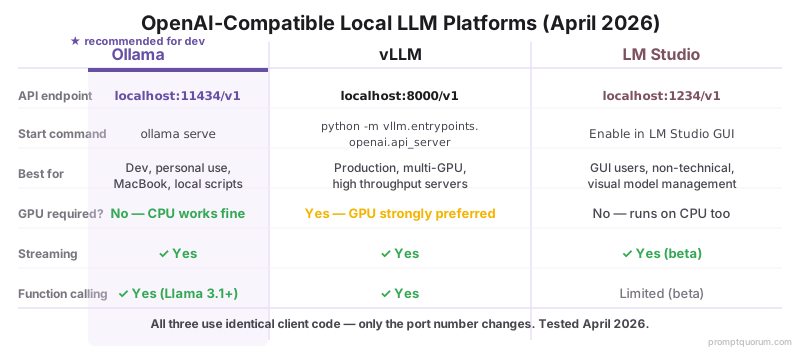
- OpenAI兼容API在Ollama、vLLM和LM Studio上完全相同——切换提供商无需修改代码。
- 截至2026年4月,流式输出(逐token)和函数调用均可通过此API与本地模型配合使用。
什么是OpenAI兼容API?
OpenAI兼容意味着API端点以与OpenAI API相同的格式返回响应。 只需将URL指向本地,任何为OpenAI构建的库或工具都能与本地模型配合使用。了解Ollama vs LM Studio如何实现此标准。
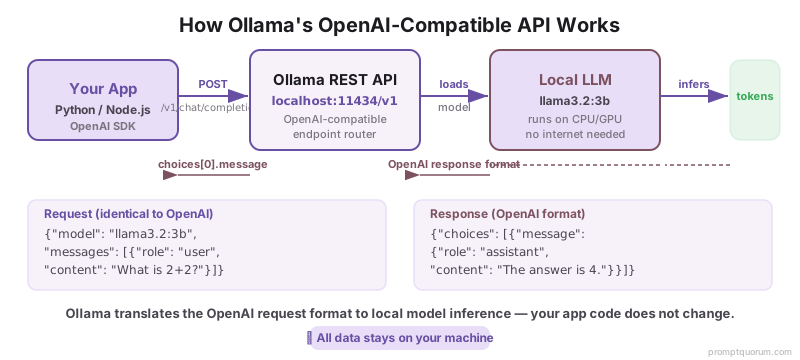
OpenAI Python库发送如下请求:
``` POST /chat/completions { "model": "gpt-4o", "messages": [...], "temperature": 0.7 } ```
Ollama的API在`localhost:11434/v1/chat/completions`接受完全相同的请求,并以OpenAI格式返回响应:
``` { "choices": [{"message": {"content": "..."}}], "usage": {"prompt_tokens": 10, "completion_tokens": 20} } ```
由于格式完全相同,您无需学习新API或重写代码。
Ollama的API端点是什么?
**运行`ollama serve`时,Ollama在`http://localhost:11434`启动REST API。** OpenAI兼容端点如下:
| 端点类型 | URL | 说明 |
|---|---|---|
| Chat Completions | POST http://localhost:11434/v1/chat/completions | 与OpenAI的`/chat/completions`完全匹配 |
| Text Completions | POST http://localhost:11434/v1/completions | 与OpenAI的`/completions`完全匹配 |
| Embeddings | POST http://localhost:11434/v1/embeddings | 将文本转换为向量 |
| List Models | GET http://localhost:11434/v1/models | 列出可用模型 |
如何在Python中使用Ollama API(OpenAI库)?
安装OpenAI库并将其指向localhost即可。
# 1. Install the OpenAI library
pip install openai

# 2. Connect to Ollama
from openai import OpenAI

client = OpenAI(
  base_url="http://localhost:11434/v1",
  api_key="ollama"  # dummy key; Ollama ignores it
)

# 3. Make a request
response = client.chat.completions.create(
  model="llama3.2:3b",
  messages=[
    {"role": "user", "content": "What is 2+2?"}
  ]
)

print(response.choices[0].message.content)
如何在Node.js中使用Ollama API?
安装OpenAI SDK并将其连接到本地Ollama实例。
// 1. Install
npm install openai

// 2. Connect to Ollama
const OpenAI = require("openai").default;

const client = new OpenAI({
  baseURL: "http://localhost:11434/v1",
  apiKey: "ollama"
});

// 3. Make a request
const response = await client.chat.completions.create({
  model: "llama3.2:3b",
  messages: [{
    role: "user",
    content: "What is 2+2?"
  }]
});

console.log(response.choices[0].message.content);
如何使用LM Studio的OpenAI兼容服务器(localhost:1234)?
**LM Studio在`http://localhost:1234/v1`公开OpenAI兼容API。** 在Local Server选项卡下启用——加载模型后点击Start Server。同样的Python和Node.js代码可用于LM Studio——只需将端口从11434改为1234。
LM Studio适合希望可视化浏览和切换模型的GUI用户。Ollama更适合脚本、自动化和CI流水线。
| 平台 | 端口 | 最适用途 | 需要GPU |
|---|---|---|---|
| LM Studio | localhost:1234 | GUI用户,可视化模型管理 | 否(CPU可运行) |
| Ollama | localhost:11434 | 脚本、自动化、生产环境 | 否(CPU可运行) |
| vLLM | localhost:8000 | 多GPU、高吞吐量服务器 | 推荐 |
# Python: Connect to LM Studio (localhost:1234)
from openai import OpenAI

client = OpenAI(
  base_url="http://localhost:1234/v1",
  api_key="lm-studio"  # any string; LM Studio ignores it
)

response = client.chat.completions.create(
  model="llama-3.2-3b-instruct",  # exact model name shown in LM Studio
  messages=[
    {"role": "user", "content": "What is 2+2?"}
  ]
)

print(response.choices[0].message.content)
如何从浏览器端JavaScript调用Ollama API?
从浏览器端JavaScript调用Ollama需要浏览器和服务器在同一台机器上(或允许CORS)。 出于安全原因,对localhost的浏览器请求仅在JavaScript也从localhost提供时才有效。查看最佳本地LLM界面了解处理此问题的浏览器就绪UI。
如需从不同IP的浏览器调用Ollama,请设置CORS代理或使用服务器端中间件。
// Browser-side JavaScript (if server is localhost:3000, Ollama is localhost:11434)
fetch("http://localhost:11434/v1/chat/completions", {
  method: "POST",
  headers: { "Content-Type": "application/json" },
  body: JSON.stringify({
    model: "llama3.2:3b",
    messages: [{ role: "user", content: "What is 2+2?" }]
  })
})
  .then(res => res.json())
  .then(data => console.log(data.choices[0].message.content))
如何逐token流式传输响应?
流式传输让您可以在响应生成时逐token显示,而无需等待完整响应。 截至2026年4月,流式传输可通过OpenAI兼容API与所有本地模型配合使用。
# Python: streaming example
from openai import OpenAI

client = OpenAI(
  base_url="http://localhost:11434/v1",
  api_key="ollama"
)

stream = client.chat.completions.create(
  model="llama3.2:3b",
  messages=[{"role": "user", "content": "Count to 10"}],
  stream=True
)

for chunk in stream:
  if chunk.choices[0].delta.content:
    print(chunk.choices[0].delta.content, end="", flush=True)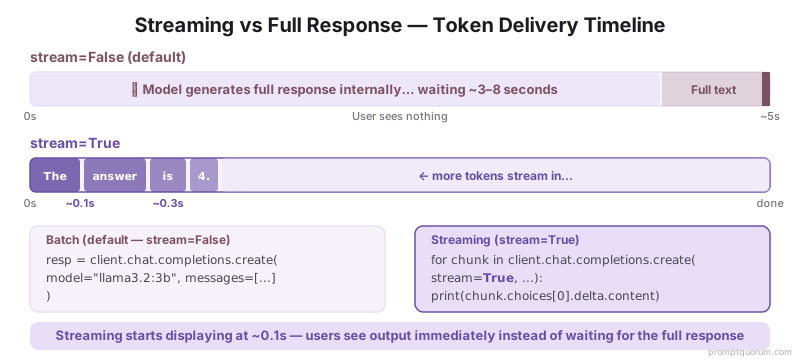
本地模型可以调用函数吗?
是的,截至2026年4月,函数调用通过OpenAI API在本地模型上可用。 您定义函数schema,模型可以返回传递给函数的参数。这使最佳本地LLM编程助手能够集成到您的工具生态系统中。
函数调用支持取决于模型。Llama 3.1 8B、Qwen2.5 7B和大多数近期模型支持它。较小的模型(3B)可能不可靠。
在本地使用OpenAI兼容API时,结构化输出和JSON模式的工作方式与云端API相同。关于在本地和云模型中强制执行schema合规性和格式控制,请参阅结构化输出和JSON模式。
与OpenAI兼容的API接受与云版本相同的提示词格式——系统消息、用户消息和结构化输出。完整的提示词工程技术库直接适用于本地API调用。
# Example: local model calls a weather function
tools = [{
  "type": "function",
  "function": {
    "name": "get_weather",
    "description": "Get current weather",
    "parameters": {
      "type": "object",
      "properties": {
        "location": {"type": "string"}
      }
    }
  }
}]

response = client.chat.completions.create(
  model="llama3.2:8b",
  messages=[{"role": "user", "content": "What is the weather in SF?"}],
  tools=tools
)

# Check if model returned a function call
if response.choices[0].message.tool_calls:
  call = response.choices[0].message.tool_calls[0]
  print(f"Call function: {call.function.name} with {call.function.arguments}")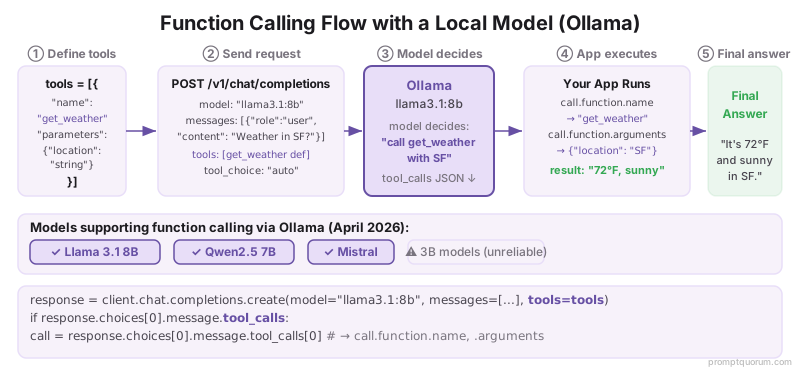
各地区本地LLM OpenAI API
中国(数据安全法): 中国2021年《数据安全法》要求大多数AI应用实现本地运行。Ollama在本地执行所有推理,满足数据本地化要求,无外部API调用。Qwen2.5原生中文分词比Llama效率高30-40%,降低本地推理开销。金融机构、医疗组织和政府部门通过使用Ollama+Qwen2.5满足数据驻留合规要求,同时保持OpenAI代码库兼容性。
亚太地区(跨境数据): 新加坡、印度尼西亚、泰国和韩国等亚太国家实施严格的数据驻留框架。OllamaOpenAI兼容API允许企业在国内服务器上运行LLM,满足PDPA(泰国)、PDPC(新加坡)和类似法规的合规要求。Q4_K_M量子化使7B-13B模型可在16GB企业服务器上运行,无需专用GPU基础设施。
企业部署(金融/医疗/法律): 银行、医院和律师事务所通过Ollama OpenAI兼容API处理敏感数据,在保持与现有OpenAI工具链兼容的同时,实现完全数据主权。切换只需两行代码——任何LangChain、AutoGen或自定义OpenAI代码库无需重写即可在本地运行。
使用本地LLM OpenAI API有哪些常见错误?
- 忘记API密钥被忽略。 Ollama需要`api_key="ollama"`(任何字符串均可),因为它不进行身份验证。真正的安全性来自请求来自localhost或本地网络。
- 没意识到模型名称很重要。 如果您用`model="gpt-4"`调用但Ollama只有`llama3.2:3b`,请求将失败。使用`ollama list`中的确切模型名称。
- 认为Ollama需要联网。 不需要。但如果您的Python代码默认尝试连接OpenAI服务器,它会失败。请始终明确设置`base_url`。
- 浏览器CORS错误。 从浏览器端脚本调用Ollama出现CORS错误时,表示浏览器出于安全原因阻止了请求。参见VS Code和Cursor使用本地LLM了解基于编辑器的解决方案。
- 期望流式传输时未设置stream=True。 如需逐token响应,必须显式设置`stream=True`。默认情况下等待完整响应。
关于本地LLM API的常见问题
使用Ollama需要修改OpenAI代码吗?
不需要。设置`base_url="http://localhost:11434/v1"`和`api_key="ollama"`。其他一切保持不变。
可以从网络上的另一台计算机使用API吗?
可以。默认情况下Ollama仅监听localhost。设置`OLLAMA_HOST=0.0.0.0:11434`后启动Ollama,将代码指向`http://<机器IP>:11434/v1`。生产环境请配置防火墙。
LM Studio有OpenAI兼容API吗?
有。LM Studio在`http://localhost:1234/v1`公开OpenAI兼容API。在Local Server选项卡下启用。与Ollama代码相同,只需将端口改为1234。
可以同时调用多个模型吗?
如果模型已加载到Ollama,可以。同时运行两个模型会使VRAM使用量翻倍,需要足够的GPU内存。
API需要认证吗?
默认不需要。能访问localhost:11434的任何人都可以使用。生产环境网络访问时,通过反向代理添加认证。
如何使用Ollama OpenAI API进行流式传输?
在OpenAI库调用中设置stream=True。Ollama为每个token返回server-sent events(SSE)。Python示例:for chunk in client.chat.completions.create(stream=True, ...): print(chunk.choices[0].delta.content)。
Ollama是否通过API支持函数调用?
是的,支持的模型(Llama 3.1 8B、Qwen2.5 7B、Mistral)可用。与OpenAI一样传递tools=[],Ollama解析工具调用并返回结构化JSON。
Ollama /api/generate与/v1/chat/completions有什么区别?
/api/generate是Ollama原生的单轮端点。/v1/chat/completions是OpenAI兼容的多轮端点。所有新项目请使用/v1/chat/completions。
可以将vLLM用作OpenAI兼容API吗?
可以。vLLM默认在http://localhost:8000/v1运行OpenAI兼容服务器。使用与Ollama相同的客户端代码。
如何使用Node.js openai包调用Ollama API?
在构造函数中设置baseURL: "http://localhost:11434/v1"和apiKey: "ollama",然后正常调用client.chat.completions.create()。
如何在同一代码库中切换Ollama和OpenAI?
使用环境变量:USE_LOCAL=true时使用Ollama(base_url localhost:11434/v1,api_key "ollama"),false时使用OpenAI。无需其他代码更改。
可以在LangChain中使用OpenAI兼容API吗?
可以。使用ChatOpenAI并设置base_url="http://localhost:11434/v1"。LangChain还有专用的ChatOllama类。
参考资料
- Ollama. (2026). "Ollama OpenAI Compatibility." https://github.com/ollama/ollama/blob/main/docs/openai.md -- Ollama OpenAI兼容REST API端点的官方文档。
- LM Studio. (2026). "LM Studio Local Server." https://lmstudio.ai/docs/local-server -- LM Studio localhost:1234 OpenAI兼容本地服务器的文档。
- OpenAI. (2024). "OpenAI Python Library." https://github.com/openai/openai-python -- 通过base_url覆盖连接OpenAI和本地LLM的官方Python SDK。
- vLLM Team. (2024). "vLLM OpenAI-Compatible Server." https://docs.vllm.ai/en/latest/serving/openai_compatible_server.html -- vLLM OpenAI兼容API服务器文档(端口8000,生产用途)。