MLX vs Ollama vs llama.cpp: Which Inference Engine Should You Use?
Quick Answer
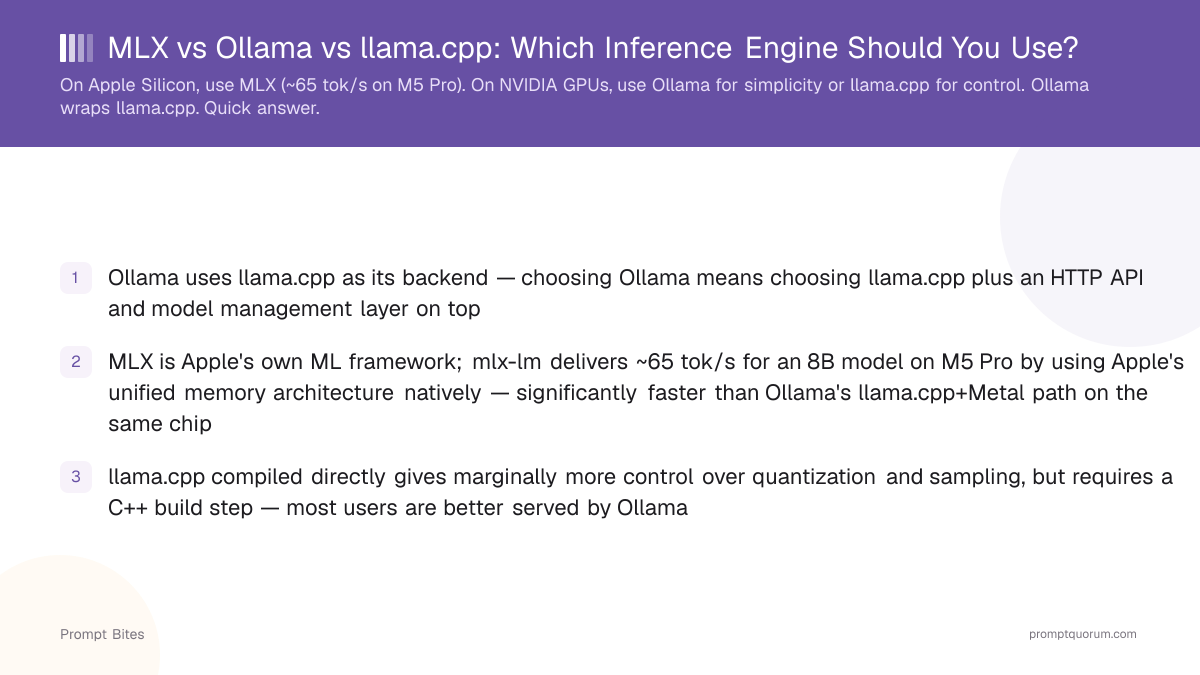
On Apple Silicon, use MLX — it runs ~65 tok/s versus ~35 tok/s for Ollama on an M5 Pro with an 8B model. On NVIDIA GPUs, use Ollama for simplicity or llama.cpp for maximum control. Ollama uses llama.cpp under the hood and adds an API layer on top.
- ▸MLX: Apple Silicon only, fastest native inference, Python-based
- ▸Ollama: any platform, OpenAI-compatible API, easiest setup
- ▸llama.cpp: any hardware, maximum control, requires compiling
Key Takeaways
- ✓Ollama uses llama.cpp as its backend — choosing Ollama means choosing llama.cpp plus an HTTP API and model management layer on top
- ✓MLX is Apple's own ML framework; mlx-lm delivers ~65 tok/s for an 8B model on M5 Pro by using Apple's unified memory architecture natively — significantly faster than Ollama's llama.cpp+Metal path on the same chip
- ✓llama.cpp compiled directly gives marginally more control over quantization and sampling, but requires a C++ build step — most users are better served by Ollama
Engine-by-Engine Comparison
Pick MLX if you have Apple Silicon and want the fastest possible inference. mlx-lm is a Python package (install with pip install mlx-lm) and uses Apple's unified memory, which is why it outperforms Ollama's llama.cpp+Metal path on the same hardware. Trade-off: MLX only works on Apple Silicon, and you run Python scripts rather than a persistent API service.
Pick Ollama if you want one-command setup and a stable OpenAI-compatible API, regardless of hardware. It works on Mac, Windows, and Linux. On Apple Silicon it uses llama.cpp with Metal — fast, but not as optimized as native MLX.
Pick llama.cpp directly if you need maximum control: custom quantization, specific sampling parameters, or embedding inference into a C/C++ application. Setup cost is higher (compile from source), but you get every feature before it lands in Ollama.
| Engine | Best for | Speed (M5 Pro, 8B) | Setup difficulty |
|---|---|---|---|
| MLX | Apple Silicon native | ~65 tok/s | Medium (Python) |
| Ollama | Any platform, easy API | ~35 tok/s | Easy (one install) |
| llama.cpp | Maximum control, any HW | ~40 tok/s | Hard (compile) |
Best Pick by Hardware
If you have a Mac with Apple Silicon: use MLX. Install with pip install mlx-lm, then run any model from the mlx-community organization on Hugging Face. If you also need an OpenAI-compatible API, run mlx_lm.server --model mlx-community/model-name.
If you have an NVIDIA GPU or any other hardware: use Ollama. One command installs it, models download automatically, and it exposes an OpenAI-compatible API on port 11434. For advanced control without Ollama's overhead, compile llama.cpp directly and use its built-in server mode.
Related Guides
- ▸Radeon 6800M for Local LLM: Full Setup Guide -- Radeon GPU guide
- ▸Strix Halo + Ollama + Vulkan: Performance Guide -- Strix Halo guide
Quick Answers About MLX, Ollama, and llama.cpp
Does Ollama use MLX on Mac?▾
Is llama.cpp faster than Ollama?▾
Can I use MLX on Windows or Linux?▾
How do I convert an Ollama model to MLX format?▾
Want the full breakdown?
Read the complete guide →