Key Takeaways
- Download LM Studio from lmstudio.ai -- available for macOS (Apple Silicon + Intel), Windows, and Linux (AppImage).
- Minimum: 8 GB RAM. Recommended: 16 GB RAM for 7B models. Apple Silicon Macs use GPU acceleration by default.
- The built-in model browser searches Hugging Face directly -- download GGUF models without leaving the app.
- LM Studio includes a built-in chat UI and a local OpenAI-compatible server on port 1234.
- Best for: beginners who prefer a GUI, users who want to compare multiple models side-by-side, and anyone who wants a complete package without terminal commands.
📍 In One Sentence
LM Studio is a free desktop application for macOS, Windows, and Linux that lets you browse, download, and chat with any GGUF-quantized model from Hugging Face through a graphical interface, with no terminal commands required and a built-in OpenAI-compatible local server.
💬 In Plain Terms
If you don't want to use a command line, LM Studio is the point-and-click way to run AI models on your own computer. Download the app, search for a model by name inside it, click download, and start chatting -- the whole thing takes under 5 minutes and includes a built-in server so other apps can talk to it too.
What Is LM Studio?
LM Studio is a desktop application for running local LLMs. It provides a graphical model browser, a built-in chat interface, and a local API server -- all in one app. Under the hood, it uses llama.cpp for inference, the same engine that powers Ollama.
The key difference from Ollama is that LM Studio is entirely GUI-driven. You browse and download models through the app interface, start chats with a click, and manage model settings with sliders rather than configuration files.
LM Studio is free for personal use. It is developed by LM Studio, Inc. and was released in 2023. As of 2026, it supports NVIDIA CUDA, AMD ROCm, and Apple Metal acceleration.
What Are the System Requirements for LM Studio?
Spec | Minimum | Recommended |
|---|---|---|
| Operating System | macOS 13.6, Windows 10, Ubuntu 22.04 | macOS 14+, Windows 11, Ubuntu 24.04 |
| RAM | 8 GB | 16 GB or more |
| Storage | 500 MB for app + model space | 50 GB+ free for multiple models |
| GPU (optional) | NVIDIA GTX 10-series or newer | NVIDIA RTX 40/50-series, AMD RX 7000+, or Apple M-series |
How Do You Download and Install LM Studio?
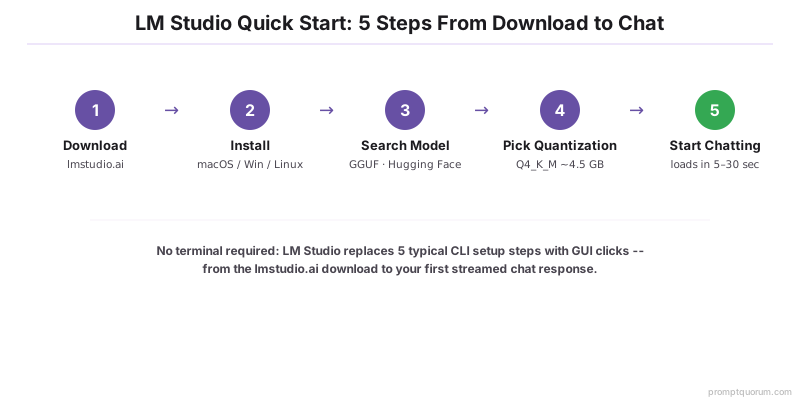
- 1Go to lmstudio.ai and click the download button for your OS.
- 2macOS: Open the .dmg file and drag LM Studio to Applications. On first launch, approve the security prompt in System Preferences → Privacy & Security.
- 3Windows: Run the LM-Studio-Setup.exe installer. LM Studio installs to %LOCALAPPDATA%\LM-Studio.
- 4Linux: Download the .AppImage file. Make it executable with `chmod +x LM-Studio-*.AppImage` and run it. No system installation required.
- 5On first launch, LM Studio shows a welcome screen and prompts you to download a model.
How Do You Find and Download a Model in LM Studio?
Use the Search tab (magnifying glass icon in the left sidebar) to find models:
- 1Click the Search tab in the left sidebar.
- 2Type a model name -- for example "llama 3.1" or "phi-3 mini".
- 3LM Studio shows matching GGUF models from Hugging Face with file sizes and quantization options.
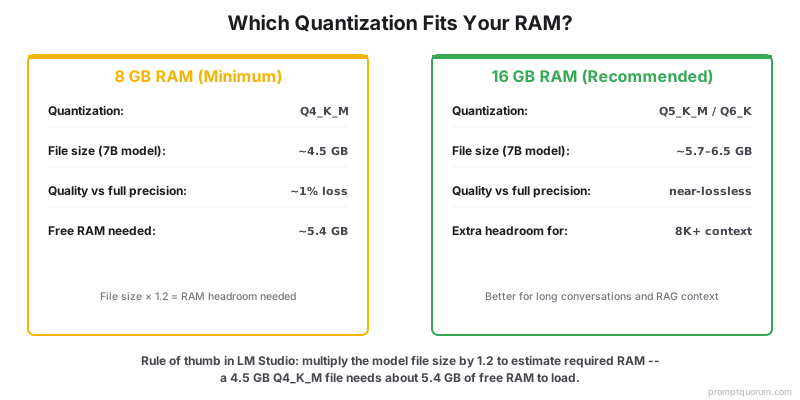
- 4Select a quantization level. For 8 GB RAM: choose Q4_K_M (~4.5 GB for a 7B model). For 16 GB RAM: Q5_K_M or Q6_K offer better quality.
- 5Click the download arrow. Progress shows in the Downloads tab.
How Do You Start Chatting with a Model in LM Studio?
- 1Click the Chat tab (speech bubble icon) in the left sidebar.
- 2At the top of the chat window, click the model selector dropdown and choose your downloaded model.
- 3LM Studio loads the model into memory -- this takes 5-30 seconds depending on model size and hardware.
- 4Type your message in the input field at the bottom and press Enter or click Send.
- 5The model's response streams token by token. Generation speed appears in the status bar at the bottom of the window.
How Do You Adjust Model Settings in LM Studio?
The right panel in the Chat tab exposes key inference parameters:
- Temperature (default 0.8): controls response randomness. Lower values (0.1-0.4) produce more focused, predictable output. Higher values (0.8-1.2) produce more varied, creative output.
- Context Length (default 4096 tokens): the maximum conversation history the model can process. Longer context uses more RAM. Most 7B models support 4096-8192 tokens.
- GPU Layers (macOS/Linux/Windows with GPU): how many model layers to offload to the GPU. Set to max for fastest inference if your GPU has enough VRAM.
- System Prompt: a persistent instruction prepended to every conversation. Use this to set the model's role or behavior.
How Do You Enable the LM Studio Local Server?
LM Studio includes a local server that mimics the OpenAI API. Any application that works with OpenAI can use your local model through this server:
- 1Click the Local Server tab (the "<->" icon) in the left sidebar.
- 2Select a model in the model dropdown at the top.
- 3Click "Start Server". The server starts on http://localhost:1234.
- 4Your application should set `base_url = "http://localhost:1234/v1"` and any string as the API key (the server accepts any value).
Connect to LM Studio via Python
from openai import OpenAI

client = OpenAI(
    base_url="http://localhost:1234/v1",
    api_key="not-needed"
)

response = client.chat.completions.create(
    model="local-model",
    messages=[{"role": "user", "content": "What is a local LLM?"}]
)
print(response.choices[0].message.content)
LM Studio vs Ollama: Which Should You Use?
Factor | LM Studio | Ollama |
|---|---|---|
| Interface | Graphical desktop app | Terminal + API |
| Model source | Hugging Face (any GGUF model) | Ollama library (curated, ~200 models) |
| API port | localhost:1234 | localhost:11434 |
| Model management | GUI browser with file size info | CLI commands (ollama pull, list, rm) |
| Automation | Limited (GUI-focused) | Strong (scripting, Docker, CI) |
| Best for | Beginners, GUI users, model exploration | Developers, automation, server deployments |
Troubleshooting Common LM Studio Issues
LM Studio says "Not enough memory to load model"
The model requires more RAM than is available. Close other applications to free memory, or select a smaller quantization (Q3_K_S instead of Q4_K_M). As a rule: multiply the model file size by 1.2 to estimate the RAM needed. A 4.5 GB file needs ~5.4 GB free RAM.
The model is generating very slowly (under 5 tokens/sec)
The model is running entirely on CPU. Check GPU Layers in the right panel -- if it shows 0, your GPU is not being used. On macOS, LM Studio enables Metal (GPU) automatically for Apple Silicon. On Windows/Linux with NVIDIA, ensure your driver is up to date and increase GPU Layers to the maximum value shown.
I cannot find a specific model in the LM Studio search
LM Studio searches Hugging Face for GGUF files. If a model is not appearing, try searching by the Hugging Face repository name directly (e.g., "bartowski/Llama-3.1-8B-Instruct-GGUF"). Some newer models may not be indexed yet.
The local server returns "model not found" errors
A model must be loaded in the Local Server tab before the server can respond. Open the Local Server tab, select a model from the dropdown, and click Start Server. The model name in API requests can be any string -- LM Studio uses whichever model is currently loaded.
How do I download LM Studio?
Go to lmstudio.ai and click the download button for your OS. Available for macOS (Apple Silicon + Intel), Windows 10/11, and Linux (AppImage).
What are the minimum requirements for LM Studio?
Minimum: 8GB RAM, macOS 13.6, Windows 10, or Ubuntu 22.04. No GPU required -- Apple Silicon Macs and NVIDIA/AMD GPUs are supported for acceleration.
How do I find and download models in LM Studio?
Click the Search tab (magnifying glass) in the sidebar, search for a model name (e.g., "llama 3.1"), select a quantization level (Q4_K_M for 8GB RAM), and click the download arrow.
What quantization should I use in LM Studio with 8GB RAM?
Q4_K_M is the recommended quantization for 8GB RAM systems. It gives the best balance of model quality and memory usage for 7B models (~4.5GB file size).
Does LM Studio include an OpenAI-compatible API?
Yes. Enable the Local Server tab in LM Studio to start an OpenAI-compatible API at http://localhost:1234. Any OpenAI SDK app can connect using this URL as the base_url.
How is LM Studio different from Ollama?
LM Studio is GUI-first: browse models, manage settings, and chat through a visual interface. Ollama is CLI-first: faster to set up for developers, but requires terminal commands. Both use llama.cpp under the hood.
Can I use LM Studio on Linux?
Yes. Download the .AppImage file from lmstudio.ai. Make it executable: chmod +x LM-Studio-*.AppImage and run it. No system installation is needed -- it runs as a portable app.
Is LM Studio free?
LM Studio is free for personal use. It is developed by LM Studio, Inc. Commercial use requires a paid license. All downloaded models are free depending on their individual licenses.
How do I enable GPU acceleration in LM Studio?
On NVIDIA: ensure CUDA drivers are installed. On AMD: ROCm is required. On Apple Silicon: Metal is used automatically. Go to Settings → GPU in LM Studio to verify GPU is detected and layers are offloaded.
What is the difference between Q4_K_M and Q5_K_M in LM Studio?
Q4_K_M uses 4-bit quantization (~4.5GB for 7B) with ~1% quality loss. Q5_K_M uses 5-bit (~5.7GB) with minimal loss. Use Q4_K_M for 8GB RAM; Q5_K_M or Q6_K for 16GB RAM systems.
Next Steps After Installing LM Studio
With LM Studio running, try Run Your First Local LLM to understand what response quality and speed to expect. For model recommendations matched to your hardware, see Best Beginner Local LLM Models. If you want to troubleshoot setup issues, see Troubleshooting Local LLM Setup.
Sources
- LM Studio Official Website -- Downloads and documentation
- Hugging Face Model Hub -- Full range of GGUF-quantized models
- LM Studio GitHub -- Source code and community discussions
Common Mistakes When Installing LM Studio
- Not allocating enough system RAM for the model you selected in LM Studio settings.
- Using a pre-quantized model that is still too large for your GPU VRAM.
- Expecting instant responses from large models on CPU-only systems -- response time will be 10-30 seconds.