Key Takeaways
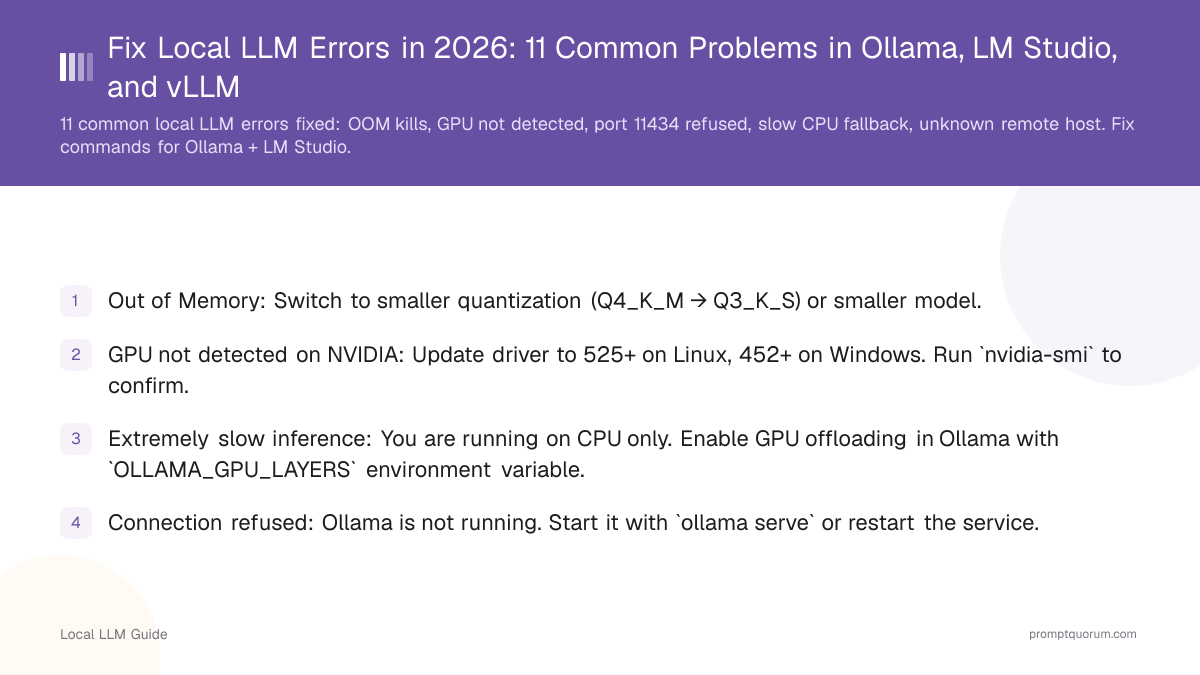
- Out of Memory: Switch to smaller quantization (Q4_K_M → Q3_K_S) or smaller model.
- GPU not detected on NVIDIA: Update driver to 525+ on Linux, 452+ on Windows. Run `nvidia-smi` to confirm.
- Extremely slow inference: You are running on CPU only. Enable GPU offloading in Ollama with `OLLAMA_GPU_LAYERS` environment variable.
- Connection refused: Ollama is not running. Start it with `ollama serve` or restart the service.
- Garbled output: wrong prompt template. Use the Instruct variant of the model, not the base variant.
📍 In One Sentence
The most common local LLM errors -- out-of-memory crashes, GPU not detected, extremely slow CPU inference, connection refused, and garbled output -- all have fixes that take one or two terminal commands across Ollama, LM Studio, and vLLM.
💬 In Plain Terms
If your local AI setup breaks, it's almost always one of a handful of well-known problems: not enough memory, the graphics card isn't being used, a service isn't running, or the model is using the wrong chat format. Each of these has a quick fix -- usually a single command to update a driver, restart a service, or switch to a smaller model file.
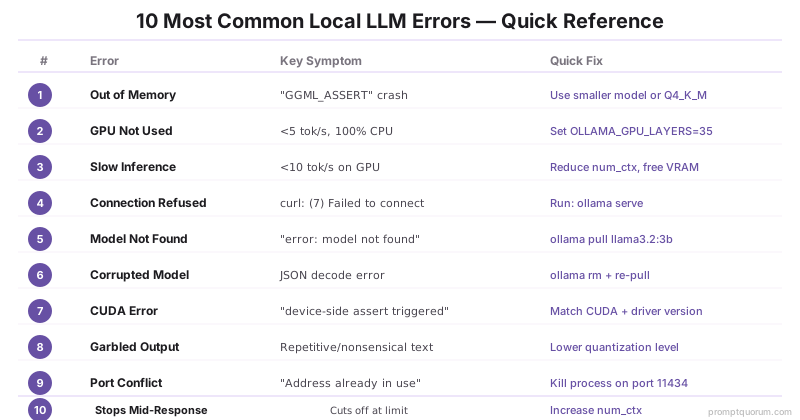
Error 1: "Out of Memory" / Out-of-Memory Crash
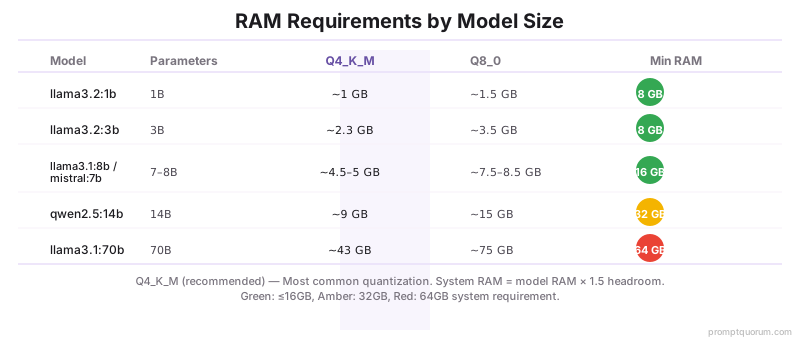
Out-of-Memory errors mean the model needs more RAM than available -- not a hardware failure. This is the most common error for first-time users. See LLM Quantization Explained for background on how quantization reduces RAM requirements.
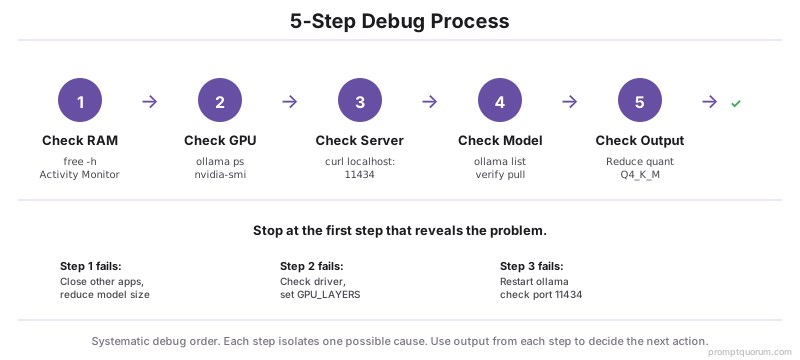
- Check available RAM: Run `free -h` on macOS/Linux, or open Task Manager → Performance → Memory on Windows.
- Switch to smaller quantization: Replace `Q8_0` or `Q5_K_M` with `Q4_K_M`. For Ollama: `ollama run llama3.2-instruct-q4_K_M`.
- Close background applications before loading the model -- browsers and other apps consume RAM, reducing what the model has available.
- Switch to smaller model: if 8B fails on 8 GB RAM, try `llama3.2:3b` (requires only ~2.5 GB).
Check Available RAM on Linux / macOS
# Linux
free -h

# macOS
vm_stat | grep "Pages free"

# More readable on macOS
top -l 1 | grep "PhysMem"
Error 2: GPU Not Being Used (Running on CPU Only)
GPU not being used means the LLM runs 5–10× slower than expected -- check driver installation before anything else. Verify that your GPU is visible to the system:
# NVIDIA — should show GPU name and driver version
nvidia-smi

# AMD on Linux
rocm-smi

# macOS — check if Metal is available
system_profiler SPDisplaysDataType | grep "Metal"
How Do You Enable GPU in Ollama?
- NVIDIA on Linux: Install NVIDIA driver 525+ and CUDA Toolkit 11.3+. Ollama auto-detects CUDA on restart.
- NVIDIA on Windows: Ensure driver version is 452.39 or higher. Ollama automatically installs CUDA support via the Windows installer.
- AMD on Linux: Install ROCm 5.7+. If detection fails, set `HSA_OVERRIDE_GFX_VERSION=11.0.0` for RX 6000-series cards.
- Apple Silicon: Ollama uses Metal by default -- no configuration needed. Confirm with `ollama ps` after loading a model; GPU layers appear in output.
Error 3: Inference Is Extremely Slow (Under 5 Tokens/Second)
Under 5 tokens/second means the model is running on CPU only or the model is too large for available VRAM. A 7B model on GPU generates 30–80 tok/s; the same model on CPU generates 3–10 tok/s.
- Confirm whether GPU is active: Run `ollama ps` while a model is loaded. The output shows how many layers are on GPU vs CPU.
- Reduce model size: a 13B model on CPU generates 3–6 tok/s. Switching to 7B doubles the speed; switching to 3B quadruples it.
- Increase GPU layers in Ollama: Set `OLLAMA_GPU_LAYERS=999` to push all layers to GPU (Ollama will cap to what fits in VRAM).
- Use faster quantization: Q4_K_M is the fastest quantization that maintains acceptable quality. Q8_0 is higher quality but ~30% slower.
Set GPU Layers in Ollama
# Set environment variable before starting Ollama
export OLLAMA_GPU_LAYERS=999
ollama serve

# Or in a Modelfile
FROM llama3.1:8b
PARAMETER num_gpu 999
Error 4: "Connection Refused" When Calling the API
Connection Refused means Ollama is not running -- the API at `localhost:11434` only responds when the service is active. Start it before making API calls.
# Start Ollama manually
ollama serve

# On Linux -- restart the systemd service
systemctl restart ollama

# Verify it is running
curl http://localhost:11434
# Expected: "Ollama is running"
Error 5: "Model Not Found" Error
"Model not found" means the model name in your command does not match any downloaded model. Model names in Ollama are case-sensitive and include version tags.
# List all downloaded models
ollama list

# Pull a model if it is missing
ollama pull llama3.2

# Check the exact model name -- tags matter
# "llama3.2" and "llama3.2:3b" are different entries
Error 6: Corrupted Model File
Corrupted model files are caused by interrupted downloads -- delete and re-pull to fix. Ollama does not always auto-detect partial downloads.
# Remove the corrupted model
ollama rm llama3.2

# Re-pull it
ollama pull llama3.2

# For LM Studio: manually delete model files
# Default location: ~/.cache/lm-studio/models/
Error 6b: "Failed to Resolve Model" in LM Studio
"Failed to resolve model lmstudio-community/..." means LM Studio cannot find the model in its registry. This typically happens when a model is downloaded from `lmstudio-community` on Hugging Face but the registry reference has changed. LM Studio is using a cached registry entry that no longer matches available model files.
- Open LM Studio → My Models tab → click the three-dot menu on the failed model → select "Delete model" (keeps the file, removes registry)
- Search for the same model in the model browser and re-download it -- LM Studio will re-register it
- Alternative: quit LM Studio, navigate to `~/.cache/lm-studio/models/`, delete the specific model folder, then re-download
# Manually clear LM Studio model cache (macOS/Linux)
rm -rf ~/.cache/lm-studio/models/lmstudio-community/<model-name>
Error 6c: "No Compatible Options Available for This Format"
This error means the downloaded model file is not a format your installed backend can run -- not a corrupted download. It appears when a `.safetensors` or MLX-only file is loaded into a llama.cpp-based backend, or when a GGUF file needs a newer runtime than the one installed.
- Check the file format: Ollama and the standard LM Studio backend run GGUF files. MLX builds only run on Apple Silicon with the MLX backend selected in LM Studio settings.
- Re-download the correct format: on the model page, choose a GGUF quantization (e.g., Q4_K_M) instead of a `.safetensors` repo.
- Update LM Studio: newer GGUF quantization schemes sometimes require a runtime update. Check Settings → Runtime for available updates before re-downloading the model.
Error 7: CUDA / ROCm Initialization Errors
CUDA and ROCm errors mean driver/library version mismatch -- update your driver to the required minimum version.
- "CUDA driver version insufficient": Update NVIDIA driver. The minimum for llama.cpp is CUDA 11.3 / driver 450.80.
- "No kernel image available for execution": Your GPU architecture is unsupported. GTX 900-series (Maxwell) and older are not supported by recent CUDA builds.
- AMD ROCm "HSA_STATUS_ERROR_INVALID_ISA": Set `HSA_OVERRIDE_GFX_VERSION=10.3.0` (for RX 6000) or `11.0.0` (for RX 7000) before starting Ollama.
- Check CUDA version: Run `nvcc --version` or `nvidia-smi | grep CUDA`.
Error 8: Garbled, Repetitive, or Nonsensical Output
Garbled output almost always means you are using a base model instead of an instruct/chat variant. Base models generate raw text completions, not answers to questions.
Base models (e.g., `llama3.1:8b`) are not fine-tuned for conversation, and when prompted with a question, generate raw completions that look like gibberish. Always use the instruct variant: `llama3.1:8b-instruct`. See How to Install LM Studio for a GUI-based method to switch model variants.
In Ollama, the default tag for most models already points to the instruct variant. If you manually downloaded from Hugging Face, confirm the filename includes "Instruct" or "chat".
Error 9: "Address Already in Use" -- Port Conflict
"Address already in use" means another process is occupying port 11434 (Ollama) or 1234 (LM Studio). Find and kill the conflicting process.
# Find what is using port 11434 (Ollama)
lsof -i :11434

# Kill it by PID
kill -9 <PID>

# Or change Ollama port
export OLLAMA_HOST=0.0.0.0:11435
ollama serve
Error 10: Model Stops Generating Mid-Response
Stopping mid-response is caused by reaching context length limits or `num_predict` set too low. The default `num_predict` in many configurations is 128 tokens -- just enough for 1–2 sentences.
- Increase num_predict: This parameter sets the maximum tokens to generate. Default is often 128. Increase it: In Ollama, add `PARAMETER num_predict 2048` to the Modelfile.
- Check context window: If your conversation is very long, the model may hit its context limit. Start a new session or use a model with a larger context window (Llama 3.2 3B supports 128K).
- Check stop tokens: Some Modelfiles include stop sequences that terminate generation early. Check the system prompt and template for unexpected stop patterns.
Error 11: "Failed to Load LLM Client" -- Unexpected Remote Host
A "failed to load LLM client: [hostname]:443" error means the application is trying to reach an external server over HTTPS -- not your local Ollama or LM Studio installation. Ollama and LM Studio never contact a remote server for inference by default; if a client throws this error against an unfamiliar domain, that app is a third-party wrapper or fork with a hardcoded remote endpoint, and that endpoint is currently unreachable.
- Identify which app is throwing the error: this message does not come from Ollama or LM Studio directly. Check the app's settings, README, or source code for a hardcoded API endpoint or license-check server.
- Check your network first: if the app is genuinely meant to call a cloud service, verify your firewall, VPN, or antivirus is not blocking outbound HTTPS on port 443 to that host.
- Switch to a purely local client if you want offline inference: use Ollama (`localhost:11434`) or LM Studio (`localhost:1234`) directly -- neither makes outbound calls to any server for local models.
- Do not enter API keys or credentials into an unfamiliar client until you have confirmed what the remote endpoint is and why the app needs it. Uninstall the app if you cannot verify its origin.
Frequently Asked Questions
What causes OOM errors in local LLMs?
OOM (out of memory) errors occur when the model size exceeds available RAM or VRAM. Fix: switch to a smaller model (`ollama run llama3.2:3b` requires ~2.5 GB) or use a lower quantization level. Run `free -h` (Linux/macOS) to check available RAM before pulling models above 7B.
Why is my GPU not detected by Ollama?
NVIDIA: install driver 525+ and CUDA toolkit 11.3+, then restart Ollama. AMD on Linux: install ROCm 5.7+. Verify detection with `nvidia-smi` (NVIDIA) or `rocm-smi` (AMD). Apple Silicon: Ollama uses Metal by default — no configuration needed. Set OLLAMA_GPU_LAYERS=999 to force full GPU offloading.
Why is port 11434 refused when I run Ollama?
Port 11434 is refused when the Ollama server is not running. Start it with `ollama serve`, then verify with `curl http://localhost:11434` — expected response is "Ollama is running". On Linux, restart the systemd service: `systemctl restart ollama`.
Why is my local LLM running on CPU instead of GPU?
Ollama falls back to CPU if GPU is not detected or VRAM is insufficient. Set the environment variable `OLLAMA_GPU_LAYERS=999` before starting Ollama to force maximum GPU offloading. Check GPU visibility first with `nvidia-smi`. If VRAM is insufficient for the full model, Ollama splits layers across GPU and CPU automatically.
What are the most common local LLM deployment errors?
The 11 most common local LLM errors are: (1) OOM/out of memory, (2) GPU not detected, (3) port 11434 refused, (4) slow CPU fallback, (5) model not found, (6) partial download corrupt, (7) generation stops early, (8) CUDA version mismatch, (9) context length exceeded, (10) incorrect model tag, (11) client trying to reach an unexpected remote host. Each has a specific fix command in Ollama and LM Studio.
How do I fix a corrupt Ollama model download?
Delete the cached model and re-pull: `ollama rm <model-name>` then `ollama pull <model-name>`. Corrupt downloads happen when a pull is interrupted. Ollama does not always detect partial downloads automatically.
How do I check if Ollama is using my GPU?
Run `ollama ps` while a model is loaded — the output shows which layers are on GPU vs CPU. Alternatively, monitor GPU utilization with `nvidia-smi -l 1` (updates every second). If GPU utilization stays at 0%, Ollama is running on CPU only — check driver installation and CUDA compatibility.
Why does my LLM generation stop early?
Early generation stops are usually caused by stop tokens in the Modelfile. Check the system prompt and template for unexpected stop sequences. Also verify the `num_predict` parameter — if set low, Ollama will truncate output at that token count. Default is -1 (unlimited).
Where to Find More Help
For hardware-specific issues on laptops (thermal throttling, battery drain), see How to Run Local LLMs on a Laptop. For security and privacy configuration questions, see Local LLM Security & Privacy Checklist. The Ollama GitHub issues page (github.com/ollama/ollama/issues) and r/LocalLLaMA subreddit are the most active community resources for model-specific bugs.
Common Mistakes in Local LLM Troubleshooting
- Confusing OOM errors with hardware failure -- the error means RAM is too small for the model, not that hardware is broken. Fix: use Q4_K_M quantization or smaller model.
- Not checking system load -- inference speed degrades significantly when other applications consume CPU/GPU. Close your browser, video player, and background processes before benchmarking.
- Ignoring driver version incompatibility -- NVIDIA CUDA requires specific driver versions per CUDA release. Check `nvidia-smi` output; driver version must be ≥450.80 for CUDA 11.x.
- Using wrong model name in Ollama -- `llama3.2` and `llama3.2:3b` are different Ollama tags. Run `ollama list` to see the exact names of downloaded models.
- Not restarting Ollama after driver update -- Ollama detects GPU at startup. After updating NVIDIA or ROCm drivers, fully restart Ollama (`ollama serve`) to re-detect GPU.
Sources
- NVIDIA. (2024). "CUDA Toolkit Release Notes." docs.nvidia.com/cuda/cuda-toolkit-release-notes/ — Official CUDA driver version requirements per release.
- Ollama. (2026). "Ollama Troubleshooting." github.com/ollama/ollama/blob/main/docs/troubleshooting.md — Official Ollama documentation for common errors.
- AMD. (2024). "ROCm Installation Guide." rocm.docs.amd.com/projects/install-on-linux/en/latest/ — Official AMD ROCm installation and Linux GPU support.