Key Takeaways
- Quantization converts 16-bit model weights to 4-bit or 8-bit, reducing RAM by 50-75%.
- Q4_K_M is the standard recommended level -- best balance of quality and RAM for consumer hardware.
- A 7B model at FP16 = ~14 GB RAM. At Q4_K_M = ~4.5 GB. At Q8_0 = ~7 GB.
- Quality loss at Q4_K_M is 1-3% on MMLU benchmarks compared to FP16 -- imperceptible in most practical tasks.
- GGUF is the file format that stores quantized models for llama.cpp, Ollama, and LM Studio.
📍 In One Sentence
Q4_K_M is the recommended default quantization: it cuts a 7B model from 14 GB to 4.5 GB with under 1% quality loss, and runs on any 6 GB+ GPU.
💬 In Plain Terms
Quantization is like compressing an image — the AI model takes less memory and runs faster, with only a tiny drop in quality. Q4_K_M is the most common "compressed" format for local LLMs.
What Is LLM Quantization and Why Does It Matter?
Quantization converts 16-bit model weights (FP16) to 4-bit or 8-bit integers, reducing RAM by 50-75% with only 1-3% quality loss at Q4_K_M. A large language model stores its learned knowledge as billions of numerical weights. By default, these are stored as 16-bit floating-point numbers (FP16) -- two bytes per weight. A 7B model has 7 billion weights, so the FP16 file size is approximately 14 GB.
Quantization replaces these 16-bit floats with lower-precision integers. At 4-bit quantization, each weight uses 0.5 bytes instead of 2 -- cutting memory to ~3.5 GB for the weights alone. With metadata overhead, a quantized 7B model at Q4_K_M is approximately 4.5 GB.
This matters for local inference because consumer hardware has limited RAM. Without quantization, a 7B model requires 16 GB of RAM to run. With Q4_K_M quantization, the same model runs on 6 GB of RAM, making it accessible on most modern laptops.
What is Q4_K_M Quantization?
Q4_K_M is a 4-bit GGUF quantization format used in llama.cpp and Ollama. The "K" means it uses K-quants (mixed precision), and "M" = medium — a balance between model size, speed, and quality loss. Q4_K_M stores most weights at 4-bit but uses 6-bit for the most sensitive layers, giving it a better quality-to-size ratio than pure 4-bit Q4_0.
- Q4_K_M uses ~4.5 GB RAM for a 7B model — 70% less than FP16 — with only 1–3% quality loss
- K-quants apply different precision to different weight groups based on sensitivity (important weights get more bits)
- The "M" variant is the standard recommended version (lighter "S" and heavier "L" variants also exist)
- Q4_K_M is the default choice for consumer hardware with 6–16 GB VRAM
- Works with Ollama (`ollama run model:q4_k_m`), LM Studio, and llama.cpp
How Do Q4_K_M, Q5_K_M, Q8_0, and Other Levels Differ?
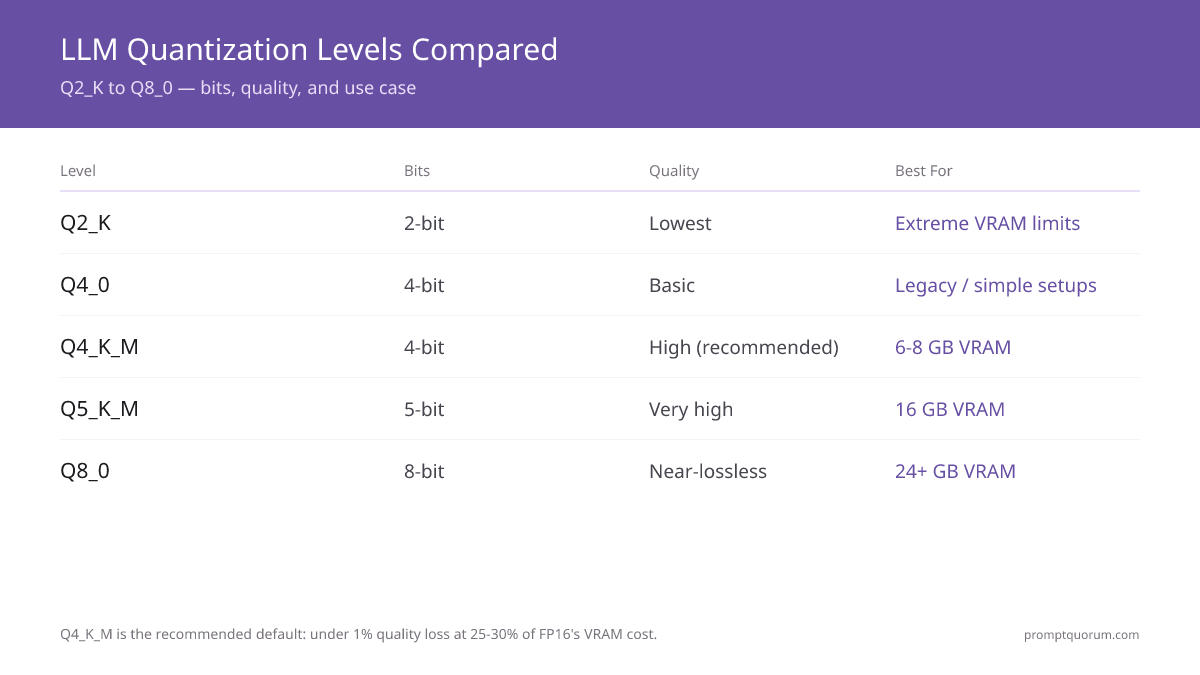
Q4_K_M at 4-bit is the standard recommendation -- approximately 4.5 GB RAM for a 7B model with only 1-3% quality loss vs FP16. Quantization names follow a pattern: Q{bits}_{variant}. The bit count is the weight precision; the variant affects how the quantization is applied:
Level | Bits | RAM (7B) | Quality Loss | Use When |
|---|---|---|---|---|
| Q2_K | 2 | ~2.7 GB | High | RAM < 4 GB, accept quality degradation |
| Q3_K_S | 3 | ~3.3 GB | Moderate | RAM 4-5 GB |
| Q4_K_M | 4 | ~4.5 GB | Low (1-3%) | Default for most users |
| Q5_K_M | 5 | ~5.7 GB | Minimal (<1%) | 16 GB RAM, want better quality |
| Q6_K | 6 | ~6.6 GB | Near-lossless | 16 GB RAM, coding/math tasks |
| Q8_0 | 8 | ~7.7 GB | Negligible | 16+ GB RAM, maximum quality |
Interactive VRAM Calculator
Use this calculator to compute exact VRAM requirements for any combination of model, quantization, context, and batch size. Select your configuration and see which GPUs fit.
Popular Models
Base Model
6.50 GB
Context OH
1.50 GB
Batch OH
0.00 GB
System OH
1.00 GB
Total Minimum
9.00 GB
Recommended (with 25% safety margin)
11.25 GB
👉 Look for a GPU with at least 11.25 GB VRAM
Compatible GPUs
RTX 3060 (12 GB)
0.8 GB headroom
RTX 4060 Ti (16 GB)
4.8 GB headroom
RTX 4070 Ti Super (16 GB)
4.8 GB headroom
RTX 4080 Super (16 GB)
4.8 GB headroom
RTX 4090 (24 GB)
12.8 GB headroom
RTX 5090 (32 GB)
20.8 GB headroom
Mac Mini M6 (32 GB) (32 GB)
20.8 GB headroom
Mac Mini M5 Pro (64 GB) (64 GB)
52.8 GB headroom
Mac Studio M5 Max (128 GB) (128 GB)
116.8 GB headroom
Mac Studio M5 Ultra (96 GB+) (96 GB)
84.8 GB headroom
💡 Pro Tips:
- Always use the "with safety margin" figure when buying a GPU
- Q4 gives 90-95% quality with 25% size reduction. Q5 is better if you have room
- Context overhead grows with conversation length. Budget 1-3 GB for typical usage
- Batch size matters for multi-user APIs. Single-user chat can ignore batch overhead
📋 Share this configuration:
What is Q8_0 Quantization?
Q8_0 is an 8-bit GGUF quantization format that is effectively lossless — under 0.5% quality degradation versus FP16 — at roughly half the file size. Each weight is stored in 8 bits plus a small per-block scale, so a 7B model is ~7.7 GB instead of ~14 GB at FP16. Unlike the K-quants (Q4_K_M, Q5_K_M), Q8_0 uses uniform 8-bit precision for every weight — there is no mixed-precision "K" variant because 8 bits already preserves almost all information.
- Q8_0 uses ~7.7 GB RAM for a 7B model — about 45% less than FP16 — with negligible quality loss
- Best choice when you have 16+ GB VRAM and want maximum fidelity (coding, math, agents)
- Little measurable benefit over Q6_K for general chat, but the safest pick when quality matters most
- Run with `ollama run model:q8_0`, or select the Q8_0 GGUF in LM Studio
Q4_0 vs Q4_K_M: Which 4-Bit Format Is Better?
Choose Q4_K_M over Q4_0. Both average 4 bits per weight, but Q4_K_M is a K-quant that stores the most sensitive layers at 6-bit, recovering 5–8% quality at the same ~4.5 GB footprint for a 7B model. Q4_0 is the original uniform 4-bit format from early llama.cpp and exists today only for legacy compatibility. There is no size or speed reason to pick Q4_0 when Q4_K_M is available.
Format | Method | RAM (7B) | Quality | Pick When |
|---|---|---|---|---|
| Q4_0 | Uniform 4-bit (legacy) | ~4.0 GB | ~5–8% worse than Q4_K_M | Only if Q4_K_M is unavailable |
| Q4_K_M | K-quant, mixed 4/6-bit | ~4.5 GB | 1–3% loss vs FP16 | Default for almost everyone |
Q4_K_M vs Q4_K_XL: Standard K-Quant vs Dynamic Upcast
Q4_K_M is llama.cpp's standard 4-bit K-quant. Q4_K_XL is not a standard type — it is an Unsloth "Dynamic" GGUF variant that keeps a 4-bit base but upcasts the most sensitive layers (embeddings, attention and output) to higher precision. File size and quality land between Q4_K_M and Q5_K_M — the same principle Q8_K_XL applies over Q8_0, just on a 4-bit base.
Exact Q4_K_XL file sizes vary by model and by how many layers Unsloth upcasts, so check the size shown in LM Studio or on Hugging Face before downloading rather than planning around a fixed number. Practical rule: if Q5_K_M fits your VRAM, take Q5_K_M — it is a standard format with wider tool support. Q4_K_XL is the in-between step for when Q4_K_M fits but Q5_K_M just misses.
Format | Type | Precision | Quality | Choose when |
|---|---|---|---|---|
| Q4_K_M | Standard llama.cpp | Mixed 4/6-bit | 1–3% loss | Default for almost everyone |
| Q4_K_XL | Unsloth Dynamic | 4-bit + sensitive layers higher | Between Q4_K_M and Q5_K_M | Q5_K_M just misses your VRAM |
| Q5_K_M | Standard llama.cpp | Mixed 5/6-bit | Under 1% loss | VRAM free, standard tooling |
Q4_K_M vs Q4_K_S: Which Should You Choose?
Q4_K_M and Q4_K_S are both 4-bit K-quants; the difference is how many layers stay at higher precision. Q4_K_M (Medium) keeps more sensitive layers at 6-bit, while Q4_K_S (Small) pushes more weights to 4-bit to save ~0.3–0.4 GB on a 7B model. Measured on llama.cpp, Q4_K_S adds about +0.11 perplexity at 7B versus +0.05 for Q4_K_M — roughly 3–5% more quality loss. Pick Q4_K_S only when those few hundred megabytes decide whether the model fits in VRAM.
Format | Variant | RAM (7B) | Quality Loss | Pick When |
|---|---|---|---|---|
| Q4_K_S | Small | ~4.1 GB | ~4–6% (small but real) | Need ~0.4 GB to fit VRAM |
| Q4_K_M | Medium | ~4.5 GB | 1–3% (balanced) | Default — better quality for ~0.4 GB more |
Q8_0 vs Q4_K_M: Is 8-Bit Worth Double the VRAM?
For most chat and writing tasks, Q4_K_M is the better trade — it uses ~4.5 GB for a 7B model versus ~7.7 GB for Q8_0, with only 1–3% more quality loss. Choose Q8_0 (needs 16+ GB VRAM) when you need maximum fidelity for coding, math, or agentic tool use, where small errors compound. Q8_0 loses under 0.5% versus FP16; Q4_K_M loses 1–3%. The gap is imperceptible in everyday use but can matter on precise numerical reasoning.
Format | Bits | RAM (7B) | Quality Loss | Best For |
|---|---|---|---|---|
| Q4_K_M | ~4 | ~4.5 GB | 1–3% | 6–16 GB VRAM, general use |
| Q8_0 | 8 | ~7.7 GB | <0.5% | 16+ GB VRAM, coding/math/agents |
Q8_0 vs Q8_K_XL: Is Dynamic Upcast Worth the Extra VRAM?
Q8_0 is the standard llama.cpp 8-bit quant — every weight at 8-bit, ~7.7 GB for a 7B model, under 0.5% loss versus FP16. Q8_K_XL is not a stock llama.cpp type: it is an Unsloth "Dynamic" GGUF variant that keeps an 8-bit base but upcasts the most sensitive layers (embeddings, attention, and output) to 16-bit (BF16/F16), pushing quality closer to full FP16 at a slightly larger file size. Q8_K_XL targets users who want the last fraction of a percent of accuracy and have VRAM to spare.
Exact Q8_K_XL file sizes vary by model and by how many layers Unsloth upcasts, so verify the size shown in your tool (LM Studio or Hugging Face) before downloading. For a 7B–8B model expect it to sit slightly above Q8_0; on very large models the gap is wider. Because Q8_0 is already effectively lossless for most users, Q8_K_XL is worth it only when you specifically need maximum fidelity and the extra VRAM is free.
Format | Type | Precision | Quality | Pick When |
|---|---|---|---|---|
| Q8_0 | Standard llama.cpp | Uniform 8-bit | <0.5% loss vs FP16 | Maximum quality, standard tooling |
| Q8_K_XL | Unsloth Dynamic GGUF | 8-bit + key layers upcast to 16-bit | Near-lossless (largest 8-bit option) | Want last 0.5% fidelity, spare VRAM |
What Is GGUF Format and How Does It Relate to Quantization?
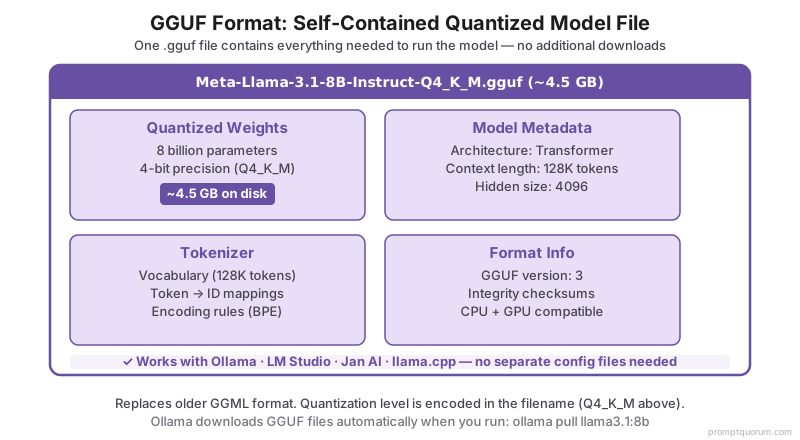
GGUF (GPT-Generated Unified Format) is the single-file standard for quantized LLM weights, containing model weights, metadata, and tokenizer -- used by Ollama, LM Studio, and llama.cpp. It was created by the llama.cpp project and replaces the older GGML format.
A GGUF file contains: the quantized model weights, all model metadata (architecture, tokenizer, context length), and a format version number. This self-contained design means a single `.gguf` file is everything needed to run the model -- no separate tokenizer files, no configuration JSON.
GGUF is the standard format for Ollama, LM Studio, Jan AI, and GPT4All. When you run `ollama pull llama3.1:8b`, Ollama downloads a GGUF file internally. When LM Studio shows model file sizes, those are GGUF file sizes.
The quantization level is part of the filename: `Meta-Llama-3.1-8B-Instruct-Q4_K_M.gguf` is a Q4_K_M quantized GGUF of Llama 3.1 8B.
How Much RAM Does Quantization Save for Different Model Sizes?
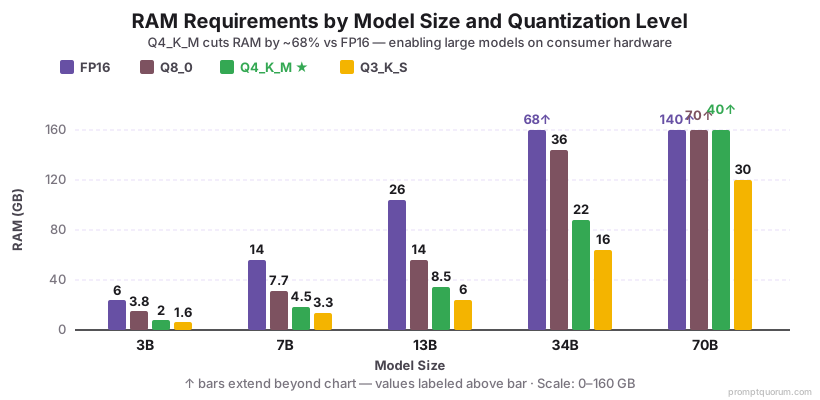
Quantization cuts RAM by 50–75%: a 7B model drops from ~14 GB at FP16 to ~4.5 GB at Q4_K_M, with under 1% quality loss on standard benchmarks.
Model Size | FP16 | Q8_0 | Q4_K_M | Q3_K_S |
|---|---|---|---|---|
| 3B | ~6 GB | ~3.8 GB | ~2 GB | ~1.6 GB |
| 7B | ~14 GB | ~7.7 GB | ~4.5 GB | ~3.3 GB |
| 13B | ~26 GB | ~14 GB | ~8.5 GB | ~6 GB |
| 34B | ~68 GB | ~36 GB | ~22 GB | ~16 GB |
| 70B | ~140 GB | ~70 GB | ~40 GB | ~30 GB |
How Much Quality Do You Actually Lose with Quantization?
Q4_K_M loses 1-3% on MMLU benchmarks vs FP16 -- imperceptible in most practical tasks. Q3_K_S loses 5-10% and is noticeable on math and reasoning. Quality loss from quantization is measured by comparing benchmark scores between full-precision and quantized versions. The established findings are:
Quantization reduces memory usage but can degrade output quality. Well-engineered prompts compensate: techniques like few-shot examples and explicit output constraints help quantized models maintain accuracy. See prompt engineering techniques for methods that work at any quantization level.
- Q4_K_M vs FP16: 1-3% degradation on MMLU. On a 7B model scoring 73% at FP16, Q4_K_M scores 71-72%. In practical tasks, this difference is imperceptible.
- Q3_K_S vs FP16: 5-10% degradation. Noticeable on complex reasoning and math tasks. A model that correctly solves a math problem at FP16 may fail at Q3_K_S.
- Q2_K vs FP16: 15-25% degradation. Significant quality loss across all task types. Only use when RAM constraint is absolute.
- Q8_0 vs FP16: under 0.5% degradation -- essentially identical for all practical purposes.
- The K_M variants (K-Quant Medium) use a mixed-precision approach that preserves quality better than older Q4_0 quantization at the same bit count. Always prefer Q4_K_M over Q4_0 when both are available.
Which Quantization Should You Use? (Quick Decision Tree)
Choose based on your available VRAM, not on the model size alone. The table below shows which quantization to select for different hardware constraints.
📍 In One Sentence
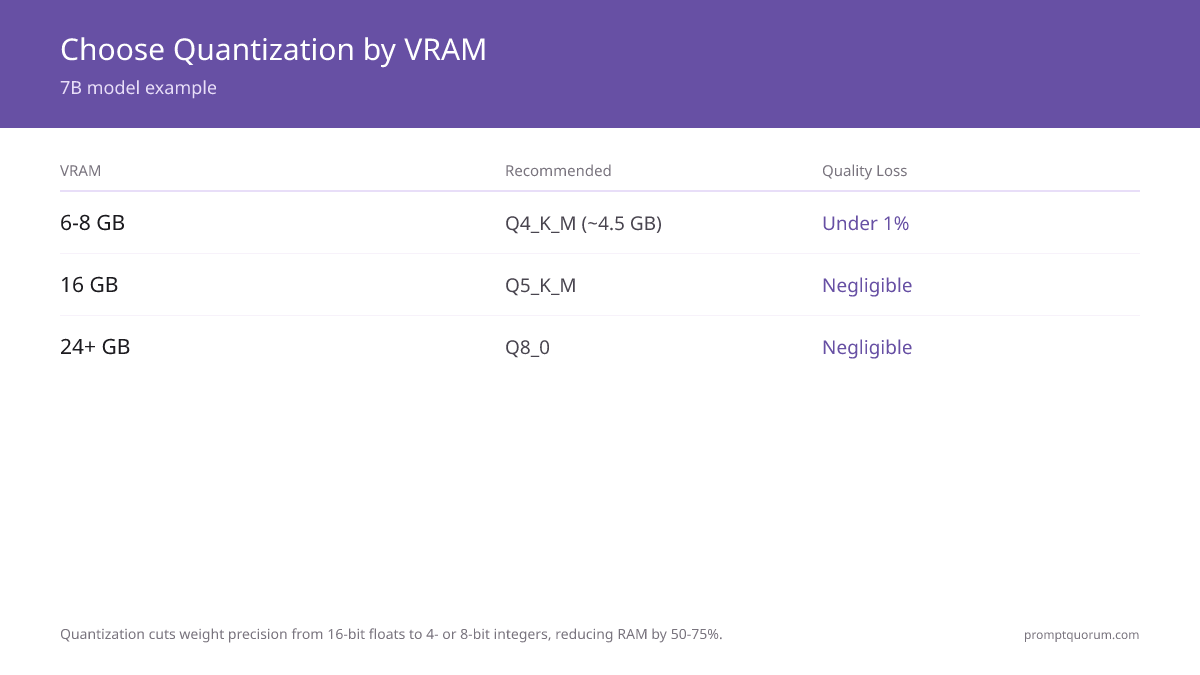
Use Q4_K_M for 6–8 GB VRAM, Q5_K_M for 12–16 GB, Q8_0 for 24+ GB, and IQ4_XS only when VRAM is extremely tight.
💬 In Plain Terms
Think of quantization levels like video quality settings: Q8_0 is 1080p (near-perfect, needs more space), Q4_K_M is 720p (good enough, half the storage), Q2_K is 360p (you notice the difference).
- For 6 GB RAM (most common laptop/desktop): Use Q4_K_M. A 7B model quantized to Q4_K_M is ~4.5 GB, leaving 1.5 GB for the OS and browser.
- For coding or math tasks: Use Q5_K_M or higher even if you have budget for Q4_K_M. Quantization effects (1–3% loss) are most visible on precise numerical reasoning. For an end-to-end air-gapped coding setup that pairs Q5_K_M Qwen3-Coder with no-internet operation, see Local Coding LLM Without Internet.
- Quantization + Temperature trade-off: A Q4_K_M model at temperature 0.3 produces more deterministic output than a full-precision (FP16) model at temperature 1.0. For independent tuning, see temperature and top-p: control AI creativity.
- For smart home and edge devices: Q4_K_M (4–8 GB VRAM) is the sweet spot for always-on home automation AI running on a mini PC. See best local LLM models for smart home →.
Your VRAM | Best Quantization | Model Size | Quality |
|---|---|---|---|
| 4–6 GB | Q3_K_S or Q4_K_M | 3B, 7B (Q4) | 7B (Q3) | 5–10% loss (Q3) | 1–3% (Q4) |
| 6–8 GB | Q4_K_M (recommended) | 7B native | 1–3% loss (imperceptible) |
| 12–16 GB | Q5_K_M | 7B, 13B native | <1% loss (minimal) |
| 24 GB (RTX 4090) | Q5_K_M or Q6_K | 13B, 32B native | Q4 + offload for 70B | Negligible <0.5% |
| 32 GB (RTX 5090) | Q5_K_M, Q6_K, or Q8_0 | 70B at Q4 (35 GB), Q5 (43 GB) | 0–2% loss |
| 48+ GB (2× RTX 4090) | Q5_K_M or Q8_0 | 70B native with layer splitting | Negligible <0.5% |
How Do You Select Quantization in LM Studio?
LM Studio (desktop app) shows available quantization variants for each model download. When searching for a model, you\'ll see multiple GGUF options: Q2_K, Q3_K_S, Q4_K_M, Q5_K_M, Q6_K, Q8_0.
Step 1: Open LM Studio → Navigate to the "Local Models" tab. Search for a model (e.g., "Llama 3.1 8B"). Step 2: Each model shows available quantizations. Look at the file size to estimate VRAM usage. Q4_K_M for a 7B model is usually listed as ~4.5 GB. Step 3: Click the download icon next to your chosen quantization.
Recommended defaults for LM Studio:
- If your GPU has 6-8 GB VRAM (RTX 4060, RTX 3060 Ti, RTX 4060 Ti): Download the Q4_K_M variant (smallest file with acceptable quality).
- If your GPU has 12-16 GB VRAM (RTX 4070, RTX 4080): Download Q5_K_M or Q6_K (better quality, still well within VRAM).
- If your GPU has 24+ GB VRAM (RTX 4090, RTX 5090): Download Q8_0 or FP16 (maximum quality, minimal speed penalty).
LM Studio\'s "GPU offload" feature: Check the "Use GPU" toggle in the chat interface. LM Studio will automatically move as many model layers to GPU as VRAM allows, offloading the rest to CPU RAM. If your system RAM is sufficient, this allows running models slightly larger than your GPU VRAM (e.g., Llama 3.3 70B Q4_K_M on RTX 4090 with 64+ GB system RAM).
When Should You Use CPU RAM Offloading?
When VRAM is full, models can offload (move) layers to system RAM. Offloading trades speed for capacity.
Scenario: Running 70B Q4 model on RTX 4090 (24 GB). Model needs 35 GB. With offloading, run at ~5-10 tokens/sec (80% to RAM).
Offloading is a last resort -- it makes inference impractical. Use only for offline batch processing or experimentation.
# Ollama: enable offloading
export OLLAMA_NUM_GPU=0  # Disable GPU (force CPU)
ollama run llama3.3:70b

# vLLM: enable CPU offload (partial)
vllm serve meta-llama/Llama-3.3-70B-Instruct \
  --gpu-memory-utilization 0.7 \
  --cpu-offload-gb 10  # Offload 10GB to RAM
How Do You Split a Model Across Multiple GPUs?
Modern inference engines (vLLM, llama.cpp) can split a model across multiple GPUs automatically. Learn more about Multi-GPU Local LLMs for advanced setups.
Example: 70B model with 2× RTX 4090:
- Without splitting: Impossible (needs 40+ GB VRAM in one GPU).
- With splitting: Half the model weights on each GPU. Inference speed: ~100 tokens/sec (communication overhead is minimal).
Layer splitting is practical for production deployments and is transparent to the user.
# vLLM: automatic tensor parallelism
vllm serve meta-llama/Llama-3.3-70B-Instruct \
  --tensor-parallel-size 2  # Split across 2 GPUs

# llama.cpp: multi-GPU support
ollama run llama3.3:70b  # Auto-detects and splits across GPUs
What Is KV Cache Quantization and When Does It Help?
KV Cache quantization reduces the memory required to store attention key-value pairs during inference, particularly important when processing long contexts (32K+ tokens). While model weight quantization (Q4_K_M) is most common, KV cache quantization targets a different memory bottleneck.
During inference, the model maintains running key-value (KV) pairs for each token in the context. For a 7B model processing a 32K-token context, KV cache alone can consume 8–16 GB of VRAM depending on the precision. Standard KV cache uses FP16 (2 bytes per value); quantizing the KV cache to FP8 or Q8 reduces this by 50%.
How to enable KV Cache quantization:
- Ollama: Automatic on compatible models; no user configuration needed.
- LM Studio: Check "KV cache quantization" toggle in Settings (if available on your version).
- llama.cpp: Start the server with `--cache-type-k q8_0 --cache-type-v q8_0` (short form: `-ctk q8_0 -ctv q8_0`). Use `q4_0` instead of `q8_0` to halve the KV cache again.
Trade-offs: KV cache quantization has minimal quality impact (<1% degradation even with aggressive quantization) because attention patterns are more robust to lower precision than model weights. Recommended for models processing 16K+ contexts on constrained hardware.
Which Combination of Quantization Techniques Works Best?
Best results come from combining all three techniques. See VRAM Requirements Guide for specific hardware planning.
Scenario 1: 70B on single RTX 4090 (24 GB)
- Quantize to Q4 (35 GB → 18 GB)
- Use offloading for remaining 6 GB (to system RAM)
- Result: ~8-10 tokens/sec (slow but works)
Scenario 2: 70B on 2× RTX 4090
- Quantize to Q5 (43.75 GB)
- Use layer splitting across 2 GPUs (22 GB each)
- Result: ~100 tokens/sec (practical)
What Are the Performance Trade-offs?
Each technique trades VRAM reduction for speed penalties. Quantization has minimal impact; offloading causes 5–10× slowdown; layer splitting adds ~5% overhead.
Technique | VRAM Saved | Speed Impact | Quality Impact |
|---|---|---|---|
| Quantization (Q4) | 50% | None (±5%) | Minor |
| Offloading (CPU RAM) | 60-80% | 5-10× slower | None |
| Layer splitting (2 GPUs) | N/A (enables larger models) | 5-10% slower | None |
| Quantization + Offloading | 75-90% | 3-5× slower | Minor |
Can Mac Studio M5 Ultra Run 70B Models Without Offloading?
Mac Studio with M5 Ultra (from $5,499, 96 GB unified memory standard, up to 512 GB) runs Llama 3.3 70B at Q4 natively — no offloading, no layer splitting required.
Apple refreshed the Mac Studio lineup on August 25, 2026 with two chips: M5 Max ($2,499, up to 128 GB unified memory, up to 614 GB/s bandwidth per Apple's published specs) and M5 Ultra ($5,499 starting at 96 GB, up to 512 GB, up to 1.2 TB/s bandwidth per Apple's published specs). Both replace the previous M2 Ultra generation (192 GB max, ~800 GB/s). DDR5 system RAM offloading is still capped at ~90 GB/s -- that bandwidth gap is why unified memory outperforms CPU-RAM offloading for 70B-class models.
Independent throughput benchmarks for M5 Max and M5 Ultra are not yet available. Standard configurations ship September 22, 2026, and the 512 GB M5 Ultra configuration ships in late October 2026. PromptQuorum has not tested this hardware -- tokens-per-second figures below are omitted for the new chips until independent measurements exist.
Setup | Model | Speed | Complexity |
|---|---|---|---|
| 1× RTX 4090 + offloading | Llama 3.3 70B Q4 | 5–10 tok/sec | Medium |
| 2× RTX 4090 layer split | Llama 3.3 70B Q5 | ~100 tok/sec | High |
| 1× RTX 5090 (32 GB) | Llama 3.3 70B Q4 | 10–12 tok/sec | Low |
| Mac Studio M5 Ultra (96 GB+) | Llama 3.3 70B Q4 | Not yet benchmarked | Low (plug & play) |
How Does LLM Quantization Apply Across Different Regions?
- EU (GDPR, Article 44) -- Cross-border AI data transfers require adequacy decisions or Standard Contractual Clauses. Q4_K_M quantization enables 7B models to run on 8 GB edge devices, eliminating third-party cloud API calls entirely. The German BfDI and French CNIL both recommend local inference for high-risk AI processing under GDPR Article 22. Quantized Mistral and Llama models are the dominant choices in EU enterprise deployments for this reason.
- Japan (METI AI Governance Guidelines 2024) -- Japan's Ministry of Economy, Trade and Industry requires AI governance documentation for enterprise deployments. Quantized models on domestic infrastructure satisfy METI's "controllability" requirements -- the model weights stay on-premises. Q4_K_M quantization makes 13B-32B models feasible on 16-32 GB corporate servers without GPU clusters. Qwen3 and Llama 3 are the most-deployed families in Japanese enterprise settings.
- China (CAC Generative AI Regulations 2023) -- China's Cyberspace Administration requires security assessments for publicly deployed AI and data localization for user data. Quantized Chinese-native models (Qwen3, Baichuan2, Yi) run entirely on domestic hardware, satisfying CAC localization requirements. Q4_K_M and Q5_K_M quantization reduce hardware costs by 60-70% versus FP16, making on-premises CAC compliance economically viable for mid-sized enterprises.
What Are the Common Mistakes with LLM Quantization?
- Downloading Q4_0 instead of Q4_K_M -- Q4_0 is an older quantization method without K-Quant improvements. Q4_K_M is 5-8% better quality at the same RAM footprint. When both are available, always choose Q4_K_M.
- Assuming higher quantization always means worse quality -- Higher Q number = more bits = better quality. Q8_0 is better than Q4_K_M. Q5_K_M is better than Q4_K_M. A Q4_K_M 70B model will outperform a Q8_0 7B model on most tasks.
- Not checking RAM headroom before loading a model -- The model size is not the only RAM consumer. OS, browser, and other applications use RAM too. On an 8 GB machine, a 4.5 GB Q4_K_M 7B model leaves only 3.5 GB for everything else. Rule: model file size + 2 GB OS overhead + 1 GB headroom = minimum required RAM.
Next steps
- How Much VRAM Do I Need? — Apply quantization knowledge to your VRAM budget →
- Best CPU-Only LLMs — Best quantized models for CPU-only inference →
- Best Open-Source Models on Ollama — Now that you know quant levels, pick a model to download →
Common Questions About LLM Quantization
What is Q4_K_XL and is it worth it over Q4_K_M?
Q4_K_XL is not a standard llama.cpp format but an Unsloth Dynamic GGUF variant. It keeps Q4_K_M's 4-bit base but stores the most sensitive layers at higher precision, so file size and quality land between Q4_K_M and Q5_K_M. It is worth it mainly when Q5_K_M just misses your VRAM — if Q5_K_M fits, take Q5_K_M, because it is a standard format with wider tool support.
Q5_K_M or Q5_K_XL — what is the difference?
The same principle as at Q4 and Q8: Q5_K_M is llama.cpp's standard K-quant, Q5_K_XL is Unsloth's Dynamic variant with higher-resolution sensitive layers and a correspondingly larger file. Since Q5_K_M already sits under 1% quality loss, the practical gain is small. Check the actual file size in your tool before choosing the XL variant.
FP8 or Q8_0 — which should I use?
For local execution through llama.cpp, Ollama or LM Studio, Q8_0 is the relevant format. FP8 is a datatype that matters mainly for server inference on current NVIDIA hardware and is not a common download option in the GGUF ecosystem. Q8_0 already sits under 0.5% quality loss against FP16, so the real choice is between Q8_0 and the smaller K-quants.
Are Q4_0 and Q4_1 still relevant?
No — both are older formats without the K-quant improvements. Q4_0 quantizes all weights uniformly at 4 bits; Q4_1 adds an offset but is equally superseded. Q4_K_M reaches noticeably better quality at practically the same memory footprint. If you see both in a repository, take Q4_K_M — Q4_0 and Q4_1 now appear only on older model uploads.
Does Ollama automatically use the best quantization?
Yes -- when you run `ollama pull llama3.1:8b`, Ollama downloads the Q4_K_M variant by default. To pull a specific quantization, append the tag: `ollama pull llama3.1:8b-instruct-q5_K_M`. Available quantization tags for each model are listed on the model's page at ollama.com/library.
Can I quantize a model myself instead of downloading a pre-quantized version?
Yes -- llama.cpp includes a `quantize` binary that converts GGUF files to any supported quantization level. The process takes 5-30 minutes depending on model size. Most users should download pre-quantized GGUF files from Hugging Face rather than quantizing themselves, as the results are equivalent.
Does quantization affect the model's context window?
No -- quantization only affects model weight precision, not the context length. A Llama 3.1 8B model supports 128K tokens whether quantized to Q4_K_M or run at FP16. However, processing longer contexts requires more RAM regardless of quantization -- processing a 64K token context with a Q4_K_M 7B model may require 10+ GB RAM.
What is the difference between GGUF and GPTQ quantization?
GGUF (llama.cpp format) and GPTQ are two different quantization approaches. GGUF uses K-Quants and runs on CPU and GPU. GPTQ is GPU-only and requires PyTorch. For local inference with Ollama, LM Studio, or Jan AI, GGUF is the correct format. GPTQ is used with GPU-focused inference frameworks like AutoGPTQ and vLLM.
Is there a quality difference between Q4_K_M models from different providers on Hugging Face?
The quantization algorithm is standardized in llama.cpp, so Q4_K_M quantizations of the same base model should be nearly identical regardless of who created the GGUF file. However, some providers apply additional adjustments (imatrix quantization) that improve quality. Files described as "imat" or "importance matrix" quantized are generally higher quality at the same bit count.
What is the difference between Q4_K_M and Q4_0?
Q4_K_M and Q4_0 are both 4-bit quantization, but they use different algorithms. Q4_0 is the original uniform 4-bit format from early llama.cpp. Q4_K_M is a K-Quant introduced in 2023 -- it groups weights into blocks and applies mixed precision within each block, recovering 5-8% quality at the same RAM footprint. When you see both on Hugging Face, always choose Q4_K_M. Q4_0 only exists for legacy compatibility.
What is imatrix quantization?
Imatrix (importance matrix) quantization uses calibration data to assign different precision levels to different weights based on their importance to model output. Weights that most affect predictions are quantized with more bits; less important weights use fewer bits. Result: better quality at the same bit count compared to uniform quantization. Qwen3 imatrix quantizations are 2-4% better than standard Q4_K_M.
What's the difference between Q4_K_M and Q4_K_S?
Both are 4-bit quantization, but K_M (Medium) and K_S (Small) differ in memory allocation per quantization block. Q4_K_M uses more metadata for better quality reconstruction -- typically 4.5-5 GB for a 7B model. Q4_K_S is more aggressive -- saves 300-400 MB compared to K_M but with 3-5% quality loss. Use Q4_K_M unless you're on extremely constrained hardware (< 4 GB RAM).
What is the difference between Q8_0 and Q8_K_XL?
Q8_0 is the standard llama.cpp 8-bit quantization -- every weight at 8-bit, about 7.7 GB for a 7B model, under 0.5% quality loss versus FP16. Q8_K_XL is not a stock llama.cpp type; it is an Unsloth "Dynamic" GGUF variant that keeps an 8-bit base but upcasts the most sensitive layers (embeddings, attention, output) to 16-bit, nudging quality closer to full FP16 at a slightly larger file size. Q8_0 is already effectively lossless for most users, so Q8_K_XL only helps if you need the last fraction of a percent of accuracy and have spare VRAM. File sizes vary by model -- check the size in LM Studio or on Hugging Face before downloading.
Can I switch between quantization levels without redownloading the model?
No -- switching quantization levels requires downloading a different GGUF file or re-quantizing the base model yourself. Once a model is quantized to Q4_K_M, you cannot convert it back to Q5_K_M without the original FP16 model. Most users download pre-quantized GGUF files from Hugging Face for their desired quantization level.
How does quantization affect inference speed?
Quantization typically increases inference speed by 10-40% because loading and processing 4-bit weights is faster than 16-bit floats. A Q4_K_M 7B model runs at ~8-12 tok/s on a consumer CPU; the same model at FP16 runs at ~1-2 tok/s. GPU performance gain from quantization is smaller (5-15% faster) because GPUs are already optimized for float arithmetic.
What quantization level does Ollama use by default?
Ollama defaults to Q4_K_M for all models in its library. When you run `ollama pull llama3.1:8b`, you're downloading the Q4_K_M variant. This default balances quality and RAM requirements well for most users. To pull a different quantization, append the tag: `ollama pull llama3.1:8b:q5_k_m` or `ollama pull llama3.1:8b:q8_0`.
Can I run Llama 3.3 70B on a single RTX 4090?
Yes, but slowly. Quantize to Q4 (35 GB), offload 11 GB to system RAM. Expect 5-10 tok/sec — too slow for real-time chat, fine for batch processing. For practical 70B inference: 2× RTX 4090 with layer splitting (~100 tok/sec) or Mac Studio with M5 Ultra, which fits the model natively in unified memory (independent tok/sec benchmarks aren't available yet -- the chip ships September 22, 2026).
What is the difference between quantization and offloading?
Quantization reduces model weight precision permanently (FP16 → Q4), shrinking the model file. Offloading moves model layers from VRAM to system RAM at runtime. Quantization has minimal quality impact (±5%); offloading causes 5–10× speed degradation. Use quantization first, offloading as last resort.
Does Mac Studio M5 Ultra need quantization for 70B models?
Only mild quantization. Mac Studio with M5 Ultra starts at 96 GB unified memory (up to 512 GB) and holds Llama 3.3 70B at Q4 (35 GB) natively — no offloading or layer splitting. At Q5, 70B still fits (44 GB). FP16 70B (140 GB) also fits but runs slower. Q4 is the sweet spot for Mac Studio 70B workflows.
Which technique combination is best for my hardware?
Single RTX 4090 (24 GB): Q4 + offloading for 70B (slow). Q5 native for 32B (fast). 2× RTX 4090 (48 GB): Q5 + layer splitting for 70B (100 tok/sec). RTX 5090 (32 GB): Q4 native for 70B (10-12 tok/sec). Mac Studio with M5 Ultra (96–512 GB): Q4 native for 70B with no offloading needed -- independent tok/sec benchmarks are pending the chip's September 22, 2026 launch.
Sources
- llama.cpp Quantization Documentation
- K-Quants Technical Discussion -- original K-Quant PR
- GGUF Format Specification
- Open LLM Leaderboard -- quantization benchmarks
Update Log
- 2026-08-26: Semi-annual refresh. Updated "as of" references to August 2026, closed a gap between the visible FAQ list and the FAQPage schema (3 questions were missing from the schema), and re-verified facts.
- 2026-06-15: Added head-to-head comparison sections (Q4_0 vs Q4_K_M, Q4_K_M vs Q4_K_S, Q8_0 vs Q4_K_M, Q8_0 vs Q8_K_XL) and a dedicated "What is Q8_0?" answer; added Q8_K_XL coverage; facts re-verified June 2026.
- 2026-05-17: Updated title to reflect decision-focused intent; content unchanged.