Quick Answer: Which Local LLM Runs on Your Laptop (8GB, 16GB, Apple Silicon)?
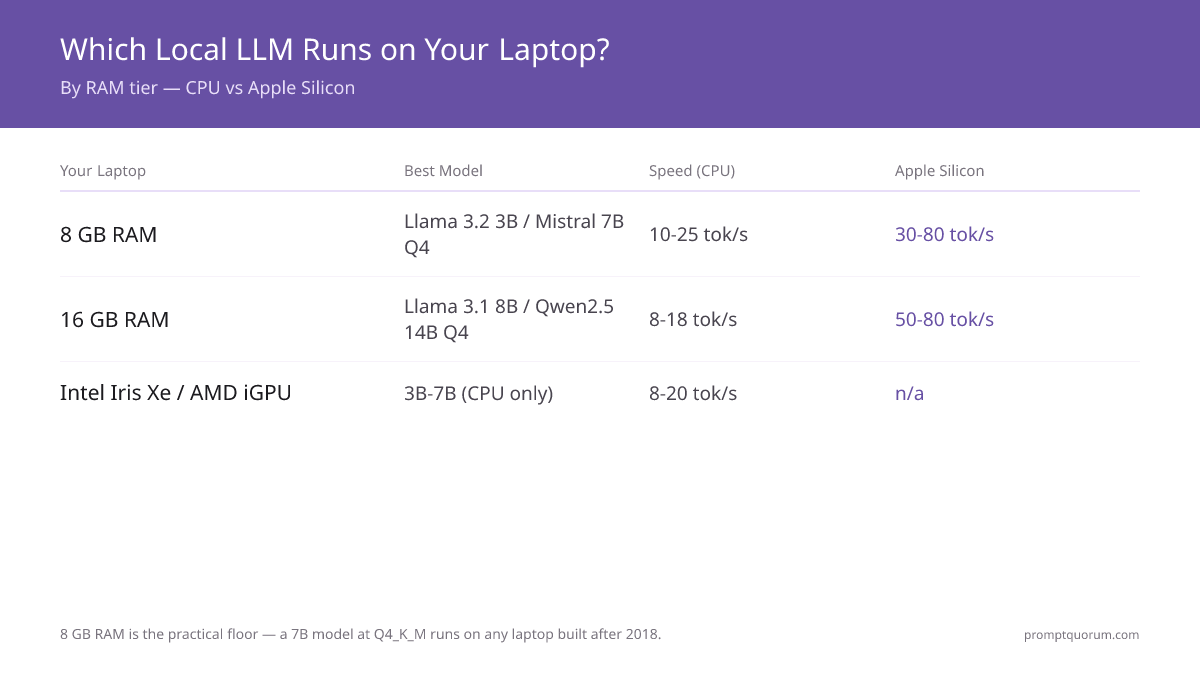
You can run a local LLM on any laptop with 8 GB RAM — a 7B model at Q4_K_M runs at 10–25 tok/s on CPU and 30–80 tok/s on Apple Silicon. Match your hardware to the right model below:
Your laptop | Best model | Speed (CPU) | Speed (Apple Silicon) |
|---|---|---|---|
| 8 GB RAM | Llama 3.2 3B / Mistral 7B Q4_K_M | 10–25 tok/s | 30–80 tok/s |
| 16 GB RAM | Llama 3.1 8B / Qwen2.5 14B Q4_K_M | 8–18 tok/s | 50–80 tok/s |
| Apple M-series (8–18 GB) | up to 13B in unified memory | — | 50–80 tok/s |
| Intel Iris Xe / AMD iGPU | 3B–7B (CPU only) | 8–20 tok/s | n/a |
Key Takeaways
- A 3B or 7B model at Q4_K_M quantization runs usably on any modern laptop with 8 GB RAM.
- Apple Silicon MacBooks (M1, M2, M3, M4, M5) outperform most Windows laptops for local inference due to unified memory and Metal GPU acceleration -- an M3 MacBook Pro runs a 7B model at 50-80 tok/sec.
- Thermal throttling reduces speed by 20-40% after 10-15 minutes of sustained generation. Use a laptop stand and disable Turbo Boost to maintain steady speed.
- Battery drain: expect 30-60% of battery per hour during active inference on most laptops. Plug in for extended sessions.
- On 8 GB RAM Windows/Linux laptops: use Q4_K_M models up to 7B. On 16 GB RAM: Q4_K_M models up to 13B, or Q5_K_M for 7B.
📍 In One Sentence
Laptops can run local LLMs: Apple Silicon MacBook Pro (M3/M4/M5) is the best at 50–80 tok/s on 7B models; minimum 8 GB RAM for 7B, 16 GB for 13B; expect 20–40% speed drop from thermal throttling after 10–15 min of sustained inference.
💬 In Plain Terms
Your laptop's main bottleneck for local AI is RAM — the model must fit entirely in memory. Thermal throttling means your chip slows itself down to avoid overheating, which drops token speed after sustained use. Use a cooling pad or lower the quantization (e.g., Q4_K_S instead of Q4_K_M) to reduce heat.
In One Sentence
A local LLM can run on a laptop using quantized models, reducing memory usage by up to 75% while maintaining usable output quality.
In Plain Terms
Running an LLM locally is like installing ChatGPT on your laptop — but slower and fully private.
When Should You Run an LLM on a Laptop?
- ✅ Use local LLMs if: You need full data privacy, You work offline, You want zero API cost
- ❌ Do NOT use if: You need high accuracy on complex reasoning, You require long context (100k+ tokens), You need fast batch processing — see local LLM limitations
Can You Run a Local LLM on a Laptop?
Yes -- with the right model size. A laptop with 8 GB RAM running a 7B model at Q4_K_M quantization produces 10-25 tokens/sec on CPU and 50-80 tokens/sec on Apple Silicon. This is slow compared to cloud APIs, but fast enough for interactive use.
The practical ceiling on most 8 GB laptops is a 7B model. A 13B model at Q4_K_M requires ~9 GB of RAM -- technically possible on 16 GB machines but leaves little headroom for the OS and other applications.
For detailed speed benchmarks by hardware tier (CPU-only through 16 GB VRAM), see Fastest Local LLMs for Low-End PCs — includes quantization trade-offs and Ollama commands for each tier.
Can You Run RAG (Retrieval) on a Laptop?
Yes -- RAG runs comfortably on a laptop, because the binding constraint is still the chat model, not the retrieval layer. A laptop RAG stack is three parts: a small embedding model, a local vector store, and your chat model.
The embedding model is small -- typically a few hundred MB -- so it adds little RAM pressure. On an 8 GB laptop you can run a 3B chat model plus a small embedding model comfortably; on 16 GB you have headroom for a 7B chat model alongside retrieval.
2 GB RAM is not realistically usable for RAG. After the OS, there is no room for both a chat model and an embedding model without heavy swapping, which drops inference to 1–3 tok/s. Plan for 8 GB as the practical floor.
What Laptop Setup Do You Need for Your Use Case?
- For beginners — 8 GB RAM, 3B–7B models, CPU only. Expect 10–20 tok/sec. Enough for chat, summarization, and simple coding.
- For developers — 16 GB RAM, 7B–13B models, optional GPU. Multitasking possible without closing other apps.
- For power users — Apple Silicon or GPU laptop (8 GB VRAM), 13B models. 50–90 tok/sec sustained inference.
Who Can Run a Local LLM on a Laptop?
- Beginners → LM Studio + 3B model
- Intermediate → Ollama + 7B model
- Advanced users → 13B with quantization tuning
- ❌ Do NOT use a laptop if: You need real-time APIs (use vLLM server), You process large datasets (use cloud GPUs)
Which Local LLM Model Size Do You Need?
RAM requirements at Q4_K_M quantization — approximately 75% less RAM than full fp16 precision. Always add 2–4 GB overhead for OS and browser:
Model | RAM Required | Speed | Quality | Best Use |
|---|---|---|---|---|
| Llama 3.2 3B | 4–8 GB | Fast (25–45 tok/s) | Medium | Basic tasks, chat, summarization |
| Mistral Small | 8–16 GB | Medium (10–20 tok/s) | High | General use, coding, reasoning |
| Llama 3.3 13B | 16+ GB | Slow (5–10 tok/s) | Higher | Advanced tasks, complex reasoning |
Q4_K_M memory example: Mistral Small fp16 = 14 GB; Q4_K_M = 4.5 GB (~68% reduction). CPU latency on an average laptop: 1–3 tok/s for 13B, 10–25 tok/s for 7B, 25–45 tok/s for 3B. → VRAM calculator
8 GB RAM vs 16 GB RAM Laptop: What Is the Practical Difference?
Scenario | 8 GB RAM | 16 GB RAM |
|---|---|---|
| Maximum model size | 7B at Q4_K_M (~4.5 GB) | 13B at Q4_K_M (~9 GB) |
| Model while browser open | 3B-7B (tight) | 7B-13B comfortably |
| Recommended first model | llama3.2:3b or mistral:7b | llama3.1:8b or qwen2.5:14b |
| Simultaneous apps | Close browser before loading 7B | Normal multitasking + 7B model |
Which Local LLM Models Run Best on a Laptop?
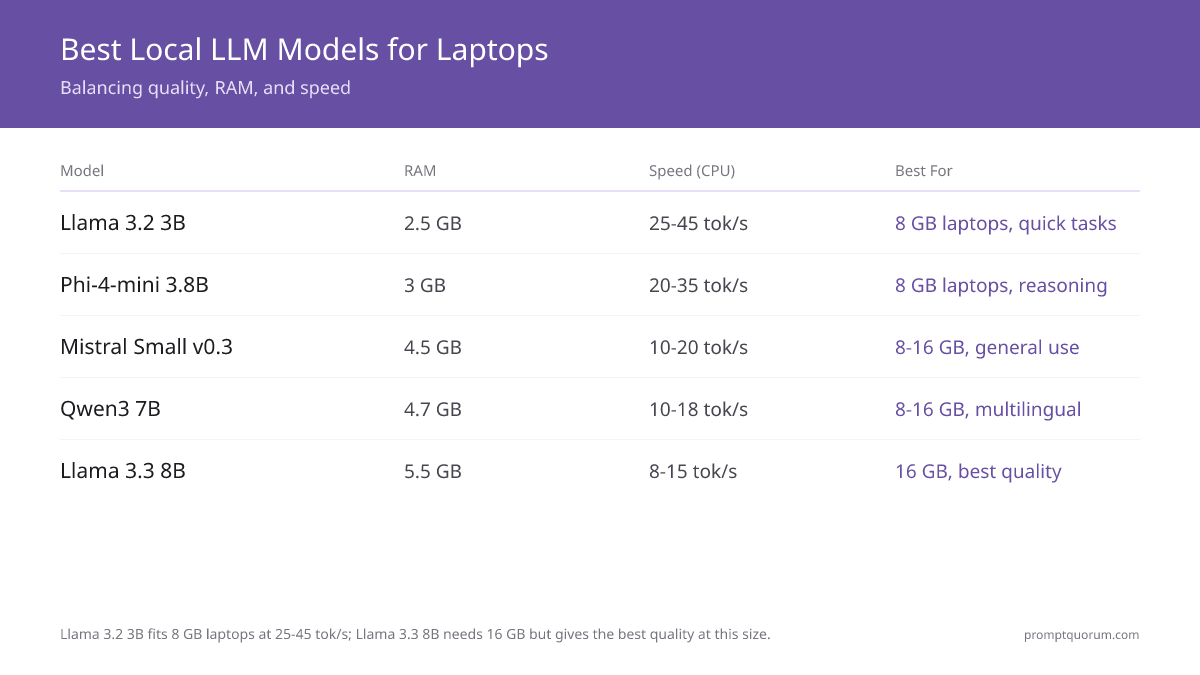
These models are specifically selected for laptop constraints -- balancing quality, RAM use, and sustained generation speed. For detailed guidance on VRAM requirements across different models and laptop configurations, see the VRAM requirements guide →. Install Ollama to run any of these with a single command. Running without any GPU? See the dedicated guide: Best CPU-Only Local LLMs 2026.
Model | RAM | Speed (CPU) | Quality | Best For |
|---|---|---|---|---|
| Llama 3.2 3B | 2.5 GB | 25-45 tok/s | Medium | 8 GB laptops, quick tasks |
| Phi-4-mini 3.8B | 3 GB | 20-35 tok/s | Medium-High | 8 GB laptops, reasoning/coding |
| Mistral Small v0.3 | 4.5 GB | 10-20 tok/s | High | 8-16 GB, general use |
| Qwen3 8B | 4.7 GB | 10-18 tok/s | High | 8-16 GB, multilingual, coding |
| Llama 3.1 8B | 5.5 GB | 8-15 tok/s | High+ | 16 GB laptops, best quality at size |
🏆 Best Local LLM Setup for Laptops
Laptop hardware limits model size, but prompt engineering removes the ceiling on output quality. A 7B model with structured prompts consistently outperforms a poorly prompted 13B model. See the prompt engineering guide for techniques optimised for smaller models.
Apple Silicon vs Windows Laptop: Which Is Better for Local LLMs?
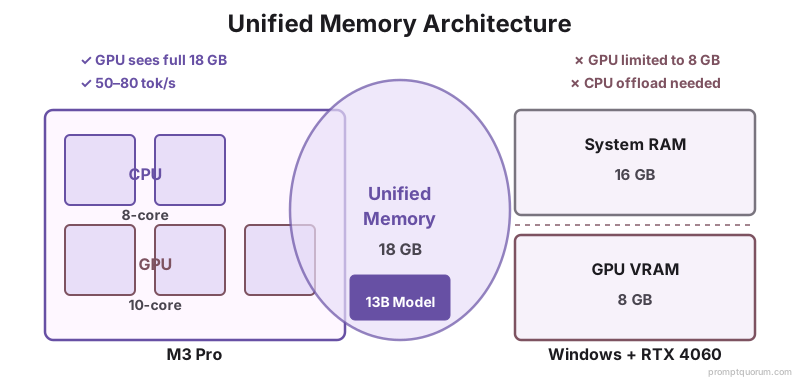
Apple Silicon MacBooks (M1 through M5) are the best consumer laptops for local LLM inference. The unified memory architecture means GPU and CPU share the same memory pool -- an M3 MacBook Pro with 18 GB of memory can run a 13B model entirely in GPU memory, achieving 50-80 tok/sec. The current MacBook Pro lineup (M5 Pro/M5 Max, launched March 2026) extends unified memory up to 64 GB on M5 Pro and 128 GB on M5 Max, with up to 307 GB/s and 614 GB/s of memory bandwidth respectively.
Windows laptops with discrete NVIDIA GPUs can be faster if VRAM is sufficient (8 GB+). An NVIDIA RTX 4060 laptop GPU (8 GB VRAM) runs a 7B model at 60-90 tok/sec -- comparable to Apple M3 Pro. The downside is higher battery drain and heat generation.
Windows laptops running on integrated Intel Iris Xe or AMD Radeon integrated graphics use CPU inference only, resulting in 8-20 tok/sec for 7B models.
Best models for integrated graphics (Intel Iris Xe / AMD Radeon): With 16 GB RAM, the sweet spot is a 3B–7B model at Q4_K_M. Llama 3.2 3B runs at the top of the 8–20 tok/sec range, while Mistral Small (7B) sits at the lower end but gives noticeably better quality. The integrated GPU does not accelerate inference here -- the CPU does the work -- so prioritise a model that stays comfortably within RAM rather than chasing a larger size. For a step-by-step low-end setup, see Fastest Local LLMs for Low-End PCs.
Laptop Type | Speed (7B) | Battery Drain | Max Model |
|---|---|---|---|
| Apple M3 Pro (18 GB) | 50-80 tok/s | Moderate | ~13B |
| Apple M2 (8 GB) | 30-50 tok/s | Moderate | ~7B |
| NVIDIA RTX 4060 laptop (8 GB VRAM) | 60-90 tok/s | High | ~7B (GPU), ~13B (CPU offload) |
| Intel i7 + Iris Xe (16 GB RAM) | 8-15 tok/s | Moderate | ~13B |
| AMD Ryzen 7 + integrated GPU (16 GB) | 10-18 tok/s | Moderate | ~13B |
Is a Laptop Good Enough for Local LLMs vs a Desktop?
Laptops run 3B–13B models effectively, but desktops outperform them due to better cooling and dedicated GPUs. A desktop with an RTX 4090 (24 GB VRAM) runs a 70B model at 40–60 tok/sec; a laptop with the same task requires CPU inference at 1–3 tok/sec.
Use a laptop for portability and experimentation. Use a desktop for large models (13B+), sustained workloads, or production inference. Choosing between platforms? See the laptop vs desktop buying guide for local LLMs for a full cost and performance breakdown.
How Do You Handle Thermal Throttling on a Laptop?
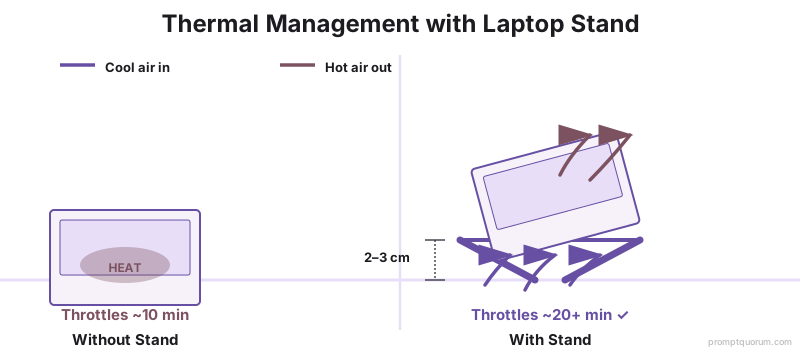
Thermal throttling occurs when the CPU or GPU reaches its temperature limit and reduces clock speed to cool down. For local LLM inference, this typically kicks in after 10-15 minutes of sustained generation, reducing speed by 20-40%.
- Use a laptop stand with airflow clearance -- raising the laptop 2-3 cm improves exhaust airflow and reduces throttling onset from 10 to 20+ minutes.
- Disable Intel Turbo Boost / AMD Precision Boost -- running at base clock speed produces steady performance without thermal spikes. On macOS, install `cpufreq` or use the "Low Power" mode in Battery settings.
- Limit generation batch size -- avoid regenerating very long responses. Break long tasks into shorter prompts.
- Use Q4_K_M over Q8_0 -- lower quantization requires less computation per token, producing less heat at the cost of marginal quality.
How Much Battery Does Running a Local LLM Use?
Battery drain during local inference is significant. Active CPU inference on a 7B model draws 15-25 W on a typical laptop CPU, reducing battery life to 2-3 hours from a full charge on a 60 Wh battery.
Apple Silicon is notably more efficient. An M3 MacBook Pro running a 7B model consumes approximately 12-18 W during inference, giving 3-4 hours of active generation from a full charge.
For extended sessions, plug in. If you need battery-efficient local inference, use a 3B model at Q4_K_M -- it draws 6-10 W and extends battery life to 5-6 hours on most laptops.
Which Quantization Level Should You Use on a Laptop?
Quantization reduces model precision to lower RAM and compute requirements. For laptops, Q4_K_M is the recommended default:
Quantization | RAM vs Full | Quality Loss | Use Case |
|---|---|---|---|
| Q2_K | ~25% | High -- noticeable degradation | Extremely low RAM only |
| Q3_K_S | ~35% | Moderate | Under 4 GB RAM |
| Q4_K_M | ~45% | Low -- recommended default | Most laptops, best balance |
| Q5_K_M | ~55% | Minimal | 16 GB RAM laptops |
| Q8_0 | ~80% | Negligible | 32 GB RAM or GPU with 8+ GB VRAM |
Which Privacy Laws Apply When Running Local LLMs on a Laptop?
European Union (GDPR): Running a local LLM on a laptop means all inference happens on-device -- no data leaves the machine. This satisfies GDPR Article 25 (data protection by design) and eliminates the need for data processing agreements. Professionals in legal, medical, and finance sectors in the EU can process sensitive client data locally without cloud API compliance overhead.
Germany (DSGVO / BSI): BSI-Grundschutz-Kataloge (IT-Grundschutz) recommends local processing for data classified as "vertraulich" (confidential). Laptop-based inference meets these requirements for Mittelstand companies that cannot justify enterprise cloud contracts.
Japan (APPI): Japan's Act on Protection of Personal Information (APPI, amended 2022) imposes strict rules on transferring personal data overseas. Local LLM inference on a laptop eliminates cross-border transfer risk entirely, making it suitable for Japanese enterprises handling customer data under APPI.
United States: No federal AI data law, but sector-specific rules apply -- HIPAA for healthcare (local inference avoids BAA requirements), FERPA for education, and state-level privacy laws (CCPA in California). Local laptop inference is the safest option for regulated industries.
Common Questions About Running Local LLMs on Laptops
What are the best Ollama models for Intel Iris Xe with 16 GB RAM?
On a laptop with Intel Iris Xe integrated graphics and 16 GB RAM, inference runs on the CPU (Iris Xe does not accelerate it), so pick a 3B–7B model at Q4_K_M. Llama 3.2 3B is fastest at the top of the 8–20 tok/sec range; Mistral Small (7B) is slower but higher quality. Run either with `ollama run llama3.2:3b` or `ollama run mistral`.
Can you run RAG locally on a laptop?
Yes. A laptop RAG stack is a small embedding model plus a local vector store plus your chat model. The embedding model is only a few hundred MB, so the chat model remains the binding RAM constraint — an 8 GB laptop runs a 3B chat model with retrieval comfortably. See the RAG on a laptop section above for the RAM breakdown.
What is the best CPU-only local LLM for a laptop?
For CPU-only laptops, Llama 3.2 3B (25–45 tok/sec) and Mistral Small 7B (10–20 tok/sec) at Q4_K_M are the best balance of speed and quality. For a full ranked comparison and Ollama commands, see the dedicated guide: Best CPU-Only Local LLMs 2026.
Will running a local LLM damage my laptop over time?
No -- modern CPUs and GPUs are designed to handle sustained high loads safely via thermal throttling. Running inference for hours at a time is equivalent to video encoding or gaming. A laptop stand and adequate ventilation prevent excessive heat buildup. Battery cycle count increases with prolonged plugged-in charging, which is a normal wear pattern.
Can I run a local LLM on a 4 GB RAM laptop?
Barely. A 2B model like Gemma 2 2B requires ~1.7 GB of RAM for the model, but the OS needs 2-3 GB simultaneously. On 4 GB total RAM, you will likely experience swap usage which makes inference 5-10× slower. The practical minimum for a usable experience is 8 GB.
Does my laptop need a dedicated GPU to run local LLMs?
No. All major local LLM tools (Ollama, LM Studio, GPT4All) run on CPU only. A dedicated GPU significantly speeds up inference, but 3B-7B models are usable at 10-30 tok/sec on CPU alone. See Best Beginner Local LLM Models for CPU-optimized model recommendations.
What is the fastest local LLM I can run on an 8 GB MacBook?
On an 8 GB MacBook with Apple Silicon (M1, M2, M3), the fastest practical model is llama3.2:3b at Q4_K_M -- expect 60-100 tok/sec via Metal GPU. For quality at speed, mistral:7b runs at 30-50 tok/sec on an M2 8 GB with the full model in unified memory.
How do I reduce thermal throttling on a laptop during LLM inference?
Three steps: (1) Use a laptop stand with 2-3 cm of airflow clearance under the machine. (2) Disable Turbo Boost on Intel or AMD Precision Boost -- running at base clock speed eliminates thermal spikes. (3) Use Q4_K_M quantization instead of Q8_0 to reduce per-token compute and heat output.
Can I run a local LLM on a Chromebook?
Only on Chromebooks with Linux (Crostini) enabled. Most Chromebooks have 4-8 GB RAM and weak CPUs -- you can run a 2B-3B model at Q4_K_M, but expect 5-15 tok/sec. Chromebooks without Linux support cannot run local LLMs.
Is Apple Silicon better than an NVIDIA laptop GPU for local LLMs?
It depends on VRAM. An M3 Pro (18 GB unified memory) outperforms an NVIDIA RTX 4060 laptop (8 GB VRAM) for 13B models because the full model fits in fast memory. For 7B models, both are comparable -- 50-80 tok/sec on M3 Pro vs 60-90 tok/sec on RTX 4060. Apple Silicon wins on battery efficiency (12-18 W vs 25-45 W).
What happens if the model is too large for my laptop RAM?
Ollama and LM Studio will use swap memory (disk-backed RAM). Inference slows to 1-5 tok/sec instead of 10-30 tok/sec, and the laptop fan runs at full speed due to constant memory pressure. The fix: use a smaller model or a lower quantization level (Q4_K_M instead of Q8_0).
How long does battery last when running local LLMs on a laptop?
On a typical 60 Wh battery: a 7B model on CPU draws 15-25 W -- giving 2-3 hours of active inference. Apple Silicon is more efficient (12-18 W), giving 3-4 hours. A 3B model draws 6-10 W and extends battery to 5-6 hours. For day-long use, plug in.
Do I need an internet connection to run a local LLM on a laptop?
No. After downloading the model (which requires internet), inference is fully offline. The model runs entirely on the laptop CPU or GPU. This makes local LLMs useful for travel, secure environments, or locations with unreliable connectivity.
Can I run a local LLM on 8 GB RAM?
Yes. An 8 GB laptop runs 7B models at Q4_K_M quantization (4.5 GB) at 10–25 tok/sec on CPU, or 30–80 tok/sec on Apple Silicon.
What is the fastest laptop for local LLMs?
Apple MacBook Pro M5 Pro/M5 Max (launched March 2026) with up to 64–128 GB unified memory reaches 80–120 tok/sec on 13B models. On Windows, an NVIDIA RTX 4070/4090 laptop GPU (8–16 GB VRAM) achieves 60–130 tok/sec on 7B models.
Do I need a GPU for local LLMs?
No — Ollama and LM Studio run on CPU only. A GPU accelerates inference from 10–25 tok/sec to 50–90 tok/sec on 7B models, but is not required.
How slow are local LLMs on CPU?
A 7B model at Q4_K_M runs at 10–25 tok/sec on a modern laptop CPU — slow enough to read along but fast enough for chat and summarization. Apple Silicon reaches 30–80 tok/sec using unified memory as GPU.
Does running LLMs damage a laptop?
No. CPUs and GPUs are rated for sustained load via thermal throttling. A laptop stand for airflow and occasional breaks prevent excessive heat; normal fan noise is not a sign of damage.
Sources
- Apple MLX Framework -- GPU acceleration for Apple Silicon Macs. github.com/ml-explore/mlx
- Ollama Documentation -- CPU/GPU inference configuration and macOS optimization. ollama.com
- LM Studio -- System requirements, GPU compatibility, and local inference setup. lmstudio.ai
What Are the Common Mistakes When Running Local LLMs on Laptops?
- Running a model too large for available RAM → swaps to disk, slowing inference from 10–25 tok/sec to 1–3 tok/sec.
- Ignoring thermal throttling → sustained speed drops 20–40% after 10–15 minutes of inference.
- Using Q8_0 instead of Q4_K_M → doubles RAM usage with no perceptible quality gain on laptop hardware.
- Not enabling GPU acceleration in LM Studio → Apple Silicon throughput drops from 50–80 tok/sec to 10–20 tok/sec.
- Using the default 2,048-token context window in Ollama → multi-page documents get truncated; set `num_ctx 8192` in your Modelfile.