Key Takeaways
- macOS: download the .dmg from ollama.com or run `brew install ollama` -- then `ollama run llama3.2` to start chatting.
- Windows: download the installer from ollama.com/download. Ollama runs as a background service in the system tray.
- Linux: one curl command installs everything -- `curl -fsSL https://ollama.com/install.sh | sh`.
- Minimum requirements: 4 GB RAM for a 3B model, 8 GB RAM for a 7B model. No GPU needed to start.
- Ollama exposes an OpenAI-compatible API at `http://localhost:11434/v1` -- point an existing OpenAI SDK app at that `base_url` with any non-empty `api_key` and it works unchanged. The native Ollama REST API is separate, at `http://localhost:11434/api/...`.
- 👉 Before installing, confirm local is right for your use case — see Local LLM vs Cloud API for when cloud outperforms local inference.
📍 In One Sentence
Ollama installs in under 2 minutes on macOS, Windows, and Linux via a downloadable installer or one curl command, and one `ollama run <model>` command afterward downloads and runs any model from its library with no Python environment or GPU required.
💬 In Plain Terms
Ollama is the easiest way to run AI models on your own computer. Download it (or run one install command on Linux), then type a single command like `ollama run llama3.2` and it downloads the model and starts a chat -- no coding, no configuration files, and it works fine on a laptop without a graphics card.
Before You Install: Is Local LLM Right for Your Use Case?
Installing Ollama takes 5 minutes, but running your first model well can take 20–40 minutes if you hit GPU detection issues, driver mismatches, or RAM constraints.
If you're unsure whether local inference is the right choice for you, compare the full local vs cloud trade-offs first — you may find that starting with a cloud API (ready in 5 minutes, no troubleshooting) is the smarter path. Many users discover this after installation; better to decide now.
For users committed to local, continue below. For users evaluating cloud first, see the full comparison.
What Is Ollama and Why Use It?
Ollama is an open-source inference engine that runs large language models locally. It packages model management, the llama.cpp inference backend, and an OpenAI-compatible REST API into a single lightweight application. No Python, no conda environment, and no CUDA setup is required.
Ollama maintains a curated model library (ollama.com/library) with one-command downloads for Meta Llama 3.3, Microsoft Phi-4-mini, Google Gemma 4, Mistral, Qwen3, and other models. A model is downloaded once and cached on disk -- subsequent runs skip the download and load straight from disk, though Ollama unloads an idle model from memory after its keep-alive window (5 minutes by default), so a cold reload still takes as long as loading the model fresh.
For alternatives to Ollama, see Local LLM One-Click Installers. To compare Ollama with LM Studio, see How to Install LM Studio.
How Do You Install Ollama on macOS?
There are two methods. The installer download is faster; Homebrew is better if you manage software with brew.
- 1Go to ollama.com/download and click "Download for macOS".
- 2Open the downloaded Ollama.dmg file and drag Ollama to your Applications folder.
- 3Launch Ollama from Applications. A llama icon appears in your menu bar -- Ollama is now running as a background service.
- 4Open Terminal and run your first model: `ollama run llama3.2`
- 5The model downloads (~2 GB for llama3.2:3b) and a chat prompt appears. Type a message and press Enter.
Install Ollama on macOS with Homebrew
brew install ollama

# Start the Ollama service
ollama serve &

# Pull and run a model
ollama run llama3.2
How Do You Install Ollama on Windows?
- 1Go to ollama.com/download and click "Download for Windows".
- 2Run the downloaded OllamaSetup.exe installer. Ollama installs to %LOCALAPPDATA%\Programs\Ollama.
- 3Ollama starts automatically and appears as a system tray icon.
- 4Open PowerShell or Command Prompt and run: `ollama run llama3.2`
- 5The model downloads on first run. Subsequent runs use the cached model.
GPU Support on Windows
Ollama on Windows automatically detects and uses NVIDIA GPUs (CUDA 11.3+) and AMD GPUs (ROCm 6+). If you have an NVIDIA RTX card, Ollama will offload model layers to VRAM automatically -- no manual configuration needed. To verify GPU is being used, run `ollama run llama3.2` and check Task Manager → GPU for activity.
How Do You Install Ollama on Linux?
A single command installs Ollama on any Linux distribution:
curl -fsSL https://ollama.com/install.sh | shRun Ollama as a systemd Service on Linux
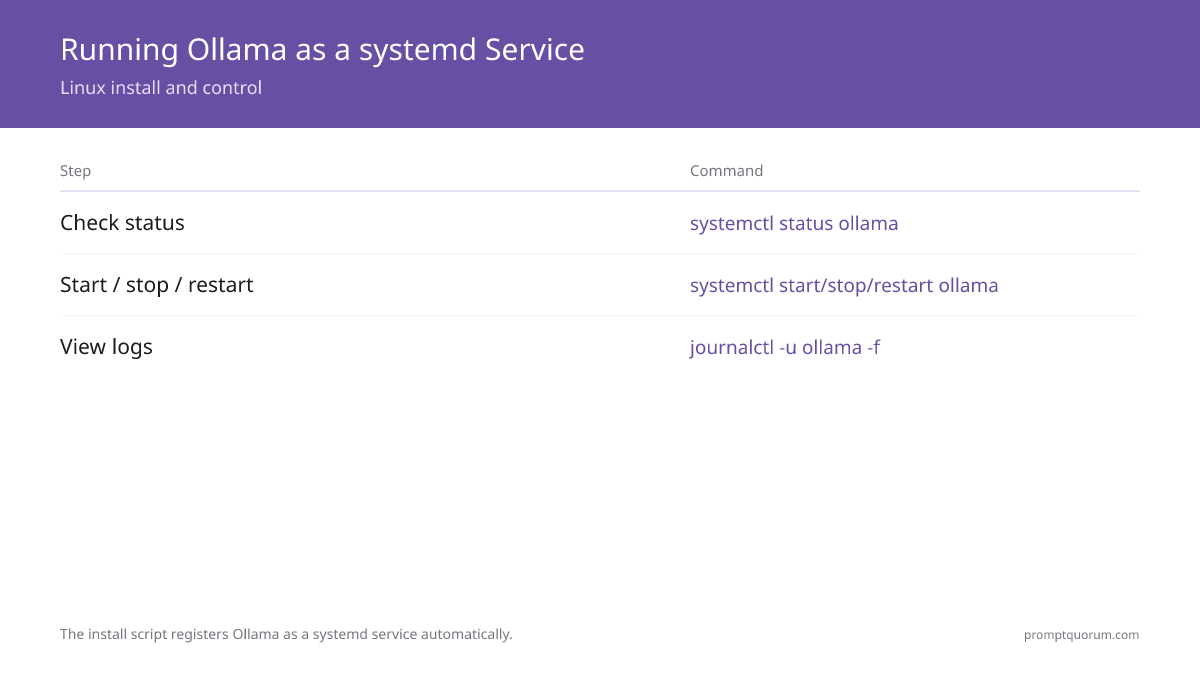
The install script automatically registers Ollama as a systemd service. To manage it:
# Check service status
systemctl status ollama

# Start / stop / restart
systemctl start ollama
systemctl stop ollama
systemctl restart ollama

# View logs
journalctl -u ollama -f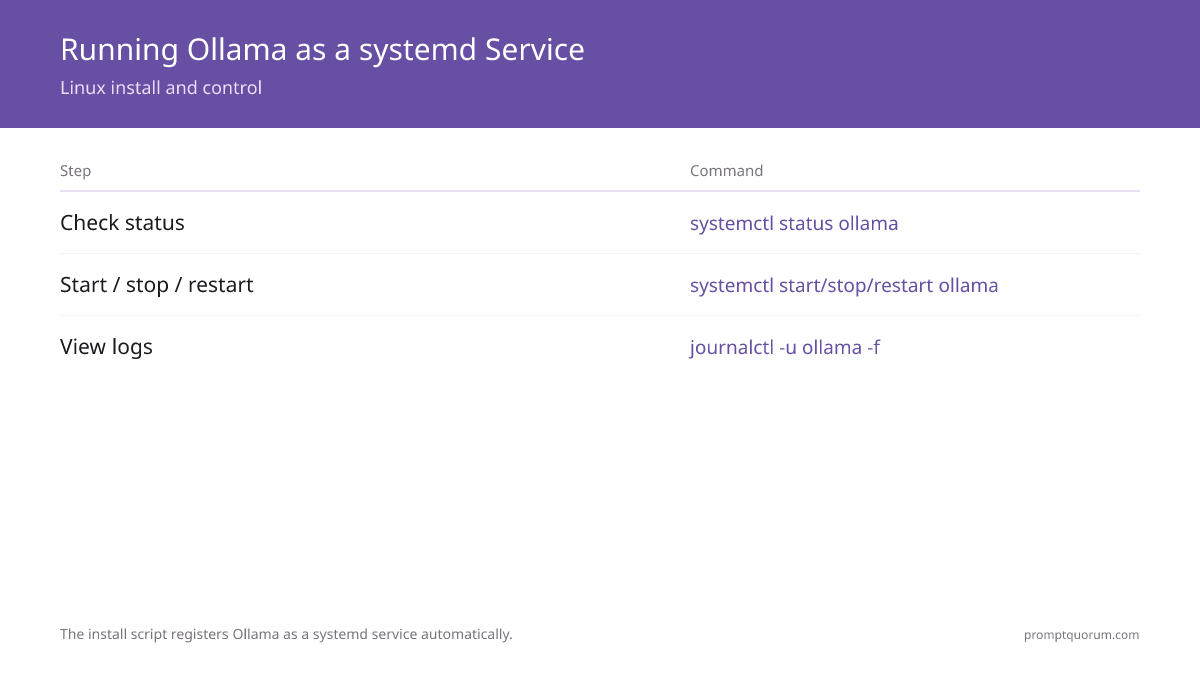
How Do You Pull and Run Your First Model in Ollama?
After installing Ollama, run this command to download and start a model:
# Pull a model (downloads to ~/.ollama/models)
ollama pull llama3.2

# Run it interactively
ollama run llama3.2

# Or pull and run in one step
ollama run llama3.2
Which Model Should You Start With?
For a first run, these three models cover different hardware profiles:
Model | Download Size | RAM Required | Best For |
|---|---|---|---|
| Llama 3.2 3B | ~2 GB | 4 GB | First test -- any machine |
| Llama 3.1 8B | ~4.7 GB | 8 GB | General use on most laptops |
| phi4-mini | ~2.3 GB | 4 GB | Fast responses, low RAM |
How Do You Verify Ollama Is Working?
Test the REST API directly to confirm Ollama is running and accessible:
# Check Ollama is running
curl http://localhost:11434
# Expected: "Ollama is running"

# List downloaded models
ollama list

# Send a prompt via API (OpenAI-compatible)
curl http://localhost:11434/api/generate -d '{
  "model": "llama3.2",
  "prompt": "What is 2+2?",
  "stream": false
}'
Useful Ollama Commands
Command | What It Does |
|---|---|
| ollama list | Show all downloaded models and their sizes |
| ollama pull <model> | Download a model without running it |
| ollama rm <model> | Delete a model from disk |
| ollama ps | Show models currently loaded in memory |
| ollama show <model> | Show model details (parameters, template, licence) |
| ollama serve | Start the Ollama server manually (if not running as service) |
Troubleshooting Common Ollama Installation Issues
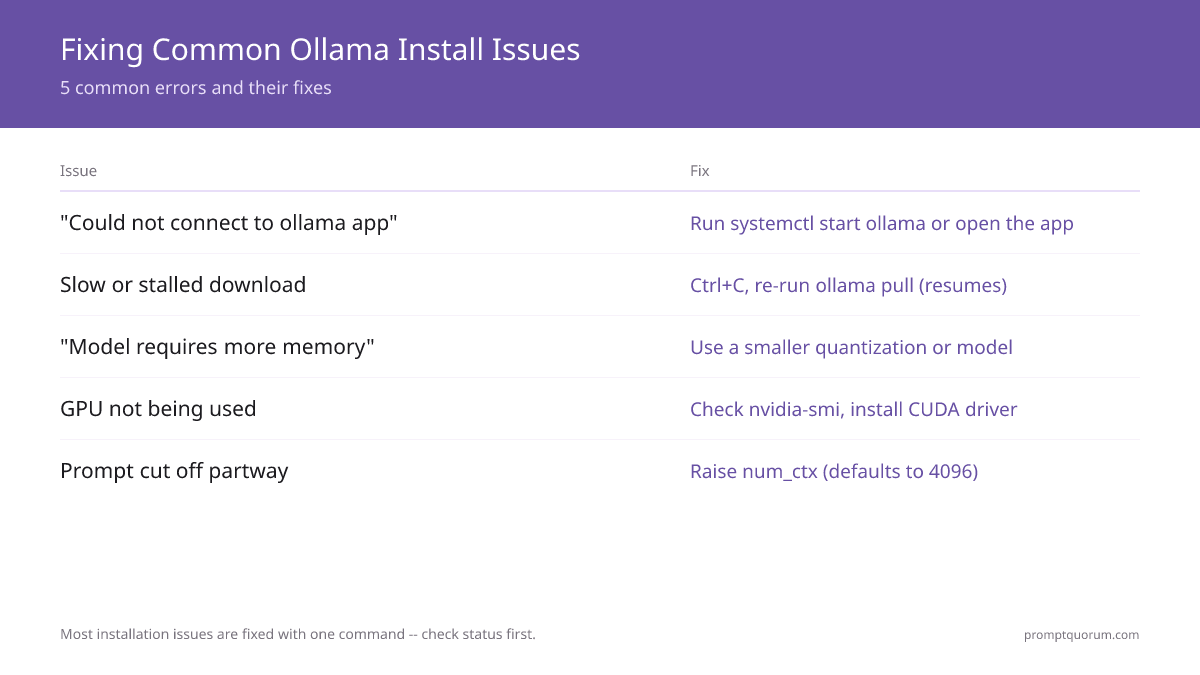
Ollama says "could not connect to ollama app, is it running?"
Ollama is not running as a background service. On macOS: open the Ollama app from Applications. On Linux: run `systemctl start ollama` or `ollama serve` in a terminal. On Windows: launch Ollama from the Start menu.
The model download is very slow or stalled
Model downloads are large (2-47 GB). If the download stalls, press Ctrl+C and re-run `ollama pull <model>` -- Ollama resumes partial downloads. For faster downloads, use a wired connection instead of Wi-Fi.
I get "error: model requires more system memory" when running a model
The model is too large for your available RAM. Try a smaller quantization: `ollama run llama3.2-instruct-q4_0` instead of the default Q4_K_M. Or switch to a smaller model like `llama3.2:3b`. See Best Beginner Local LLM Models for RAM-matched recommendations.
Ollama is running but my GPU is not being used
For a native install (not Docker), you need the NVIDIA driver and CUDA runtime -- check with `nvidia-smi`, which should print your GPU and driver version. Ollama offloads layers to GPU automatically when VRAM is available; run `ollama ps` and check the PROCESSOR column reads 100% GPU. Only if you're running Ollama inside a Docker container do you additionally need the NVIDIA Container Toolkit on the host, plus `--gpus=all` on the container.
My prompt or document gets cut off partway through
Ollama's context window defaults to 4096 tokens on most consumer GPUs (it scales up automatically to 32K or 256K on higher-VRAM cards). Anything longer than the active window is silently truncated. Raise it per session with `/set parameter num_ctx 8192` in `ollama run`, per API call with `"options": {"num_ctx": 8192}`, or for every model with the `OLLAMA_CONTEXT_LENGTH` environment variable before starting the server. A larger context window uses more memory, so watch VRAM if you raise it a lot.
Where are Ollama model files stored?
Models are stored at ~/.ollama/models on macOS and Linux. On Windows, the default path is C:\Users\<username>\.ollama\models. You can change the storage location by setting the OLLAMA_MODELS environment variable before starting the service.
How do I install Ollama on macOS?
Download the .dmg from ollama.com, drag to Applications, launch, then run ollama run llama3.2 in Terminal. Alternatively: brew install ollama && ollama serve.
How do I install Ollama on Windows?
Download OllamaSetup.exe from ollama.com/download/windows and run it. Ollama installs as a background service. Open Command Prompt and run ollama run llama3.2.
How do I install Ollama on Linux?
Run: curl -fsSL https://ollama.com/install.sh | sh. This installs Ollama as a systemd service. Then: ollama pull llama3.2 to download your first model.
What is the minimum RAM required for Ollama?
Minimum 4GB RAM for a 3B model, 8GB for a 7B model at Q4 quantization. No GPU is required -- Ollama falls back to CPU inference automatically.
Can I run Ollama without a GPU?
Yes. Ollama runs on CPU with no GPU. Inference is slower (2-5 tokens/sec vs 30-60 on GPU) but functional. Use small models like llama3.2:3b or phi3.5 on CPU-only systems.
How do I pull a new model with Ollama?
Run: ollama pull modelname. For example: ollama pull mistral or ollama pull qwen2.5:7b. Models are stored in ~/.ollama/models. List downloaded models with ollama list.
What port does Ollama use?
Ollama serves its API on port 11434 by default. Access it at http://localhost:11434. Change the port with the OLLAMA_HOST environment variable: OLLAMA_HOST=0.0.0.0:11435.
Is Ollama API compatible with the OpenAI API?
Yes. Ollama supports the OpenAI chat completions endpoint at /v1/chat/completions. Any app built for OpenAI can use Ollama by setting base_url to http://localhost:11434/v1.
How do I see which models are installed in Ollama?
Run: ollama list. This shows all downloaded models, their sizes, and quantization levels. Remove a model with ollama rm modelname.
How do I update Ollama to the latest version?
macOS/Windows: re-download the installer from ollama.com -- it overwrites the old version. Linux: re-run curl -fsSL https://ollama.com/install.sh | sh to update in place.
What to Do After Installing Ollama?
Once Ollama is running, the next step is Run Your First Local LLM to understand prompting, context length, and what to expect from local inference speed. To pick the best model for your hardware, see Best Beginner Local LLM Models. If you prefer a graphical chat interface over the terminal, How to Install LM Studio covers the desktop app alternative.
Sources
- Ollama Official Website -- Installation downloads and official documentation
- Ollama GitHub Repository -- Source code, issues, and official docs (including context length and GPU support)
- Ollama Model Library -- Curated collection of available models with download links
Common Mistakes When Installing Ollama
- Not checking that Ollama is running as a background service before expecting the API to respond.
- Attempting to run models larger than available RAM without checking memory requirements first.
- Ignoring GPU detection -- Ollama supports NVIDIA and AMD but requires up-to-date drivers.