Key Takeaways
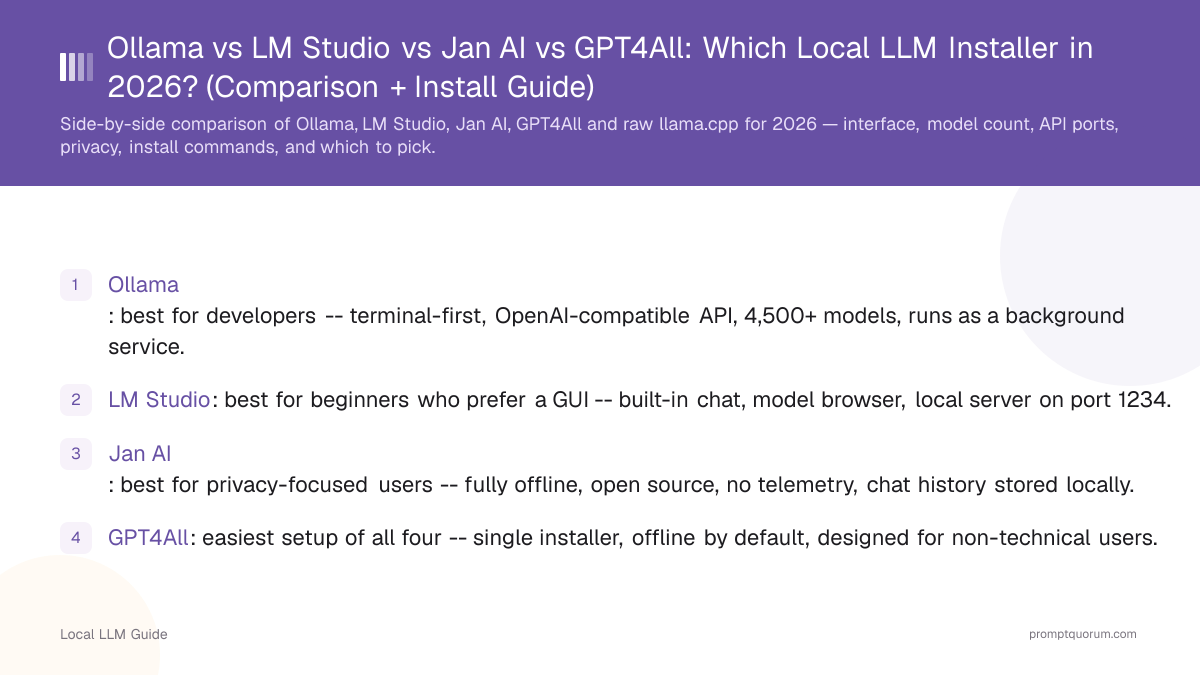
- Ollama: best for developers -- terminal-first, OpenAI-compatible API, 4,500+ models, runs as a background service.
- LM Studio: best for beginners who prefer a GUI -- built-in chat, model browser, local server on port 1234.
- Jan AI: best for privacy-focused users -- fully offline, open source, no telemetry, chat history stored locally.
- GPT4All: easiest setup of all four -- single installer, offline by default, designed for non-technical users.
- All four tools use llama.cpp under the hood and support the same GGUF model format. You can switch between them without re-downloading models.
📍 In One Sentence
In 2026, all major local LLM installers (Ollama, LM Studio, Jan AI, GPT4All) install in under 5 minutes using llama.cpp: Ollama is best for developers (CLI + API), LM Studio for beginners (GUI), Jan AI for privacy (offline), GPT4All for the easiest setup.
💬 In Plain Terms
A "one-click installer" bundles the AI engine, model downloader, and interface into one package — you don't need to configure Python or compile code. They all run the same types of models (GGUF files). The difference is the interface: command line vs graphical, and whether you want a local API for your own apps.
⚡ Quick Facts
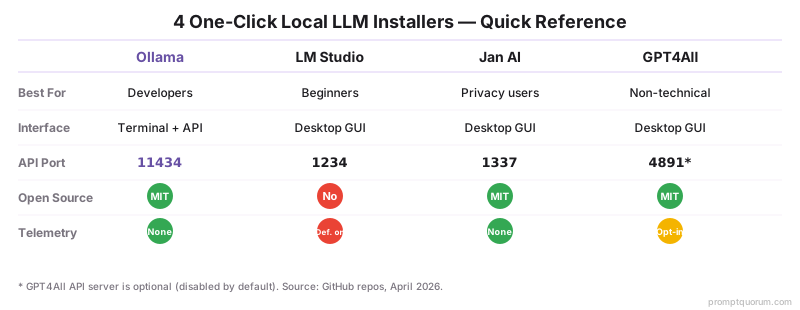
Ollama: Terminal + API, port 11434, 4,500+ models, MIT, best for developers
LM Studio: Desktop GUI, port 1234, any Hugging Face GGUF, free (closed source), best for beginners
Jan AI: Desktop GUI, port 1337, zero telemetry, MIT, best for privacy
GPT4All: Desktop GUI, port 4891, built-in LocalDocs RAG, MIT, best for non-technical users
All four use llama.cpp / GGUF format under the hood — models are interchangeable (except Ollama's wrapped format)
Install time: Under 5 minutes for any of the four
What Makes a Local LLM Tool "One-Click"?
A one-click local LLM installer bundles the inference engine, model manager, and UI into a single download -- no manual llama.cpp compilation required. This bundles three things: the inference engine (typically llama.cpp), a model manager that handles downloads and storage, and a user interface (chat UI, API server, or both).
Without these tools, running a local LLM requires manually compiling llama.cpp, converting model weights, configuring memory settings, and managing model files. One-click installers eliminate all of that.
The four tools covered here -- Ollama, LM Studio, Jan AI, and GPT4All -- each take a different approach to the interface while using the same underlying inference technology.
🔍 Did You Know: All four installers use llama.cpp under the hood — the same C++ inference engine. However, performance can vary due to differences in batching, flash-attention optimization, KV-cache handling, and app-level overhead. What also differs is the interface (terminal vs GUI), model discovery (curated library vs Hugging Face), and privacy posture (telemetry vs no telemetry).
What Is Ollama Best For?
Ollama is best for developers who need a terminal-first tool with an OpenAI-compatible API at localhost:11434 and a curated library of 4,500+ models. Ollama runs as a background service and exposes an OpenAI-compatible REST API at `http://localhost:11434`. It has no graphical interface of its own -- you interact with it through the terminal or via third-party UIs like Open WebUI.
Ollama maintains a curated model library at ollama.com/library with 4,500+ models (curated + community contributions). Each model is pulled with a single command: `ollama pull qwen3.6:27b`. Models are stored in `~/.ollama/models`.
Attribute | Value |
|---|---|
| Platform | macOS, Windows, Linux |
| Interface | Terminal + REST API |
| Model library | 4,500+ models |
| API | OpenAI-compatible at localhost:11434 |
| GPU support | NVIDIA CUDA, AMD ROCm, Apple Metal |
| Open source | Yes (MIT licence) |
How Do You Install Ollama?
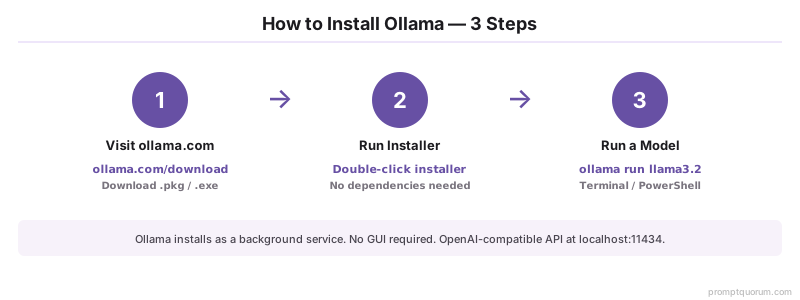
# macOS / Linux
curl -fsSL https://ollama.com/install.sh | sh

# Run the current recommended model
ollama run qwen3.6:27b     # Best overall on 24 GB VRAM (dense, Q4)

# Or for 8 GB RAM machines
ollama run qwen3:8b        # Lightweight, fastest to start
Why Is LM Studio Best for Beginners?
LM Studio is best for beginners: a polished desktop GUI with built-in chat, a model browser that searches Hugging Face directly, and a local server -- no terminal required. LM Studio is a desktop application with a built-in chat interface, a model browser that searches Hugging Face directly, and a local server mode. It is the most polished GUI option and the best choice for users who do not want to use a terminal.
Unlike Ollama's curated library, LM Studio can download any GGUF model from Hugging Face -- giving access to thousands of models including fine-tunes and quantization variants not available in the Ollama library.
Attribute | Value |
|---|---|
| Platform | macOS, Windows, Linux (AppImage) |
| Interface | Desktop GUI + local server |
| Model source | Hugging Face (any GGUF) |
| API | OpenAI-compatible at localhost:1234 |
| GPU support | NVIDIA CUDA, AMD ROCm, Apple Metal |
| Open source | No (free for personal use) |
Why Is Jan AI Best for Privacy?
Jan AI is best for privacy: fully MIT open source, no telemetry, all chat history stored locally in plain JSON files, and works offline after model download. Jan AI is a fully open-source desktop application (MIT licence) built specifically for users who want complete control over their data. All chat history is stored locally in plain JSON files. No telemetry is collected. The app works entirely offline after the initial model download.
Jan AI includes a built-in chat interface, an extension system, and an OpenAI-compatible server. Its model hub covers the major open models (Llama, Mistral, Gemma) with direct Hugging Face download links.
Attribute | Value |
|---|---|
| Platform | macOS, Windows, Linux |
| Interface | Desktop GUI + API server |
| Model source | Built-in hub + Hugging Face |
| API | OpenAI-compatible at localhost:1337 |
| Telemetry | None -- fully offline capable |
| Open source | Yes (MIT licence) -- github.com/janhq/jan |
Why Is GPT4All the Simplest Setup?
GPT4All has the simplest setup of the four: a single executable installer with no dependencies, and one-click model downloads -- no terminal required at any stage. GPT4All, developed by Nomic AI, is designed for the broadest possible audience. The installer is a single executable with no dependencies. After installation, a model browser lets you download and run models with a single click -- no terminal required at any stage.
GPT4All supports a "LocalDocs" feature that lets you chat with your own documents (PDFs, text files) using RAG (retrieval-augmented generation) without any additional setup. This makes it particularly useful for knowledge-base queries over private document collections.
Attribute | Value |
|---|---|
| Platform | macOS, Windows, Linux |
| Interface | Desktop GUI |
| Model source | GPT4All model library (~50 models) |
| API | OpenAI-compatible server (optional) |
| LocalDocs | Yes -- built-in RAG over local files |
| Open source | Yes (MIT licence) |
How Do These Four Installers Compare?
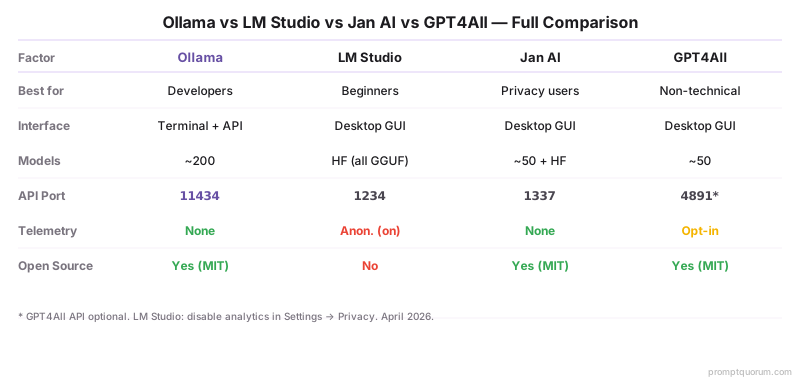
Factor | ||||
|---|---|---|---|---|
| Best for | Developers, API use | Beginners, GUI users | Privacy-first users | Non-technical users |
| Interface | Terminal + API | Desktop app | Desktop app | Desktop app |
| Model count | 4,500+ | Thousands (HuggingFace) | ~50 + HuggingFace | ~50 |
| API port | 11434 | 1234 | 1337 | 4891 (optional) |
| Telemetry | Opt-out available | Anonymous analytics | None | Opt-in only |
| Open source | Yes (MIT) | No | Yes (MIT) | Yes (MIT) |
Where Does Raw llama.cpp Fit?
llama.cpp is the inference engine all four installers wrap — use it directly only if you need maximum control or minimum overhead. Ollama, LM Studio, Jan AI, and GPT4All all bundle llama.cpp plus a model manager and a UI. Running llama.cpp yourself means compiling it, converting or quantizing weights, and managing model files by hand — but it gives you the newest features first, the smallest memory footprint, and full control over flags such as context size, GPU layers, and batch size.
Choose raw llama.cpp if you are deploying to constrained servers, need bleeding-edge model support before the wrappers add it, or are embedding inference in your own binary. For everyone else, one of the four installers above is faster to set up and loses no meaningful performance — they all call the same engine.
Which One-Click Installer Should You Choose?
- Choose Ollama if you are a developer who wants to script, automate, or integrate local models into applications. See How to Install Ollama for setup.
- Choose LM Studio if you prefer a polished desktop GUI and want access to the full range of Hugging Face GGUF models. See How to Install LM Studio for setup.
- Choose Jan AI if data privacy is your highest priority -- no telemetry, fully offline, fully open source.
- Choose GPT4All if you want the simplest possible experience with no terminal commands, or if you want built-in document chat (LocalDocs) without additional configuration.
- All four tools can coexist on the same machine. Models in GGUF format can be shared between them. The choice of installer does not lock you into a specific model set.
- Installing a model is step one. Writing prompts that get good results is step two. If you're new to working with AI models, start with what is prompt engineering — it covers the fundamentals in plain language.
- 🔍 Pro Tip: Start with Ollama if you plan to integrate local models into code or IDE tools (VS Code, Cursor). Start with LM Studio if you just want to chat with models. You can always switch later — all four tools run the same GGUF model files.
Local LLM Installers: Regional and Compliance Context
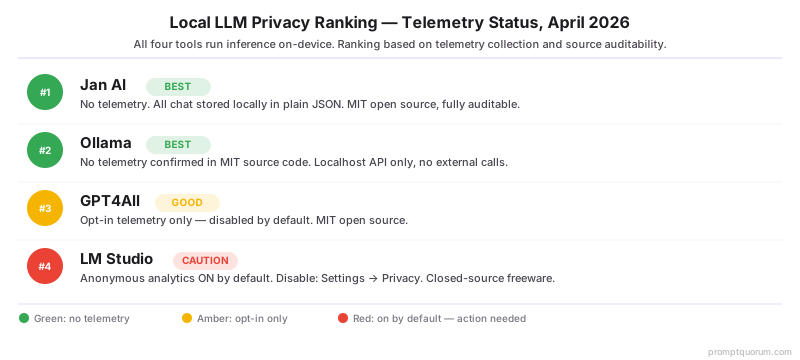
EU / GDPR / AI Act: All four tools perform inference entirely on-device -- no prompt text, context, or output is sent to external servers during inference. For EU professionals processing personal data under GDPR, the privacy ranking is: (1) Jan AI -- fully MIT open source, no telemetry, fully auditable; (2) Ollama -- MIT open source, confirmed no telemetry, localhost API by default; (3) GPT4All -- open source, opt-in telemetry only; (4) LM Studio -- closed source, anonymous analytics on by default (disable: Settings → Privacy → Send anonymous usage data → off). EU AI Act high-risk system obligations apply from August 2, 2026 (pending Digital Omnibus). Local inference tools satisfy GDPR data residency requirements by default — no data processing agreement needed with the tool vendor.
Japan / APPI: Japan's Act on the Protection of Personal Information restricts cross-border data transfer for personal data. Local inference with any of these four tools eliminates cross-border transfer entirely -- all processing stays on the local machine. Ollama and Jan AI are preferred for enterprise deployments due to MIT source code transparency.
China: All four tools support Qwen3 and Qwen3 models -- the primary local LLM choice for Chinese organizations. In Ollama: `ollama pull qwen3:8b`. Under China's Data Security Law (数据安全法), local inference with any of these tools satisfies data localization requirements -- all processing occurs locally without external API calls during inference.
Sources
- Ollama Contributors. (2026). "Ollama GitHub." github.com/ollama/ollama -- Source code confirms no telemetry collection and MIT licence. Model library at ollama.com/library.
- LM Studio. (2026). "LM Studio Documentation." lmstudio.ai/docs -- Official feature documentation, privacy policy, and local server configuration guide.
- Jan AI. (2026). "Jan AI GitHub." github.com/janhq/jan -- Open-source MIT codebase, privacy confirmation, and extension system documentation.
- Nomic AI. (2026). "GPT4All Documentation." docs.gpt4all.io/ -- Official LocalDocs, model library, and API server setup documentation.
Common Mistakes When Choosing an Installer
- Assuming all installers have the same model library -- Jan AI and GPT4All each have ~50 models vs Ollama's 4,500+.
- Not realizing that one-click installers are still subject to hardware constraints -- a 70B model won't run on 16 GB RAM.
- Using GUI tools exclusively and never learning command-line alternatives for scripting or production.
- Running all four tools simultaneously and hitting port conflicts: Ollama (11434), LM Studio (1234), Jan AI (1337), and GPT4All (4891) use different ports but consume shared RAM for model weights. Set one tool as primary and start others only when needed.
- Choosing LM Studio without disabling telemetry: LM Studio collects anonymous usage analytics by default. For privacy-sensitive use, disable immediately: Settings → Privacy → Send anonymous usage data → off. Jan AI and Ollama collect no telemetry by default -- no action needed.
- Not trying a current model on first install. Many guides still recommend `ollama run llama3.2` as the first command. On a 24 GB consumer GPU, Qwen 3.6 27B (dense, Q4) is now the best overall starting model — run `ollama run qwen3.6:27b`. Llama 4 Scout (MoE, 17B active / 109B total, 10M-token context, multimodal) is the long-context and multimodal pick, but needs ~55 GB VRAM at Q4 and does not fit a typical 12 GB card.
Frequently Asked Questions
Is Ollama free to use?
Yes. Ollama is free and MIT-licensed open source. There are no usage limits, subscription fees, or paid tiers. You download models from ollama.com/library for free. The only cost is your own hardware (CPU/GPU).
What is the difference between Ollama and LM Studio?
Ollama is terminal-first -- it runs as a background service and exposes a REST API at localhost:11434, with no built-in GUI. LM Studio is a desktop application with a built-in chat interface, model browser, and local server. Both expose an OpenAI-compatible API. Ollama suits developers; LM Studio suits users who want a chat interface.
Which installer works best on Mac?
All four work on macOS (Intel and Apple Silicon). Ollama has the best Apple Silicon performance -- it uses Metal GPU acceleration automatically on M1/M2/M3/M4/M5 chips. LM Studio also supports Metal. GPT4All and Jan AI support Metal but are less optimized. For Apple Silicon, Ollama or LM Studio is the best choice. Apple M5 Pro (64 GB unified memory, 307 GB/s) and M5 Max (128 GB, 460-614 GB/s) shipping since March 2026 are the first Macs that comfortably run 70B models at Q4 quantization.
Can I run multiple installers at the same time?
You can install all four simultaneously, but running them concurrently causes port conflicts and RAM competition. Default ports: Ollama (11434), LM Studio (1234), Jan AI (1337), GPT4All (4891). Each tool also loads model weights into RAM. Run only one at a time and quit the others when switching.
Is Jan AI better than LM Studio for privacy?
Yes. Jan AI is fully MIT open source with no telemetry -- all chat history is stored in local plain JSON files, auditable at any time. LM Studio is closed-source freeware and collects anonymous analytics by default (disable in Settings → Privacy). For privacy-sensitive use, Jan AI is the stronger choice; both run inference entirely on-device.
Does GPT4All support GPU acceleration?
Yes. GPT4All supports NVIDIA (CUDA), AMD (ROCm), and Apple Silicon (Metal) GPU acceleration. GPU offloading is configured in Settings → Model → GPU Layers. The default is CPU-only -- you must manually enable GPU acceleration after installation. Enabling GPU offloading increases inference speed from 2-8 tokens/sec to 20-60+ tokens/sec depending on model size and GPU VRAM.
What is the LocalDocs feature in GPT4All?
LocalDocs lets you query your own documents (PDF, TXT, Word) using a local LLM without sending data to external servers. It uses a local vector store to retrieve relevant passages and passes them as context to the model. For simple personal document Q&A it works well. For enterprise RAG or large document sets, a dedicated setup with Ollama and a vector database (e.g., Chroma) is more reliable.
Can I use the same model files with all four installers?
Partially. All four use GGUF-format models (llama.cpp-compatible), but each tool stores them in its own directory by default. You can point Jan AI and LM Studio to the same GGUF file on disk to avoid duplicate downloads. Ollama supports importing raw GGUF files directly: `ollama create mymodel -f ./model.gguf`. This narrows the gap — you can now load any GGUF into Ollama without re-downloading from the Ollama library.
Which is best for beginners — Ollama, LM Studio, or GPT4All?
For beginners who want no terminal, GPT4All is the simplest single-installer option and LM Studio is the best polished GUI. Choose Ollama only if you are comfortable with one command and plan to script models or connect them to code. All three install in under five minutes.
LM Studio vs Jan AI vs Ollama — which should I pick in 2026?
LM Studio for the most polished GUI and direct Hugging Face model access; Jan AI for maximum privacy (MIT open source, zero telemetry, local JSON chat history); Ollama for a terminal-first OpenAI-compatible API at localhost:11434. All three run the same GGUF models, so you can switch without re-downloading.
Ollama vs LM Studio vs GPT4All vs llama.cpp — what is the difference?
llama.cpp is the underlying C++ engine; the other three bundle it with a model manager and an interface. Ollama adds a terminal and API, while LM Studio and GPT4All add desktop GUIs. Use a wrapper for convenience; use raw llama.cpp only when you need maximum control or minimal overhead.
Is Ollama open source, and what licence does it use?
Yes. Ollama is MIT-licensed open source (github.com/ollama/ollama), free with no usage limits or paid tiers, and its source confirms no telemetry collection. Your only cost is your own hardware.