Key Takeaways
- Ollama exposes a REST API at `http://localhost:11434/v1` that mirrors OpenAI's API exactly.
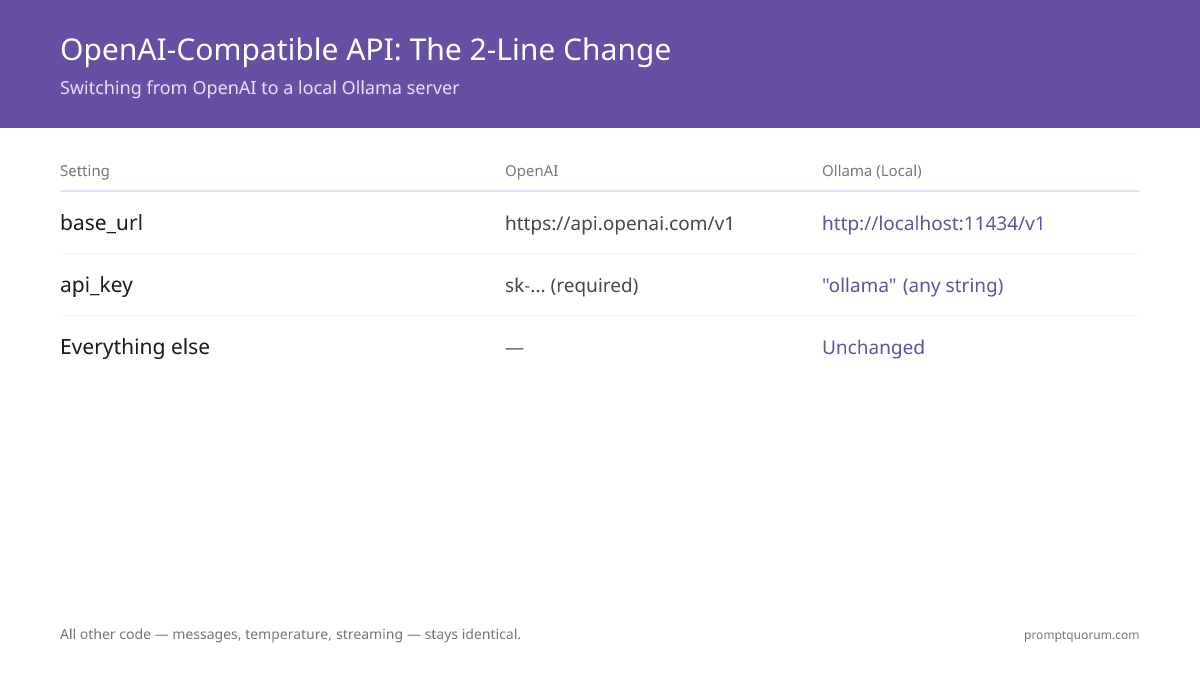
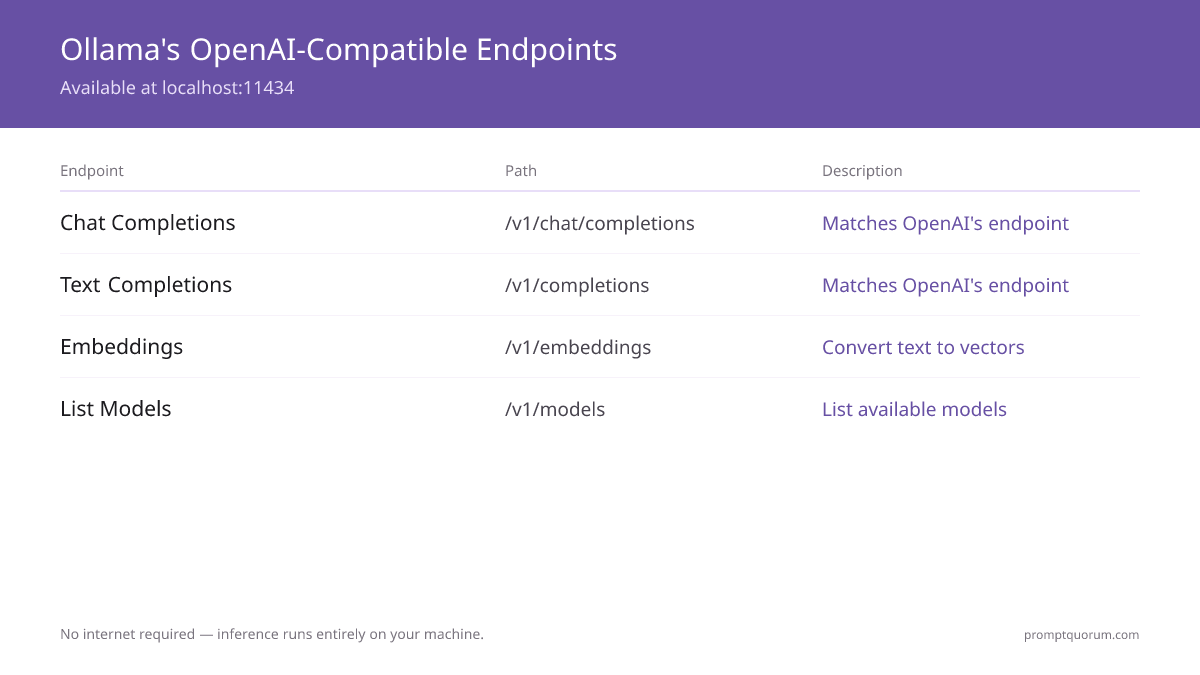
- Use the OpenAI Python library: change `api_key="openai"` to `api_key="ollama"` and `base_url="http://localhost:11434/v1"`.
- Same approach in Node.js: OpenAI SDK, point to localhost:11434.
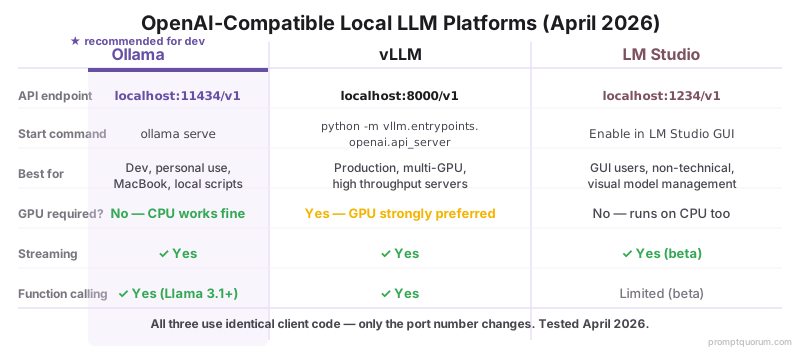
- The OpenAI-compatible API share the same base format across Ollama, vLLM, and LM Studio -- no code changes needed to switch providers.
- Streaming (token-by-token responses) and function calling both work with local models via this API.
- Aider, Cline, and Roo Code all connect to local models through this same base_url setting -- no separate integration required.
📍 In One Sentence
Ollama, LM Studio, and vLLM all expose an OpenAI-compatible REST API on localhost, so any code written for the OpenAI Python or Node.js SDK works with local models by changing just two lines: base_url and api_key.
💬 In Plain Terms
If you've ever written code that calls OpenAI's ChatGPT API, you already know how to use local models -- Ollama, LM Studio, and vLLM all speak the exact same API format. You don't need to learn a new library; just point your existing OpenAI code at localhost instead of openai.com, and it works.
⚡ Quick Facts
Ollama API: `http://localhost:11434/v1` — mirrors OpenAI's `/chat/completions` exactly
LM Studio API: `http://localhost:1234/v1` — same format, different port
vLLM API: `http://localhost:8000/v1` — production-grade serving
Code change: 2 lines — `base_url` and `api_key`. Most other code stays the same.
Supported: Chat completions, text completions, embeddings, streaming, function calling
AI coding tools: Aider, Cline, and Roo Code all support an OpenAI-compatible provider mode using the same base_url
Authentication: commonly starts without auth, bound to localhost by default. Add reverse proxy and authentication if exposing beyond localhost, since vLLM supports API-key auth and LM Studio can be exposed publicly.
Model for code examples: Llama 4 Scout (best quality on 12 GB) or Llama 3.2 3B (lightweight)
What Does OpenAI-Compatible Mean?
OpenAI-compatible means the API endpoint returns responses in the same format as OpenAI's API. This allows any library or tool built for OpenAI to work with local models by pointing to a different URL. Learn how Ollama vs LM Studio compare in their implementation of this standard.
Example: The OpenAI Python library sends requests like this:
``` POST /chat/completions { "model": "gpt-4o", "messages": [...], "temperature": 0.7 } ```
Ollama's API accepts the exact same request at `localhost:11434/v1/chat/completions` and returns the response in OpenAI's format:
``` { "choices": [{"message": {"content": "..."}}], "usage": {"prompt_tokens": 10, "completion_tokens": 20} } ```
Because the format is shared, you do not need to learn a new API or rewrite most of your code.
---
🔍 Did You Know: The OpenAI API format has become the unofficial standard for all LLM APIs. Anthropic (Claude), Google (Gemini), and every major local inference tool (Ollama, vLLM, LM Studio, llama.cpp) now support it. Code written against this format is truly provider-agnostic — the closest thing the AI industry has to a universal API.
What Is Ollama's API Endpoint?
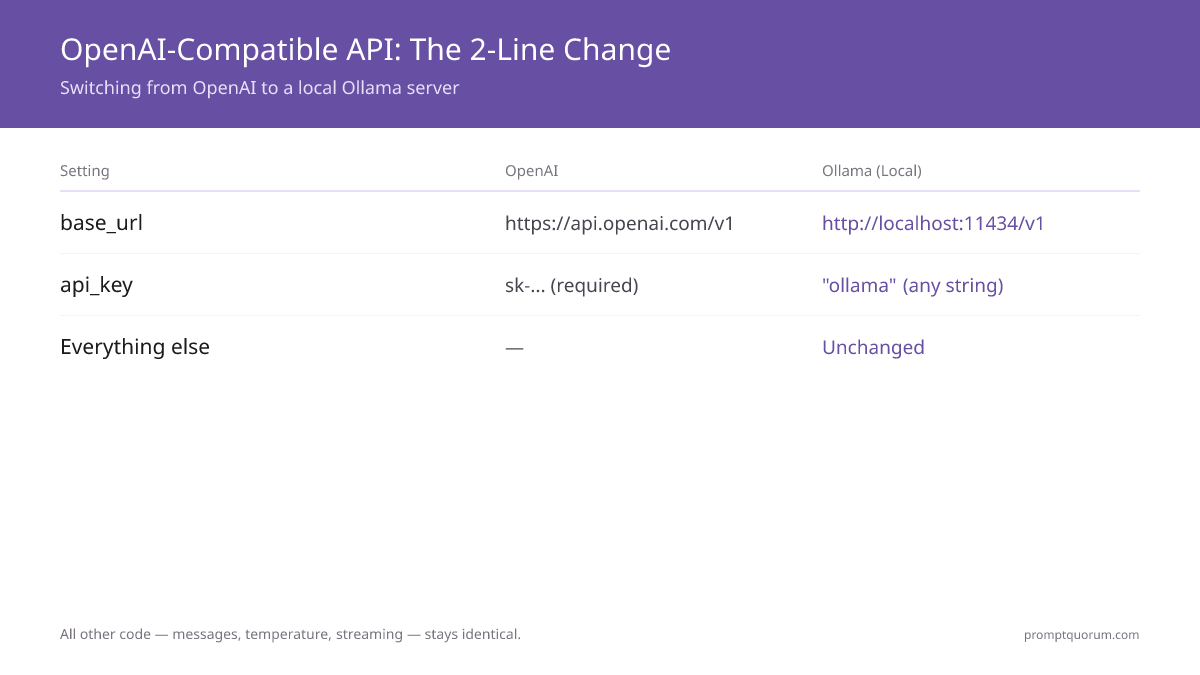
When you run `ollama serve`, Ollama starts a REST API at `http://localhost:11434`. The OpenAI-compatible endpoints are:
Endpoint | URL | Description |
|---|---|---|
| Chat Completions | POST http://localhost:11434/v1/chat/completions | Matches `/chat/completions` from OpenAI |
| Text Completions | POST http://localhost:11434/v1/completions | Matches `/completions` from OpenAI |
| Embeddings | POST http://localhost:11434/v1/embeddings | Convert text to vectors |
| List Models | GET http://localhost:11434/v1/models | List available models |
How to Use Ollama API With Python (OpenAI Library)?
Install the OpenAI library and point it to localhost.
🔍 Pro Tip: Set `OPENAI_BASE_URL=http://localhost:11434/v1` as an environment variable. Many tools (LangChain, LlamaIndex, aider) read this variable automatically — no code changes needed. You can switch between OpenAI and Ollama by changing a single env var.
# 1. Install the OpenAI library
pip install openai

# 2. Connect to Ollama
from openai import OpenAI

client = OpenAI(
  base_url="http://localhost:11434/v1",
  api_key="ollama"  # dummy key; Ollama ignores it
)

# 3. Make a request
response = client.chat.completions.create(
  model="llama4:scout",  # Best quality on 12 GB VRAM (MoE)
  # model="llama3.2:3b",  # Lightweight alternative for 8 GB RAM
  messages=[
    {"role": "user", "content": "What is 2+2?"}
  ]
)

print(response.choices[0].message.content)
How to Use Ollama API With Node.js?
Install the OpenAI SDK and connect it to your local Ollama instance.
// 1. Install
npm install openai

// 2. Connect to Ollama
const OpenAI = require("openai").default;

const client = new OpenAI({
  baseURL: "http://localhost:11434/v1",
  apiKey: "ollama"
});

// 3. Make a request
const response = await client.chat.completions.create({
  model: "llama4:scout",       // Best quality on 12 GB VRAM
  // model: "llama3.2:3b",     // Lightweight for 8 GB RAM
  messages: [{
    role: "user",
    content: "What is 2+2?"
  }]
});

console.log(response.choices[0].message.content);
How to Use LM Studio OpenAI-Compatible Server (localhost:1234)
LM Studio exposes an OpenAI-compatible API at `http://localhost:1234/v1`. Enable it under the Local Server tab -- load a model, then click Start Server. The same Python and Node.js code works with LM Studio -- change only the port from 11434 to 1234.
LM Studio is suited for GUI users who want visual model browsing and easy switching between models. Ollama is preferred for scripting, automation, and CI pipelines.
Platform | Port | Best For | GPU Required |
|---|---|---|---|
| LM Studio | localhost:1234 | GUI users, visual model management | No (CPU works) |
| Ollama | localhost:11434 | Scripting, automation, production | No (CPU works) |
| vLLM | localhost:8000 | Multi-GPU, high-throughput servers | Recommended |
# Python: Connect to LM Studio (localhost:1234)
from openai import OpenAI

client = OpenAI(
  base_url="http://localhost:1234/v1",
  api_key="lm-studio"  # any string; LM Studio ignores it
)

response = client.chat.completions.create(
  model="llama-3.2-3b-instruct",  # exact model name shown in LM Studio
  messages=[
    {"role": "user", "content": "What is 2+2?"}
  ]
)

print(response.choices[0].message.content)
How to Use Ollama API From JavaScript in the Browser?
Calling Ollama from browser-side JavaScript requires the browser and server to be on the same machine (or allow CORS). For security, browser requests to localhost work only if the JavaScript is served from localhost. Check Best Local LLM Frontends for browser-ready UIs that handle this seamlessly.
If you need to call Ollama from a browser on a different IP, set up a CORS proxy or use a server-side middleware.
// Browser-side JavaScript (if server is localhost:3000, Ollama is localhost:11434)
fetch("http://localhost:11434/v1/chat/completions", {
  method: "POST",
  headers: { "Content-Type": "application/json" },
  body: JSON.stringify({
    model: "llama4:scout",      // Best quality on 12 GB VRAM
    // model: "llama3.2:3b",    // Lightweight for 8 GB RAM
    messages: [{ role: "user", content: "What is 2+2?" }]
  })
})
  .then(res => res.json())
  .then(data => console.log(data.choices[0].message.content))
How Do You Stream Responses Token-by-Token?
Streaming lets you display responses as they are generated, token by token, instead of waiting for the entire response. Streaming works with all local models via the OpenAI-compatible API.
# Python: streaming example
from openai import OpenAI

client = OpenAI(
  base_url="http://localhost:11434/v1",
  api_key="ollama"
)

stream = client.chat.completions.create(
  model="llama4:scout",
  messages=[{"role": "user", "content": "Count to 10"}],
  stream=True
)

for chunk in stream:
  if chunk.choices[0].delta.content:
    print(chunk.choices[0].delta.content, end="", flush=True)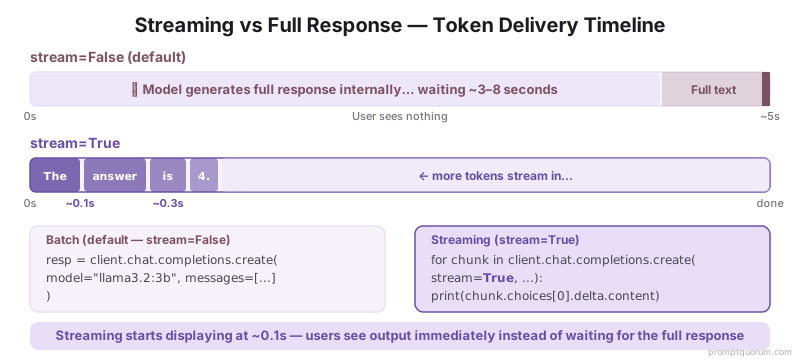
Can Your Local Model Call Functions?
Yes, function calling works with local models via the OpenAI API. You define a function schema, and the model can respond with arguments to pass to your function. This enables Best Local LLMs for Coding to integrate with your tool ecosystem.
Function calling support depends on the model. Llama 4 Scout, Qwen3 8B, Gemma 4 26B-A4B, and Mistral Small 3.1 all support tool calling reliably. Llama 3.1 8B also supports it (legacy). Smaller models (3B) may not reliably produce structured tool call JSON.
In 2026, the Model Context Protocol (MCP) extends function calling into a standardized tool connection layer. MCP lets any client (Claude Code, Cursor, custom apps) connect to any tool server via a single protocol — going beyond the per-request tool definitions shown above. Ollama supports MCP-style tool calling through the standard OpenAI-compatible function calling API. For production tool integrations, MCP is becoming the standard; the function calling examples here remain the foundation.
When using OpenAI-compatible APIs locally, structured output and JSON mode work the same way as with cloud APIs. For enforcing schema compliance and format control across local and cloud models, see structured output and JSON mode.
OpenAI-compatible APIs accept the same prompt formats as the cloud versions — system messages, user messages, and structured output. The full library of prompt engineering techniques applies directly to local API calls.
# Example: local model calls a weather function
tools = [{
  "type": "function",
  "function": {
    "name": "get_weather",
    "description": "Get current weather",
    "parameters": {
      "type": "object",
      "properties": {
        "location": {"type": "string"}
      }
    }
  }
}]

response = client.chat.completions.create(
  model="llama4:scout",
  messages=[{"role": "user", "content": "What is the weather in SF?"}],
  tools=tools
)

# Check if model returned a function call
if response.choices[0].message.tool_calls:
  call = response.choices[0].message.tool_calls[0]
  print(f"Call function: {call.function.name} with {call.function.arguments}")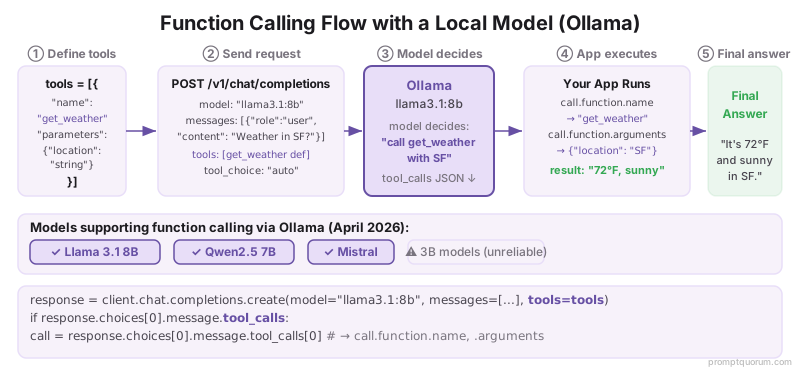
How Do You Connect Aider, Cline, or Roo Code to a Local Model?
Point Aider, Cline, or Roo Code at the same OpenAI-compatible base_url used elsewhere in this guide -- `http://localhost:11434/v1` for Ollama or `http://localhost:1234/v1` for LM Studio -- and use any string as the API key. All three tools support a generic "OpenAI Compatible" provider mode built for exactly this case.
Cline and Roo Code (a Cline fork) share the same configuration pattern: open the extension settings in VS Code, select the OpenAI Compatible API provider, enter the Base URL and any API key, then enter the exact model name shown in `ollama list` or the LM Studio model browser.
Aider connects through the same OpenAI-compatible layer using the `OPENAI_API_BASE` and `OPENAI_API_KEY` environment variables (or their equivalent command-line flags), pointed at your local server. Aider also has native Ollama support through its own provider prefix -- check Aider's current documentation for the preferred method, since exact flag names change between releases.
Use Aider, Cline, or Roo Code with local models if: you want zero API costs during development, your codebase cannot leave your machine, or you are testing prompts before switching to a cloud model for production. Avoid local models in these tools if you need long-context reasoning beyond what an 8-24 GB VRAM model can hold accurately -- switch to a cloud model or a larger local model (Llama 4 Scout) for that case.
Tool | Config Location | Local Base URL |
|---|---|---|
| Cline | VS Code extension settings → API Provider → OpenAI Compatible | http://localhost:11434/v1 (Ollama) or :1234/v1 (LM Studio) |
| Roo Code | VS Code extension settings → API Provider (same pattern as Cline) | http://localhost:11434/v1 (Ollama) or :1234/v1 (LM Studio) |
| Aider | OPENAI_API_BASE / OPENAI_API_KEY environment variables or CLI flags | http://localhost:11434/v1 (Ollama) or :1234/v1 (LM Studio) |
Local LLM OpenAI APIs by Region
EU / GDPR & AI Act: For EU developers, running Ollama locally ensures GDPR Article 5 compliance (data minimization) -- all inference stays on-device with no data egress to cloud APIs. Ollama downloads from GitHub under MIT license, meeting EU compliance requirements. EU AI Act high-risk system obligations apply from August 2, 2026 (pending Digital Omnibus). Local API inference satisfies GDPR data residency requirements by default. For enterprises, this eliminates vendor lock-in -- inference data stays within your own network (no Art. 44 GDPR cross-border transfer risk for inference data).
Japan / APPI: Under Japan's Act on Protection of Personal Information (APPI), on-premises model inference bypasses cloud data transfer requirements. Ollama + Qwen3 8B runs on standard corporate laptops (8 GB RAM) with improved Japanese language support over Qwen3, with 30-50 tok/sec latency meeting real-time response expectations for Japanese language processing.
China / CAC: For deployment under China's Cybersecurity Law (CAC Article 37), local inference satisfies data localization mandates -- Ollama + Qwen3 runs on any Linux device without external API calls. Qwen3's native Chinese tokenization adds 30-40% efficiency over Llama, reducing local inference overhead.
What Are Common Mistakes With Local LLM OpenAI APIs?
- Forgetting that the API key is ignored. Ollama requires `api_key="ollama"` (any string works) because it is not authenticating. The real authentication is that the request comes from localhost or your local network, not the internet.
- Not realizing the model name matters. If you call `/chat/completions` with `model="gpt-4"` but have only pulled `llama3.2:3b` in Ollama, the request will fail. Use the exact model names from `ollama list`.
- Assuming Ollama needs internet. It does not. The API is entirely local. But if your Python code tries to reach OpenAI's servers first (by default), it will fail. Always set `base_url` explicitly.
- CORS errors from browser. If you call Ollama from a browser-side script and get a CORS error, it means the browser blocked the request for security. See Local LLMs with VS Code and Cursor for editor-based solutions that bypass CORS.
- Not setting stream=True when expecting streaming. If you want token-by-token responses, you must explicitly set `stream=True` in the request. By default, it waits for the full response.
- Using `llama3.2:3b` in examples when better models are available. Many tutorials still use Llama 3.2 3B because it fits on 8 GB RAM. If you have 12+ GB VRAM, switch to `llama4:scout` — dramatically better quality for the same API code. Only use 3B models for testing API integration, not production workloads.
- Not setting `OLLAMA_NUM_PARALLEL` for concurrent requests. By default, Ollama processes one request at a time. For multi-user apps or parallel test suites, set `OLLAMA_NUM_PARALLEL=4` (or higher) to handle concurrent API calls. Without this, requests queue and latency spikes.
- ---
- ⚠️ Warning: Ollama's API has NO authentication by default. If you expose it to your network (`OLLAMA_HOST=0.0.0.0`), anyone on that network can send requests, load models, and consume GPU resources. For multi-user or production setups, place a reverse proxy (nginx, Caddy) with authentication in front of Ollama — never expose port 11434 directly to the internet.
Common Questions About Local LLM APIs
Do I need to modify my OpenAI code to use Ollama?
No. Set `base_url="http://localhost:11434/v1"` and `api_key="ollama"`. Everything else stays the same. If you have code using the OpenAI library, swap these two lines and it works with your local model.
Can I use the API from a different computer on my network?
Yes. By default, Ollama listens on localhost only. To allow network access, set the environment variable `OLLAMA_HOST=0.0.0.0:11434` before running Ollama. Then point your code to `http://<machine-ip>:11434/v1`. Be careful with security -- use a firewall if this is production.
Does LM Studio have an OpenAI-compatible API?
Yes. LM Studio exposes an OpenAI-compatible API at `http://localhost:1234/v1`. Enable it under the Local Server tab, load a model, then click Start Server. Use the same Python or Node.js code as Ollama -- only the port changes (1234 instead of 11434).
Can I call multiple models simultaneously?
If you have them loaded in Ollama, yes. But note that running two models simultaneously doubles VRAM usage. You must have enough GPU memory.
Is the API authenticated?
No. By default, Ollama's API has no authentication. Anyone with access to localhost:11434 can use it. For production with network access, add authentication via a reverse proxy (nginx with Basic Auth, etc.).
How do I use streaming with the Ollama OpenAI API?
Set stream=True in your OpenAI library call. Ollama returns server-sent events (SSE) with each token. In Python: for chunk in client.chat.completions.create(stream=True, ...): print(chunk.choices[0].delta.content).
Does Ollama support function calling / tool use via the API?
Yes, for models that support it (Llama 4 Scout, Qwen3 8B, Gemma 4 26B-A4B, Mistral Small 3.1). Legacy models (Llama 3.1 8B) also supported. Pass tools=[] in the API call as you would with OpenAI. Ollama parses tool calls and returns structured JSON. Not all models support this -- check model documentation.
What is MCP and how does it relate to the OpenAI-compatible API?
MCP (Model Context Protocol) is a standardized protocol for connecting AI models to external tools and data sources. It builds on top of function calling — the same `tools=[]` parameter shown in the examples above — but adds a standard server-client architecture so tools are discoverable and reusable across applications. Ollama supports MCP-style tool interactions through its OpenAI-compatible function calling endpoint. For simple integrations, the function calling examples in this article are sufficient. For complex multi-tool workflows, MCP provides a more structured approach.
What is the difference between Ollama /api/generate and /v1/chat/completions?
/api/generate is Ollama's native single-turn endpoint. /v1/chat/completions is the OpenAI-compatible multi-turn endpoint. Use /v1/chat/completions for all new projects -- it supports conversation history and is compatible with OpenAI libraries.
Can I use vLLM as an OpenAI-compatible API?
Yes. vLLM runs an OpenAI-compatible server at http://localhost:8000/v1 by default. Start it with: python -m vllm.entrypoints.openai.api_server --model mistralai/Mistral-7B-v0.1. Use the same client code as Ollama.
How do I use the Ollama API with the Node.js openai package?
Import OpenAI from openai. Set baseURL: "http://localhost:11434/v1" and apiKey: "ollama" in the constructor. Then call client.chat.completions.create() exactly as you would with the real OpenAI API -- no other changes needed.
How do I switch between Ollama and OpenAI in the same codebase?
Use an environment variable: set USE_LOCAL=true for Ollama (base_url http://localhost:11434/v1, api_key "ollama") and USE_LOCAL=false for OpenAI. The OpenAI Python library accepts base_url as a constructor argument. Set USE_LOCAL=false in production to switch to OpenAI without changing any other code.
Can I use the OpenAI-compatible API with LangChain?
Yes. Use ChatOpenAI with base_url="http://localhost:11434/v1" and api_key="ollama". This makes Ollama a drop-in replacement for OpenAI in any LangChain pipeline -- RAG chains, agents, and tools all work without modification. LangChain also has a dedicated ChatOllama class for Ollama-specific features.
How do I use Aider with a local model via Ollama or LM Studio?
Point Aider at your local OpenAI-compatible server by setting the OPENAI_API_BASE and OPENAI_API_KEY environment variables (or the matching CLI flags) to http://localhost:11434/v1 (Ollama) or http://localhost:1234/v1 (LM Studio), with any string as the key. Aider also has native Ollama support through its own provider prefix -- check Aider's documentation for the current preferred method, since flag names change between releases.
Can Cline or Roo Code use local models through LM Studio or Ollama?
Yes. Both VS Code extensions include an OpenAI Compatible provider option in their settings. Enter http://localhost:11434/v1 (Ollama) or http://localhost:1234/v1 (LM Studio) as the Base URL, any string as the API key, and the exact model name. Roo Code is a Cline fork and uses the same configuration pattern.
How do I set up LM Studio as a local OpenAI API server?
Open LM Studio, load a model, go to the Local Server tab, and click Start Server. LM Studio starts an OpenAI-compatible API at http://localhost:1234/v1. Install the OpenAI SDK (pip install openai), then: client = OpenAI(base_url="http://localhost:1234/v1", api_key="lm-studio"). Call client.chat.completions.create() exactly as with OpenAI.
Sources
- Ollama. (2026). "Ollama OpenAI Compatibility." github.com/ollama/ollama/blob/main/docs/openai.md -- Official documentation for Ollama's OpenAI-compatible REST API endpoints.
- LM Studio. (2026). "LM Studio Local Server." https://lmstudio.ai/docs/local-server -- Documentation for LM Studio's OpenAI-compatible Local Server at localhost:1234.
- OpenAI. (2024). "OpenAI Python Library." github.com/openai/openai-python -- Official Python SDK used to connect to both OpenAI and local LLMs via base_url override.
- vLLM Team. (2024). "vLLM OpenAI-Compatible Server." docs.vllm.ai/en/latest/serving/openai_compatible_server.html -- vLLM's OpenAI-compatible API server docs (port 8000, production use).