Key Takeaways
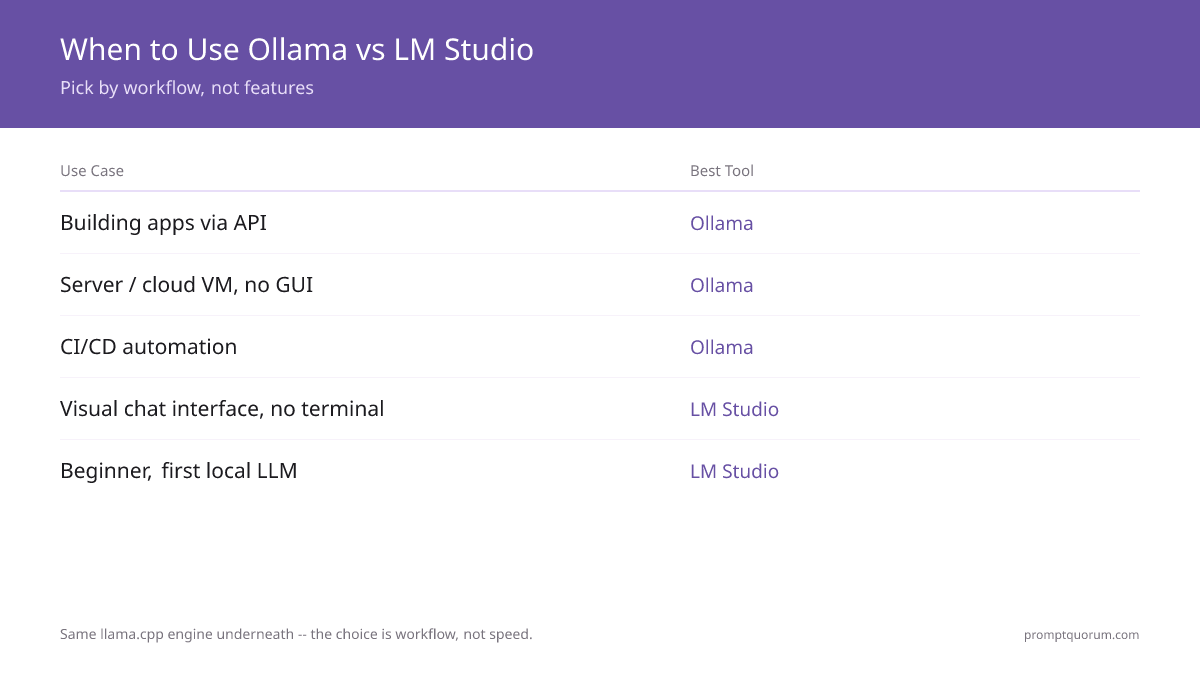
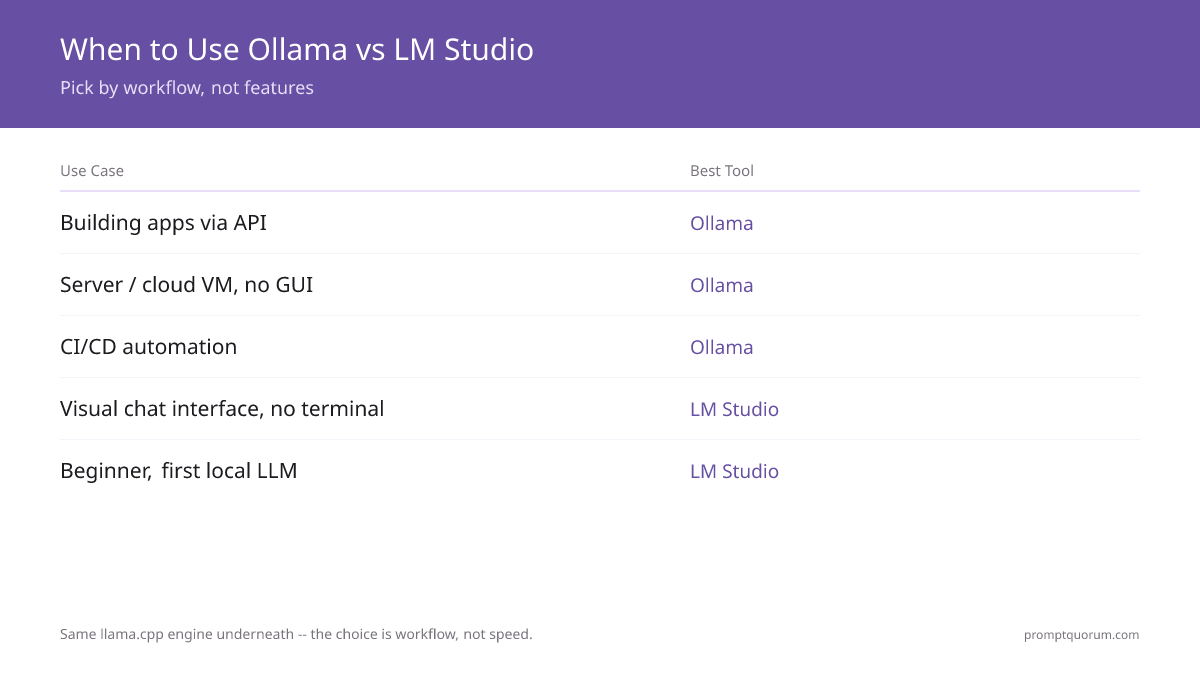
- Ollama and LM Studio are the two dominant local LLM tools. Both run the same models on the same llama.cpp engine, producing comparable inference speed.
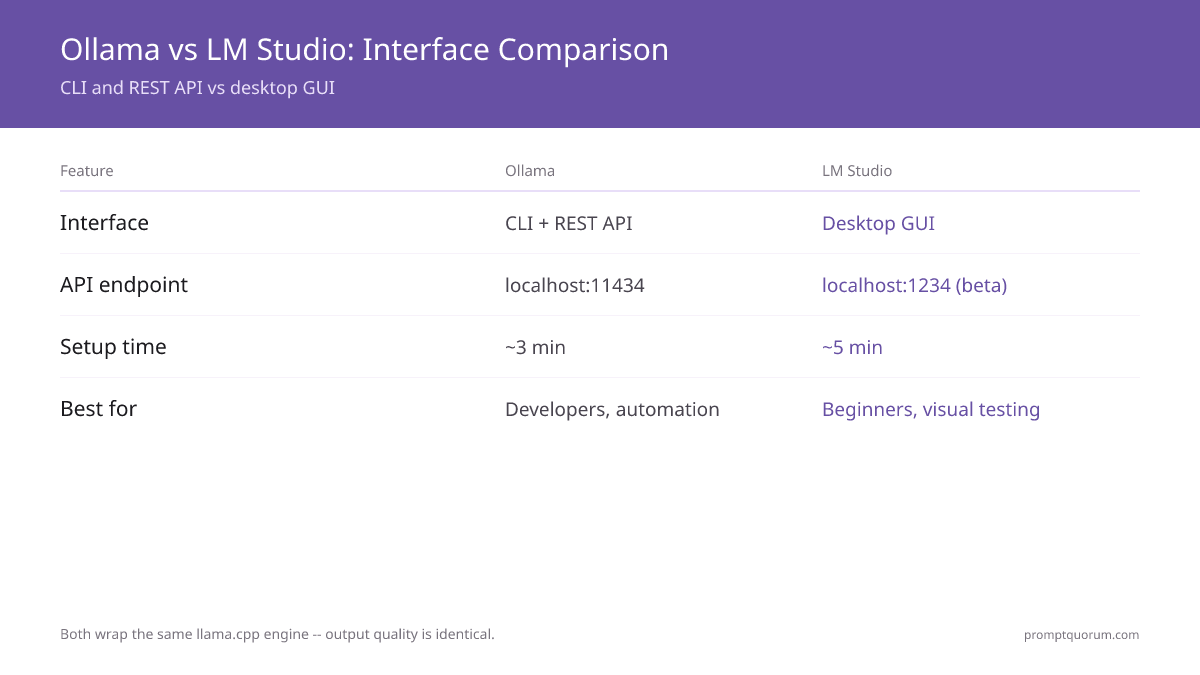
- Ollama = lightweight CLI with REST API (OpenAI-compatible). No GUI. Works on macOS, Linux, Windows. Best for developers, production, automation.
- LM Studio = full desktop app with built-in chat UI, model browser, GPU settings. Much easier for beginners. Windows and macOS only.
- Both tools are free and open-source. Neither is objectively "better" -- the choice depends entirely on your workflow.
- Key difference: Ollama exposes an API (localhost:11434); LM Studio is primarily a standalone application (though it also has an API in beta).
📍 In One Sentence
Ollama (CLI, port 11434, OpenAI-compatible REST API) is best for developers and automation; LM Studio (GUI, port 1234, model browser) is best for beginners who prefer a visual interface — both are free and install in under 5 minutes.
💬 In Plain Terms
Both tools let you download and run AI models locally on your computer for free. Ollama uses your terminal (command line), exposes an API for apps to connect, and is better for automating tasks. LM Studio is a graphical app — you click to download models, browse them in a list, and chat in a built-in window.
⚡ Quick Facts
- Same engine: Both use llama.cpp — comparable speed on the same hardware
- Ollama: CLI + REST API at port 11434, 4,500+ models, MIT open source, no telemetry
- LM Studio: Desktop GUI + API at port 1234, any Hugging Face GGUF, free (closed source), telemetry on by default
- Setup time: Ollama 2-3 min (CLI), LM Studio 5 min (GUI)
- For developers: Ollama — API-first, scriptable, production-ready
- For beginners: LM Studio — visual model browser, built-in chat, no terminal needed
- Can coexist: Both install on the same machine, different ports, share GGUF model files
Quick Comparison: Ollama vs LM Studio
Feature | ||
|---|---|---|
| User Interface | CLI only | Full graphical app |
| Model Browser | Command-line list | Visual model browser |
| Built-in Chat UI | No (requires 3rd-party app) | Yes, built-in |
| REST API | Yes, OpenAI-compatible | Yes (beta), OpenAI-compatible |
| GPU Settings | Via environment variables | Visual sliders in app |
| Operating Systems | macOS, Linux, Windows | macOS, Windows, Linux (beta) |
| Setup Time | 2-3 minutes (CLI) | 5 minutes (download, install, run) |
| Ease for Beginners | ★★☆☆☆ | ★★★★★ |
| Ease for Developers | ★★★★★ | ★★★☆☆ |
| Price | Free | Free |
What Is Ollama?
Ollama is a command-line tool that downloads and runs open-source language models locally. It is built on llama.cpp, a C++ inference engine optimized for CPU and GPU performance. Ollama supports over 4,500 models across its library.
Ollama works by: (1) you run `ollama pull <model>` to download model weights, (2) you run `ollama run <model>` to start the model as a service, (3) the model becomes accessible via a REST API at `http://localhost:11434`, and (4) you connect any application (Python, Node.js, web app) to this API.
Ollama is lightweight -- it adds minimal overhead and uses minimal disk space for temporary files. It is designed for developers and production use, not for users who want a graphical interface.
What Is LM Studio?
LM Studio is a desktop application that bundles a model downloader, a chat interface, and inference settings into one window. It is built on llama.cpp (the same underlying engine as Ollama), but wraps it in a user-friendly graphical interface.
LM Studio was designed for non-technical users and beginners. You launch the app, browse a visual library of models, download with one click, and start chatting. No command-line knowledge required.
LM Studio supports macOS and Windows natively. Linux support is in beta. LM Studio also exposes an OpenAI-compatible API (in beta), allowing developers to integrate it into applications, though this feature is less mature than Ollama's.
How Do You Set Up Ollama vs LM Studio?
- Ollama Setup (3 minutes): Download the installer from ollama.ai → run installer → open terminal → type `ollama run llama4:scout` → model downloads and starts. Done.
- LM Studio Setup (5 minutes): Download LM Studio from lmstudio.ai → run installer → launch app → click "Search models" → find "llama4:scout" or "llama3.2:3b" for a lightweight first test → click download → wait for model → click "Start server" → open built-in chat tab. Done.
- Both are genuinely simple. Ollama is faster if you already use the terminal; LM Studio is faster if you do not want to touch the terminal.
How Do You Manage Models in Each Tool?
Model management means downloading models, checking disk usage, deleting old models, and switching between different models.
In Ollama: All commands are CLI-based. `ollama list` shows downloaded models, `ollama pull <name>` downloads a new model, `ollama rm <name>` deletes a model, `ollama run <name>` launches a model. Model files are stored in `~/.ollama/models` on your machine. It is straightforward but requires terminal familiarity.
In LM Studio: Click "Search models" in the app, browse the visual library, click a model to see its details (size, quantization, description), click "Download" (shows progress bar), and models are stored in a settings-configurable folder. You can see all downloaded models in a sidebar and swap between them with one click. It is significantly more visual and beginner-friendly.
# Ollama model management
ollama list              # See all downloaded models
ollama pull llama4:scout # Download a model
ollama run llama4:scout  # Start a model
ollama rm llama3.2:3b    # Delete a model (example)
ollama pull qwen3:8b     # Download a different model

# LM Studio: same actions in GUI
# Search models → Download → Click to use
Which Is Faster: Ollama or LM Studio?
Both tools use the same underlying C++ inference engine (llama.cpp). On the same hardware running the same models, they produce comparable token generation speed. Any performance difference between them is minor.
Speed depends entirely on your hardware (GPU VRAM, GPU type, CPU cores) and the model you run. A Llama 4 Scout model on an RTX 4090 generates about 80-100 tokens/second in both tools. A Llama 3.2 3B generates about 150 tokens/second. On a laptop CPU, either model generates about 10 tokens/second in both tools.
LM Studio includes a visual benchmark tool (Settings → Benchmark) that lets you test token generation speed without using the terminal. Ollama does not have a built-in benchmark, but you can benchmark via the API.
🔍 Did You Know: Ollama and LM Studio produce similar inference results on the same model at the same quantization with temperature 0. The tools are thin wrappers around llama.cpp — they add interface, not intelligence. Your choice of tool has zero effect on output quality.
Which Has Better API Support for Developers?
Ollama exposes a fully OpenAI-compatible REST API at `http://localhost:11434`. This means you can use any OpenAI SDK (Python, Node.js, Go, etc.) by simply changing the base URL and running a local model. This is production-ready and widely used in enterprise deployments.
Example: using Ollama API from Python:
LM Studio also exposes an OpenAI-compatible API (in beta), accessible at `http://localhost:1234`. However, it is less documented and less widely tested in production than Ollama. If you need API reliability for a production application, Ollama is the safer choice.
🔍 Pro Tip: You don't have to choose one exclusively. A common setup is Ollama running as a background service for API-driven workflows (coding, automation) and LM Studio open for quick ad-hoc chat when you want to test a prompt visually. They use different ports and don't conflict.
Both Ollama and LM Studio can also serve as prompt development environments. For a broader comparison that includes Cursor, VS Code + Continue, and cloud playgrounds, see best prompt engineering IDEs and editors.
Both tools run the same models — the difference in output quality comes from how you prompt them. For 80 techniques covering prompting fundamentals, frameworks, and evaluation, see the prompt engineering guide.
Once Ollama or LM Studio is serving the model, the next decision is which coding harness drives it. See Continue.dev vs Cline vs Aider for the three open-source picks and how they differ in workflow.
Ollama and LM Studio are just two entries in a much larger ecosystem. See the Local LLM Software Directory for 229 tools across runtimes, desktop apps, RAG, coding, and agents — each with a description, licence, and link.
from openai import OpenAI

client = OpenAI(
  base_url="http://localhost:11434/v1",
  api_key="ollama",  # dummy key, unused locally
)

response = client.chat.completions.create(
  model="llama4:scout",  # or "llama3.2:3b" for lightweight
  messages=[
    {"role": "user", "content": "What is 2+2?"}
  ]
)
print(response.choices[0].message.content)
When Should You Choose Ollama?
Choose Ollama if:
- You are a developer building an application that needs to integrate a local LLM via API.
- You are running models on a server or cloud VM (Linux), where a GUI is not useful.
- You want a lightweight tool with minimal overhead.
- You are comfortable using the command line.
- You need production-ready, stable API support.
- You want to automate model downloading and management (e.g., in shell scripts or CI/CD pipelines).
When Should You Choose LM Studio?
Choose LM Studio if:
- You are a non-technical user or beginner who wants a graphical interface.
- You want a single application where you can browse models, download, chat, and adjust GPU settings -- all in one place.
- You prefer visual feedback (progress bars, memory usage graphs) over command-line output.
- You want to experiment with models quickly without touching the terminal.
- You are on macOS or Windows (best support for these OS).
- You want quick model switching without memorizing command names.
⚠️Warning: LM Studio collects anonymous usage analytics by default. For privacy-sensitive deployments, disable immediately after installation: Settings → Privacy → Send anonymous usage data → off. Ollama collects no telemetry by default.
Ollama vs LM Studio: Regional Context
- EU / GDPR -- Both tools run entirely locally; no data leaves your machine. EU AI Act high-risk system obligations apply from August 2, 2026 (pending Digital Omnibus). Both tools satisfy GDPR data residency by default. The compliance difference is auditability: Ollama logs all API calls to stdout and can be configured for GDPR audit trails. LM Studio is a desktop app with no built-in logging -- audit trail for regulated industries requires additional tooling. For German BSI, French CNIL, or ISO 27001 compliance, Ollama is the recommended choice because API request logs can be captured and retained. Ollama also integrates with standard DevOps tooling (systemd, Docker, CI/CD) which simplifies GDPR Article 25 data minimization and access control requirements.
- Japan (METI) -- Ollama is the standard choice for Japanese enterprise deployments because it runs as a headless service (no GUI required on servers) and integrates with standard IT infrastructure. LM Studio is popular among individual Japanese developers and researchers for its visual interface. METI AI governance documentation is easier to produce with Ollama -- `ollama list` provides exact model names and versions for compliance records, and `ollama show <model>` provides detailed architecture documentation.
- China -- Both tools support Qwen3 and Qwen 3.6 models (Alibaba) with full performance. `ollama run qwen3:8b` is the standard deployment pattern for Chinese enterprise AI workflows. LM Studio is popular for individual developer use. Under China's Data Security Law (数据安全法), both tools keep all inference on-premises -- no data transfer to foreign servers.
Common Mistakes When Choosing Between Ollama and LM Studio
- Thinking one is significantly faster than the other. They use the same inference engine. Speed differences are imperceptible on the same hardware and models. Choose based on UI preference and workflow, not speed.
- Assuming Ollama has no GUI. Ollama does not have a built-in chat UI, but you can use it with third-party web interfaces (Open WebUI, Enchanted UI, etc.) that run in your browser. It is not a limitation, just a design choice.
- Not realizing both tools can run simultaneously. You can run Ollama in the background (via CLI or systemd service) while also using LM Studio as your chat interface, and both access the same models. They do not conflict.
- Thinking LM Studio API is production-ready. LM Studio's API is still in beta and not recommended for production. Use Ollama for API-dependent production workloads.
- Not checking model quantization before download. Both tools let you download the same model in different quantizations (4-bit, 5-bit, 8-bit). The quantization affects VRAM usage more than the tool choice. Always check the specific quantization before downloading.
- Still using `llama3.2:3b` as your default model. Many tutorials and guides recommend Llama 3.2 3B as the first model to try. If you have 12+ GB VRAM, switch to `llama4:scout` — dramatically better quality due to MoE architecture (17B active params, 109B total). Keep 3B only for testing on 8 GB machines.
Common Questions: Ollama vs LM Studio
Can I use Ollama and LM Studio at the same time?
Yes. Ollama runs as a background service (CLI-based), and LM Studio is a desktop app. You can run Ollama in a terminal and LM Studio simultaneously. However, they cannot both serve the same model at the same time -- that would double the VRAM usage. You typically choose one to be your "active" tool for inference.
Can I use the same models in both?
Yes, both tools support GGUF and safetensors format. A model downloaded in Ollama can be imported into LM Studio (or vice versa) by pointing to the model file location. By default, they use separate folders, but you can configure LM Studio to use Ollama's model folder.
Does Ollama work on Windows?
Yes. Ollama for Windows is in stable release and works reliably on Windows 10 and 11 with NVIDIA, AMD, and Intel GPUs. The Windows version is slightly less mature than macOS, but is production-ready.
Is LM Studio better for Mac?
LM Studio has excellent native macOS support, including Apple Silicon (M-series chips) optimization. Ollama also supports Mac and M-series chips equally well. Both tools support Apple Silicon including M1, M2, M3, M4, and M5 chips. The M5 Pro (64 GB unified memory, 307 GB/s) and M5 Max (128 GB, 460-614 GB/s) are the first Macs that comfortably run 70B models at Q4 quantization — both tools benefit equally from this upgrade. On macOS, it is mostly a UI preference.
Which tool uses less disk space?
Both use the same amount of disk space to store models -- they both use the same model files. The tool itself (the application code) is small in both cases. If anything, Ollama is slightly more minimal since it is CLI-only.
Can I use Ollama with Cursor or VS Code?
Yes. Both Cursor and VS Code can connect to Ollama's API (localhost:11434) using OpenAI-compatible plugins. See the Local LLMs with VS Code and Cursor guide for detailed setup.
Which is better for RAG (Retrieval-Augmented Generation)?
For RAG workflows, you typically run a model via API. Both Ollama and LM Studio support this, so either works. Ollama is slightly more common in RAG because its API is more stable. See Best Local RAG Tools for a complete comparison.
Do I need a GPU to run either tool?
No. Both tools can run models on CPU alone (much slower -- 1-5 tokens/sec). A GPU makes both tools 10-50× faster. Ollama and LM Studio both auto-detect your GPU and use it automatically if present.
Which is better for RAG?
For RAG workflows you typically run a model via API. Both tools support this. Ollama is slightly more common in RAG deployments because its API is more stable and production-ready compared to LM Studio's beta API.
Do I need a GPU to run Ollama or LM Studio?
No. Both tools run models on CPU alone at 1-5 tokens/sec. A GPU makes both 10-50x faster. Both tools auto-detect your GPU and use it automatically when present.
Sources
- Ollama Contributors. (2026). "Ollama GitHub." https://github.com/ollama/ollama -- Source code, model library, and API documentation for Ollama.
- LM Studio. (2026). "LM Studio Official Site." https://lmstudio.ai -- Desktop app documentation and model browser for LM Studio.
- Gerganov, G. (2024). "llama.cpp Project." https://github.com/ggerganov/llama.cpp -- The shared C++ inference engine underlying both Ollama and LM Studio.
- OpenAI. (2024). "OpenAI API Reference." https://platform.openai.com/docs/api-reference -- OpenAI-compatible API specification that both tools implement.