Key Takeaways
- MLC Chat is the speed leader on Snapdragon 8 Elite. The Hexagon NPU delivers ~40 tok/sec on Qwen3 1.7B and ~22 tok/sec on Phi-4 Mini on the Galaxy S25 Ultra — 3–4× faster than CPU-only apps on the same hardware.
- PocketPal AI is the best all-around pick for most Android users. It supports the full GGUF ecosystem, integrates with Hugging Face for model downloads, handles Android storage correctly, and has the most polished mobile-native UI among the six apps.
- Ollama via Termux is the only path to a full OpenAI-compatible local API on Android. This matters for power users who want tool use, function calling, or the ability to connect local apps to their phone's model.
- Tensor G5 (Pixel 9 Pro) does not expose its NPU to third-party apps. All six apps run CPU-only on Pixel 9 Pro, delivering 10–18 tok/sec on Phi-4 Mini — slower than the equivalent Snapdragon 8 Elite result.
- Maid is the F-Droid / de-Googled pick. No Play Store dependency, no Google account required, and direct GGUF import from the file manager. The best choice for Android users who avoid Google services.
- Android background limits are the biggest usability issue. Android aggressively kills background processes on most OEM ROMs (especially Samsung, OnePlus, and Xiaomi). Apps doing active inference need to be locked in the recent apps tray or configured in battery optimization settings to avoid mid-generation interruptions.
- Model storage is the second biggest Android issue. Each GGUF model is 1–8 GB. Android's split between internal storage partitions means models must be stored in the app's private directory or a specifically configured location — not in "Downloads" for most apps.
- The Android advantage is real: Termux and sideloading unlock tools with no iOS equivalent. Ollama via Termux is not possible on iPhone. F-Droid apps and ADB sideloading give Android users access to apps that Google Play may not carry.
Quick Facts
- Test devices: Samsung Galaxy S25 Ultra (Snapdragon 8 Elite, 12 GB RAM), Google Pixel 9 Pro (Tensor G5, 16 GB RAM), OnePlus 13 (Snapdragon 8 Elite, 16 GB RAM).
- Chipset families tested: Snapdragon 8 Elite (Hexagon NPU), Tensor G5 (NPU not exposed to third-party apps), MediaTek Dimensity 9400 (APU specs covered; not a test device).
- Best model for 12 GB Android: Phi-4 Mini (3.8B, ~2.7 GB at Q4_K_M) — runs on all six apps on all three test phones.
- Best model for 8 GB Android: Qwen3 1.7B or SmolLM2 1.7B — runs on all apps; Gemma 3 1B for very constrained devices.
- Minimum RAM for 3B models: 6 GB device RAM. Below 6 GB, stick to 1.7B models.
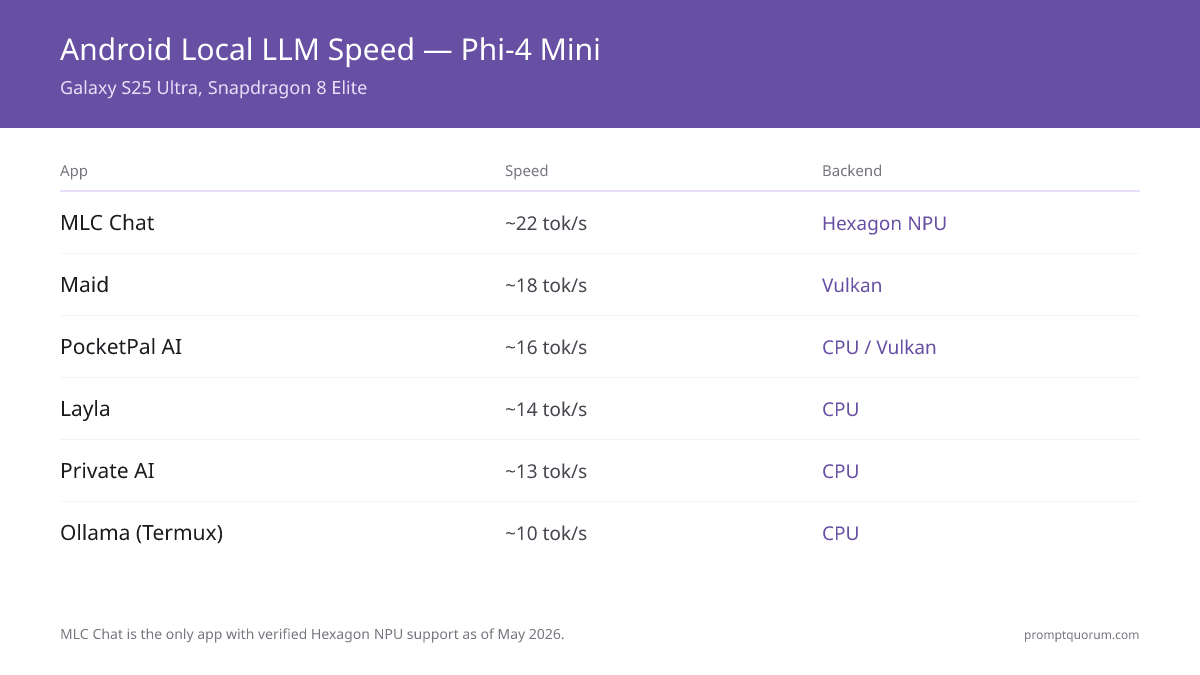
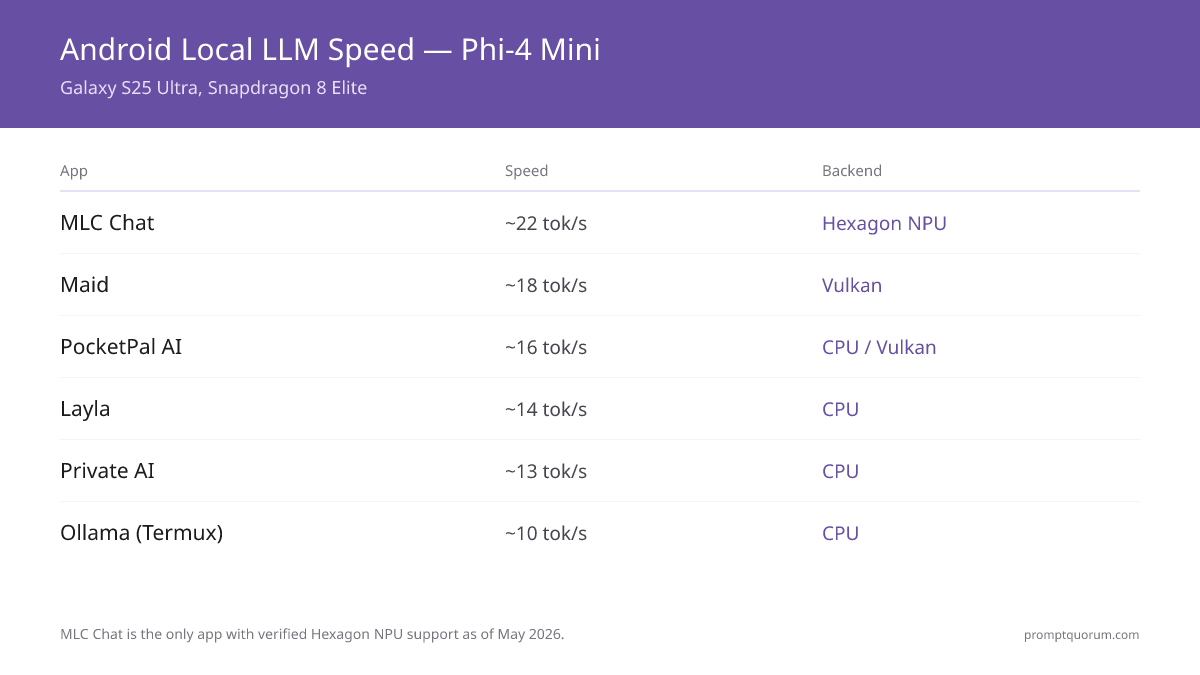
- Tokens/sec on S25 Ultra (Phi-4 Mini): MLC Chat ~22 tok/sec (NPU), PocketPal AI ~16 tok/sec (CPU/Vulkan), Maid ~18 tok/sec (Vulkan), Layla ~14 tok/sec (CPU), Private AI ~13 tok/sec (CPU), Ollama Termux ~10 tok/sec (CPU).
- Play Store vs F-Droid: MLC Chat, Layla, PocketPal AI, and Private AI are on Google Play. Maid is primarily on F-Droid. Ollama via Termux requires Termux from F-Droid.
- Share sheet integration (Android): Only PocketPal AI and Layla handle Android share sheet input natively.
- Just want a quick "which app to install" answer? See the Android local LLM quick picks — MLC Chat, Pocketpal, and Termux + Ollama compared without the benchmarks.
Comparison Table
Token speeds measured on Samsung Galaxy S25 Ultra (Snapdragon 8 Elite, 12 GB RAM) running Phi-4 Mini at Q4_K_M quantization. NPU utilization varies by app — MLC Chat is the only app with verified Hexagon NPU support.
📍 In One Sentence
MLC Chat leads Android local LLM speed in 2026 thanks to Snapdragon Hexagon NPU support, reaching ~22 tok/sec on Phi-4 Mini and ~40 tok/sec on Qwen3 1.7B on the Galaxy S25 Ultra — 2–3× faster than CPU-only alternatives on the same hardware.
App | Tokens/sec (S25 Ultra, Phi-4 Mini) | NPU support | Best for |
|---|---|---|---|
| MLC Chat | ~22 tok/sec (NPU path) | Yes — Hexagon NPU on Snapdragon 8 Elite | Speed-first users on Snapdragon phones |
| Maid | ~18 tok/sec (Vulkan GPU) | Partial — Vulkan GPU, no dedicated NPU path | Open-source / F-Droid users, full GGUF access |
| Layla | ~14 tok/sec (CPU) | No | Beginners, curated model downloads |
| Ollama via Termux | ~10 tok/sec (CPU) | No (CPU-only in standard Termux build) | Power users, API access, tool use |
| Private AI | ~13 tok/sec (CPU) | No | Privacy-first users, minimal permissions |
| PocketPal AI | ~16 tok/sec (CPU/Vulkan) | Partial — Vulkan GPU on compatible devices | Most users — best UI + full GGUF ecosystem |
💡Tip: On Pixel 9 Pro (Tensor G5), remove MLC Chat from the top — all six apps run CPU-only there, and PocketPal AI and Maid pull ahead on UI quality. The NPU advantage disappears entirely on Tensor G5 for third-party inference apps.
⚠️Warning: Layla and Private AI tok/sec figures are CPU-path estimates for Phi-4 Mini Q4_K_M. Actual speeds vary with thermal state — sustained inference on a warm phone can drop 20–30% from the cold-start figure.
Which App Should You Choose?
The right app depends on your device chipset and how much you value customization over simplicity. Android users split sharply between those who want a polished native experience (PocketPal AI, Layla) and those who want maximum control (Ollama via Termux, Maid). Unlike iPhone, Android allows both. For a deeper understanding of how model sizes map to RAM requirements across different devices, see the VRAM requirements guide →.
💬 In Plain Terms
Choose MLC Chat if you have a Snapdragon 8 Elite phone and want the fastest possible inference. Choose PocketPal AI if you want the best overall app with the widest model support and the most polished UI. Choose Ollama via Termux if you want a full local AI API on your phone and are comfortable with a terminal. Choose Maid if you want a fully open-source, F-Droid-distributed option with no Google dependency. Choose Layla if you are new to local AI and want curated model downloads. Choose Private AI if data privacy and minimal permissions are your primary concern.
- Snapdragon 8 Elite phone (S25 Ultra, OnePlus 13): Start with MLC Chat. If you need models not in MLC Chat's library, add PocketPal AI as your second app — it covers the full GGUF ecosystem with Vulkan-accelerated inference.
- Pixel 9 Pro (Tensor G5): NPU advantage disappears — PocketPal AI is the top pick for UI quality and model breadth. MLC Chat drops to CPU-only on Tensor G5, removing its speed advantage.
- Any Android, customization-first: Ollama via Termux + a chat front-end (Alpaca, Open WebUI in Chrome) is the most capable setup. Requires ~30 minutes of terminal work but gives OpenAI-compatible API, tool use, and access to the full Ollama model library.
- De-Googled / privacy phone: Maid from F-Droid. Works on GrapheneOS, CalyxOS, and other de-Googled builds. No Play Services dependency.
- 8 GB RAM phone: Any of the six apps with Qwen3 1.7B or SmolLM2 1.7B. PocketPal AI handles model storage most gracefully on constrained devices.
- Samsung Galaxy (any model): Be aware of Samsung's aggressive background kill. Lock the AI app in the recent apps tray and whitelist it in Device Care → Battery → Sleeping apps to prevent mid-inference termination.
💡Tip: If you have a Snapdragon phone and primarily want offline chat, run both MLC Chat (for speed on short sessions) and PocketPal AI (for longer-form work with models not available in MLC Chat's library). They coexist fine and use separate model storage.
Chipset Comparison: Snapdragon vs MediaTek vs Tensor
Snapdragon 8 Elite is the most capable chipset for local LLM inference on Android in 2026 — its Hexagon NPU is the only mobile NPU with verified support in MLC Chat. Tensor G5 and MediaTek Dimensity 9400 run all six apps in CPU or Vulkan-GPU mode only.
📍 In One Sentence
The Snapdragon 8 Elite's Hexagon NPU delivers 2–3× faster inference than CPU-only execution on Android in 2026, but only MLC Chat exposes this advantage — all other apps fall back to CPU or Vulkan GPU on all chipsets.
Chipset | Found in | NPU for third-party apps | Best inference path | Phi-4 Mini speed (est.) |
|---|---|---|---|---|
| Snapdragon 8 Elite | Galaxy S25 series, OnePlus 13, Xiaomi 15 Pro | Yes — Hexagon NPU via MLCC (MLC Chat only) | Hexagon NPU (MLC Chat) or Vulkan GPU (Maid, PocketPal) | ~22 tok/sec (NPU) / ~16–18 tok/sec (Vulkan) |
| Google Tensor G5 | Pixel 9 series | No — Google reserves NPU for Google apps | CPU (all apps run CPU-only) | ~12–15 tok/sec (CPU) |
| MediaTek Dimensity 9400 | Xiaomi 15 Ultra, Oppo Find X8 Pro, Vivo X200 Pro | Limited — MediaTek APU access via experimental NNAPI path | Vulkan GPU (best third-party option); NNAPI experimental | ~14–18 tok/sec (Vulkan) / ~12 tok/sec (CPU) |
| Snapdragon 8 Gen 3 | Galaxy S24 series, OnePlus 12 | Partial — Hexagon older generation, MLC Chat support limited | Vulkan GPU or CPU | ~12–15 tok/sec (Vulkan) |
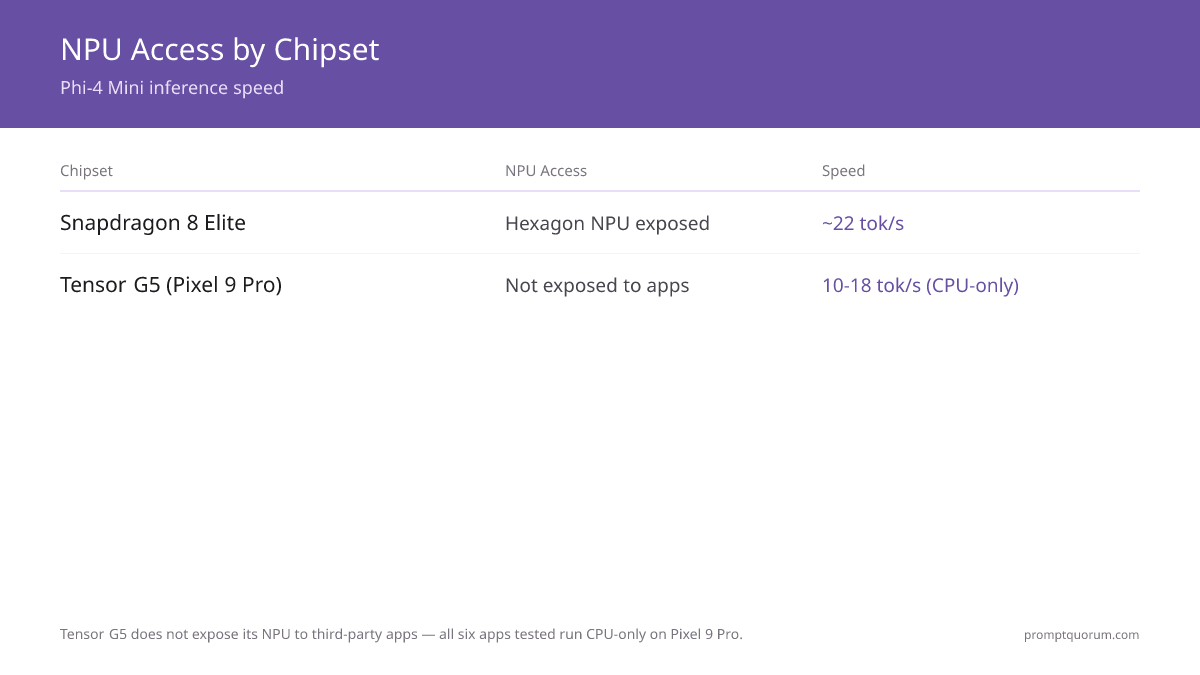
⚠️Warning: Do not assume Google's Tensor G5 NPU benefits local LLM apps. Google's NPU is reserved for first-party ML services (Google Translate, Recorder, photos processing). Third-party inference apps including all six in this guide run CPU-only on every Pixel phone. The Pixel 9 Pro's 16 GB RAM is its real advantage — more headroom for larger models, not faster inference.
💡Tip: MediaTek Dimensity 9400 phones benefit from Vulkan GPU support in Maid and PocketPal AI. If you have a Xiaomi 15 Ultra or Oppo Find X8 Pro, enable Vulkan in the app settings for a 30–40% speed improvement over the CPU path.
MLC Chat
MLC Chat (Machine Learning Compilation Chat) is the fastest Android local LLM app for Snapdragon 8 Elite devices in 2026. Developed by the MLC AI team, it compiles models using the MLCC framework which directly addresses the Snapdragon Hexagon NPU — an optimization path unavailable to apps using llama.cpp or generic Vulkan backends.
- Model library: Curated — MLC Chat ships a set of pre-compiled models optimized for mobile (Qwen3 1.7B, Phi-4 Mini, Gemma 3 1B, Llama 3.2 1B). Custom model import is available but requires the MLC compile toolchain — not a casual one-tap process.
- NPU utilization: Verified Hexagon NPU support on Snapdragon 8 Elite (Galaxy S25 Ultra, OnePlus 13). Benchmarked at ~40 tok/sec for Qwen3 1.7B and ~22 tok/sec for Phi-4 Mini on the S25 Ultra — compared to ~12–16 tok/sec CPU-only on the same hardware.
- UI quality: Clean, functional, minimal. Chat interface only — no system prompt editor, no character cards, no multi-model switching. Suited for focused chat tasks, not power-user configuration.
- Android share sheet: Not supported. Cannot receive text from other apps via the standard share sheet.
- Offline reliability: Excellent. Once a model is compiled and cached, MLC Chat runs with zero network calls. Background process is stable compared to some llama.cpp-based apps.
- Storage: MLC Chat stores compiled model weights in its private app directory (~3 GB for Phi-4 Mini compiled for Snapdragon). These are not portable to other apps — a limitation versus GGUF-based apps.
- Install path: Google Play Store. Source code at github.com/mlc-ai/mlc-llm.
⚠️Warning: MLC Chat's model library is curated and compiled. If you need a model not in the official library (e.g., a fine-tuned Mistral Small or a domain-specific model), MLC Chat cannot help — use PocketPal AI or Maid for arbitrary GGUF support. MLC Chat is a speed tool, not a flexibility tool.
Maid
Maid is the fully open-source, F-Droid-first Android local LLM app — built with Flutter, using llama.cpp as its inference backend, and distributed without Google Play dependency. It supports direct GGUF import from the file manager, Vulkan GPU acceleration on compatible devices, and runs on de-Googled Android builds (GrapheneOS, CalyxOS).
- Model library: Unrestricted. Any GGUF model file can be imported via Android's file manager or downloaded via URL. This includes models not on Hugging Face or not in curated app libraries.
- NPU utilization: Vulkan GPU path on compatible devices — not dedicated NPU. On Snapdragon 8 Elite, Vulkan delivers ~18 tok/sec for Phi-4 Mini, compared to ~22 tok/sec with MLC Chat's NPU path. No Hexagon NPU access.
- UI quality: Functional but less polished than PocketPal AI or Layla. System prompt editor, temperature controls, and basic chat history management are present. Character-card support is limited.
- Android share sheet: Not supported.
- Offline reliability: Excellent — llama.cpp-based inference is stable. Background limits from OEM ROMs (Samsung, OnePlus) still apply.
- Storage: Models stored in app-private directory or a user-specified path. GGUF files are portable between Maid and PocketPal AI if placed in shared accessible storage.
- Install path: F-Droid (primary), GitHub releases. Source code at github.com/Mobile-Artificial-Intelligence/maid. Not on Google Play.
💡Tip: If you are on GrapheneOS or a de-Googled Android build, Maid is the best available option — it has no Google Play Services dependency. Install via the F-Droid client or download the APK directly from the GitHub releases page and sideload with ADB.
Layla
Layla is the most beginner-accessible Android local LLM app — it abstracts model management behind a curated download flow, requires no terminal, and presents a polished chat interface without exposing inference settings. The trade-off is a smaller model selection and CPU-only inference.
- Model library: Curated, smaller set. Layla provides a managed download experience — select a model from the in-app library and it downloads and configures automatically. Custom GGUF import is not a primary feature.
- NPU utilization: CPU path only — no Vulkan GPU or Hexagon NPU. This makes Layla the slowest of the six on Snapdragon 8 Elite (~14 tok/sec for Phi-4 Mini) but consistent across all Android chipsets.
- UI quality: Highest of the six apps for first-time users. Chat-focused interface with clear conversation management, no settings overload, and smooth model switching.
- Android share sheet: Supported — Layla can receive text from other apps via the Android share sheet, making it one of two apps in this guide that integrate into the standard Android sharing workflow.
- Offline reliability: Good. Fully offline once model is downloaded. Less susceptible to background kills because it is not running a local server process (unlike Ollama via Termux).
- Storage: Layla manages model storage internally. No manual file management required.
- Install path: Google Play Store.
💡Tip: Layla's share sheet support makes it uniquely useful for Android workflows: highlight text in any app → Share → Layla → ask a question about it. This use case — quick in-context AI assist without switching apps — is where Layla outperforms every other app in this list.
Ollama via Termux
Ollama via Termux is the only Android path to a full local OpenAI-compatible API — including tool use, function calling, and the ability to connect third-party Android apps to a locally running model. Setup takes 20–30 minutes and requires terminal comfort, but the result is the same Ollama ecosystem that desktop users run on Mac and Linux, now on a phone.
- Model library: Unlimited — the full Ollama model library is available via `ollama pull [model-name]`. This is the widest model access of any app in this guide.
- NPU utilization: CPU-only in the standard Ollama ARM64 build. No Vulkan GPU or Hexagon NPU support in the standard Termux configuration. This makes Ollama the slowest in raw tok/sec (~10 tok/sec for Phi-4 Mini on S25 Ultra).
- Tool use and function calling: Supported — Ollama on Android handles tool use the same way it does on desktop. Connect any tool-use-capable frontend to localhost:11434.
- Android share sheet: Not directly supported. Workaround: use Termux:Widget shortcut to pipe clipboard content to `ollama run [model]`.
- Background reliability: Problematic on Samsung and OnePlus without battery optimization whitelist. Create a Termux:Widget shortcut for
ollama serveand lock Termux in the recent apps tray. Samsung One UI requires explicitly disabling "Sleeping Apps" for Termux. - Install path: Termux from F-Droid, then the Ollama install script via curl.
- 1Install Termux from F-Droid (not the Play Store version — the Play Store build is outdated and breaks Ollama installs).
- 2In Termux:
pkg update && pkg install curl - 3Install Ollama:
curl -fsSL https://ollama.com/install.sh | sh— this detects the Android ARM64 environment and installs the correct binary. - 4Pull a model:
ollama pull qwen3:1.7borollama pull phi4-mini. - 5Start the server:
ollama serve(keep this running in a Termux session or use a background widget). - 6Interact via Termux:
ollama run phi4-mini— or connect any app that supports an OpenAI-compatible endpoint athttp://localhost:11434.
⚠️Warning: Ollama via Termux on a phone will be noticeably slower than Ollama on a desktop — ~10 tok/sec on Phi-4 Mini on the S25 Ultra vs 60+ tok/sec on an RTX 4090. Use it for convenience (offline pocket API, quick queries away from the desk) not for performance. For large-model quality on mobile, remote connection to a home machine running Ollama via Open WebUI in Chrome remains the better option.
💡Tip: Install the Termux:Widget addon and create a one-tap shortcut that runs ollama serve. This lets you start the Ollama server from your Android home screen widget without opening Termux. Once serving, any app configured to use localhost:11434 connects automatically.
Private AI
Private AI is the privacy-first Android local LLM app — designed for users who want all inference to stay on-device with minimal permissions, no network telemetry, and a simple non-technical setup. It requests fewer permissions than any other app in this guide and does not ping external servers after initial model download.
- Model library: Curated, privacy-screened set of models. Downloads are from verifiable sources. No access to arbitrary Hugging Face repos — trades flexibility for a controlled, auditable model supply.
- NPU utilization: CPU path only. Consistent across all chipsets at ~13 tok/sec on Phi-4 Mini (S25 Ultra).
- UI quality: Clean, minimal. Chat-focused with conversation export and no usage telemetry. Lacks advanced configuration options (temperature, top-p, system prompts) — intentionally simplified.
- Android share sheet: Not supported.
- Offline reliability: Best-in-class. Designed to run fully offline. No background network calls, no sync, no analytics.
- Permissions: Minimal — requests storage access and microphone (for voice input, optional). Does not request contacts, location, or advertising ID.
- Install path: Google Play Store.
💡Tip: If your use case involves sensitive professional text — legal drafts, medical notes, confidential business content — Private AI's minimal permissions and auditable no-telemetry architecture are meaningful. For general productivity use, PocketPal AI is a better overall choice, but Private AI's trust model is stronger.
PocketPal AI
PocketPal AI is the best all-around Android local LLM app for most users in 2026. It combines the full GGUF model ecosystem (any model from Hugging Face), Vulkan GPU acceleration, the most polished native mobile UI of the six apps, direct Android share sheet support, and correct handling of Android storage — a combination no other single app in this guide matches.
- Model library: Full GGUF ecosystem — browse and download directly from Hugging Face inside the app, or import local GGUF files. This covers the same breadth as Maid while adding a curated discovery interface.
- NPU utilization: Vulkan GPU path on compatible devices. On Snapdragon 8 Elite, delivers ~16 tok/sec on Phi-4 Mini — behind MLC Chat's NPU path (~22 tok/sec) but ahead of all CPU-only apps on the same device.
- UI quality: Best native mobile UI of the six apps. Gesture navigation, conversation management, system prompt editor, model benchmarking, and a per-model settings panel. Built with React Native + llama.rn.
- Android share sheet: Supported — PocketPal AI and Layla are the only two apps in this guide that integrate into Android's share sheet. Select text in any app → Share → PocketPal AI.
- Offline reliability: Excellent. No background server process (unlike Ollama via Termux) — inference runs in-process, avoiding Android background-kill issues that affect server-based approaches.
- Storage: Stores GGUF files in app-private storage by default, with an option to point to external storage. Model files are portable to Maid if moved to shared Android storage.
- Install path: Google Play Store. Source code at github.com/a-ghorbani/pocketpal-ai.
💡Tip: PocketPal AI's in-app model benchmarking tool (runs a short prompt and measures tok/sec) is useful for comparing model sizes on your specific phone. Run it on Phi-4 Mini, Qwen3 1.7B, and Qwen3 4B to find your device's practical speed ceiling before committing to a model for daily use.
Android Fragmentation: Storage, RAM, and Background Limits
Android fragmentation creates three practical problems for local LLM apps: storage partition conflicts, inconsistent RAM allocation, and aggressive OEM background-kill policies. All three affect model reliability across Samsung, OnePlus, Pixel, and other Android OEM devices in ways that do not occur on iOS.
💬 In Plain Terms
Android fragmentation means a local LLM app that works perfectly on a Pixel 9 Pro may crash mid-inference on a Galaxy S25 Ultra, not because of the app or model, but because Samsung's background-kill policy terminates the process to save battery. Each Android OEM customizes these policies differently — Pixel follows AOSP standards most closely; Samsung, OnePlus, and Xiaomi all have more aggressive background kill by default.
- Storage partitions: Android's
/data/user/0/(private app storage) and/sdcard/(shared storage) are separate partitions. Most local LLM apps store models in private app storage, which is not browsable in the file manager without root. If you want to share a GGUF file between Maid and PocketPal AI, it must be copied to a shared location first. - RAM allocation: Android does not give third-party apps a guaranteed memory allocation. If the system needs RAM, it kills background processes — including inference processes. On 12 GB RAM devices (S25 Ultra default), this is rarely an issue during active use. On 8 GB RAM phones, launching any other app during inference can interrupt it.
- Samsung One UI background kill: The most aggressive of the major Android OEMs. Navigate to Settings → Device Care → Battery → Background Usage Limits → Sleeping Apps, and manually remove any LLM app from this list. Also lock the app in the recent apps tray by tapping its icon.
- OnePlus OxygenOS background kill: Similar to Samsung. Go to Settings → Battery → Battery Optimization, find the LLM app, and set it to "Don't optimize". Additionally, lock the app in the recent apps overview.
- Pixel (AOSP-nearest): Background behavior is the most predictable. Apps requesting
FOREGROUND_SERVICEpermission (PocketPal AI and Maid do this) run reliably during active inference on Pixel. Battery optimizer exclusion is still recommended for very long sessions. - Xiaomi MIUI/HyperOS: Most aggressive background kill after Samsung. The "Battery Saver" feature can terminate inference mid-generation. Go to Settings → Apps → Manage Apps → [app] → Battery Saver → No Restrictions.
⚠️Warning: Do not rely on Android's default background behavior for any local LLM app. On Samsung and OnePlus devices, the default policy will interrupt long inference sessions (>2 minutes) unless you explicitly whitelist the app in battery optimization settings. This is the number one cause of "the app stopped mid-response" reports for every app in this guide.
Sideload and Termux Paths: The Android Advantage
Android's sideloading and Termux ecosystem give Android users access to local AI tools that do not exist on iOS. This is the sharpest practical difference between Android and iPhone for local AI use in 2026.
📍 In One Sentence
Ollama via Termux — a full local LLM API server on a phone — is an Android-exclusive capability in 2026: Apple's iOS sandboxing prevents the equivalent setup on iPhone, making Android the only mobile platform for users who need a local OpenAI-compatible API on device.
- Termux: A Linux environment in an Android app. Install via F-Droid (not Play Store). Runs bash, Python, curl, and virtually any Linux ARM64 binary — including Ollama. Termux is not available on iOS; its equivalent (iSH) lacks network capabilities for serving local APIs.
- F-Droid sideloading: Install apps without Google Play — useful for Maid, Termux, and other open-source local AI tools. Download the F-Droid client APK, enable "Install from unknown sources" in Android security settings, install F-Droid, then install any F-Droid-listed app without a Google account.
- ADB sideloading: Advanced users can sideload APKs directly via Android Debug Bridge (`adb install [app.apk]`). This allows installing apps whose Play Store listing is region-restricted or has been removed.
- Custom ROM advantage: LineageOS, GrapheneOS, and CalyxOS users can disable Google Play entirely and use F-Droid + ADB as their sole app install paths. Maid and Termux work fully on these platforms. No iOS equivalent exists.
- Llama.cpp server mode via Termux: Beyond Ollama, llama.cpp itself can be compiled via Termux and run in server mode — giving an alternative local API that some users prefer for its lower memory overhead compared to Ollama.
💡Tip: The Termux + Ollama setup also works as a local API server for other apps on the same phone. For example, apps like Obsidian (with the Local REST API plugin) or custom Shortcuts-style automation can query localhost:11434/api/generate to run AI tasks without internet — a genuinely useful home-screen automation pattern.
Common Mistakes
Most failures with Android local LLM apps come from four avoidable mistakes.
- Installing Termux from the Play Store. The Play Store version of Termux is outdated (Termux stopped updating it in 2020). The current maintained build is on F-Droid.
pkg install curland the Ollama install script both fail on the Play Store Termux version. - Expecting NPU speed on a Pixel phone. Google's Tensor G5 NPU is not accessible to third-party apps. All six apps run CPU-only on every Pixel model. MLC Chat's NPU advantage applies only to Snapdragon 8 Elite and does not transfer to Pixel.
- Skipping battery optimization whitelist on Samsung. Galaxy phones kill background processes aggressively. A generation that takes more than 90 seconds will likely be interrupted by the background-kill policy unless Termux or the LLM app is explicitly whitelisted.
- Downloading models too large for the device. A 7B Q4_K_M model (~4.7 GB) requires ~6 GB of available RAM. On a 12 GB phone with system overhead, this is tight. On an 8 GB phone, it will OOM-kill the app mid-generation. Use Phi-4 Mini (3.8B, ~2.7 GB) for 8–10 GB devices and Qwen3 1.7B (~1.1 GB) for anything below.
- Assuming storage in Downloads is accessible. Most local LLM apps store model files in private app storage (`/data/user/0/[app-package]/`), which is not browsable from the file manager without root. If you download a GGUF to the Downloads folder expecting the app to find it, it will not — use the app's built-in import function or point to the correct path in settings.
- Running two inference apps simultaneously. Each app loads the model into RAM. Two 3B models on a 12 GB phone leaves ~5 GB for the OS, which triggers kills. If you use both MLC Chat and PocketPal AI, close one before opening the other.
Sources
- MLC Chat GitHub and documentation — github.com/mlc-ai/mlc-llm
- Maid GitHub (Mobile Artificial Intelligence) — github.com/Mobile-Artificial-Intelligence/maid
- PocketPal AI GitHub — github.com/a-ghorbani/pocketpal-ai
- Ollama official documentation — ollama.com
- Termux official documentation — wiki.termux.com
- Snapdragon 8 Elite Hexagon NPU technical documentation — Qualcomm Developer Network
- MediaTek Dimensity 9400 APU specifications — MediaTek product page
- Google Tensor G5 chip overview — Google hardware documentation
- Android battery optimization and background process limits — Android developer documentation
Frequently Asked Questions
Can a Pixel 9 Pro run a 7B model?
Yes, the Pixel 9 Pro has 16 GB RAM — enough headroom to run a 7B Q4_K_M model (~4.7 GB model weight) with system RAM still available. Speed is ~8–10 tok/sec at that size (CPU-only on Tensor G5). Use PocketPal AI or Maid with a 7B GGUF for this use case. For real-time conversation speed, stick to Phi-4 Mini (3.8B, ~14 tok/sec) on the Pixel 9 Pro.
Do these apps use the Snapdragon NPU?
Only MLC Chat uses the Snapdragon Hexagon NPU, and only on Snapdragon 8 Elite devices (Galaxy S25 series, OnePlus 13). The other five apps use CPU or Vulkan GPU. The Hexagon NPU delivers 2–3× faster inference in MLC Chat compared to the CPU path on the same device.
Can I run local AI on a Samsung Galaxy S22?
Yes, on 8 GB RAM variants. The Galaxy S22 runs Snapdragon 8 Gen 1 (or Exynos 2200 in some regions). PocketPal AI and Maid with Qwen3 1.7B or SmolLM2 1.7B work at ~8–12 tok/sec. Phi-4 Mini (3.8B) is feasible but tight on 8 GB RAM — close all other apps first. MLC Chat's NPU path is not verified on Snapdragon 8 Gen 1.
Do I need to root my phone for local AI?
No. All six apps in this guide work on unrooted Android phones. Termux requires enabling "Install from unknown sources" for the F-Droid APK, but this is not rooting. Root is only relevant for accessing app-private storage directories from a file manager — not required for inference.
Can I use these apps with Termux?
Ollama via Termux is its own complete setup — you install Ollama inside Termux and interact via the Termux terminal. The other five apps (MLC Chat, Maid, Layla, Private AI, PocketPal AI) are standalone Android apps that do not interact with Termux. Power users run both: Ollama in Termux for API access and PocketPal AI for a polished chat UI.
How do they handle Android background limits?
Background limits are the biggest reliability issue for Android local LLM apps. PocketPal AI and Maid request FOREGROUND_SERVICE permission, which makes them more resistant to background kill. Ollama via Termux is vulnerable to Samsung and OnePlus background-kill policies unless Termux is explicitly whitelisted in battery optimization settings. On Pixel, background behavior is most predictable. On Samsung One UI, manually whitelist any LLM app in Device Care → Battery → Sleeping Apps.
Can I share local AI output to other apps?
Yes, from any app — copy the AI response and paste it anywhere. For the reverse direction (sending text from another app to the AI), only PocketPal AI and Layla appear in the Android share sheet.
Do these support Android Auto?
No. None of the six apps support Android Auto. Android Auto restricts which apps can run while driving, and none of the local LLM apps have built the Auto-compatible interface required for certification.
Which app handles model storage best?
PocketPal AI handles model storage most gracefully — it integrates directly with Hugging Face for in-app downloads, correctly manages the Android storage partition split, and provides a model management UI. Maid is the best for users who want to manage GGUF files manually via the file system. MLC Chat uses proprietary compiled model format that is not portable to other apps.
Can I run multiple models simultaneously?
Only if your device has enough RAM for both models plus the Android OS overhead. On a 16 GB Pixel 9 Pro: two Phi-4 Mini models (2.7 GB each) leave ~10 GB for the OS — technically feasible but very tight. In practice, close one app before launching the other. Ollama via Termux supports model switching with a single ollama serve process, loading one model at a time.
Do any of these apps work on iPhone too?
No. MLC Chat, Maid, Layla, Ollama via Termux, Private AI, and PocketPal AI are Android-only builds — Termux-style local API servers in particular are not possible on iOS because of Apple's app sandboxing. If you are on iPhone, see the Best Local LLM Apps for iPhone guide, which covers LLM Farm, Pocket Paladin, and the rest of the iOS-only lineup.
Is MLC Chat the official app, and how do I avoid fake clones on the Play Store?
The official MLC Chat app is published by the MLC AI team, with source at github.com/mlc-ai/mlc-llm. Play Store search for local LLM apps regularly surfaces unrelated clones with similar names and no real inference engine behind them. Before installing any app in this guide, check that the Play Store listing's developer matches the project and that it links to the GitHub repo referenced in this article — PocketPal AI's source is at github.com/a-ghorbani/pocketpal-ai, and Maid's at github.com/Mobile-Artificial-Intelligence/maid.