Key Takeaways
- LM Studio is the fastest path from zero to chatting locally. Download the installer from lmstudio.ai, open the Discover tab, search "Phi-4 Mini", download, and start chatting. Under 10 minutes on any decent internet connection.
- Jan is the open-source alternative. Same ease of use as LM Studio, fully open-source under Apache 2.0 (relicensed from AGPLv3 in 2025), works on Linux AppImage. If you prefer open-source software or want to see the source code, Jan is the equivalent pick.
- GPT4All is the most simplified experience. Single chat window, curated model recommendations, no model browsing overhead. Best for users who want to type a question and get an answer without any setup decisions — but note its development has stalled since early 2025, so its curated model list no longer includes the newest models.
- Start with Phi-4 Mini or Llama 3.2 3B on any hardware. These 3B models run on any laptop made in the last 7 years — no GPU, no 32 GB of RAM, no special hardware. They are slower than a cloud AI but produce usable output for most everyday tasks.
- No cloud account required. After the initial download (the app + the model file), everything runs locally with no internet connection. No API key, no subscription, no data sent to any server.
- On Apple Silicon, almost any model runs well. The M3 MacBook Air (8 GB) runs Llama 3.2 3B and Phi-4 Mini fluently. The M3 Pro or M4 (16 GB+) runs Qwen3 8B comfortably. The M5 Max (64 GB) runs 70B models.
- LM Studio also serves a local API. If you later want to connect Obsidian, VS Code, or another tool to your local model, LM Studio's Local Server tab exposes an OpenAI- and Anthropic-compatible API at localhost:1234 — no additional setup. Since version 0.4 it can also use local MCP tools.
Quick Facts
- LM Studio: lmstudio.ai — Windows (x64, ARM), macOS (Apple Silicon, macOS 14+; no Intel Mac support), Linux (AppImage, .deb). Current release line: 0.4.x.
- Jan: jan.ai — Windows (x64), macOS (Apple Silicon, Intel), Linux (AppImage). Current release line: 0.8.x, Apache 2.0.
- GPT4All: gpt4all.io — Windows (x64), macOS (Apple Silicon, Intel), Linux (AppImage). Last major release: v3.10, early 2025 — development has stalled.
- Minimum hardware: any laptop with 8 GB RAM for 3B–7B models; 16 GB+ for 8B–14B models; 24 GB+ for 30B+.
- No GPU required for 3B–7B models on Apple Silicon or CPU inference mode.
- All three are free; Jan (Apache 2.0) and GPT4All (MIT) are fully open-source, LM Studio is free but source-available.
- First model recommendation: Phi-4 Mini (3.8B, ~2.7 GB download) or Gemma 4 E2B for hardware under 8 GB; Qwen3 8B for 8–16 GB systems.
The Three Options Compared
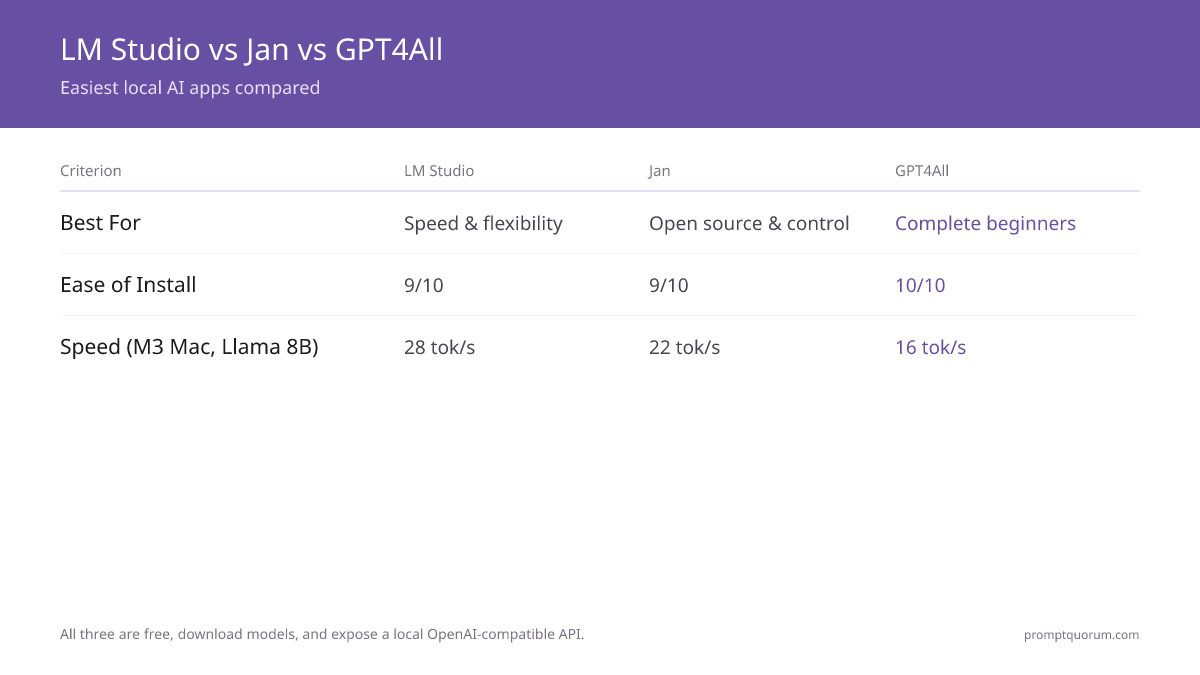
All three apps install like standard desktop applications and require no command-line use. The differences are feature depth, model library size, and the tradeoff between simplicity and configurability.
📍 In One Sentence
LM Studio is the easiest local AI app for Windows and Mac — install, browse models, download, chat — with Jan as the open-source equivalent and GPT4All as the most simplified single-window option.
💬 In Plain Terms
If you just want to start a local AI chat as quickly as possible: download LM Studio, open it, click Discover, type "Phi-4 Mini", download the model (~2.7 GB), click Chat, and start talking. That's the full setup. No terminal, no Python, no account. If LM Studio feels like too many options, try GPT4All — it has one window and a short list of pre-selected models.
Feature | |||
|---|---|---|---|
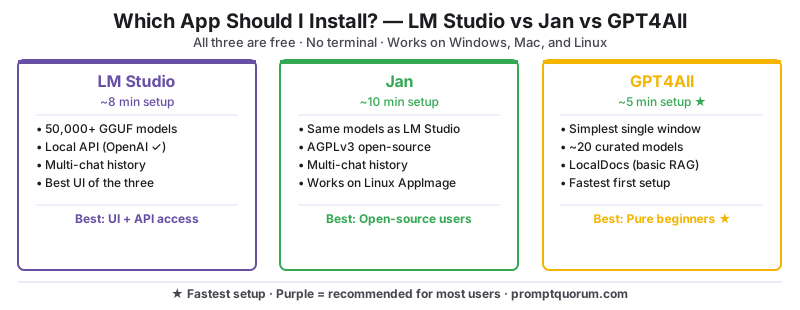
| Setup time (first run) | ~8 minutes | ~10 minutes | ~5 minutes |
| Model library | Full Hugging Face GGUF + MLX search (~50,000+ models) | Curated + Hugging Face search | Curated list (~20 models, dated) |
| Local API server | Yes (OpenAI + Anthropic compatible) | Yes (OpenAI-compatible) | Yes (limited, less documented) |
| Multi-chat / conversation history | Yes | Yes | Single chat window |
| Source licence | Free, source-available (not OSI) | Apache 2.0 (fully open-source) | MIT (fully open-source) |
| Active development | Frequent (0.4.x, 2026) | Frequent (0.8.x, 2026) | Stalled since early 2025 |
| Linux support | AppImage, .deb | AppImage | AppImage |
| Best for | Users who want the best UI + developer API access | Users who prefer open-source software | Pure beginners who want the simplest interface |
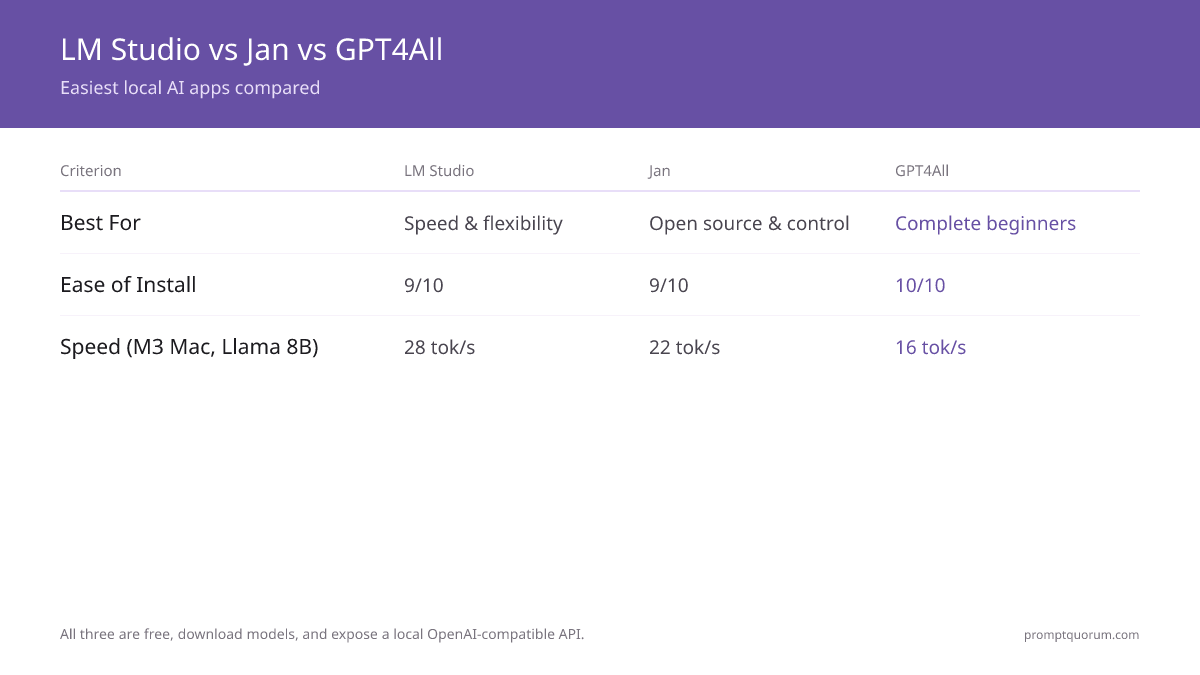
💡Tip: Start with LM Studio unless you have a specific reason not to. It has the best UI, the largest model library, and a clear upgrade path (Local Server tab) if you want to connect other tools later. If you strongly prefer open-source software, Jan is the equivalent choice.
LM Studio: Setup Guide
LM Studio installs in 3 minutes and has you chatting in under 10. The process is identical on Windows and macOS — download, install, browse models, download a model, chat.
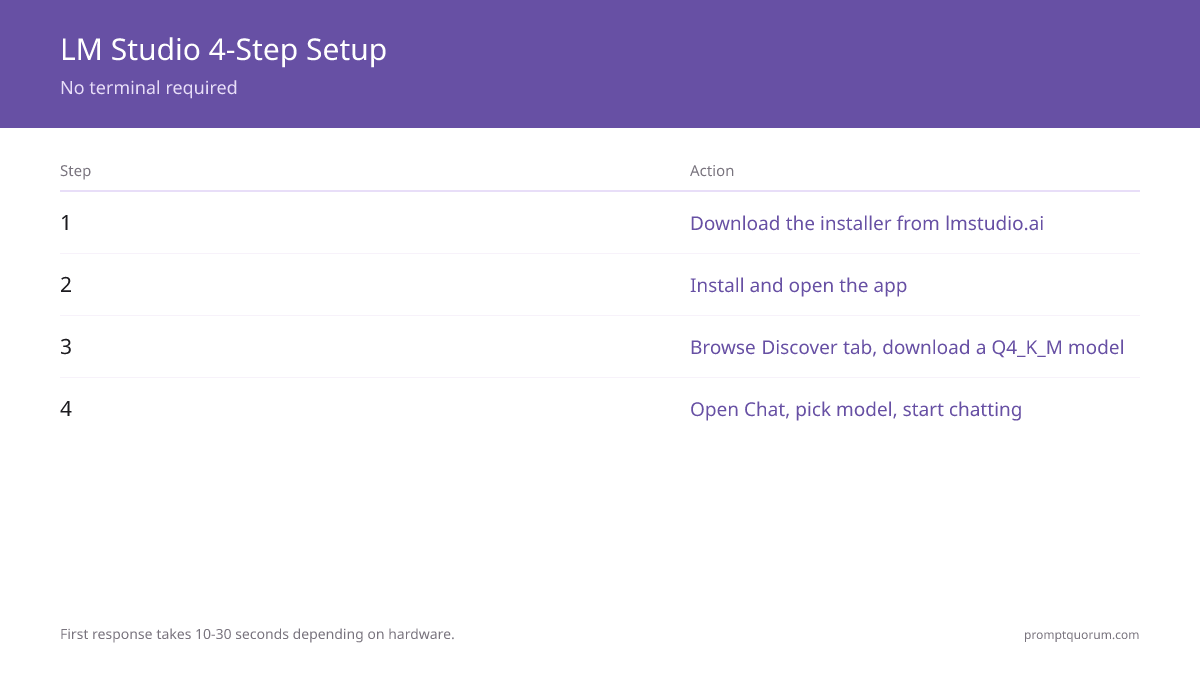
- 1Go to lmstudio.ai and download the installer for your platform (Windows .exe, macOS .dmg for Apple Silicon, Linux .AppImage or .deb).
- 2Run the installer. Accept any security prompt (it is a new app, not code-signed by Apple/Microsoft by default on some versions).
- 3Open LM Studio. The left sidebar shows: Chat, Search (Discover), Models, and Local Server.
- 4Click "Discover" (the telescope icon). In the search bar, type "Phi-4 Mini" (for 8 GB systems or under) or "Qwen3 8B" (for 16 GB+ systems).
- 5Click the model, then click "Download" next to the Q4_K_M quantisation variant. This is the best quality-size tradeoff for most hardware.
- 6Wait for the download to complete (2–5 GB depending on the model). Progress shows in the bottom bar.
- 7Click "Chat" in the sidebar. Select your downloaded model from the dropdown at the top. Type your first message.
💡Tip: On macOS, LM Studio detects your hardware automatically and recommends the best quantisation level for your available memory. Accept the recommendation unless you have a specific reason to override it. On Windows with an NVIDIA GPU, LM Studio automatically enables GPU acceleration — you do not need to configure CUDA.
Jan: Setup Guide
Jan is the open-source alternative to LM Studio — same ease of use, identical model download experience, Apache 2.0 licence (relicensed from AGPLv3 in 2025). Use Jan if open-source software matters to you, if you run an Intel Mac, or if you want to inspect or modify the application code.
- 1Go to jan.ai and download the installer for your platform.
- 2Run the installer and open Jan.
- 3Click "Hub" in the left sidebar to browse models.
- 4Search for "Phi-4 Mini" or "Qwen3 8B" and click "Download". The Hub pulls GGUF files from Hugging Face.
- 5Once downloaded, click "Thread" to start a new conversation. Select your model from the model picker at the bottom of the chat window.
- 6Type your first message. Jan uses the same model files as LM Studio — any model you download works in both apps.
💡Tip: Jan and LM Studio use the same GGUF model format. Model files downloaded by one app can be manually pointed to by the other. If you have already downloaded models in LM Studio and want to try Jan (or vice versa), you can save the 2–5 GB re-download by pointing Jan to the LM Studio model directory (usually ~/Library/Application Support/LM Studio/models on macOS).
GPT4All: Setup Guide
GPT4All offers the most simplified experience — a single chat window and a curated list of recommended models. If LM Studio and Jan have too many options and you just want to type a question and get an answer, start here. One caveat for 2026: GPT4All's development has stalled since early 2025 (last major release v3.10), so the app still works fine offline but its curated model list no longer includes the newest models. Pick LM Studio or Jan if you want current model releases.
- 1Go to gpt4all.io and download the installer for your platform.
- 2Run the installer and open GPT4All.
- 3The Models tab shows a curated list of recommended models with plain-English descriptions (e.g., "fast, good for code", "best for general chat"). Click "Download" on the model closest to your hardware.
- 4Once downloaded, the chat window opens automatically with the selected model. Type your first message.
- 5GPT4All has no multi-conversation history — each session starts fresh. It is designed for single-task use rather than extended conversations.
💡Tip: GPT4All includes a "LocalDocs" feature that lets you add a folder of documents (PDFs, text files) and ask questions about them. This is a simplified version of RAG — useful for basic document Q&A without setting up LlamaIndex or AnythingLLM. The accuracy is limited compared to a proper RAG setup, but it requires zero additional configuration.
Which Model Should I Download First?
The right first model depends on how much RAM your computer has. More RAM = larger model = better answers, but any modern computer can run something useful.
Available RAM | Recommended First Model | Download Size | Expected Speed |
|---|---|---|---|
| 8 GB or less | Phi-4 Mini (3.8B Q4) or Gemma 4 E2B | ~2–3 GB | 15–30 tokens/sec on Apple Silicon; 5–10 tok/sec on CPU-only Intel/AMD |
| 8–16 GB | Llama 3.2 3B (Q4) or Qwen3 8B (Q4) | 2.0–4.9 GB | 20–40 tok/sec on Apple Silicon; 8–15 tok/sec CPU-only |
| 16–32 GB | gpt-oss 20B (~13 GB) or Qwen3 14B (Q4) | ~9–13 GB | 15–25 tok/sec on Apple Silicon (Qwen3 14B); GPU required for real-time on x86 |
| 32 GB+ (Apple Silicon) or 24 GB VRAM (NVIDIA) | Qwen 3.6 27B (Q4) — best overall consumer model | ~16 GB | Real-time on M4 Pro/M5-class Macs and RTX 4090-class GPUs |
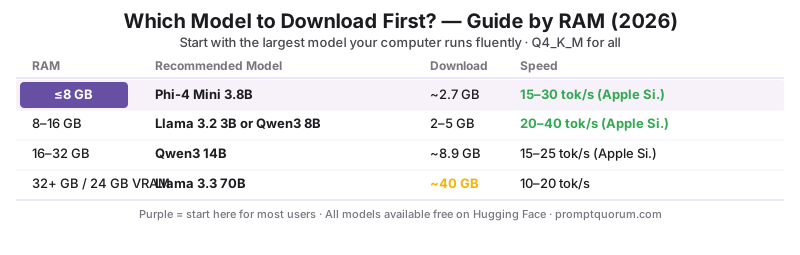
💡Tip: Start with the smallest model that runs fast enough to feel interactive (over 8 tokens per second in real-time typing speed). A slow large model is worse to use than a fast small one — the frustration of waiting 10 seconds per sentence defeats the purpose. Upgrade to a larger model when you have experienced the limits of the small one.
Hardware Requirements
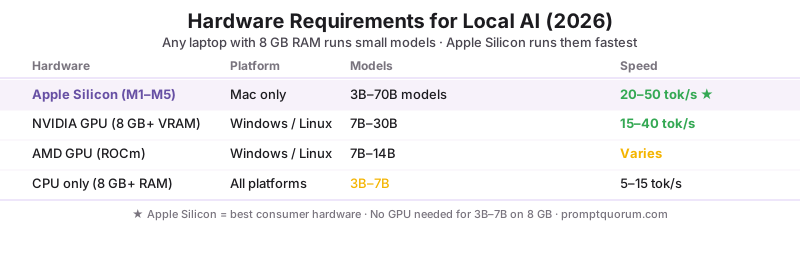
You do not need a gaming PC or a dedicated GPU to run local AI in 2026. Apple Silicon Macs are the best consumer hardware for local LLMs; any MacBook Air from M1 onward runs small models well. On Windows and Linux, the CPU inference mode works for 3B–7B models on any laptop with 8 GB RAM. One platform note: LM Studio requires Apple Silicon on macOS — on an Intel Mac, use Jan or GPT4All, which still support Intel via CPU inference.
📍 In One Sentence
Any laptop with 8 GB RAM made after 2018 can run a local AI model — Apple Silicon Macs run them fastest, but CPU-only Windows and Linux machines run 3B–7B models at usable generation speeds.
💬 In Plain Terms
No GPU needed for the small models (Phi-4 Mini, Gemma 4 E2B, Llama 3.2 3B). These run on CPU inference and produce a response at typing speed on any modern laptop. If you have an NVIDIA GPU with 8 GB+ VRAM, LM Studio will automatically use it and run larger models (Qwen3 8B, gpt-oss 20B) much faster. If you have an Apple Silicon Mac, the unified memory architecture means you can run models up to the size of your RAM.
- Apple Silicon (M1–M5): best consumer hardware for local LLMs. Unified memory means the GPU and CPU share RAM — an M3 MacBook Air with 8 GB runs Phi-4 Mini at 20+ tokens/sec; an M5 Max with 64 GB runs Llama 3.3 70B. LM Studio runs both GGUF (llama.cpp) and MLX models here.
- NVIDIA GPU (Windows/Linux): CUDA acceleration in LM Studio and Jan dramatically speeds up generation. RTX 3060 12 GB runs Qwen3 8B in real time. RTX 4090 24 GB runs Qwen 3.6 27B and other 30B-class models.
- AMD GPU (Windows/Linux): ROCm support in LM Studio and Jan is improving but less mature than CUDA. If you have an AMD GPU, check the LM Studio release notes for your specific card before relying on GPU acceleration.
- CPU-only Intel/AMD: works for 3B–7B models at 5–15 tokens/sec — usable but slow. The experience is better for tasks where you send a prompt and go do something else (summarisation, email drafting) than for real-time conversational use.
- RAM and VRAM: the model must fit in RAM (or VRAM) entirely. A 4B model needs ~3 GB; an 8B model needs ~5 GB; a 14B model needs ~9 GB; a 70B model needs ~42 GB. If the model is too large, LM Studio will warn you before downloading.
⚠️Warning: Do not try to run a model larger than your available RAM. LM Studio will use disk swap if the model does not fit in RAM, which makes generation so slow (~0.5 tokens/sec) that the app feels broken. Always check the model size in the Discover tab before downloading and compare it to your available RAM.
Common Mistakes
- Downloading a model too large for your RAM. Check available RAM before downloading. A 70B model on a 16 GB machine will disk-swap and produce output at 1 token per 10 seconds.
- Expecting cloud AI quality from a 3B model. Small local models (3B–7B) are less capable than GPT-5.5 or Claude. They are better than nothing and useful for many tasks, but they make more mistakes, lose context faster, and produce less nuanced output.
- Not using the Q4_K_M quantisation. LM Studio defaults to Q4_K_M for most models, which is the right choice. Q8 takes twice the RAM for modest quality gain; Q2 takes less RAM but degrades output quality noticeably. Stick with Q4_K_M unless you have a specific reason to deviate.
- Closing the chat between sessions and losing history. In LM Studio and Jan, each chat session stores its history unless you delete it. Save or pin important conversations; do not assume the history persists if you reinstall or clear the app.
- Not running the Local Server for integrations. If you later want to use your local model with Obsidian, VS Code, or any other tool, click the Local Server tab in LM Studio and press Start. Other tools connect to
http://localhost:1234using the OpenAI-compatible API.
Sources
- LM Studio 0.4 changelog, release notes, and hardware compatibility — lmstudio.ai/changelog
- Jan documentation and open-source repository (Apache 2.0) — jan.ai/docs
- GPT4All model library, LocalDocs documentation, and release history — github.com/nomic-ai/gpt4all
- Phi-4 Mini technical report — Microsoft Research
- GGUF quantisation format specification — llama.cpp
Frequently Asked Questions
Is there any cost to running a local AI app?
No ongoing cost. LM Studio, Jan, and GPT4All are free to download and use. The models are also free — they are open-source and downloaded directly from Hugging Face or similar repositories. The only cost is electricity (running your CPU/GPU) and the one-time model download (2–40 GB depending on the model). There are no subscription fees, API costs, or per-message charges.
Do I need an internet connection to use a local AI app?
Only for the initial download of the app and the model files. Once downloaded, everything runs locally — no internet connection required. You can use your local AI app on a plane, in a hotel without Wi-Fi, or in a network-restricted environment.
How private is a local AI app?
Completely private. Your conversations, prompts, and the model's responses never leave your machine. There are no cloud servers, no logging, no training data collection. LM Studio has optional analytics (opt-out in settings), but the chat content itself is never transmitted. Jan and GPT4All have no telemetry by default.
What is the difference between LM Studio and Ollama?
LM Studio is a desktop GUI application — you interact with it through a visual interface. Ollama is a command-line tool that runs a local model server — you interact with it through a terminal or API calls. For non-technical users, LM Studio is much easier. For developers who want to integrate local models into their own tools, Ollama's API is simpler to work with. Both run the same GGUF model files.
Can I use a local AI app on an older MacBook?
Yes, if it meets the RAM requirement (8 GB minimum for 3B models). On an Intel MacBook from 2018 onward, use Jan or GPT4All — LM Studio requires Apple Silicon on macOS. An Intel Mac runs Phi-4 Mini at slow but usable speed (~5–10 tokens/sec, CPU inference). Apple Silicon Macs (M1 onward) are significantly faster due to the unified memory architecture and Neural Engine. A 2020 M1 MacBook Air runs Phi-4 Mini at 20+ tokens/sec.
Can I run multiple models at the same time?
LM Studio supports loading one model at a time in the GUI, but you can run multiple models simultaneously via the Local Server if you have enough RAM. Jan and GPT4All are single-model at a time. For multi-model workflows, Ollama is more flexible — it can serve multiple models concurrently on the same server.
Which local AI app works on a Chromebook?
None of the three work natively on ChromeOS. However, Chromebooks with Linux (Crostini) enabled can install Jan or Ollama via the Linux terminal. The experience is more technical than on Windows or Mac. On Android Chromebooks with good RAM (8 GB+), Termux can also run Ollama, but this requires command-line comfort.
How do I update to a newer model version?
In LM Studio, open the Discover tab, search for the newer model version, download it, and switch to it in the Chat model selector. The old version is not automatically deleted — delete it manually from the Models tab if you need the disk space. In Jan, the Hub shows available updates for models you have downloaded. GPT4All shows new models in its curated model list.
Which models does LM Studio support on Apple Silicon Macs?
LM Studio supports the full GGUF model library plus Apple's MLX format on Apple Silicon (M1 through M5), using Metal for GPU acceleration through the unified memory architecture. Recommended starting points: Phi-4 Mini (3.8B) or Gemma 4 E2B on 8 GB Macs, Qwen3 8B on 16 GB+ Macs, gpt-oss 20B or Qwen3 14B on 16–32 GB Macs, and Qwen 3.6 27B on 32 GB+ Macs — with Llama 3.3 70B still an option on 48–64 GB Max-class machines. LM Studio detects available memory automatically and recommends a quantisation level — usually Q4_K_M — that fits your hardware.
What are LM Studio's system requirements on Windows, Intel Mac, and Apple Silicon?
On macOS, LM Studio requires an Apple Silicon Mac (M1 or newer) running macOS 14 or later — Intel Macs are not supported; Intel Mac users should install Jan or GPT4All instead, which run CPU inference at roughly 5–10 tokens/sec for a 3B model. On Windows, the minimum is 8 GB RAM for 3B–7B models, with an NVIDIA GPU (8 GB+ VRAM) optional for CUDA acceleration on larger models. Linux has the same 8 GB RAM minimum via AppImage or .deb, with CUDA support available if an NVIDIA GPU is present. Apple Silicon runs fastest overall, using unified memory and Metal acceleration with no separate GPU needed.
Does LM Studio run on Linux?
Yes. LM Studio ships Linux builds as an AppImage and a .deb package with the same feature set as the Windows and macOS versions: model browser, chat interface, and a Local Server tab for OpenAI-compatible API access. CUDA acceleration works on Linux when an NVIDIA GPU is present; without one, LM Studio falls back to CPU inference, the same as on Windows.
What are the best LM Studio alternatives in 2026?
Jan is the closest alternative — the same ease of setup, fully open-source under Apache 2.0, and Linux AppImage support. GPT4All is the simplest alternative for pure beginners, with a curated model list and a single-window chat interface, though its development has stalled since early 2025. For developers who prefer a command-line tool, Ollama is the leading alternative, though it requires terminal use instead of a GUI. All four run the same GGUF model files and are free to use.
Can I connect my local model to other applications?
Yes. LM Studio's Local Server exposes an OpenAI- and Anthropic-compatible API at http://localhost:1234, and Jan serves an OpenAI-compatible API at http://localhost:1337. Point Obsidian, VS Code, or any other tool that accepts a custom API endpoint at that address. Many workflows — RAG, prompt testing, chatbot integration — become possible once your local API is available. Since version 0.4, LM Studio can also use local MCP tools.
Which quantisation should I use — Q3, Q4, Q5, or Q6?
Most users should use Q4_K_M, which is what LM Studio recommends by default. Q3 is heavily compressed and loses noticeable quality. Q4 is the recommended balance of quality and file size. Q5 and Q6 are larger and slightly better if you have spare RAM. On hardware under 8 GB, start with Q4_K_M of a 3B-class model rather than a lower quantisation of a bigger one.
Is GPT4All still maintained in 2026?
Not actively. GPT4All's last major release (v3.10) shipped in early 2025, and its GitHub repository has seen no significant updates since. The app still installs and works fully offline, and it remains the simplest single-window option — but its curated model list is dated, so newer models like Qwen 3.6 or gpt-oss are not offered in it. If you want current model releases with a no-terminal setup, choose LM Studio or Jan.