Key Takeaways
- GPT4All is the lowest-friction starter — 4 clicks from download to first chat on a 5-year-old laptop.
- Jan is the only one of the six with zero telemetry by default and a fully open-source codebase.
- Atomic Chat is the only one with native iPhone and Android apps that run the model on the phone itself — the same private, offline AI on laptop and phone.
- Msty has the most polished modern UI and built-in chat-with-PDFs without setup.
- AnythingLLM Desktop feels like a familiar Windows file/chat app — closest to "open document, ask question".
- LM Studio is fastest on Apple Silicon and ships the largest in-app model browser.
- All six are free, work offline after install, and never send your prompts to a server.
Who Should Use This Guide?
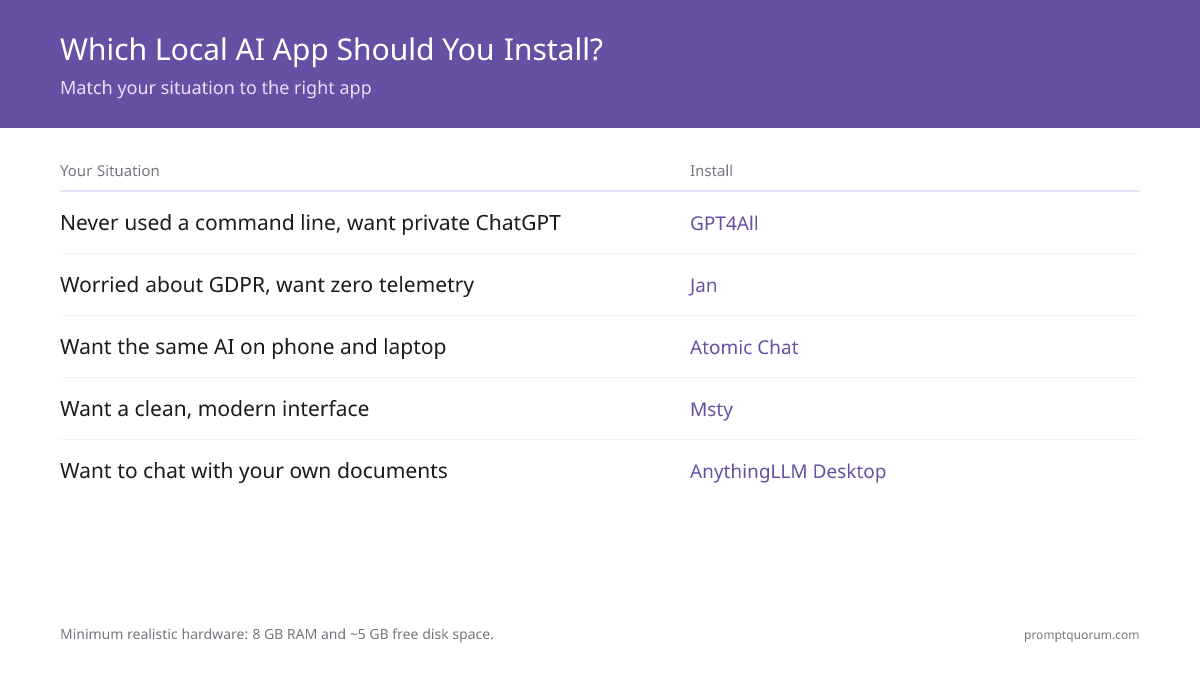
This guide is for absolute beginners — people who have never opened a terminal and do not want to. If you can install Zoom, you can install any of these six apps. Pick the persona below that matches you and skip straight to that section.
Your situation | Install |
|---|---|
| I have never run anything from a command line and I want a private ChatGPT | GPT4All |
| I am worried about EU privacy / GDPR and want zero telemetry | Jan |
| I want the same private AI on my phone as on my laptop | Atomic Chat |
| I care how it looks. I want a clean, modern interface | Msty |
| I mainly want to chat with my own PDFs, Word docs, or notes | AnythingLLM Desktop |
| I have a 2024+ MacBook and I want the fastest local AI on it | LM Studio |
| I have only 4 GB of RAM or a Chromebook | None — try a phone app instead |
📌Note: Minimum realistic hardware for any of these apps: 8 GB RAM and ~5 GB free disk space. With less, switch to a phone-based app instead — see the related reading at the bottom.
#1 GPT4All — Best for Absolute Beginners
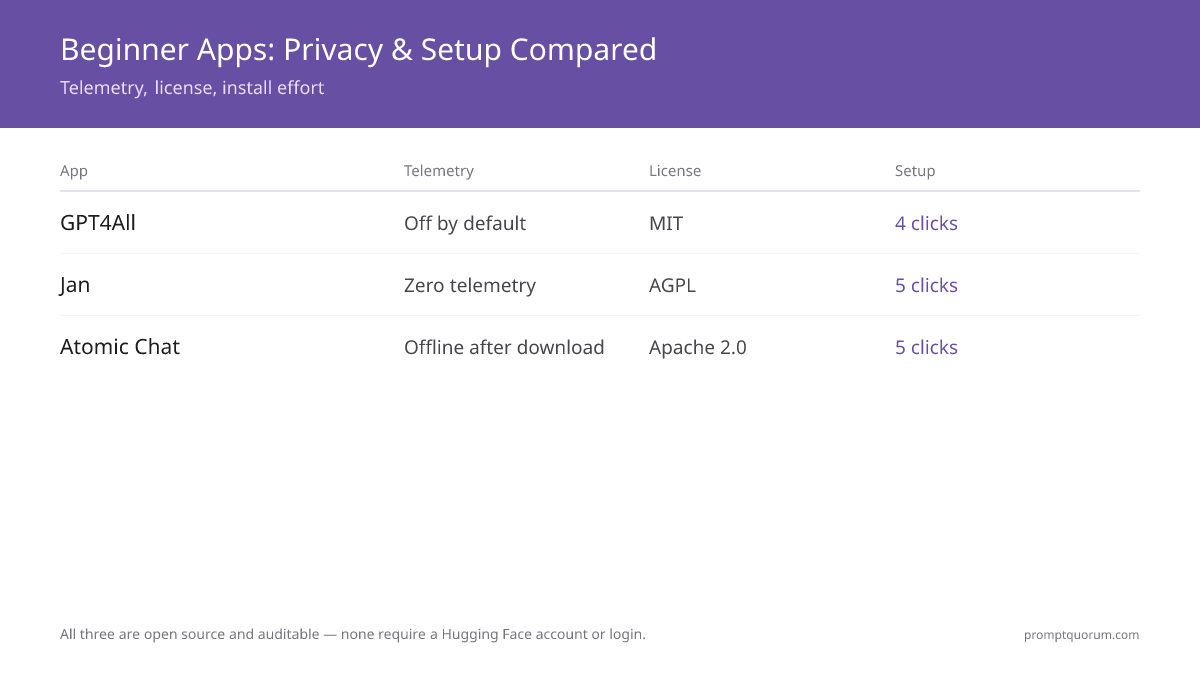
GPT4All is the lowest-friction local AI app in 2026 — a 290 MB download that takes a non-technical user from "no idea what to install" to "talking to an AI that runs on my laptop" in under 10 minutes. It is open source (MIT license), maintained by Nomic AI, and has the smallest cognitive overhead of any app on this list.
- Install path: Download from gpt4all.io → run installer → click "Llama 3.2 3B Instruct" in the suggested-models screen → wait for the 2 GB download → start chatting. Total: 4 clicks plus one model download.
- Hardware floor: Runs usably on a 5-year-old Intel laptop with 8 GB RAM and integrated graphics — no GPU required.
- UI clarity: One window. Left sidebar lists chats. Center pane is the conversation. There are no tabs, no dropdowns hidden inside dropdowns, and no "advanced settings" page you can break by accident.
- Error messages: When something goes wrong (out of memory, model file corrupted), GPT4All shows a plain-language box with a single suggested fix. No stack traces.
- Telemetry: Off by default. You can opt in to share anonymous usage during install, but the default is no.
- License: MIT — fully open source. Source code is on GitHub for anyone who wants to audit it.
- Recommended starter model: Llama 3.2 3B Instruct (Q4_0). About 2 GB on disk, 4–6 GB RAM at runtime, comfortably fast on integrated graphics.
💡Tip: Install this if you are: a parent who wants a private ChatGPT, a journalist on a budget laptop, a teacher demoing AI to students, or anyone whose first reaction to "open the terminal" is "what terminal?".
#2 Jan — Best for Privacy-Conscious Beginners
Jan is the privacy-first pick — zero telemetry, zero analytics SDK, fully auditable open-source code under the AGPL license. It looks and feels like a clean ChatGPT clone, with a curated catalog of about 150 models you can browse without leaving the app.
- Install path: Download the signed installer from jan.ai → install → pick a model from the in-app library (no Hugging Face account, no logins) → start chatting. About 5 clicks total.
- Privacy posture: No telemetry of any kind. No analytics SDK. No phone-home. Source code is published on GitHub under AGPL — independent auditors can verify the binary matches the source.
- UI: Modern dark-mode-by-default chat UI with conversation threads in the sidebar. Comparable to ChatGPT in look, but everything runs on your machine.
- Model browser: ~150 curated models with a "Hugging Face URL" import escape hatch. Less overwhelming than LM Studio, more guided than GPT4All.
- Built-in tools: Optional extensions for document chat, web search, and OpenAI-compatible API serving. All optional and clearly labelled.
- Hardware floor: 8 GB RAM, modern (2020+) CPU. Apple Silicon and NVIDIA GPUs are auto-detected and used.
- Recommended starter model: Phi-4 Mini (~2.6 GB) — small, fast, surprisingly good for everyday questions.
💡Tip: Install this if you are: an EU resident worried about GDPR, a journalist handling sources, a lawyer who cannot send drafts to cloud APIs, or anyone whose threat model includes "what does this app phone home with?".
#3 Atomic Chat — Best for "I Want It on My Phone Too"
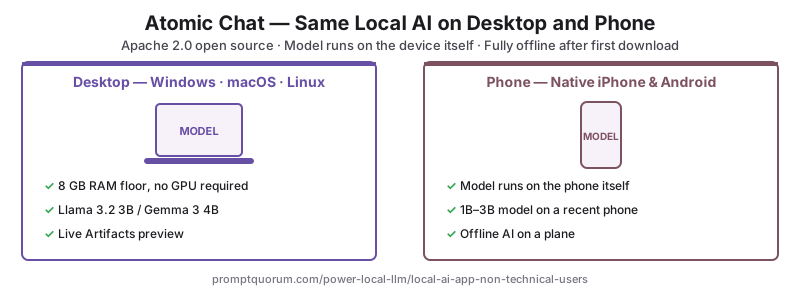
Atomic Chat is the only app here with native iPhone and Android apps that run the model on the phone itself — the same private, offline AI on your laptop and in your pocket. It is open source (Apache 2.0), installs in a few clicks, and runs fully offline after the first model download.
- Install path: Download from atomic.chat → install → pick a model → chat. The same flow works on iPhone and Android. About 5 clicks.
- Standout feature: Cross-device. It is the only app on this list with native mobile apps that run the model on the phone itself, not by tunnelling to your desktop.
- UI: Clean, chat-first layout with a live Artifacts preview. Familiar if you have used ChatGPT.
- Privacy: Fully offline after the first download. Open source, so its behaviour is auditable.
- Hardware floor: 8 GB RAM on desktop; a recent phone for small 1B–3B models.
- License: Apache 2.0 — fully open source and free.
- Recommended starter model: Llama 3.2 3B or Gemma 4 E2B on desktop; a 1B–3B model on phones.
💡Tip: Install this if you are: someone who wants the same private AI on laptop and phone, a traveller who wants offline AI on a plane, or anyone who keeps chatting after stepping away from their desk.
#4 Msty — Best for "I Want It Pretty"
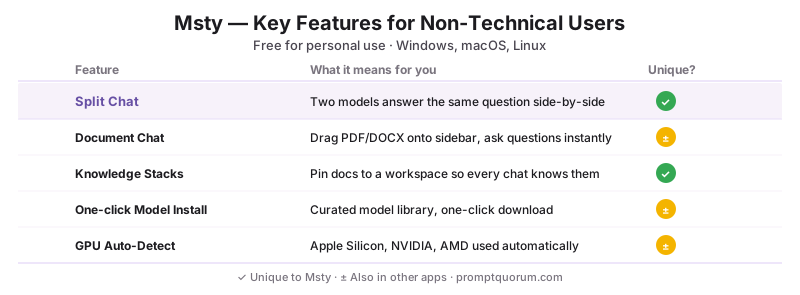
Msty is the most visually polished local AI app — a modern split-pane interface with side-by-side conversation comparison, built-in document chat, and a one-click model installer. It is free for personal use and runs on Windows, macOS, and Linux.
- Install path: Download the installer from msty.app → install → choose "Local AI" on the welcome screen → pick a recommended model → chat. About 5–6 clicks.
- Standout UI feature: Split-chat. You can run two models side-by-side answering the same question, and pick the better answer. No other app on this list ships this out of the box.
- Document chat: Built in. Drag a PDF, DOCX, or folder onto the sidebar and ask questions about it. No plugin install required.
- Knowledge stacks: You can pin documents to a "stack" so every chat in that workspace already has access to them — ideal for "talk to my study notes".
- Hardware floor: 8 GB RAM, any 2020+ CPU. Detects and uses Apple Silicon, NVIDIA, and AMD acceleration automatically.
- License: Proprietary, free for personal use. Paid tiers exist for advanced cloud-API features, but local-only use is free indefinitely.
- Recommended starter model: Gemma 4 E2B — friendly tone, good at summarisation, fits on most laptops.
💡Tip: Install this if you are: a designer who finds bare chat UIs ugly, a student who wants to compare two model answers side-by-side, or a writer who wants AI to read your notes folder out of the box.
#5 AnythingLLM Desktop — Best for Familiar UI
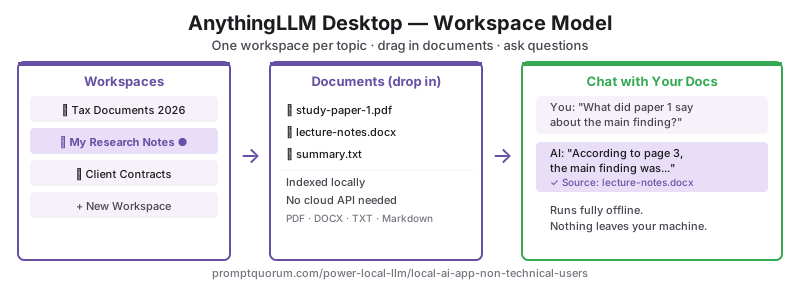
AnythingLLM Desktop is structured around "workspaces" of documents — the closest thing to "open a folder, ask questions about it" without any setup. Its interface borrows the file-tree-on-the-left, content-on-the-right convention from classic desktop apps, which makes it especially comfortable for users who grew up on Windows.
- Install path: Download from anythingllm.com → run installer → on first launch, pick "Use local AI (no API keys)" → choose a built-in local model → drop your documents into a workspace. About 6 clicks.
- Workspace model: Each workspace is its own folder of documents and chat history. Mental model: "this is the Tax 2026 folder, and this is the chat that knows about the Tax 2026 folder".
- Document support: PDF, DOCX, TXT, Markdown, web-page imports. Drop them in, the app indexes them locally, no embedding-API account needed.
- UI: Familiar three-pane layout (workspace list / document list / chat) reminiscent of email clients and old-school Windows apps. Low cognitive load for users who never adapted to "modern" minimal UIs.
- Privacy: Telemetry is opt-in. Document indexing happens entirely on your machine when you choose the local AI option.
- Hardware floor: 8 GB RAM, ideally 16 GB if your workspaces hold hundreds of documents.
- Recommended starter model: Llama 3.2 3B Instruct or Qwen3 4B — both handle document Q&A well in this app.
💡Tip: Install this if you are: a small-business owner who wants to ask questions about a folder of contracts, a researcher with a "Papers To Read" folder, a grandparent who finds modern UIs confusing and prefers something that looks like Outlook.
#6 LM Studio — Best for Mac Users
LM Studio is the fastest of the six on Apple Silicon and ships the largest in-app model browser, but it has the steepest learning curve of the bunch. For non-technical Mac users it is still very approachable — but on Windows and Linux, GPT4All or Jan are usually a smoother first experience.
- Install path: Download from lmstudio.ai → run installer → on first launch, accept the default settings → use the in-app model browser to pick a "staff pick" model → load it → chat. About 6 clicks plus one model download.
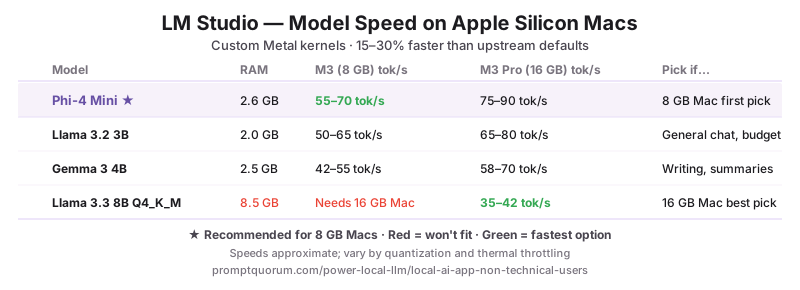
- Why it ranks first for Mac: LM Studio ships custom-tuned Apple Silicon Metal kernels that beat the upstream defaults by 15–30% on M-series chips. On a 16 GB MacBook Pro, it streams 8B-class models at ~38 tokens per second.
- Model browser depth: ~5,000 model variants pulled live from Hugging Face, filterable by RAM/VRAM, license, and family. Useful when you outgrow the curated catalogs in Jan or GPT4All.
- Built-in document chat: Yes (introduced in 2025), with a clean drag-and-drop interface.
- Telemetry: Anonymous usage events are sent by default. They are easy to disable in Settings → Privacy. Conversations and model files never leave the device.
- License: Proprietary (free for personal and commercial use). If open-source code is non-negotiable, pick Jan instead.
- Recommended starter model: Phi-4 Mini on 8 GB Macs; Llama 3.1 8B Q4_K_M on 16 GB+ Macs.
💡Tip: Install this if you are: a Mac user who wants the fastest local AI on Apple Silicon, a writer with a 16 GB+ MacBook who wants to try several models, or anyone who finds the curated catalogs of Jan and GPT4All too small.
Common Stumbling Blocks (and How to Get Past Them)
These are the five things that trip up real non-technical users in the first 30 minutes. Each is a one-line fix once you know what to look for.
- "It says 'unidentified developer' on macOS." → Open System Settings → Privacy & Security, scroll to the bottom, click "Open Anyway". This is normal for any signed-but-not-Apple-notarised app.
- "Windows Defender flagged the installer." → All six apps are widely used and safe. Click "More info" → "Run anyway". For extra safety, verify the download URL exactly matches the official site (gpt4all.io, jan.ai, atomic.chat, msty.app, anythingllm.com, lmstudio.ai).
- "The model download is taking forever." → Models are 1.5–8 GB files. Expect 5–20 minutes on a 50 Mbps connection. If it stalls, cancel and resume — all six apps support resumable downloads.
- "My computer got really hot / the fan started screaming." → Local AI uses 100% of your CPU or GPU during a reply. This is normal and stops the moment the reply finishes. If it bothers you, switch to a smaller model (3B or 4B instead of 7B/8B).
- "I do not know which model to pick." → Default to a 3B or 4B Instruct model on first install. Examples: Llama 3.2 3B Instruct, Phi-4 Mini, Gemma 4 E2B. They are small, fast, and good enough for most everyday tasks. Upgrade to 7B or 8B only after you have decided you actually use the app.
⚠️Warning: Do NOT download models from random websites or torrent sites. Use the in-app model browser of whichever app you installed — every app on this list pulls from official Hugging Face mirrors.
Your First 10 Minutes — Step by Step
This is the exact path a non-technical user can follow today, on any modern Windows or Mac laptop, to go from zero to a working local AI conversation. Numbers in parentheses are realistic durations.
- 1Pick one app from the persona table above. If you cannot decide: install GPT4All. (1 min)
- 2Open the official site (gpt4all.io / jan.ai / atomic.chat / msty.app / anythingllm.com / lmstudio.ai) and download the installer for your operating system. (1 min)
- 3Run the installer. Accept the defaults. None of these six apps require admin rights on Windows or Mac for a per-user install. (2 min)
- 4On first launch, follow the on-screen prompt to download a recommended starter model — pick the smallest "Instruct" model offered (3B or 4B parameters). (3–5 min depending on your connection)
- 5Type "Hello, can you write a haiku about a cat?" into the chat box and press Enter. You should see a reply stream within 5–10 seconds. (1 min)
- 6If the reply works, you are done. Local AI is now running on your laptop, fully offline, and your conversation has not left your machine.
💡Tip: Pull your laptop off Wi-Fi after step 5 and try another question. The reply still works. That is the moment most non-technical users realise local AI is real.
Frequently Asked Questions
Do I need to know coding to use local AI?
No. None of the six apps in this list — GPT4All, Jan, Atomic Chat, Msty, AnythingLLM Desktop, LM Studio — require coding, scripting, or a terminal. If you can install a normal desktop app and click through a setup wizard, you have all the skills needed.
Can I install local AI without admin rights on a work laptop?
Sometimes. GPT4All and Jan ship a per-user installer that does not require admin rights on Windows. LM Studio and Msty usually need admin rights for the standard installer. If you cannot install software on your work laptop at all, ask your IT department first — local AI is a network-policy question, not a technical one.
What if my computer is too old?
A 2018+ laptop with 8 GB RAM and 5 GB free disk space can run a 3B-parameter model in any of these apps at usable speed (8–15 tokens per second). Older or smaller machines should try a phone-based local AI app instead — see the related reading on iPhone and Android local LLM apps.
Will local AI slow down my computer?
Only while it is actively replying. Local AI uses your CPU or GPU heavily for the few seconds it takes to generate an answer, then drops back to idle. Your laptop fan may run, your battery will drain faster, and other apps may feel sluggish during a reply. Nothing is permanent — closing the app frees all resources.
Can I uninstall it cleanly?
Yes. All six apps uninstall via the standard Windows/Mac/Linux uninstaller. Models live in a separate folder (usually under your Documents or AppData) — you can delete that folder to recover the disk space. Nothing changes your registry, system files, or other applications.
Is it safe to download these apps from the internet?
Yes, if you use the official site. The six official sites are gpt4all.io, jan.ai, atomic.chat, msty.app, anythingllm.com, and lmstudio.ai. Avoid third-party downloaders and torrents. Each of the six installers is signed by its publisher; macOS and Windows will both show the publisher name during install.
Do these apps need internet to work?
Only for the very first model download. After a model is on disk, all six apps run fully offline — you can switch off Wi-Fi, get on a plane, or work in a basement, and the AI keeps replying.
Can I use these on a work laptop?
Technically, yes. Politically, ask your IT or compliance team first. Local AI does not send your prompts anywhere, which is often a feature for compliance — but installing third-party software on a managed device is usually still a policy question. Show them this article and the AGPL/MIT source links for Jan and GPT4All if proof of "no data leaving the machine" helps.
What is the difference between local AI and ChatGPT for a non-technical user?
Three differences: (1) local AI runs on your laptop and does not send your prompts to a server, (2) local AI works offline after the first model download, (3) local AI is free forever — no subscription, no token bill. The trade-off is speed and quality: a 3B–8B local model is meaningfully less capable than GPT-5.6-class cloud models. For everyday writing, summarising, brainstorming, and Q&A, the gap is small. For long, complex reasoning, the gap is larger.
Do these apps cost money long-term?
No. All six are free for personal use indefinitely. GPT4All (MIT), Jan (AGPL), and Atomic Chat (Apache 2.0) are open source. Msty has a paid tier for cloud-API features, but local-only use is free forever. LM Studio is free for personal and commercial use. AnythingLLM Desktop is free, with a paid hosted product as a separate offering.