Key Takeaways
- On-device inference is practical on iPad Pro M5 (12 GB / 16 GB), iPad Air M4 (12 GB), and high-end Android (8 GB+). Below these thresholds, generation is too slow for real-time use. Remote connection to a home machine is the better option for most tablet users.
- Remote connection is the recommended approach for most people. Connect your tablet (any RAM, any OS) to a Mac or PC running Ollama on your home network. The home machine runs the 70B model; the tablet gets a touch-friendly chat interface. No model download required on the tablet.
- LLM Farm and Pocket Paladin are the iPad-native options. Both run GGUF models locally on Apple Silicon chips in iPads. LLM Farm has more configuration options; Pocket Paladin is easier for first-time users.
- Termux + Ollama is the Android approach. Requires comfort with a terminal but works on any Android device with 8 GB+ RAM. Ollama runs in Termux and serves the model at localhost:11434.
- Best on-device model for most tablets: Phi-4 Mini (3.8B). Runs on anything with 6 GB+ available RAM; produces usable output for most everyday tasks; downloads in 5–10 minutes on a fast connection.
- Open WebUI in the tablet browser is the simplest remote connection interface. If your home Mac or PC runs Open WebUI at
192.168.x.x:3000, open that address in your tablet's browser — no app install, no configuration, full chat interface. - SillyTavern has a mobile-responsive UI. For roleplay and character-card use on tablet, SillyTavern running on a home machine and accessed from the tablet browser works well; RisuAI has the best native mobile support.
Quick Facts
- iPad apps: LLM Farm (free, open-source), Pocket Paladin (free tier + paid), PocketLLM (older, less active). LLM Farm is iOS-only — there is no Android build; the Android equivalent is Termux + Ollama.
- Android method: Termux + Ollama (CLI) or MNN LLM (app, limited model support).
- Remote connection: any tablet browser → Open WebUI or a simple chat UI at your home machine's local IP. This is also how iPad users run Ollama, since Ollama has no native iPadOS build.
- Minimum for on-device: iPad Air M4 (12 GB) for 3B–4B models; iPad Pro M5 (12 GB / 16 GB) for 7B–8B models.
- Minimum Android for on-device: 8 GB RAM device (Samsung Galaxy Tab S10+, OnePlus Pad 2).
- Best on-device model: Phi-4 Mini (3.8B, 2.7 GB) for most tablets; Qwen3 1.7B for very constrained devices.
- Remote connection speed: depends on Wi-Fi quality and the home machine's generation speed, not the tablet's hardware.
Two Modes: On-Device vs Remote Connection
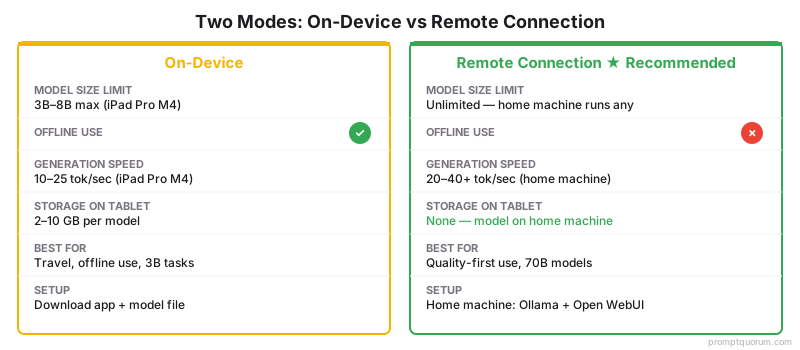
The most important decision is not which app to use — it is whether to run inference on the tablet or on a more powerful machine at home. Each mode has a distinct hardware requirement and capability ceiling.
📍 In One Sentence
Running AI on a tablet has two practical modes: on-device inference (model runs on the tablet chip, limited to 3B–7B models) or remote connection (tablet is a browser display for a home Mac or PC running larger models via Ollama and Open WebUI).
💬 In Plain Terms
On-device mode: the model lives on your tablet and works offline. It is limited to small models (3B, maybe 7B on a high-end iPad Pro) and is slower than a cloud AI. Remote mode: your home Mac or PC runs Ollama and a 70B model, and your tablet just shows the chat in a browser — you get full 70B quality on the tablet's screen, no model stored on the tablet, and the home machine needs to be on and on the same Wi-Fi. Choose remote connection unless you specifically need offline use.
Factor | On-Device | Remote Connection |
|---|---|---|
| Model size limit | 3B–8B (iPad Pro M5); 3B–4B (most tablets) | Unlimited — home machine runs any model |
| Offline use | Yes — works without Wi-Fi | No — requires home Wi-Fi |
| Generation speed | Moderate (12–30 tok/sec on iPad Pro M5) | Depends on home machine (up to 40+ tok/sec) |
| Storage on tablet | 2–10 GB per model | None — model lives on home machine |
| Setup complexity | Low (download app + model file) | Low–Medium (home machine needs Ollama + Open WebUI) |
| Best for | Travel, offline use, 3B model tasks | Quality-first use, 70B models, convenience |
💡Tip: If you already have a Mac or PC at home that can run Ollama, start with remote connection. You get better model quality on your tablet immediately without storing model files on the tablet or dealing with mobile app limitations. Add on-device capability later if you find yourself wanting offline use.
iPad: On-Device Inference
iPad Pro M5 is the only iPad that runs 7B–8B models at a comfortable speed. Apple raised the base RAM on the M5 iPad Pro to 12 GB (16 GB on the 1 TB/2 TB storage tiers), up from 8 GB on the base M4 iPad Pro, and increased memory bandwidth to 153 GB/s from 120 GB/s — LLM inference on Apple Silicon is memory-bandwidth-bound, so this translates directly into faster generation. iPad Air M4 (12 GB, up from 8 GB on the prior M2 Air) now runs 3B–4B models comfortably instead of merely adequately. iPhone with 8 GB RAM also runs small models through LLM Farm.
- LLM Farm (free, open-source, iOS-only — there is no Android version): downloads GGUF models from Hugging Face, runs them using llama.cpp on Apple Silicon. Best performance of the iOS-native options. Supports chat and completion modes. Install from App Store.
- Pocket Paladin (free tier + subscription): curated model downloads, cleaner UI than LLM Farm, slightly simpler first-run experience. Free tier includes 3B models; subscription unlocks larger models and API mode.
- Importing models: in LLM Farm, tap the model library icon → "Add Model from URL" → paste a Hugging Face direct download URL for a GGUF file. Alternatively, use Apple Files to transfer a GGUF downloaded elsewhere. Models are stored in the app's local storage — not iCloud.
- RAM management on iPad: iOS aggressively manages RAM for background apps. Close all other apps before running a 7B model on a 12 GB iPad — iOS will evict the model if another app needs memory. On the 16 GB iPad Pro M5 (1 TB/2 TB tiers), this is rarely an issue.
- Generation speed expectations: iPad Pro M5 (12 GB / 16 GB): Phi-4 Mini ~25 tok/sec, Llama 3.2 3B ~38 tok/sec, Gemma 3 4B ~23 tok/sec — roughly 25–30% faster than the previous M4 generation, in line with the memory-bandwidth increase. iPad Air M4 (12 GB): 3B–4B models ~15–20 tok/sec; 7B models ~7–10 tok/sec (still slow for real-time chat).
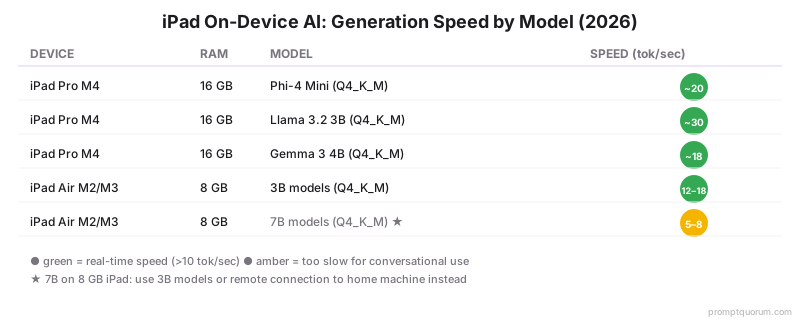
⚠️Warning: Do not try to run a 7B model on a 12 GB iPad Air for real-time chat. At 7–10 tokens per second, every response still takes 10–20 seconds. This is usable for summarisation tasks where you send a prompt and wait, but frustrating for conversational use. Use 3B–4B models on iPad Air; upgrade to the 16 GB iPad Pro M5 or switch to remote connection for 7B+.
Android: On-Device Inference
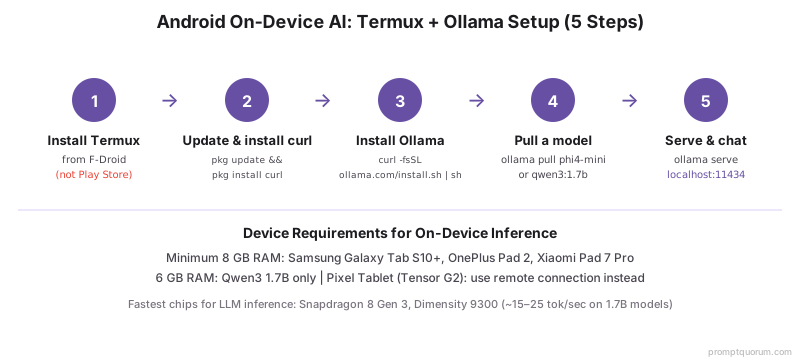
Android on-device inference uses Termux + Ollama — Termux is a Linux terminal emulator that runs Ollama natively on Android. This is more technical than the iPad app experience but gives access to the full Ollama ecosystem.
- Supported devices for 3B+ models: 8 GB RAM minimum (Samsung Galaxy Tab S10+, OnePlus Pad 2, Xiaomi Pad 7 Pro). Devices with 6 GB run Qwen3 1.7B only.
- Pixel Tablet not recommended for on-device: Pixel Tablet (2023 model, 8 GB Tensor G2) was excluded from the recommended on-device list — Tensor G2 is significantly slower than Snapdragon 8 Gen 3 / Dimensity 9300 for LLM inference, producing 4–7 tok/sec on Phi-4 Mini (too slow for conversational use). Pixel Tablet users should use remote connection to a home machine.
- Snapdragon 8 Gen 3 and Dimensity 9300 are the fastest Android chips for on-device inference in 2026. Generation speed: ~15–25 tok/sec for 1.7B models; ~8–12 tok/sec for 3B models.
- Model storage: Android does not have unified memory — the model runs in system RAM without GPU acceleration in most Termux configurations. GPU acceleration requires Termux:NVIDIA or specific Vulkan builds; setup is more complex.
- Alternative apps: MNN LLM (Alibaba, free, Android app with on-device inference for select models) is an easier setup but has a more limited model selection than Ollama. AI Runner and llamafile also have Android builds with varying support. There is no Android version of LLM Farm — it is an iOS-only app; Termux + Ollama or MNN LLM are the closest Android equivalents.
- For a Japan-specific Xperia setup guide with hardware compatibility table, see <a href="/prompt-bites/run-local-llm-on-xperia-japan" class="text-primary hover:underline">how to run a local LLM on Xperia phones in Japan</a>.
- 1Install Termux from F-Droid (not the Play Store version — the Play Store build is outdated and lacks required packages).
- 2In Termux:
pkg update && pkg install curl - 3Download the Ollama ARM binary:
curl -fsSL https://ollama.com/install.sh | sh— this installs the ARM64 build compatible with most Android tablets. - 4Pull a model:
ollama pull phi4-miniorollama pull qwen3:1.7b. - 5Start the server:
ollama serve(keep this running in a Termux session). - 6Chat via Termux:
ollama run phi4-mini— or open a web browser and go tohttp://localhost:11434to access the API. Install an Android chat app that connects to a local Ollama endpoint for a GUI.
💡Tip: Install the Termux:Widget addon and create a shortcut that runs "ollama serve" — this lets you start the Ollama server from your Android home screen without opening Termux manually. Once Ollama is serving, open any chat app configured to connect to localhost:11434.
Remote Connection to a Home Machine
The simplest setup for most tablet users: run Ollama and Open WebUI on your home Mac or PC, then access the chat UI from your tablet browser on the same Wi-Fi network. Your tablet becomes a touch-screen interface to the more powerful machine running Ollama at home — see the laptop guide for hardware sizing if you are choosing the home machine.
📍 In One Sentence
Remote connection to a home machine running Ollama and Open WebUI gives any tablet full access to 70B models via a browser — no model stored on the tablet, no app install, and no compromise on model quality.
💬 In Plain Terms
On your Mac or PC: install Ollama, pull a model, install Open WebUI (Docker one-liner), and run it bound to your local network IP. On your tablet: open Safari or Chrome, go to http://[your-mac-IP]:3000, and you have a full AI chat interface. The model runs on the Mac; the tablet just shows the chat. Works on any tablet, any OS, any screen size.
- 1On the home machine: install Ollama (
brew install ollamaon macOS, download from ollama.com on Windows). Pull a model:ollama pull llama3.3:70b(or any model). Start Ollama with network binding:OLLAMA_HOST=0.0.0.0:11434 ollama serve. - 2Install Open WebUI (the most tablet-friendly chat UI):
docker run -d -p 3000:8080 -e OLLAMA_BASE_URL=http://host.docker.internal:11434 --name open-webui ghcr.io/open-webui/open-webui:main. Open WebUI is now accessible at `http://[your-machine-IP]:3000`. - 3Find your home machine's local IP: on macOS, System Preferences → Network → the current network → IP Address. On Windows, run
ipconfigin Command Prompt and look for IPv4 Address. Note the IP (typically192.168.x.x). - 4On the tablet: open Safari (iPad) or Chrome (Android). Navigate to `http://[your-machine-IP]:3000`. Create an account in Open WebUI (local only, no cloud). Select your model from the dropdown. Start chatting.
- 5Security: this setup is local-network-only. Do not expose port 3000 to the internet without adding Open WebUI authentication (it has a built-in admin account system). The connection is plain HTTP — do not send sensitive information over public Wi-Fi.
![Remote AI from a tablet in 4 steps: install Ollama on your home machine, pull a model + Open WebUI, find your home IP address, then open http://[IP]:3000 in your tablet browser — no model stored on tablet, runs 70B models at 20–40 tok/sec.](/images/run-ai-on-tablet-ipad-android-remote-setup-hero-en.webp)
💡Tip: Bookmark the home machine's Open WebUI URL on your tablet's home screen (in Safari: Share → Add to Home Screen; in Chrome: three-dot menu → Add to Home Screen). This makes it feel like a native app. On iPad, full-screen web apps in Safari hide the browser chrome for an app-like experience.
Model Recommendations by Device
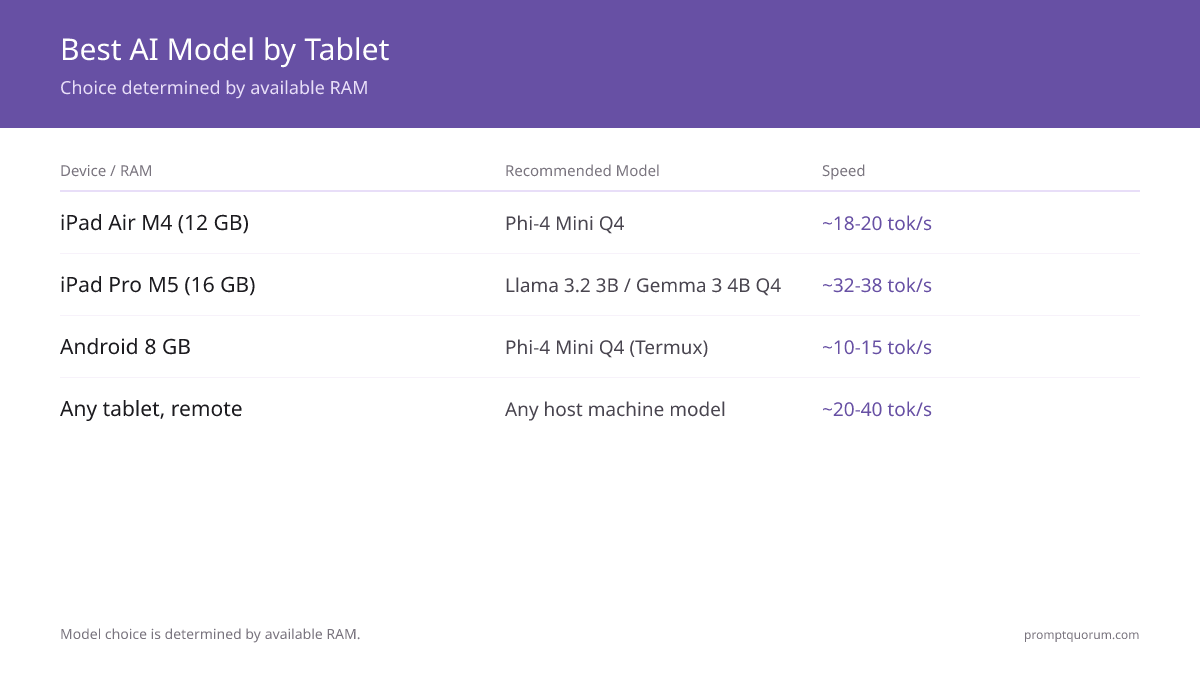
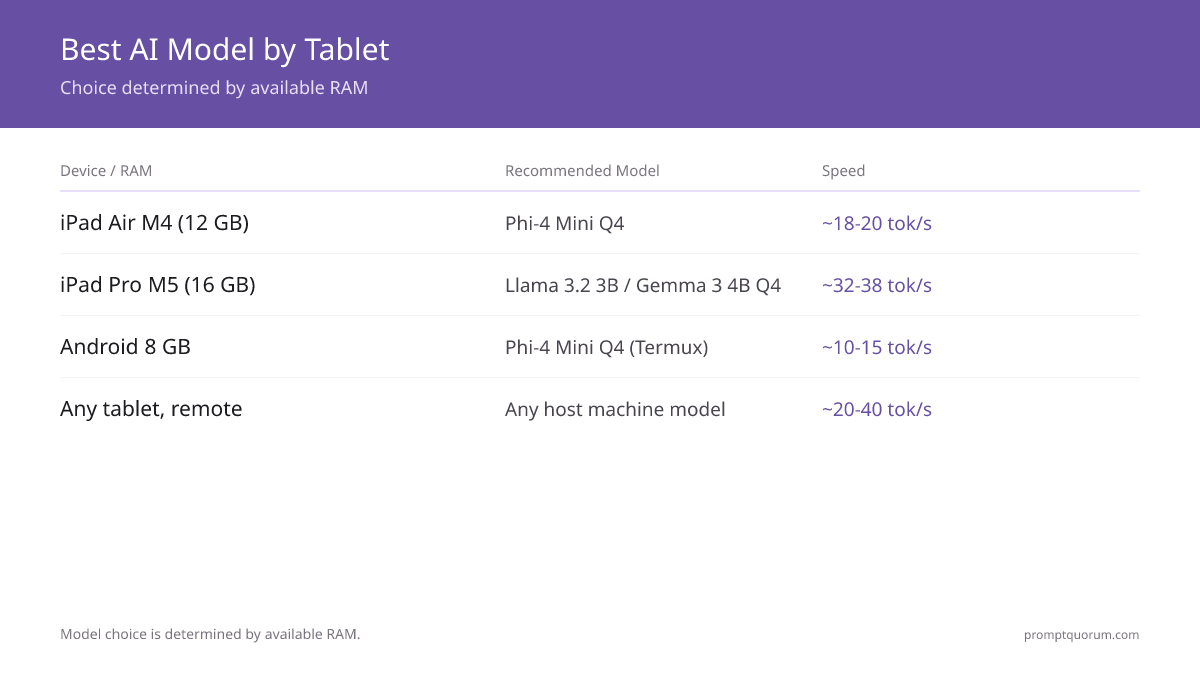
Model choice is determined by available RAM — not by preference. The table below maps device RAM to the largest model that runs at real-time speed (over 8 tokens/sec). For the model layer specifically, see Best Mobile LLM Models in 2026. For the broader model landscape across all hardware tiers, see Best Local LLMs in 2026.
Device / RAM | Recommended Model | Speed | Best for |
|---|---|---|---|
| iPad Air M4 (12 GB) | Phi-4 Mini Q4 / Llama 3.2 3B Q4 | ~18–20 tok/sec | Writing assistance, summarization |
| iPad Pro M5 (12 GB / 16 GB) | Llama 3.2 3B / Gemma 3 4B Q4 | ~32–38 tok/sec / ~20–23 tok/sec | Real LLM workstation, RAG, fiction drafting |
| Android 8 GB (Tab S10+) | Phi-4 Mini Q4 via Termux+Ollama | ~10–15 tok/sec | Power users comfortable with Termux |
| Android 6 GB | Qwen3 1.7B Q4 | ~15–20 tok/sec | Light chat, translation, simple tasks |
| Pixel Tablet (8 GB) | Remote connection only | N/A | Tensor G2 too slow for on-device |
| Any tablet via remote (incl. iPad + Ollama) | Any model on home machine | ~20–40 tok/sec | Quality-first use, 70B models, running Ollama with an iPad |
💡Tip: For most everyday tasks (drafting text, answering questions, summarising content), Phi-4 Mini (3.8B) on a tablet is adequately capable. Where it falls short compared to a 70B model: complex multi-step reasoning, nuanced creative writing, and long document analysis. For these tasks, use remote connection to a home machine running a larger model.
Tablet Frontends for Local AI
The chat interface you use on the tablet affects usability significantly. Some frontends are designed for mobile; others are desktop-first and just tolerable on tablet.
- Open WebUI (browser): best mobile-responsive web UI for general chat. Works at any local IP:port in Safari or Chrome. Adapts cleanly to tablet aspect ratios. Recommended for remote connection setups.
- LLM Farm (iPad app): designed for iOS, uses the full iPad display. Most capable on-device option for iPad. Lacks the polish of desktop apps but purpose-built for iOS inference.
- Pocket Paladin (iPad app): cleaner UI than LLM Farm, designed for general users. Free tier runs 3B models; the paid tier unlocks larger models and API access.
- RisuAI (browser, mobile-responsive): best mobile experience for roleplay and character-card fiction. Can connect to a remote Ollama instance. Works in iPad Safari with a near-app-quality interface.
- SillyTavern (browser): works on iPad Safari connected to a remote Ollama instance. Not optimised for mobile but functional. Some extension features do not work in mobile Safari.
- Termux CLI (Android): command-line only. Usable for scripted tasks; not practical for conversational use without a companion app.
💡Tip: For roleplay and character-card fiction on iPad, RisuAI connected to a remote Ollama instance running Llama 3.3 70B is the best combination available in 2026. RisuAI's mobile interface is designed for touch; the remote connection gives access to a 70B model that produces significantly better character voice than any model that fits on a tablet.
Common Mistakes
- Running a 7B model on an 8 GB tablet. At 5–8 tokens/sec, this is too slow for conversational use. Use 3B models for on-device chat on 8 GB devices; use remote connection for 7B+ quality.
- Using the Play Store Termux on Android. The Play Store version of Termux is outdated and lacks the packages needed for Ollama. Always install Termux from F-Droid.
- Exposing Open WebUI to the internet without authentication. Open WebUI has no password by default. If you expose it beyond your home network, anyone who finds the URL gets access to your model. Enable the admin account system and use a firewall.
- Not closing other apps before running on-device on 8 GB iPad. iOS evicts background apps from RAM. A 3B model on an 8 GB iPad uses ~3.5 GB; if iOS reclaims that memory for another app, the model crashes. Close all other apps before starting inference.
- Expecting desktop-quality UI on mobile browsers. SillyTavern and some other frontends are desktop-first. Their mobile experience in a browser is functional but not polished. For mobile-first UX, prefer RisuAI or Open WebUI.
Sources
- LLM Farm (iOS) documentation and GitHub — github.com/guinmoon
- Pocket Paladin iOS app — App Store
- Ollama ARM build for Termux — Ollama documentation
- Open WebUI documentation — docs.openwebui.com
- Apple M5 iPad Pro chip specs, RAM tiers, and memory bandwidth — Apple Newsroom, October 2025
- Apple M4 iPad Air chip specs and RAM — Apple Newsroom, March 2026
Frequently Asked Questions
Can you run AI on an iPad?
Yes, on iPad Pro M5 (12 GB base / 16 GB on the 1 TB and 2 TB tiers) and iPad Air M4 (12 GB). The iPad Pro M5 runs Phi-4 Mini and Llama 3.2 3B at real-time speed using LLM Farm or Pocket Paladin, roughly 25–30% faster than the previous M4 iPad Pro thanks to higher memory bandwidth (153 GB/s vs 120 GB/s). The iPad Air M4 runs 3B–4B models comfortably. For 7B+ models on an iPad, remote connection to a home Mac or PC running Ollama is recommended — the iPad displays the chat but the home machine handles inference.
Does Ollama run on an iPad?
No — Ollama has no supported iPadOS build, so it cannot be installed directly on an iPad the way it can on Android via Termux. "Running Ollama on iPad" means running Ollama on a Mac or PC and connecting to it from the iPad browser (via Open WebUI at the home machine's local IP) — the iPad is a display, not the inference engine. For true on-device inference on an iPad, use LLM Farm or Pocket Paladin instead, which run GGUF models directly via llama.cpp on Apple Silicon.
Can you run AI on an Android tablet?
Yes, on devices with 8 GB+ RAM using Termux + Ollama. The Samsung Galaxy Tab S10+ (12 GB RAM) runs Phi-4 Mini at ~10–15 tokens/sec. Devices with 6 GB RAM can run Qwen3 1.7B. The setup requires Termux from F-Droid and comfort with a few terminal commands. Remote connection to a home machine is the easier path for most Android tablet users.
Does on-device AI on a tablet work without internet?
Yes. Once the model is downloaded and the app is installed, on-device inference on iPad (LLM Farm, Pocket Paladin) and Android (Termux + Ollama) works with no internet connection. This is one of the main advantages of on-device over remote connection — the remote connection approach requires your home Wi-Fi.
What is the best AI app for iPad?
For on-device inference: LLM Farm (more options, open-source) or Pocket Paladin (simpler UI). For remote connection to a home Ollama server: Open WebUI in Safari (best general chat), RisuAI in Safari (best for roleplay and character fiction). The best choice depends on whether you want on-device capability, offline use, or the best interface quality.
Is Termux + Ollama safe to use on Android?
Yes. Termux is a well-established Android terminal emulator used by millions of developers. Ollama in Termux serves a local-only API (localhost:11434 by default) — it is not accessible from other devices on your network unless you explicitly change the bind address. The model files are stored in Termux's private storage, not in shared Android storage.
Can I use ChatGPT-quality responses on a tablet locally?
Not quite, but close with the right setup. GPT-5.5 quality requires a 70B+ model. On a tablet: the iPad Pro M5 (12 GB / 16 GB) cannot run 70B models — only 3B–8B models fit. Via remote connection: if your home machine has a 24 GB GPU (RTX 4090) or 64 GB unified memory (Mac M5 Max), it can run Llama 3.3 70B, and your tablet accesses that quality via Open WebUI in the browser. That is the closest to cloud-AI quality on a tablet.
How do I keep my home Ollama server running when I close the laptop lid?
On macOS, set the lid-close sleep policy: System Preferences → Battery → disable "Enable Power Nap" and use a tool like Amphetamine to prevent sleep when plugged in. On Windows, go to Power Options → Change plan settings → "Never" for sleep when plugged in. Alternatively, run Ollama on a always-on machine (mini PC, NAS, or a repurposed old laptop) rather than your primary laptop.
Does running AI on a tablet drain the battery quickly?
Yes — on-device inference is CPU/GPU-intensive. Running Phi-4 Mini on an iPad Pro M5 for active conversation drains the battery at roughly 20–30% per hour. For extended use, keep the tablet plugged in. Remote connection to a home machine draws significantly less tablet battery — the tablet is just displaying a web page.
Do tablets thermal-throttle during AI inference?
Yes, especially on iPad Air M4 and Android tablets without active cooling. iPad Pro M5 has better thermal headroom and sustains generation speed for ~10–15 minutes before noticeable throttling. Android tablets thermal-throttle faster (5–8 minutes of sustained inference). Mitigations: use shorter generation chunks (200–400 tokens per response), keep the tablet on a hard surface, and avoid running other CPU-heavy apps simultaneously.
Which keyboard works best for AI tablet use?
Apple Magic Keyboard for iPad Pro M5 (with trackpad) is the most polished setup — full keyboard shortcuts work in Safari + Open WebUI, trackpad enables text selection across long responses. Logitech Combo Touch is the budget alternative. Android: any Bluetooth keyboard works with Termux but the experience is rougher (terminal-only). For prose work, an iPad Pro + Magic Keyboard turns the tablet into a writing-first AI workstation.
Can I run SillyTavern on iPad?
Yes, via remote connection. SillyTavern runs on a home Mac or PC, and iPad Safari connects to it at the local IP. Mobile UI is functional but not polished — some extension features (regex tools, group chat panels) work but feel cramped. For roleplay specifically, RisuAI has better mobile UI than SillyTavern; both can connect to the same Ollama backend on your home machine.
Can a tablet handle long-form RAG?
On-device, no — embedding 1,000+ documents on a tablet is impractical. Via remote connection, yes — your home machine handles the RAG pipeline, the tablet displays the chat interface. AnythingLLM running on a home machine and accessed via browser on the tablet handles document collections of any size with no tablet-side limit. For students or knowledge workers wanting RAG on tablet, remote connection is the only practical option.
Can I use external displays with tablet AI?
Yes on iPad Pro M5 (Stage Manager + external display gives a multi-window setup; Open WebUI on the external monitor, notes/source documents on the iPad screen). Galaxy Tab S10 Ultra supports DeX mode with an external display for similar multi-monitor AI workflow. Android tablets without DeX mode mirror the screen — less useful. iPad Pro + external monitor + Magic Keyboard is the closest a tablet gets to a real AI workstation in 2026.
Is a tablet better than a phone for local AI?
For typing-heavy use (drafting, RAG, long conversations), yes — keyboard support and screen size matter. For quick chat, voice queries, or on-the-go use, the phone you already carry is better. The iPad Pro M5 is the only tablet that significantly outperforms a flagship phone for local AI; mid-range tablets and phones are roughly equivalent. Most readers should not buy a tablet specifically for local AI — buy one if you want a tablet for other reasons; AI capability is a bonus.