Key Takeaways
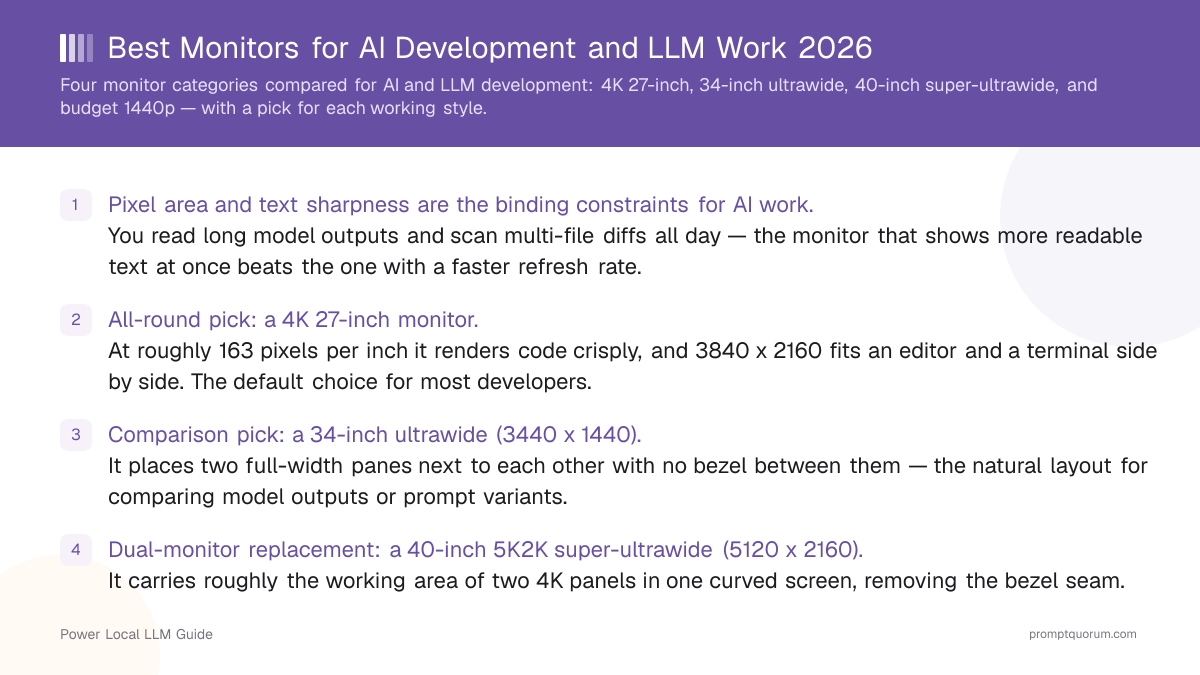
- Pixel area and text sharpness are the binding constraints for AI work. You read long model outputs and scan multi-file diffs all day — the monitor that shows more readable text at once beats the one with a faster refresh rate.
- All-round pick: a 4K 27-inch monitor. At roughly 163 pixels per inch it renders code crisply, and 3840 x 2160 fits an editor and a terminal side by side. The default choice for most developers.
- Comparison pick: a 34-inch ultrawide (3440 x 1440). It places two full-width panes next to each other with no bezel between them — the natural layout for comparing model outputs or prompt variants.
- Dual-monitor replacement: a 40-inch 5K2K super-ultrawide (5120 x 2160). It carries roughly the working area of two 4K panels in one curved screen, removing the bezel seam.
- Budget pick: a 1440p 27-inch monitor. It is sharp enough for code and large enough for a two-pane layout. The entry point if a 4K panel is out of budget — check current price.
- Panel type matters more than refresh rate. An IPS panel gives consistent color and wide viewing angles for desk work; 60-75 Hz is fine for development. Do not pay a premium for a 144 Hz+ gaming panel you will not use.
- Ergonomics are part of the spec. A height-adjustable stand, tilt, and a matte (anti-glare) finish reduce fatigue over an 8-hour session more than any headline number.
- Prices shown are approximate. Monitor pricing swings with sale cycles — treat every figure here as a range and confirm the live price before buying.
Quick Facts
- 4K 27-inch: 3840 x 2160 resolution, ~163 ppi — the all-round pick for AI development.
- 34-inch ultrawide: 3440 x 1440 resolution, 21:9 aspect ratio — best for side-by-side comparison work.
- 40-inch super-ultrawide: 5120 x 2160 (5K2K), 21:9 — replaces a dual-monitor setup in one screen.
- Budget 1440p: 2560 x 1440 resolution, ~109 ppi — the entry point; check current price.
- Pixel density target: aim for 140 ppi or higher for genuinely sharp code; 1440p at 27-inch sits near 109 ppi.
- Refresh rate: 60-75 Hz is sufficient for development; refresh rate above 120 Hz is a gaming spec, not a coding one.
- Connectivity to check: a single USB-C port that carries video plus power can run a laptop with one cable.
Sponsored
Editor's Choice: A 4K 27-Inch IPS Monitor
For most developers doing AI and LLM work, a 4K 27-inch IPS monitor is the pick that balances text sharpness, usable area, and price. At 3840 x 2160 on a 27-inch panel, pixel density lands near 163 ppi — sharp enough that code and model output render cleanly without scaling artifacts. The panel fits a full-height editor and a terminal side by side, or an editor and a browser docs tab. An IPS panel gives the consistent color and wide viewing angles that matter for desk work, and 60-75 Hz is all development needs. If you regularly compare two model outputs at full width, step up to a 34-inch ultrawide instead. If a 4K panel is out of budget, a 1440p 27-inch monitor is the value pick. Prices for 4K 27-inch monitors span a wide range — check the current price before buying.
📌Note: This Editor's Choice reflects fit-for-purpose only. PromptQuorum is not enrolled in any affiliate program and the links below carry no affiliate tags — they are plain reference links that earn no commission.
How the Four Monitor Categories Compare for AI Work
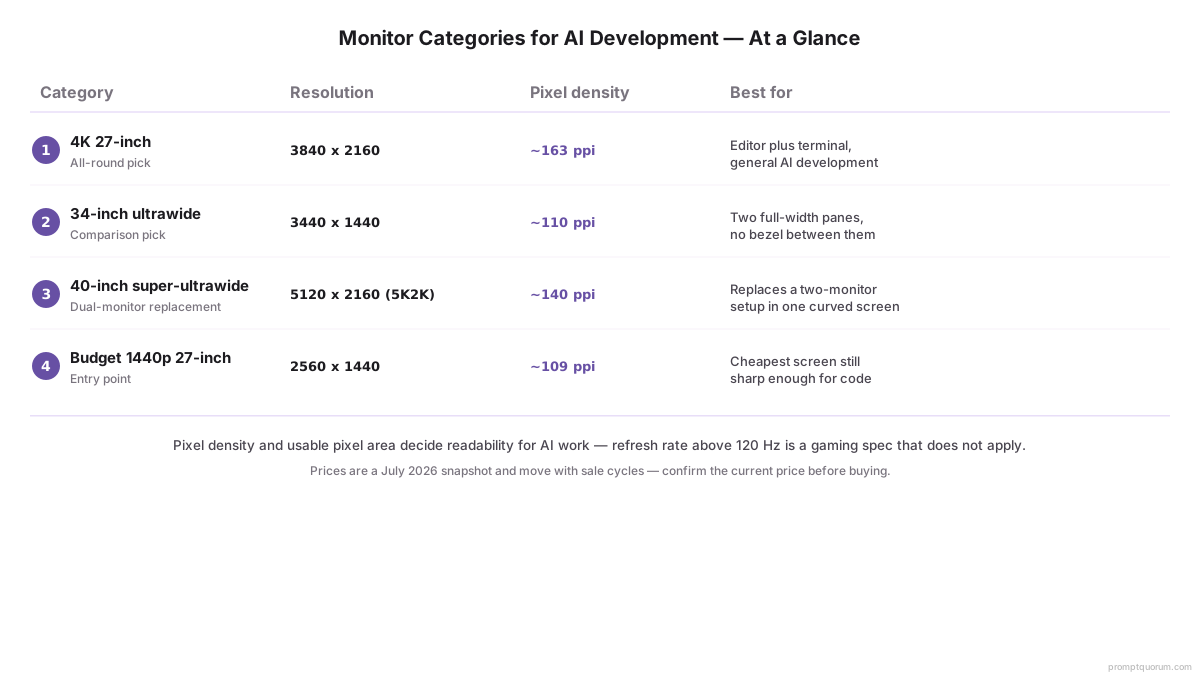
Resolution, aspect ratio, and pixel density are category specifications. The "best for" column reflects working style, not a single product. Prices below are expressed as ranges — monitor pricing moves with sale cycles, so confirm the current price before buying.
📍 In One Sentence
For AI development, a monitor's usable pixel area and text sharpness decide how much code and model output you can read at once — buy for those first, then for comfort.
💬 In Plain Terms
Think of a monitor as a desk surface for text. A bigger, sharper surface lets you keep your editor, terminal, and documentation all visible without shuffling windows. Refresh rate is how fast the surface refreshes — it matters for fast games, not for reading model output.
Category | Resolution | Pixel density | Best for | Price |
|---|---|---|---|---|
| 4K 27-inch | 3840 x 2160 | ~163 ppi | All-round AI development — editor plus terminal | Mid-range; check current price |
| 34-inch ultrawide | 3440 x 1440 | ~110 ppi | Side-by-side comparison of model outputs | Mid to upper range; check current price |
| 40-inch super-ultrawide | 5120 x 2160 (5K2K) | ~140 ppi | Replacing a dual-monitor setup in one screen | Premium; check current price |
| Budget 1440p 27-inch | 2560 x 1440 | ~109 ppi | Entry point — enough to start | Entry range; check current price |
Which Monitor Should You Buy?
Your working style decides the category; your budget decides how far you stretch inside it. Find the row that matches your situation.
Your situation | Buy this |
|---|---|
| I want one sharp screen for general AI development | 4K 27-inch IPS monitor |
| I compare two model outputs or prompt variants side by side | 34-inch ultrawide (3440 x 1440) |
| I currently run two monitors and want one screen instead | 40-inch 5K2K super-ultrawide |
| I want the cheapest screen that is still sharp enough for code | Budget 1440p 27-inch monitor |
| I work mostly from a laptop and want a one-cable desk | 4K or ultrawide monitor with USB-C power delivery |
| I am unsure and want the safest first monitor | 4K 27-inch IPS monitor — the all-round default |
4K 27-Inch Monitors: The All-Round Pick
A 4K 27-inch monitor is the default choice for AI development because it pairs sharp text with enough room for two panes — and at a price most developers can justify. At 3840 x 2160 on a 27-inch diagonal, pixel density is roughly 163 ppi, which renders code and long model output crisply.
- Why buy it: sharp text at ~163 ppi, room for a full-height editor plus a terminal, and an IPS panel gives consistent color for desk work. The most balanced single-monitor choice.
- Use a 4K 27-inch monitor if you want one screen for general AI development and value text sharpness over screen width.
- What to look for: an IPS panel, a height-adjustable stand with tilt, a matte anti-glare finish, and at least one USB-C port that carries video plus power if you work from a laptop.
- Why skip it: if your work is dominated by comparing two full-width outputs, a 34-inch ultrawide places them side by side more naturally; if budget is tight, a 1440p 27-inch panel costs less.
- Scaling note: at 27-inch 4K, most operating systems default to 150-175% display scaling — this is expected and gives sharp text without tiny UI.
💡Tip: For a 4K 27-inch monitor, prioritize the stand and the panel coating over headline numbers. A height-adjustable, tilting stand and a matte finish reduce fatigue across an 8-hour session more than a faster refresh rate ever will.
34-Inch Ultrawide Monitors: Best for Side-by-Side Work
A 34-inch ultrawide monitor is the best pick for anyone who compares model outputs or prompt variants side by side, because its 21:9 shape fits two full-width panes with no bezel between them. At 3440 x 1440 it is wider than a standard 16:9 screen without being taller.
- Why buy it: two panes of code, prompts, or model output sit next to each other with no monitor bezel splitting them — the natural layout for comparison and review work.
- Use a 34-inch ultrawide if your day involves diffing outputs, reviewing prompt variants, or keeping a chat pane next to an editor.
- What to look for: a 3440 x 1440 IPS panel, a gentle curve (often 1800R or 1900R) that keeps the screen edges at a consistent viewing distance, and USB-C power delivery for one-cable laptop docking.
- Why skip it: at ~110 ppi the text is less sharp than a 4K 27-inch panel; if single-screen sharpness matters more than width, choose 4K instead.
- Vertical note: 1440 vertical pixels is the same height as a standard 1440p monitor — ultrawide adds width, not height, so it does not help with very long single documents.
📌Note: A 34-inch ultrawide adds horizontal room, not vertical. If your bottleneck is reading one very long model output top to bottom, a 4K 27-inch panel or a portrait secondary monitor solves that better than width.
40-Inch Super-Ultrawide Monitors: A Dual-Monitor Replacement
A 40-inch 5K2K super-ultrawide monitor is the pick for developers who want to replace a two-monitor setup with one screen. At 5120 x 2160 it carries roughly the working area of two 4K panels, and a single curved screen removes the bezel seam that splits a dual-monitor layout.
- Why buy it: one screen with about the area of two 4K monitors, no bezel down the middle, and a single curve that keeps both edges at a consistent distance — useful for three or four panes at once.
- Use a 40-inch super-ultrawide if you currently run dual monitors, value an uninterrupted surface, and have the desk depth for a 40-inch curved panel.
- What to look for: a 5120 x 2160 resolution (5K2K) for ~140 ppi sharpness, an IPS panel, and USB-C power delivery so a laptop docks with one cable.
- Why skip it: it is the most expensive category, it needs a deep desk, and a single 4K plus a single ultrawide can deliver similar area for less money if you do not mind the bezel.
- Window-management note: plan to use the operating system's tiling or a window manager — a screen this wide is wasted if you only run maximized windows.
⚠️Warning: A 40-inch curved super-ultrawide needs real desk depth — measure your desk before buying. A panel this large sitting too close forces you to turn your head to read the edges, which defeats the point.
Budget 1440p Monitors: The Entry Point
A 1440p 27-inch monitor is the budget entry point for AI development — sharp enough for code and large enough for a two-pane layout. At 2560 x 1440 on a 27-inch panel, pixel density is roughly 109 ppi: not as crisp as 4K, but a clear step up from 1080p.
- Why buy it: it is the cheapest screen that still renders code legibly and fits an editor next to a terminal. The right pick when a 4K panel is out of budget.
- Use a 1440p 27-inch monitor if you are starting out, building a desk on a budget, or adding a second screen to a laptop.
- What to look for: an IPS panel for consistent color, a height-adjustable stand if available, and a matte finish — even on a budget panel these reduce fatigue.
- Why skip it: at ~109 ppi text is noticeably less sharp than 4K; if you read model output all day, the upgrade to a 4K 27-inch panel is the single most noticeable one.
- Avoid the trap: a cheap 1080p 24-inch monitor saves a little more but is genuinely cramped for multi-pane AI work — 1440p 27-inch is the sensible floor.
💡Tip: If budget is tight, buy one good 1440p 27-inch monitor rather than two cheap 1080p panels. A single sharp screen beats two cramped ones for reading long model output.
Which Monitor Specs Actually Matter for AI Work?
For AI and LLM development, the specs that matter are pixel density, panel type, ergonomics, and connectivity — not refresh rate or response time. Use this list to read a spec sheet correctly.
📍 In One Sentence
For AI development monitors, pixel density and panel type decide how comfortable a full day of reading code and model output is — refresh rate and response time are gaming specs that do not apply.
💬 In Plain Terms
Higher pixel density means sharper text, so your eyes work less. An IPS panel keeps colors and brightness even across the whole screen. Those two things, plus a stand you can raise to eye level, decide whether a long session is comfortable — nothing on the gaming side of the spec sheet does.
- Pixel density (ppi): the single best predictor of how sharp code looks. Aim for 140 ppi or higher; a 4K 27-inch panel sits near 163 ppi, a 1440p 27-inch near 109 ppi.
- Panel type: choose IPS for consistent color and wide viewing angles at a desk. VA panels show deeper blacks but weaker angles; TN panels are cheap but poor for off-axis viewing — skip them.
- Refresh rate: 60-75 Hz is enough for development. A 144 Hz+ gaming panel adds cost for a benefit you will not use while reading model output.
- Ergonomics: a height-adjustable, tilting stand and a matte anti-glare finish reduce fatigue across a long session — treat these as required, not optional.
- Connectivity: a USB-C port that carries video plus power delivery lets a laptop dock with one cable; a built-in USB hub keeps peripherals tidy.
- Use a higher-ppi panel if you read long model outputs all day; accept a lower-ppi panel if budget is the hard constraint and you mostly work in a large editor font.
Decision Flowchart: Pick Your Monitor in Three Questions
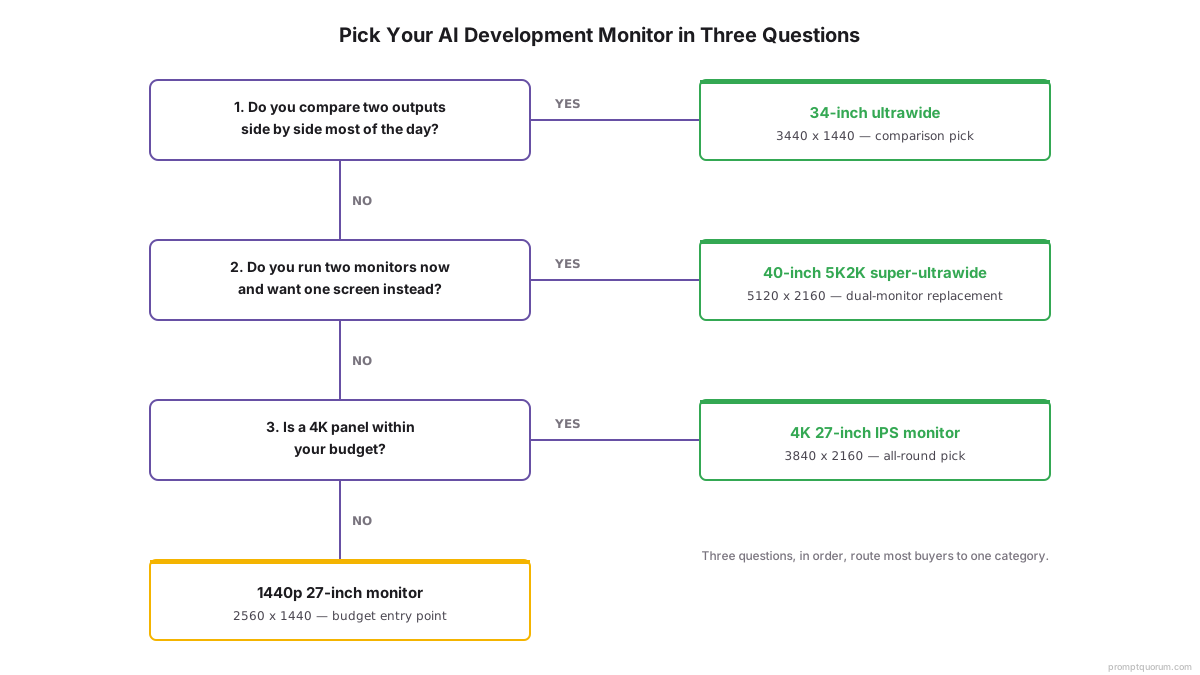
Three questions, in order, route most buyers to one category.
📍 In One Sentence
Pick a monitor for AI development by answering side-by-side comparison need first, dual-monitor replacement second, and 4K budget last.
💬 In Plain Terms
Start with how you actually work. If you constantly put two things next to each other, get a wide screen. If you already use two monitors, get one big screen to replace them. Otherwise, get a sharp 4K screen if you can afford it, or a 1440p screen if you cannot.
- 1. Do you compare two outputs side by side most of the day? Yes: a 34-inch ultrawide. No: continue.
- 2. Do you currently run two monitors and want one screen instead? Yes: a 40-inch 5K2K super-ultrawide. No: continue.
- 3. Is a 4K panel within budget? Yes: a 4K 27-inch IPS monitor — the all-round pick. No: a 1440p 27-inch monitor — the budget entry point.
Where to Buy a Monitor for AI Development
Monitor prices swing with sale cycles, so the best value depends as much on timing as on the model — US prices are usually lowest, EU prices add VAT. The links below are plain product-search links per region; they carry no affiliate tags and earn no commission.
- United States: Amazon, Best Buy, and Newegg carry the widest range across all four categories. Watch major sale events for the largest discounts.
- Germany: Amazon.de and other electronics retailers; expect roughly 19% VAT included in listed prices.
- France: Amazon.fr and electronics retailers; pricing is similar to Germany with 20% VAT included.
- Japan: Amazon.co.jp and price-comparison sites; ultrawide stock is generally good in major markets.
- Buy refurbished if budget is tight — manufacturer-refurbished monitors often carry a warranty and escape much of the new-panel premium.
⚠️Warning: Every price band in this guide is approximate. Monitor pricing moves sharply around sale events — always open the current retailer listing before buying.
Common Mistakes When Buying a Monitor for AI Development
- Paying for a high refresh rate you will not use. A 144 Hz+ gaming panel costs more for a benefit that does not apply to reading model output. 60-75 Hz is enough for development.
- Buying 1080p at 27-inch. Stretching 1920 x 1080 across a 27-inch panel drops pixel density to roughly 81 ppi — text looks soft. 1440p is the sensible floor at that size.
- Ignoring the stand. A monitor that cannot be raised to eye level forces a downward gaze all day. A height-adjustable, tilting stand is part of the spec, not an extra.
- Choosing a glossy panel for a bright room. A glossy finish mirrors windows and lights. A matte anti-glare finish is the right choice for most desks.
- Treating ultrawide as extra vertical room. A 34-inch ultrawide adds width, not height — it does not help with long single documents. Match the shape to how you actually work.
- Overbuying a super-ultrawide for a small desk. A 40-inch curved panel needs real desk depth; on a shallow desk you turn your head to read the edges.
- Skipping USB-C power delivery on a laptop-first setup. Without it you run separate video and charging cables; with it the desk is one cable.
Sources
- VESA DisplayPort and USB-C standards — reference for monitor connectivity standards including USB-C power delivery and DisplayPort resolution support.
- Pixel density (PPI) calculation method — the formula used to derive the ~163 ppi (4K 27-inch) and ~109 ppi (1440p 27-inch) figures in this guide.
- Run Local LLMs on a Laptop: RAM, Speed & Thermals — PromptQuorum guidance on laptop-based local LLM work, the setup an external monitor pairs with.
Frequently Asked Questions
What is the best monitor for AI development in 2026?
A 4K 27-inch IPS monitor is the best all-round pick for AI development. At roughly 163 pixels per inch it renders code and long model output crisply, and 3840 x 2160 fits an editor and a terminal side by side. If your work is mostly side-by-side comparison, a 34-inch ultrawide is the better fit; if budget is tight, a 1440p 27-inch monitor is the entry point. Prices vary widely, so check the current price before buying.
Is an ultrawide or a 4K monitor better for programming?
It depends on how you work. A 4K 27-inch monitor gives sharper text (~163 ppi) and is the better single-screen choice for general development. A 34-inch ultrawide gives less sharp text (~110 ppi) but places two full-width panes side by side with no bezel between them — the better choice if you compare model outputs or prompt variants all day. Pick by working style, not by which sounds more impressive.
Do I need a high refresh rate monitor for coding?
No. A 60-75 Hz refresh rate is sufficient for development and reading model output. Refresh rates above 120 Hz are a gaming specification — they make fast motion smoother but add cost with no benefit for static text. Spend the money on pixel density and a good stand instead.
What pixel density should a developer monitor have?
Aim for 140 pixels per inch or higher for genuinely sharp code. A 4K 27-inch monitor sits near 163 ppi, which is excellent. A 1440p 27-inch monitor sits near 109 ppi — usable but noticeably softer. A 1080p 27-inch panel falls to about 81 ppi and looks soft; avoid that combination.
Can a 40-inch super-ultrawide replace two monitors?
Yes. A 40-inch 5K2K super-ultrawide at 5120 x 2160 carries roughly the working area of two 4K panels, and a single curved screen removes the bezel seam a dual-monitor setup has. It needs real desk depth and is the most expensive category, but for replacing a two-monitor layout with one uninterrupted surface it is the natural choice.
Is a 1440p monitor good enough for AI development?
Yes, as an entry point. A 1440p 27-inch monitor renders code legibly at roughly 109 ppi and is large enough for a two-pane layout. It is the right pick when a 4K panel is out of budget. If you read long model outputs all day, upgrading to a 4K 27-inch panel is the single most noticeable improvement you can make.
Should I get one large monitor or two smaller ones?
For AI work, one large sharp monitor usually beats two smaller ones. A single 4K 27-inch or 34-inch ultrawide panel gives an uninterrupted surface with no bezel splitting your view. Two monitors still make sense if you want one screen in portrait orientation for long documents, or if you already own a second panel.
Does a monitor need USB-C for a laptop-based LLM setup?
It is strongly recommended. A monitor with a USB-C port that carries both video and power delivery lets a laptop dock with a single cable — the screen charges the laptop and displays its output at once. Without USB-C you run separate video and charging cables. For a laptop-first AI development desk, treat USB-C power delivery as a priority feature.
What is an "AI monitor" — is that different from a monitor for AI development?
These are two different things, and the naming overlap causes real confusion. Some manufacturers market "AI monitors" as displays with built-in AI processing — features like automatic brightness and color tuning, presence detection, or webcam framing for video calls. This guide is not about that hardware category. It covers monitors chosen for the work of building and using AI models: reading long model outputs, comparing prompt variants side by side, and scanning multi-file diffs. None of the picks here require an "AI-branded" monitor — a standard 4K 27-inch IPS panel or 34-inch ultrawide does the job. If a listing advertises "AI features" as its main selling point, that is a marketing category, not a requirement for AI development work.