Key Takeaways
- The offline voice assistant stack is: whisper.cpp → Ollama LLM → Piper TTS, orchestrated by a Python script. All three components are free, open-source, and operate entirely offline once installed.
- End-to-end latency on a desktop GPU (RTX 3060 12 GB): 1–2 seconds. This is comparable to Alexa and Google Assistant — the latency threshold for "feels natural" in voice interaction. Use Whisper small and Llama 3.1 8B for this result.
- Raspberry Pi 5 (8 GB) is a viable but slow platform. With Phi-4-mini 3.8B and Whisper base, latency is 5–8 seconds. Usable for hands-free queries where the user accepts a longer pause, not for conversational interaction.
- Mac Mini M5 (24 GB unified memory) is the sweet spot for quality and silence. Silent, fanless at idle, and powerful enough to run Llama 3.1 8B at ~50 tokens/sec with Whisper large-v3 at 10× real-time via Metal. Latency of 1–1.5 seconds.
- Add a wake word to avoid running Whisper continuously. OpenWakeWord (MIT, free, custom wake words) is the best open-source option. Porcupine (Picovoice) has a free tier for personal use with pre-built wake words like "Hey Jarvis".
- Whisper hallucination on silence is the most common pipeline bug. Whisper will transcribe silence as filler words or quotes from its training data. Set a minimum audio energy threshold before passing audio to Whisper — and configure
--no-speech-threshold 0.6in whisper.cpp. - This setup produces zero network traffic during operation. Verify with Wireshark after assembly. No audio, no transcripts, and no LLM queries leave your machine. EU GDPR compliance is automatic — no data processing agreement needed for internal tools.
Quick Facts
- STT layer: whisper.cpp (best for Apple Silicon and embedded), faster-whisper (best for NVIDIA GPU Python pipelines).
- LLM layer: Ollama with Llama 3.1 8B (recommended), Phi-4 (smaller, good quality), or Mistral Small (comparable quality to Llama 3.1 8B).
- TTS layer: Piper (fastest, CPU-only, real-time on Pi), Coqui TTS (better quality, needs GPU).
- Wake word options: OpenWakeWord (MIT, fully offline), Porcupine (free tier, 1 custom wake word).
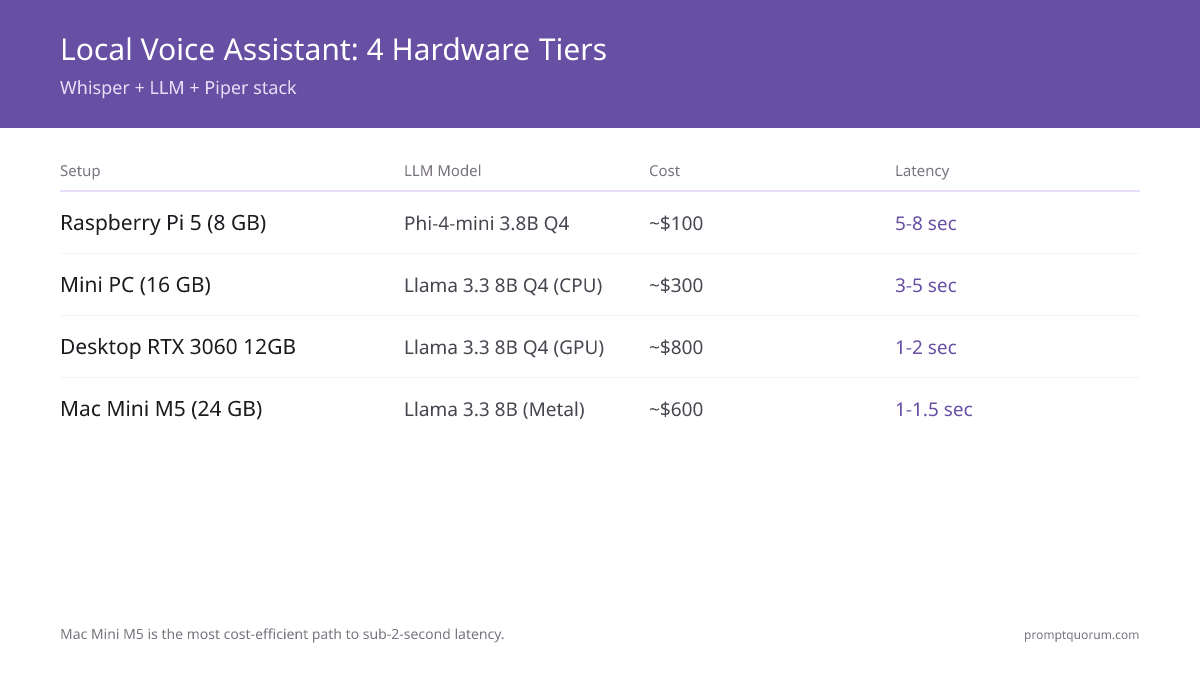
- Minimum hardware: Raspberry Pi 5 with 8 GB RAM (~$100) for 5–8 second latency.
- Recommended hardware: Mac Mini M5 24 GB (~$600) or desktop with RTX 3060 12 GB (~$800) for 1–2 second latency.
- Languages: Whisper supports 99 languages. Piper supports 20+ language voice packs. LLM performance varies by language.
Why Build a Local Voice Assistant?
Alexa, Siri, and Google Assistant all route your voice through cloud servers — your audio is transcribed, processed, and logged by the provider. A local voice assistant processes everything on your hardware.
- Privacy: No audio leaves your home. No wake word audio stored in the cloud. No conversation history on third-party servers. Critical for healthcare workers, lawyers, journalists, and anyone with sensitive work.
- Cost: No subscription. Alexa+ (formerly Alexa Premium) costs $4.99/month. Google One costs $1.99–$9.99/month. A local assistant is one-time hardware cost.
- Customization: Choose your wake word, personality, system prompt, and capabilities. Add custom commands, connect to local home automation systems, integrate with local APIs.
- Offline operation: Works without internet. Power outage (with a UPS) + internet outage: your local assistant still works. Useful for cabins, remote locations, and emergency preparedness.
- What you give up: Web search, smart-home integration with proprietary clouds, calendar sync with cloud services, the years of RLHF tuning that makes Alexa/Siri smooth at edge cases.
- Smart home integration: Wire your local voice assistant directly into Home Assistant to control lights, thermostats, and sensors by voice — completely offline. See local voice assistant for smart home → for the full Piper + Whisper + Home Assistant setup guide.
The Three-Layer Architecture
The offline voice assistant consists of three independent layers connected by a Python orchestrator.
📍 In One Sentence
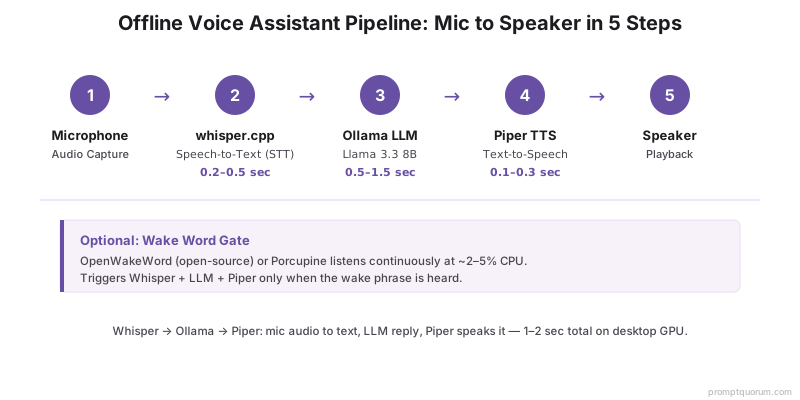
Microphone → whisper.cpp (STT) → Ollama LLM → Piper TTS → speaker: three independent components glued by a 50-line Python orchestrator.
💬 In Plain Terms
Think of it like a telephone relay: you speak, Whisper writes it down, the LLM thinks of a reply and writes it down, Piper reads it aloud. Each step is a separate program; Python passes the text between them.
- Layer 1 — STT (Speech-to-Text): whisper.cpp or faster-whisper. Converts microphone audio to text. Runs offline, no network.
- Layer 2 — LLM (Reasoning): Ollama serving Llama 3.1 8B, Phi-4, or Mistral Small. Takes the transcribed text + conversation history + system prompt and generates a response. Runs offline, no network.
- Layer 3 — TTS (Text-to-Speech): Piper or Coqui TTS. Converts the LLM response text to audio and plays it through the speaker. Runs offline, no network.
- Orchestrator: A Python script that wires the three together: captures audio from microphone → passes to STT → passes transcript to LLM → passes response to TTS → plays audio.
- Optional wake word: A lightweight always-on detector (OpenWakeWord, Porcupine) that triggers the full pipeline only when the wake phrase is detected. Without this, the orchestrator runs whisper.cpp continuously — consuming more CPU and generating more false positives.
Hardware Requirements
Four hardware tiers, ordered by latency and cost. All support the full Whisper + LLM + Piper stack.
Setup | STT Model | LLM Model | TTS | Total Cost | End-to-End Latency |
|---|---|---|---|---|---|
| Raspberry Pi 5 (8 GB) | Whisper base (CPU) | Phi-4-mini 3.8B Q4 | Piper (CPU) | ~$100 | 5–8 sec |
| Mini PC (16 GB RAM) | Whisper small (CPU) | Llama 3.1 8B Q4 (CPU) | Piper (CPU) | ~$300 | 3–5 sec |
| Desktop (RTX 3060 12 GB) | Whisper large-v3 (GPU) | Llama 3.1 8B Q4 (GPU) | Piper or Coqui (CPU/GPU) | ~$800 | 1–2 sec |
| Mac Mini M5 (24 GB) | Whisper large-v3 (Metal) | Llama 3.1 8B (Metal) | Piper (CPU) | ~$600 | 1–1.5 sec |
💡Tip: The Mac Mini M5 is the most cost-efficient path to sub-2-second latency. It is fanless at idle, runs both Whisper Metal and Ollama on unified memory simultaneously, and requires no NVIDIA driver management.
Step 1: Set Up Speech-to-Text
Install whisper.cpp for Apple Silicon and embedded hardware; install faster-whisper for NVIDIA GPU setups.
- Install whisper.cpp:
git clone https://github.com/ggerganov/whisper.cpp && cd whisper.cpp && make -j4 - Download your model:
bash ./models/download-ggml-model.sh small(small = 3.4% WER, good speed balance) - Test transcription:
./main -m models/ggml-small.bin -f test.wav— should produce accurate text output. - Enable Metal on Mac:
make -j4 WHISPER_COREML=1thenbash models/generate-coreml-model.sh small - Whisper model selection: base for Raspberry Pi (1 GB RAM, low latency), small for the sweet spot (2 GB RAM, 3.4% WER), large-v3 for highest accuracy (10 GB VRAM/RAM).
- Configure silence suppression: Add
--no-speech-threshold 0.6 --suppress-blankflags to avoid transcribing silence as hallucinated text. - Test with a 10-second recording: Record yourself saying a test phrase, verify Whisper transcribes it accurately. Check both noise conditions and quiet speech.
Step 2: Set Up the Local LLM
Install Ollama and pull the LLM model. Configure a system prompt for voice assistant behavior — shorter responses, no markdown, appropriate personality.
- Install Ollama: Download from ollama.com. Available for macOS, Linux, and Windows. Installs in under 2 minutes.
- Pull model:
ollama pull llama3.1:8b(recommended) orollama pull phi4(lighter, good for 16 GB RAM systems). - Test:
ollama run llama3.1:8b "What is the capital of France?"— verify the response is accurate and fast. - System prompt for voice: Use a short, directive system prompt: "You are a helpful voice assistant. Keep responses concise — 1–3 sentences maximum. Never use bullet points, markdown, or formatting. Speak naturally as if in conversation."
- Temperature: Set temperature to 0.3–0.5 for more predictable, factual responses. Lower temperature reduces hallucinations in voice responses.
- Max tokens: Limit response length with
--num-predict 150— long responses take more TTS time and feel unnatural in voice interaction.
Step 3: Set Up Text-to-Speech
Install Piper for all hardware tiers. It runs in real-time on CPU including Raspberry Pi, has 20+ language voice packs, and requires no GPU.
- Install Piper:
pip install piper-tts - Download a voice:
piper --download-dir voices --update-voices --voice en_US-lessac-medium(or any voice from the Piper voices page on Hugging Face). - Test:
echo "Hello, how can I help you today?" | piper --model voices/en_US-lessac-medium.onnx --output-raw | aplay -r 22050 -f S16_LE -c 1 - Audio output: Piper outputs raw PCM or WAV. Pipe to
aplay(Linux),afplay(Mac), or use thesounddevicePython library for cross-platform playback. - Alternative (better quality): Coqui VITS backend — install
pip install TTS, usetts --model_name tts_models/en/vctk/vits. Requires ~2 GB VRAM; 2–3× slower than Piper but noticeably more natural. - Voice selection: For voice assistants, choose a medium-quality voice rather than high — medium voices are faster and the difference is negligible over a speaker.
Step 4: Connect the Pipeline
A Python orchestrator connects STT → LLM → TTS. The script captures audio from the microphone, transcribes it with Whisper, sends the transcript to Ollama, converts the response to speech with Piper, and plays it back.
#!/usr/bin/env python3
"""Minimal offline voice assistant: Whisper STT + Ollama LLM + Piper TTS."""

import subprocess
import tempfile
import sounddevice as sd
import soundfile as sf
import numpy as np
import requests
import json

SAMPLE_RATE = 16000
RECORD_SECONDS = 5
OLLAMA_URL = "http://localhost:11434/api/generate"
WHISPER_BIN = "./whisper.cpp/main"
WHISPER_MODEL = "./whisper.cpp/models/ggml-small.bin"
PIPER_BIN = "piper"
PIPER_VOICE = "voices/en_US-lessac-medium.onnx"
SYSTEM_PROMPT = (
    "You are a helpful voice assistant. Keep responses to 1-3 sentences. "
    "Never use markdown, bullet points, or formatting. Speak naturally."
)

conversation_history = []

def record_audio(seconds: int = RECORD_SECONDS) -> np.ndarray:
    print("Listening...")
    audio = sd.rec(int(seconds * SAMPLE_RATE), samplerate=SAMPLE_RATE, channels=1, dtype="int16")
    sd.wait()
    return audio

def transcribe(audio: np.ndarray) -> str:
    with tempfile.NamedTemporaryFile(suffix=".wav", delete=False) as f:
        sf.write(f.name, audio, SAMPLE_RATE)
        result = subprocess.run(
            [WHISPER_BIN, "-m", WHISPER_MODEL, "-f", f.name, "--no-timestamps", "--no-prints"],
            capture_output=True, text=True
        )
    return result.stdout.strip()

def ask_llm(text: str) -> str:
    conversation_history.append({"role": "user", "content": text})
    response = requests.post(OLLAMA_URL, json={
        "model": "llama3.1:8b",
        "system": SYSTEM_PROMPT,
        "messages": conversation_history,
        "stream": False,
    })
    reply = response.json()["message"]["content"]
    conversation_history.append({"role": "assistant", "content": reply})
    return reply

def speak(text: str) -> None:
    with tempfile.NamedTemporaryFile(suffix=".wav", delete=False) as f:
        subprocess.run(
            f'echo "{text}" | {PIPER_BIN} --model {PIPER_VOICE} --output_file {f.name}',
            shell=True, check=True
        )
        data, sr = sf.read(f.name)
        sd.play(data, sr)
        sd.wait()

def main():
    print("Voice assistant ready. Press Ctrl+C to stop.")
    while True:
        audio = record_audio()
        transcript = transcribe(audio)
        if not transcript or len(transcript) < 3:
            continue
        print(f"You: {transcript}")
        response = ask_llm(transcript)
        print(f"Assistant: {response}")
        speak(response)

if __name__ == "__main__":
main()📌Note: This is a minimal pipeline for clarity — it records fixed-length audio. For production, use VAD (voice activity detection) to record until speech ends rather than using a fixed duration. faster-whisper includes Silero VAD; for whisper.cpp, use the --stream mode or implement a WebRTC VAD with the webrtcvad Python library.
Step 5: Wake Word Detection
A wake word detector runs a lightweight model continuously, triggering the full pipeline only when it hears your chosen phrase. Without it, Whisper runs continuously — consuming CPU/GPU and generating more false positives on background noise.
- OpenWakeWord (MIT license): Fully open-source, runs on CPU, supports custom wake words via fine-tuning on your own phrase. Install:
pip install openwakeword. Works on Raspberry Pi. Best for fully offline and open-source setups. - Porcupine (Picovoice): Proprietary but with a free tier for personal use. Pre-built wake words include "Alexa", "Hey Siri", "Ok Google", and custom options like "Hey Jarvis". Very accurate and low false-positive rate. Install:
pip install pvporcupine. - Integration pattern: Run OpenWakeWord/Porcupine in a loop. When wake word is detected, play a "ding" sound (user feedback), then trigger the Whisper + LLM + TTS pipeline for one query. Return to wake word listening after TTS playback.
- Always-on power: Wake word detection uses ~2–5% CPU on a Raspberry Pi 5 — negligible. You can leave the assistant running 24/7 with minimal power draw.
- Custom wake words (OpenWakeWord): Generate 500 positive and 500 negative audio examples of your wake phrase using text-to-speech, then fine-tune OpenWakeWord for < 30 minutes on CPU. Accuracy comparable to Porcupine for common English words.
Latency Optimization
The 1–2 second target is achievable on desktop hardware with the right settings. Latency breaks down across the three layers:
📍 In One Sentence
STT adds 0.2–0.5 sec, LLM first-token latency adds 0.5–1.5 sec, TTS adds 0.1–0.3 sec — total 1–2 seconds on a desktop GPU.
💬 In Plain Terms
The LLM is the biggest bottleneck. The most effective optimization is to start streaming TTS output as the LLM generates tokens — the user starts hearing the answer before the LLM has finished writing it.
- STT optimization (~0.2–0.5 sec): Use Whisper small instead of large-v3. Use VAD to trim silence before passing audio to Whisper — shorter audio = faster transcription.
- LLM optimization (~0.5–1.5 sec first token): Pre-load the model at startup (Ollama does this automatically). Use Q4_K_M quantization for the best speed/quality balance. Set
--num-predict 100–150to limit response length. - Streaming LLM → TTS: Stream the LLM output token-by-token. Start TTS on each completed sentence (end of sentence detected by period/question mark). This reduces perceived latency by 0.3–0.7 seconds — the user hears the start of the answer while the LLM is still generating the end.
- TTS optimization (~0.1–0.3 sec): Piper generates the first audio within 50 ms. Pre-initialize Piper at startup. Use
--output-rawto stream audio as it generates rather than waiting for a full file. - Keep models in memory: Ollama keeps models warm in VRAM automatically. whisper.cpp loaded in stream mode stays in memory. Avoid reloading models between queries.
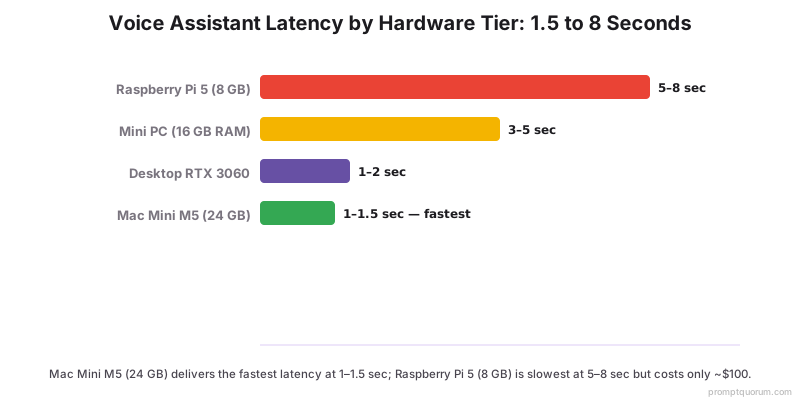
- Target latency by hardware tier: Pi 5: 5–8 sec (acceptable for non-conversational). Mini PC CPU: 3–5 sec (borderline conversational). Desktop GPU: 1–2 sec (natural). Mac M5: 1–1.5 sec (excellent).
Privacy and Security
A correctly assembled local voice assistant generates zero network traffic during operation. All processing — audio capture, speech recognition, LLM inference, and TTS — runs entirely on your hardware.
- Verify with Wireshark: Run Wireshark on your network interface during a conversation with the assistant. You should see zero packets from the assistant process. Any unexpected traffic indicates a misconfiguration — check that Ollama's external API is disabled if you have a public IP.
- No audio stored: Neither whisper.cpp nor faster-whisper write audio files by default — they process in memory. The Python orchestrator in this guide writes a temporary WAV file for whisper.cpp, which is deleted after transcription.
- No conversation history stored: The conversation history in the example script is in-memory only and resets when you restart. For persistent history, implement explicit storage with a local database and encryption at rest.
- GDPR compliance: Because all processing is local and no data leaves your network, a local voice assistant for internal use does not require a data processing agreement. There is no data controller/processor relationship with a third party.
- Network isolation: For maximum privacy, add a firewall rule blocking outbound traffic from the assistant process. Ollama and whisper.cpp will function normally — they require no network access after model download.
Frequently Asked Questions
Can I use a local voice assistant for smart home control?
Yes, if your smart home system has a local API. Home Assistant (HASS) has excellent local integration — you can call the HASS REST API from the orchestrator after the LLM interprets the command. The LLM acts as an intent parser: "Turn on the living room lights" → structured JSON → HASS API call. For proprietary smart home systems (Ring, Nest, Philips Hue cloud) without local API support, you cannot integrate locally without internet.
How many languages does the local voice assistant support?
Whisper supports 99 languages for speech recognition. Piper supports 20+ language voice packs for TTS. The LLM's language support depends on the model — Llama 3.1 8B handles English, French, German, Spanish, Italian, Portuguese, and some Japanese/Chinese. For full multilingual support in less-common languages, choose a model specifically trained for those languages (e.g., Mistral Small has strong European language support).
What is the minimum hardware to get under 2 seconds latency?
A Mac Mini M5 (24 GB, ~$600) or a desktop with an NVIDIA RTX 3060 12 GB (~$400 GPU, ~$800 total) both achieve 1–2 second latency. The key requirements are: 8+ GB GPU VRAM for Llama 3.1 8B at Q4, plus Metal or CUDA acceleration for Whisper. A 16 GB RAM CPU-only setup (Mini PC, ~$300) achieves 3–5 seconds — usable but below the "feels natural" threshold.
Does the Whisper + LLM + Piper pipeline work on Windows?
Yes. whisper.cpp has Windows build instructions using cmake and Visual Studio. Ollama runs natively on Windows 10/11 with NVIDIA GPU support. Piper has Windows binaries. The Python orchestrator runs on Windows with sounddevice for audio capture. The main complexity on Windows is building whisper.cpp from source — alternatively, use faster-whisper (pip install, no build required) on Windows with an NVIDIA GPU.
How do I add web search capability to the local voice assistant?
You can add web search by integrating a local search tool into the orchestrator. Options: (1) Use the DuckDuckGo API (free, no account needed) for general queries — parse the result and inject it into the LLM prompt. (2) Use a local news RSS feed for current events. (3) Use a local RAG system (AnythingLLM, PrivateGPT) with your own document collection for domain-specific search. The LLM then uses the retrieved context to answer questions accurately. This adds 0.5–2 seconds to latency depending on the search method.
Sources
- whisper.cpp on GitHub — Source, build instructions, stream mode documentation.
- Ollama on ollama.com — Installation, model library, API reference.
- Piper TTS on GitHub — Source, voice pack downloads, Raspberry Pi setup guide.
- OpenWakeWord on GitHub — Source, custom wake word training guide, supported architectures.
- Porcupine by Picovoice — Wake word SDK, free tier terms, Python SDK documentation.
- Picovoice Console — Create free-tier API key for Porcupine personal use.