Key Takeaways
- Qwen3 8B and 14B are consumer GPU targets — ~6 GB and 16 GB VRAM respectively, running via Ollama in Docker
- Qwen3 32B needs an RTX 4090 24 GB — the RTX 4090 is now EOL (discontinued by NVIDIA in 2026), so every card is used, at ~$2,000–2,600
- Qwen 3.6 27B (
qwen3.6:27b) is a newer, stronger-coding release from Alibaba that fits the same 24 GB VRAM tier as Qwen3 32B — evaluate it alongside Qwen3 32B before buying hardware - Qwen2.5-72B requires dual RTX 4090s, a high-RAM CPU build (128+ GB DDR5), or cloud rental — self-hosting costs ~$0.05–0.12/day amortized
- A Docker Compose stack with Ollama + Open WebUI + Nginx exposes an OpenAI-compatible API in under 10 minutes
- Always-on Qwen servers: Minisforum UM890 Pro ($429, Qwen3 8B on CPU) or AOOSTAR GEM12 Pro OCuLink + RTX 4060 Ti 16 GB (~$800 total)
- Cloud fallback: RunPod A40 48 GB at $0.44/hr handles Qwen2.5-72B — cheaper than buying dual RTX 4090s for occasional use
- This guide covers production deployment; for basic Ollama setup see the Qwen beginner guide
📍 In One Sentence
Deploy Qwen models in production using a Docker Compose stack that runs Ollama as the inference backend and exposes an OpenAI-compatible API endpoint.
💬 In Plain Terms
Instead of running Qwen manually each time, Docker lets you set up a permanent server that stays on and accepts requests — just like using the ChatGPT API, but on your own hardware at no per-token cost.
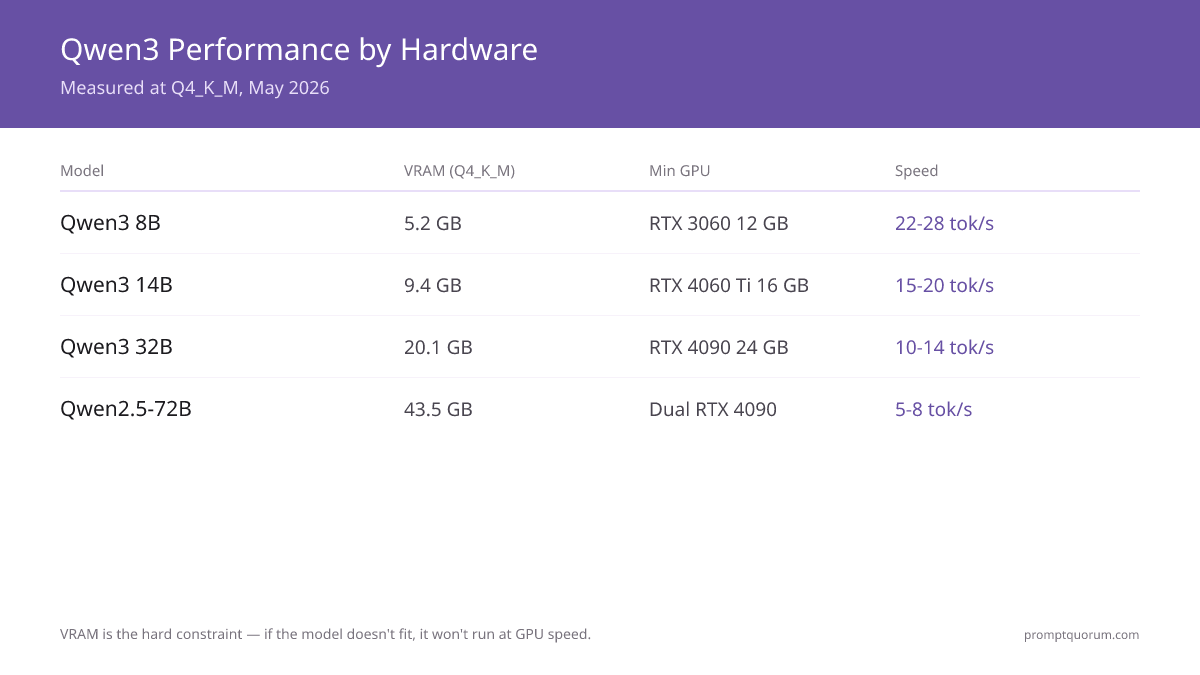
Qwen Model Performance by Hardware
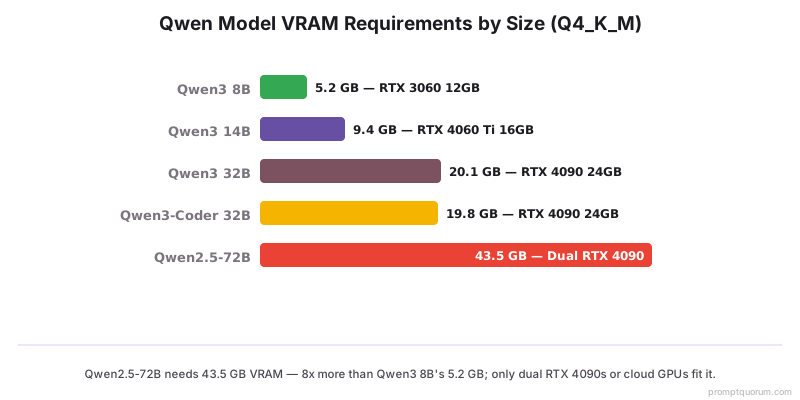
Choose your hardware based on model size, not GPU brand. VRAM is the hard constraint: if the model does not fit, it will not run at GPU speed. The table below shows measured inference speeds at Q4_K_M quantization (the best quality-to-size ratio for Ollama deployments). Note: the RTX 4090 is EOL (NVIDIA discontinued it in 2026) — every card below is now used-market only, at ~$2,000–2,600.
Model | VRAM (Q4_K_M) | Min GPU | Speed (tok/s) | CPU fallback | Production-ready? |
|---|---|---|---|---|---|
| Qwen3 8B | 5.2 GB | RTX 3060 12 GB | 22–28 tok/s | Yes (32 GB RAM, ~4 tok/s) | Yes — single GPU |
| Qwen3 14B | 9.4 GB | RTX 4060 Ti 16 GB | 15–20 tok/s | Yes (64 GB RAM, ~2.5 tok/s) | Yes — single GPU |
| Qwen3 32B | 20.1 GB | RTX 4090 24 GB (EOL, used) | 10–14 tok/s | Marginal (128 GB RAM, ~1.2 tok/s) | Yes — single GPU |
| Qwen 3.6 27B | ~16 GB | RTX 4090 24 GB (EOL, used) | See comparison guide | Marginal (128 GB RAM) | Yes — single GPU |
| Qwen2.5-Coder 32B | 19.8 GB | RTX 4090 24 GB (EOL, used) | 10–13 tok/s | Marginal (128 GB RAM) | Yes — single GPU |
| Qwen2.5-72B | 43.5 GB | Dual RTX 4090 (EOL, used, 48 GB) | 5–8 tok/s | Slow (128 GB RAM, ~0.6 tok/s) | Multi-GPU or cloud only |
Speeds measured on PCIe Gen 4 systems. NVLink improves dual-GPU throughput by ~15% on supported cards. Qwen2.5-72B at Q4_K_M with single A100 80 GB on RunPod: 18–22 tok/s. Qwen 3.6 27B (ollama pull qwen3.6:27b) is a newer, stronger-coding release from Alibaba; see the Qwen model comparison guide for its measured benchmarks.
Docker API Server Setup — Ollama + Open WebUI + Nginx
The fastest production Qwen stack is three containers: Ollama (inference), Open WebUI (UI), and Nginx (reverse proxy + auth). This setup takes under 10 minutes and exposes a permanent OpenAI-compatible API at `your-server:11434/v1`.
- 1Install Docker and Docker Compose
Why it matters: Containers keep Qwen isolated from your OS — no Python environment conflicts, easy updates. - 2Create docker-compose.yml with Ollama + Open WebUI services
Why it matters: The compose file manages GPU passthrough, port mapping, and restart policies in one place. - 3Set OLLAMA_HOST=0.0.0.0 in the Ollama container environment
Why it matters: Without this, Ollama only listens on localhost and will not accept API requests from other containers or hosts. - 4Pull your Qwen model: docker exec ollama ollama pull qwen3:8b
Why it matters: Models are stored in a Docker volume so they persist across container restarts. - 5Add Nginx as API gateway with basic auth for public-facing deployments
Why it matters: Exposing Ollama directly to the internet without auth allows anyone to run inference on your GPU. - 6Set container restart policy to unless-stopped
Why it matters: This ensures your Qwen server survives system reboots — critical for always-on mini PC deployments.
version: "3.8"
services:
  ollama:
    image: ollama/ollama:latest
    container_name: ollama
    restart: unless-stopped
    ports:
      - "11434:11434"
    environment:
      - OLLAMA_HOST=0.0.0.0
      - OLLAMA_KEEP_ALIVE=-1
    volumes:
      - ollama_data:/root/.ollama
    deploy:
      resources:
        reservations:
          devices:
            - driver: nvidia
              count: all
              capabilities: [gpu]

  open-webui:
    image: ghcr.io/open-webui/open-webui:main
    container_name: open-webui
    restart: unless-stopped
    ports:
      - "3000:8080"
    environment:
      - OLLAMA_BASE_URL=http://ollama:11434
    volumes:
      - open_webui_data:/app/backend/data
    depends_on:
      - ollama

volumes:
  ollama_data:
  open_webui_data:
Multi-GPU Configuration for Qwen2.5-72B
Qwen2.5-72B at Q4_K_M requires 43.5 GB VRAM — one RTX 4090 (24 GB) is not enough. You need dual RTX 4090s (48 GB combined) or a single professional card (A100 80 GB, H100 80 GB). Note: the RTX 4090 is EOL (discontinued by NVIDIA in 2026) — every card is now used, at ~$2,000–2,600. Ollama handles multi-GPU splitting natively; no code changes are needed.
- Ollama automatically splits the model across all available GPUs — set CUDA_VISIBLE_DEVICES=0,1 in the compose environment to target specific cards
- For dual RTX 4090s, both must be in the same PCIe bandwidth tier — a B650 or Z790 board with two PCIe Gen 4 x8 slots is the minimum
- NVLink between two RTX 4090s is not officially supported by NVIDIA on consumer cards but works on RTX 4090 Founders Edition pairs via third-party NVLink bridges — adds ~15% throughput
- vLLM is an alternative inference engine that uses tensor parallelism for more efficient multi-GPU utilization — use vLLM instead of Ollama for sustained 70B inference loads above 100 concurrent requests
- For occasional Qwen2.5-72B use, RunPod A40 48 GB at $0.44/hr is cheaper than a dual-RTX-4090 build ($4,600+ at current EOL used pricing)
# vLLM multi-GPU alternative (better for high-traffic 72B)
docker run --gpus all \
  -p 8000:8000 \
  -e VLLM_WORKER_MULTIPROC_METHOD=spawn \
  vllm/vllm-openai:latest \
  --model Qwen/Qwen2.5-72B-Instruct \
  --tensor-parallel-size 2 \
  --max-model-len 32768 \
  --quantization awq
Production API Configuration
The Ollama API is OpenAI-compatible at /v1 — any application that calls the ChatGPT API works with your local Qwen deployment by changing one base URL. Key environment variables that affect production behavior:
- OLLAMA_KEEP_ALIVE=-1 — prevents the model from unloading after inactivity (default is 5 minutes, fatal for server deployments)
- OLLAMA_NUM_PARALLEL=4 — allows up to 4 concurrent inference requests; raise this if you have multiple VRAM GB headroom
- OLLAMA_MAX_LOADED_MODELS=1 — keep only one model in VRAM at a time on small GPU builds to prevent thrashing
- OLLAMA_FLASH_ATTENTION=1 — enables flash attention for 20–30% speed improvement on NVIDIA Ampere/Ada GPUs (RTX 3060 and newer)
- OLLAMA_GPU_OVERHEAD=512 — reserve 512 MB VRAM for OS and driver overhead; reduces OOM crashes on cards with exactly 8 or 16 GB
⚠️Warning: OLLAMA_KEEP_ALIVE=0 or omitting it causes the model to unload after each request. Your first request after a gap takes 10–30 seconds to reload. Always set OLLAMA_KEEP_ALIVE=-1 for API server deployments.
Cost Comparison: Self-Hosted vs Alibaba Cloud vs RunPod
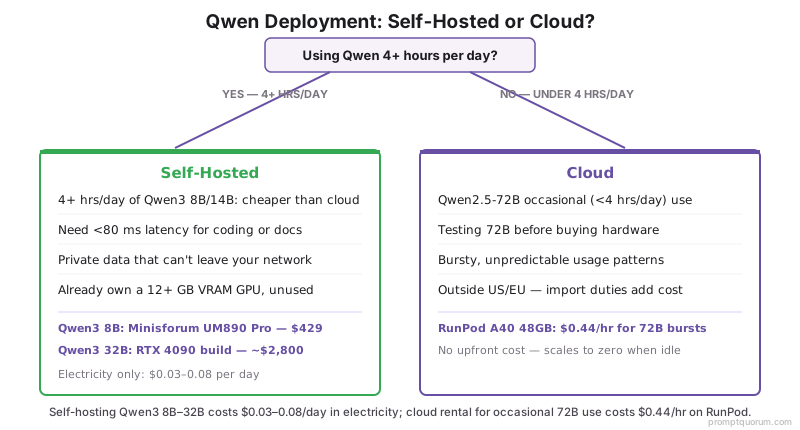
Self-hosting beats cloud for sustained inference loads above 4 hours per day. Below 4 hours per day, cloud GPU rental is cheaper after hardware amortization. The table below uses a 3-year hardware amortization for self-hosted builds.
Option | Qwen3 8B cost/day | Qwen2.5-72B cost/day | Upfront cost | Best for |
|---|---|---|---|---|
| Self-hosted: RTX 3060 12 GB mini PC | $0.03 (electricity only) | N/A (does not fit) | $600–900 total build | Always-on 7B inference, home/office server |
| Self-hosted: RTX 4090 workstation | $0.05 | N/A (single GPU) | $2,900–4,500 total build (EOL, used GPU) | Up to 32B inference, full workstation use |
| Self-hosted: Dual RTX 4090 | $0.08 | $0.12 | $5,800–7,800 total build (EOL, used GPUs) | 72B always-on with other workstation use |
| RunPod A40 48 GB ($0.44/hr) | $0.44 (1 hr) | $0.44 (1 hr) | $0 upfront, pay per hour | Burst 72B use, testing, no hardware investment |
| Alibaba Cloud PAI (A10 GPU) | $0.50–0.80/hr | $1.20–2.00/hr (A100) | $0 upfront + $50 credit for new accounts | Qwen-optimized inference, Alibaba Cloud ecosystem |
| Vast.ai RTX 4090 spot ($0.20–0.35/hr) | $0.20–0.35/hr | N/A | $0 upfront | Budget burst, acceptable downtime risk |
Always-On Qwen Server Hardware Recommendations
A mini PC running Qwen3 8B as a 24/7 API server costs $0.50–1.50/month in electricity — far cheaper than any cloud alternative. Two mini PC builds cover most always-on Qwen use cases:
- Budget (Qwen3 8B CPU inference): Minisforum UM890 Pro — AMD Ryzen 9 8945HS, 32 GB DDR5, 512 GB NVMe. ~$429 new. Qwen3 8B runs via Ollama CPU backend at 3–5 tok/s. Adequate for personal assistants and document summarization. 12W idle, 45W peak. Very quiet. Ships from US/EU warehouse.
- Recommended (Qwen3 14B GPU): AOOSTAR GEM12 Pro OCuLink — supports external GPU via OCuLink port. Pair with an RTX 4060 Ti 16 GB eGPU enclosure (~$340 GPU + $100 enclosure). Total ~$800. Runs Qwen3 14B at 16–18 tok/s. Significantly better than CPU fallback for interactive use.
- Power user (Qwen3 32B): Compact ATX desktop with a used RTX 4090 — the RTX 4090 is EOL (NVIDIA discontinued it in 2026), so every unit is used, at ~$2,000–2,600. Examples: Fractal Node 804 case ($90), RTX 4090 (~$2,300 used), Ryzen 9 7950X (~$600), 64 GB DDR5 (~$180). Total ~$3,200. Runs Qwen3 32B at 10–14 tok/s indefinitely. Qwen 3.6 27B (
qwen3.6:27b) fits the same card and is worth benchmarking against Qwen3 32B before committing to a model.
Verdict: Which Deployment for Which Model Size
Choose your Qwen deployment path based on model size and daily usage hours — not on what hardware looks impressive.
Qwen Deployment Decision
Use a local LLM if:
- •Qwen3 8B or 14B and you use it 4+ hours/day → buy a mini PC or GPU; cloud is more expensive
- •You need < 80 ms latency for interactive coding or document workflows
- •You are processing private data that must not leave your network
- •You already have a desktop GPU with 12+ GB VRAM sitting idle
Use a cloud model if:
- •Qwen2.5-72B for occasional use (< 4 hours/day) — RunPod A40 48 GB at $0.44/hr is far cheaper than a dual-GPU build
- •You need to test Qwen2.5-72B before committing to a hardware purchase
- •Your usage is bursty and unpredictable — cloud scales to zero when idle
- •You are outside the US/EU and shipping costs or import duties make hardware expensive
Quick decision:
- →Qwen3 8B daily: Minisforum UM890 Pro ($429)
- →Qwen3 14B daily: AOOSTAR + RTX 4060 Ti (~$800)
- →Qwen3 32B daily: compact ATX + used RTX 4090 (~$3,200, EOL)
- →Qwen2.5-72B occasional: RunPod A40 48 GB ($0.44/hr)
Related Guides
- Basic Qwen Ollama setup (beginner): /power-local-llm/run-qwen-locally-guide-2026
- GPU buying guide for local LLMs: /power-local-llm/best-gpu-buying-guide-local-llm-2026
- NAS storage for model files: /power-local-llm/best-nas-storage-local-ai-models-2026
- Cloud GPU comparison (Western providers): /power-local-llm/cloud-gpu-rental-guide-2026
Frequently Asked Questions
Is there a Qwen3 8B model?
No. The Qwen3 dense lineup is 0.6B, 1.7B, 4B, 8B, 14B, and 32B — there is no 7B. If you searched "Qwen3 8B", the closest model is Qwen3-8B (ollama pull qwen3:8b), which fits ~5–6 GB of VRAM at Q4_K_M and runs about 25 tok/s on an RTX 3060 12 GB. For a 72B-class model, use Qwen2.5-72B.
Is there a Qwen 3.8 model?
No — "Qwen 3.8" is not a real release. You most likely mean Qwen3-8B (ollama pull qwen3:8b, 8 billion parameters) or Qwen 3.6 (ollama pull qwen3.6:27b), a newer, stronger-coding release from Alibaba in the same VRAM tier as Qwen3 32B. Alibaba's versioning is Qwen3 (dense sizes 0.6B–32B) and the separate Qwen 3.6 point release — there is no "3.8" in either line.
Can I run Qwen2.5-72B on a single RTX 4090?
No. Qwen2.5-72B at Q4_K_M quantization requires 43.5 GB VRAM. A single RTX 4090 has 24 GB. You need dual RTX 4090s (48 GB combined), an A100 80 GB, or cloud GPU rental. Note the RTX 4090 is now EOL (discontinued by NVIDIA in 2026) — every unit is used, at ~$2,000–2,600. A single RTX 4090 can run Qwen3 32B at Q4_K_M (20.1 GB) with headroom.
What is the difference between Ollama and vLLM for production Qwen deployment?
Ollama is simpler to set up and handles multi-GPU splitting automatically — best for personal servers and teams with under 20 concurrent users. vLLM uses tensor parallelism and continuous batching, making it 2–4× more efficient under concurrent load — best for 100+ requests per hour or production APIs serving many users.
Does Ollama support multi-GPU inference for Qwen natively?
Yes, since Ollama 0.3.0 (2025). Set CUDA_VISIBLE_DEVICES=0,1 to specify which GPUs to use. Ollama splits the model automatically. For Qwen2.5-72B on dual RTX 4090, expect 5–8 tok/s — lower than a single A100 80 GB because the model must split across PCIe rather than NVLink in consumer configurations.
Is Alibaba Cloud cheaper than RunPod for Qwen inference?
Alibaba Cloud PAI costs $0.50–2.00/hr depending on GPU tier and region. RunPod A40 48 GB costs $0.44/hr. For Qwen specifically, Alibaba Cloud offers pre-configured Qwen inference environments with Qwen-optimized runtimes that can be 20–30% faster than generic Ollama — worth testing if you are already in the Alibaba Cloud ecosystem. For pure cost, RunPod spot instances are cheaper.
How much power does an always-on Qwen server use?
A Minisforum UM890 Pro running Qwen3 8B on CPU draws 12W idle and 45W under load. At US average electricity rates ($0.16/kWh), running it 24/7 costs ~$0.70–1.80/month. An RTX 4060 Ti 16 GB under load draws 165W — add mini PC idle (~25W) for ~190W total, or ~$7–8/month at 24/7 load.
Can I use the self-hosted Qwen API with ChatGPT-compatible applications?
Yes. Ollama exposes an OpenAI-compatible API at http://your-server:11434/v1. Set OPENAI_API_BASE=http://your-server:11434/v1 and OPENAI_API_KEY=anything in your application. Any tool that calls the OpenAI Chat Completions API — Continue.dev, Cursor (local mode), LangChain, AutoGen — works without modification.
Update Log
- 2026-05-26: Initial publication. Benchmark data from May 2026 hardware. Prices confirmed against Newegg, Amazon, and GPU market trackers.
- 2026-08-27: RTX 4090 reframed as EOL/used-market only (NVIDIA discontinued the RTX 40-series in 2026); prices updated from ~$1,900 new to ~$2,000–2,600 used across all builds and tables. Added Qwen 3.6 27B as a newer same-tier alternative to Qwen3 32B.
- Next review scheduled: 2027-02-27