Key Takeaways
- Three setups cover 95% of local email automation use cases. IMAP + Python + Ollama (50 lines, fully scriptable), Thunderbird + Ollama Compose (GUI, no code), n8n self-hosted + Ollama node (visual workflow, conditional logic). Pick the simplest one that fits your workflow.
- Smaller models are better for email than for creative work. Email drafting requires coherence, not creativity. Qwen3 14B and Phi-4 Mini generate business-quality draft replies in 2–5 seconds on a 16 GB system. Llama 3.3 70B is overkill for most email tasks.
- Review-before-send is not optional. Local models make tone errors (too formal, too casual), factual mistakes (wrong meeting time, wrong recipient name), and occasionally confabulate content from unrelated context. Always read the draft before sending.
- No email content leaves your machine in any of these setups. IMAP connections go to your mail server, not to a cloud AI. The Ollama API is local. n8n self-hosted runs on your machine. The privacy advantage is genuine.
- Calendar automation works best with exported ICS or a local Google Calendar API call. Export the week's events to an ICS file, pass it to Ollama, and ask it to generate a meeting agenda, a prep checklist, or a week-summary email to your team.
- IMAP credentials are sensitive. Store them in environment variables or a local secrets manager, never in the script source. Rotate email-specific app passwords rather than using your primary account password.
- n8n self-hosted is the right pick for conditional logic. If you want "summarise all emails from [domain] daily" or "generate a follow-up email when a calendar event ends", n8n's visual workflow builder handles this without custom Python.
Quick Facts
- Setups covered: IMAP + Python + Ollama, Thunderbird + Ollama Compose, n8n self-hosted + Ollama node.
- Best model for email: Qwen3 14B (fast, low VRAM, adequate business quality) or Phi-4 Mini (fastest, 4 GB VRAM).
- VRAM required: Qwen3 14B at Q4 = ~9 GB; Phi-4 Mini at Q4 = ~3 GB; Llama 3.3 70B at Q4 = ~42 GB.
- Email formats supported: plain-text IMAP (MIME decoded), EML files, Gmail API (local credentials), Outlook via IMAP.
- Calendar formats: ICS export (universal), Google Calendar API (local OAuth), Nextcloud Calendar (CalDAV).
- Script complexity: IMAP + Python = ~50 lines; n8n workflow = visual, no code; Thunderbird = plugin install only.
- Privacy: no email data sent to any cloud API in any setup; IMAP connects to your mail server only.
Why Use a Local LLM for Email Automation?
The core reason is privacy: every email you paste into a cloud AI assistant is potentially logged, used for training, and subject to that provider's data retention policy. Business correspondence, client communications, and personal email contain information you do not want in a third-party training dataset. A local LLM processes your emails on your hardware, returns a draft, and retains nothing.
📍 In One Sentence
Local LLM email automation keeps all email content on your machine — no cloud API receives your messages, no third party logs or trains on your correspondence, and the draft generation works without an internet connection.
💬 In Plain Terms
When you paste an email into ChatGPT or Claude.ai to ask for a draft reply, that email is processed on OpenAI's or Anthropic's servers. For most people, most of the time, this is acceptable. For business correspondence, client details, contract discussions, or any communication that includes sensitive information, it is not. A local LLM set up through Ollama processes the same email on your computer and never sends it anywhere.
- Data sovereignty: email content, sender information, and thread context stay on your machine. No cloud retention policy applies.
- Offline operation: once Ollama is running and the model is downloaded, email drafting works without internet access.
- No usage limits: cloud AI APIs enforce rate limits and token caps. A local setup has no per-request cost and no daily limit.
- Regulatory compliance: GDPR, HIPAA, and professional privilege requirements may prohibit sending client communications to a third-party AI. Local processing eliminates this concern.
- Speed for short tasks: a small model (Qwen3 14B, Phi-4 Mini) generates a business email draft in 2–5 seconds on consumer hardware — faster than most cloud round-trips for short prompts.
💡Tip: Local email automation is not a replacement for an email client — it is a drafting assistant that slots into your existing workflow. You still use Thunderbird, Apple Mail, or Gmail to send; the local LLM generates text that you review, edit, and send from your existing client.
Approach Comparison
The three setups differ on five axes that matter to most users: setup difficulty, 30-day reliability, privacy posture, and the user profile each one suits. Pick the simplest option that covers your workflow rather than the most powerful.
Approach | Setup | Reliability (30d) | Privacy | Best for |
|---|---|---|---|---|
| Thunderbird + Ollama Compose | Easy | High (no background process) | Local-only | Solo professionals, daily triage, GUI users |
| Python + IMAP + cron | Hard (50 LOC + scheduling) | Very high (scriptable, observable) | Local-only | Developers wanting full control + custom logic |
| n8n self-hosted + Ollama | Medium (visual workflow editor) | High (with self-host monitoring) | Local-only with self-host | Workflow-heavy users replacing Zapier; conditional logic |
Setup 1: IMAP + Python + Ollama
The most scriptable setup: a Python script fetches unread emails via IMAP, strips headers and HTML, passes the plain-text body to Ollama's local API, and saves the draft reply. Runs on a schedule with cron or Task Scheduler. Fifty lines of Python, no external dependencies beyond the Ollama Python client.
IMAP Email Fetch + Ollama Draft (Python skeleton)
“import imaplib, email, os import ollama # Connect to IMAP mail = imaplib.IMAP4_SSL(os.environ["IMAP_HOST"]) mail.login(os.environ["IMAP_USER"], os.environ["IMAP_PASS"]) mail.select("INBOX") # Fetch unread emails _, msgnums = mail.search(None, "UNSEEN") for num in msgnums[0].split(): _, data = mail.fetch(num, "(RFC822)") msg = email.message_from_bytes(data[0][1]) body = msg.get_payload(decode=True).decode("utf-8", errors="ignore") subject = msg["Subject"] sender = msg["From"] # Generate draft with Ollama response = ollama.chat(model="qwen3:14b", messages=[ {"role": "system", "content": "You are a professional email assistant. Write concise, polite business replies. Match the formality of the incoming email."}, {"role": "user", "content": f"Email from: {sender}\nSubject: {subject}\n\nBody:\n{body[:2000]}\n\nWrite a draft reply."} ]) draft = response["message"]["content"] print(f"DRAFT for: {subject}\n{draft}\n---")”
- IMAP credentials: store in environment variables (
IMAP_HOST,IMAP_USER,IMAP_PASS) — never in source code. Use an app-specific password rather than your primary account password. - Body truncation: limit the email body to 2,000–3,000 characters before passing to Ollama. Long email threads rarely add useful context for a reply draft and slow generation.
- HTML stripping: if the email body is HTML, use
html.parserorBeautifulSoupto extract plain text before passing to the model. HTML tags degrade generation quality. - Scheduling: on macOS/Linux, add a cron entry (
crontab -e) to run the script every 30 minutes. On Windows, use Task Scheduler with a Python interpreter path. - Draft storage: write drafts to a local text file per email (named by timestamp + subject slug) or push to a "Drafts" IMAP folder using
mail.append(). Reading text files is safer for review; IMAP Drafts lets you send from any client.
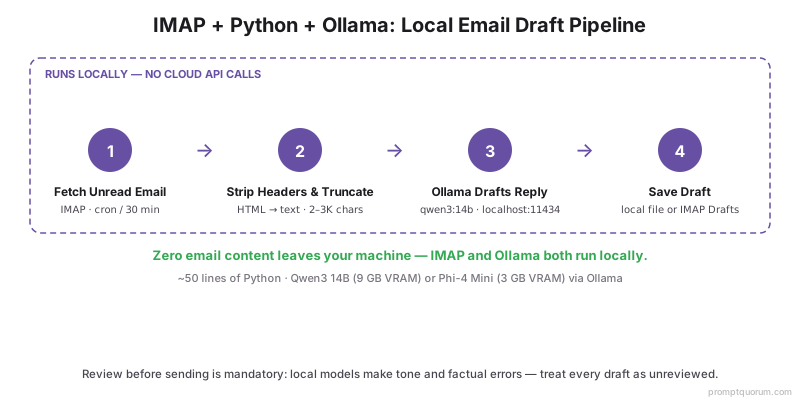
⚠️Warning: Do not enable auto-send. No local LLM produces email drafts reliable enough to send without human review. Tone errors, wrong dates, confabulated facts, and reply-to-wrong-thread mistakes all occur regularly. The automation saves you drafting time; the review step is mandatory.
Setup 2: Thunderbird + Ollama Compose Plugin
Thunderbird with the Ollama Compose extension is the no-code option. Install Thunderbird, install Ollama, pull a model, install the extension — email generation is a right-click away in the compose window.
- Install Thunderbird from thunderbird.net. Available for macOS, Windows, and Linux.
- Install Ollama and pull a model:
ollama pull qwen3:14b(recommended for email work). Startollama serve. - Install the Ollama Compose extension from the Thunderbird Add-ons Manager. Search "Ollama" or install from the extension XPI file from the project repository.
- Configure the extension to point at
http://localhost:11434and select your model (Qwen3 14B or Phi-4 Mini recommended). - In the compose window: right-click in the body area and select "Generate with Ollama" — the extension sends the quoted original email and your cursor position to Ollama and inserts the draft reply.
- Model switching: the extension lets you switch models from the compose toolbar. Use Phi-4 Mini for quick replies; switch to Qwen3 14B or Llama 3.3 70B for complex or sensitive correspondence.
💡Tip: Set a custom system prompt in the Ollama Compose settings. The default prompt is generic; a customised one produces better results. Example: "You write professional email replies for [Your Name], a [Your Role] at [Company]. Replies are concise (under 150 words unless the context requires more), professionally warm, and match the formality of the incoming email. Never add disclaimers or signature lines."
Setup 3: n8n Self-Hosted + Ollama Node
n8n self-hosted with a local Ollama node is the right choice for conditional automation: filter emails by sender domain, summarise daily, generate follow-ups when calendar events end, or route different email types to different model prompts — all without writing code.
- Install n8n self-hosted:
npm install -g n8n && n8n startordocker run -it --rm --name n8n -p 5678:5678 n8nio/n8n. The workflow editor runs athttp://localhost:5678. - Add Ollama node: in the n8n workflow editor, search for the "Ollama" node (built-in as of n8n v1.2+). Point it at
http://localhost:11434and select your model. - IMAP trigger: add an IMAP Email node as the workflow trigger — configure with your IMAP credentials. The node polls for new emails and passes each as a JSON object to the next step.
- Filter logic: add an IF node to route emails by sender domain, subject keywords, or time of day. Route to different Ollama prompts based on email type (client emails, newsletter digests, internal team messages).
- Calendar integration: add a Google Calendar node (using local OAuth credentials) or an ICS file reader to pull upcoming events. Pass event details to the Ollama node to generate a meeting agenda or prep checklist.
- Output options: write drafts to a local file, push to IMAP Drafts, send via Slack message to yourself, or save to a Notion/Obsidian page — all via n8n output nodes.
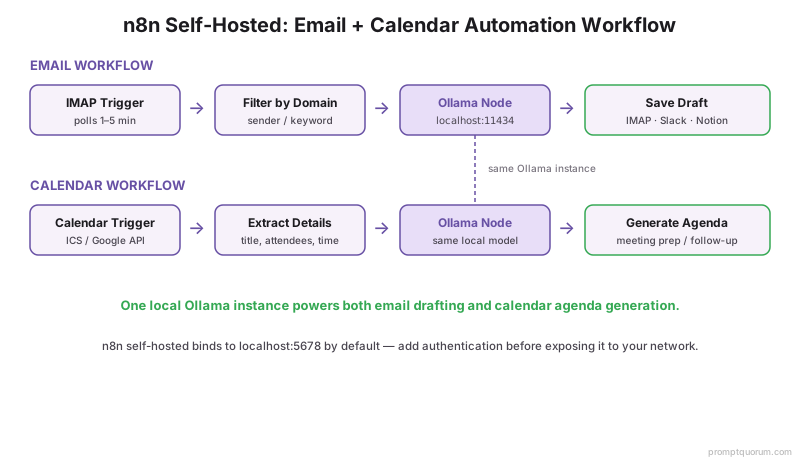
💡Tip: n8n self-hosted is the best integration point for calendar + email workflows. The typical pattern: IMAP trigger receives a meeting confirmation email → extract meeting details → call Google Calendar API (local OAuth) to fetch attendees → pass all context to Ollama → generate a meeting agenda → save to a designated folder. This takes about 20 minutes to wire in the n8n visual editor.
Triage and Weekly Review Prompt Templates
Two prompts that handle the highest-frequency email tasks: per-email triage classification and a weekly inbox review. Drop them into any of the three setups (Python script, Thunderbird system prompt, or n8n Ollama node body) — they are deliberately model-agnostic.
Triage Prompt Template
“You are an email triage assistant. Given the following email, classify it into one of these categories and explain in one sentence: - URGENT: requires reply within 4 hours - IMPORTANT: requires reply within 24 hours - INFO: read for awareness, no reply needed - PROMOTIONAL: marketing or newsletter, can be archived - SPAM: unwanted, recommend filtering Email: From: {sender} Subject: {subject} Body: {body[:1500]} Output format: Category: [URGENT|IMPORTANT|INFO|PROMOTIONAL|SPAM] Reasoning: [one sentence] Suggested action: [reply | archive | flag | delete]”
Weekly Review Prompt Template
“Summarise the following 50 emails from the past week into 3 sections: 1. URGENT or IMPORTANT items still needing action (with sender + 1-line summary) 2. Themes (e.g., "Q4 planning came up in 12 emails this week") 3. People I owe replies to (sender + days outstanding) Emails (subject + first 200 chars of each body): [paste batched email list] Output format: 3 markdown sections.”
💡Tip: For the Triage prompt, pair it with the n8n IF node to route by category: URGENT → push notification, IMPORTANT → save to "needs-reply" folder, PROMOTIONAL → auto-archive, SPAM → flag for filter rule. The classification is what makes downstream automation safe — without it, the pipeline cannot distinguish a client follow-up from a marketing email.
Calendar Automation with Local LLMs
Calendar automation with a local LLM works in two modes: passive (export ICS, pass to Ollama for summarisation or agenda generation) and active (Google Calendar API with local OAuth credentials for real-time event access). Passive mode is simpler; active mode enables scheduled workflows.
📍 In One Sentence
Local LLM calendar automation generates meeting agendas, week summaries, and follow-up email drafts by passing exported ICS file content or Google Calendar API data to Ollama — no calendar data touches a cloud AI.
💬 In Plain Terms
The simplest calendar automation: export your week's events as an ICS file from any calendar app (Google Calendar, Apple Calendar, Nextcloud), open a terminal, pass the ICS content to Ollama with a "generate a meeting agenda for each event" prompt, and copy the output into your notes. Takes 30 seconds and keeps your calendar data local.
ICS-to-Agenda Prompt Template
“Here is my calendar for the week in ICS format: [paste ICS content] For each meeting event: 1. Generate a 5-point meeting agenda based on the event title and description. 2. If attendees are listed, note who should lead each agenda item. 3. If the event has no description, generate a generic agenda appropriate for a [meeting type] meeting. Format as plain text. One section per event, separated by ---.”
- ICS export (passive): Google Calendar, Apple Calendar, Nextcloud, and Outlook all export ICS files. Export weekly or daily, pass to Ollama via the terminal or a script, generate agendas or summaries.
- Google Calendar API (active): create a local OAuth credential in Google Cloud Console (personal project), download the credentials JSON, and use the
google-auth-oauthlibPython library to fetch events. The OAuth token is stored locally and the API calls go directly to Google Calendar — no AI intermediary. - Meeting agenda generation prompt: title + attendees + description → "Generate a 5-item meeting agenda with time allocations. If the meeting description is empty, suggest a generic agenda for a [meeting type] meeting."
- Week summary prompt: all events for the week → "Summarise the week's meetings in 3 sentences. Highlight any back-to-back blocks or unusually long meetings."
- Follow-up email draft: after a meeting (triggered by event end time) → "Write a follow-up email for the meeting '[title]' that thanks attendees and summarises the next steps. Use this event description for context: [description]."
💡Tip: Keep your calendar data in plaintext where possible. ICS is plain text; it is easy to pass to Ollama directly. If you use a proprietary calendar format or a locked-down enterprise system, export to ICS first. The ICS standard is universal and supported by every major calendar application.
Model Recommendations for Email and Calendar Tasks
Email and calendar automation tasks favour small, fast models over large, capable ones. Drafting a business email reply, generating a meeting agenda, or summarising an inbox does not require Llama 3.3 70B — it requires a model that is fast enough to feel interactive and coherent enough to produce usable business text. For the broader model landscape across all use cases, see Best Local LLMs in 2026.
Email reply drafting
- Recommended Model:
- Qwen3 14B
- VRAM (Q4):
- ~9 GB
- Why:
- Best balance of business-writing quality and generation speed; handles formal and casual registers
Quick one-line replies
- Recommended Model:
- Phi-4 Mini
- VRAM (Q4):
- ~3 GB
- Why:
- Fastest option; adequate for simple acknowledgements and scheduling replies
Meeting agenda generation
- Recommended Model:
- Qwen3 14B
- VRAM (Q4):
- ~9 GB
- Why:
- Good at structured list generation; agenda format is well within its capabilities
Long email thread summarisation
- Recommended Model:
- Llama 3.3 70B or Qwen3 32B
- VRAM (Q4):
- ~42 GB / ~20 GB
- Why:
- Long context adherence matters for multi-message threads; smaller models miss details
Sensitive / legal correspondence
- Recommended Model:
- Llama 3.3 70B
- VRAM (Q4):
- ~42 GB
- Why:
- Best reasoning quality; worth the hardware cost when errors are high-stakes
💡Tip: For most email tasks on a 16 GB system, Qwen3 14B is the right default. Pull it once with ollama pull qwen3:14b and use it for all email and calendar automation. Only switch to a larger model when you encounter a task type where the 14B output quality is consistently inadequate.
Privacy and Security
The privacy advantage of local email automation is real, but it requires correct setup. Three things can undermine it: accidental cloud sync of IMAP credentials, email content in logs accessible to third-party tools, and misconfigured n8n instances that expose the workflow to the network. For the broader "replace SaaS with local AI" pattern across other tools, see Replace Grammarly and Notion AI With Local Models.
- IMAP credentials: store in environment variables or a local secrets manager (macOS Keychain, Linux
secret-tool, Windows Credential Manager). Never store in script source code or a file that might be synced to a cloud repository. - Email content in logs: Python scripts that print email content to stdout/stderr will write email data to log files if run via cron with logging enabled. Redirect logs to
/dev/nullor use a log level that excludes email content. - n8n network exposure: n8n self-hosted binds to
localhost:5678by default, which is local-only. If you expose it to your home network or beyond (e.g., for mobile access), add authentication and ensure the Ollama API is also restricted to localhost. - App passwords: configure a dedicated app-specific password for IMAP access in Gmail, Outlook, and Apple Mail rather than using your primary account password. Revoke it immediately if the script is compromised.
- Git repositories: if you version-control your automation scripts, add a
.gitignorethat excludes any.envfile containing credentials. Never commit credentials to a public or private repository.
⚠️Warning: Cloud sync risk. If your home directory is synced to iCloud, Google Drive, or OneDrive, any .env file or credentials file in a synced directory will be uploaded to the cloud. Store credentials in a directory explicitly excluded from cloud sync, or use your operating system's native secrets manager.
Common Mistakes
- Auto-sending drafts without review. No local model produces reliable-enough output to send without human review. Tone errors, wrong dates, and confabulated facts are common. Always read before sending.
- Passing entire email threads to the model. Long threads contain redundant context that wastes tokens and slows generation. Strip quoted reply blocks and pass only the most recent 2–3 messages.
- Using Llama 3.3 70B for all email tasks. For most email drafting, Qwen3 14B is faster and uses less VRAM. Reserve the 70B for genuinely complex or high-stakes correspondence.
- Storing IMAP credentials in the script. Credentials in source code are one
git pushaway from being public. Use environment variables. - Not setting a word ceiling on draft prompts. Without a word ceiling, models pad business replies with unnecessary context, caveats, and pleasantries. Add "Reply in under 150 words" to every email prompt.
Sources
- Qwen3 14B model card — Alibaba Cloud / Qwen Team
- Phi-4 Mini technical report — Microsoft Research
- Ollama API documentation — Ollama
- n8n self-hosted documentation — n8n.io
- GDPR Article 28 — processor data processing obligations — EUR-Lex
Frequently Asked Questions
Does this work with Gmail?
Yes. Gmail supports IMAP access with an app-specific password. Enable IMAP in Gmail settings, generate an app password in your Google Account security settings, and use those credentials in the IMAP script. Gmail also exposes the Gmail API for more structured access — useful for n8n workflows that need label management, thread operations, or attachment handling.
Which is better for email automation: IMAP + Python or n8n?
IMAP + Python is better if you are comfortable writing and maintaining a script and want full control. n8n is better if you want conditional logic (route emails by sender, time, or content), calendar integration, or multiple output destinations without writing code. Both use Ollama as the local model backend; the difference is the orchestration layer around it.
Can a local LLM summarise an entire email inbox?
Yes, with caveats. A weekly inbox summary (50–100 emails) works well: fetch subjects and first 200 characters of each body, concatenate, pass to Qwen3 14B with a "summarise by theme and urgency" prompt. For a full inbox of thousands of emails, batch the summarisation (50 emails per API call) and aggregate the batch summaries. Passing 1,000 emails in one call exceeds context limits and produces unreliable output.
What is the best local LLM for drafting formal business emails?
Qwen3 14B produces the best quality-to-speed ratio for formal business correspondence on consumer hardware. It handles formal register, appropriate hedging, and professional closings reliably. For very high-stakes correspondence (legal notices, executive communications, contract negotiations), use Llama 3.3 70B — the quality difference is visible for complex or sensitive topics.
Can I use this on Windows?
Yes. Ollama runs on Windows (download from ollama.com). The IMAP Python script runs on any Python 3.8+ installation on Windows. Thunderbird and the Ollama Compose extension are cross-platform. n8n self-hosted runs on Windows via npm or Docker Desktop.
How do I handle email threads with multiple previous replies?
Strip quoted content before passing to the model. Use Python's email library to extract only the latest reply (the portion above the first > prefix or --- Original Message --- divider). Pass only the last 2–3 messages with a 3,000-character total limit. The model rarely needs the full thread history to generate an appropriate reply.
Is this GDPR-compliant for business use?
Local processing is more defensible under GDPR than cloud AI processing for personal data. When data stays on your machine, you do not create a new data processor relationship (Article 28). However, GDPR compliance depends on your specific role, the nature of the data, and your organisation's existing data protection policies. Consult your data protection officer before using this setup to process personal data of clients or employees.
Can I use this to reply on behalf of someone else?
Technically yes — the script can be configured to access any IMAP account you have credentials for. Legally and ethically, generating email replies on behalf of another person without their knowledge raises significant consent and impersonation issues. Use this automation only for accounts and correspondence you are personally responsible for.
Can I trigger AI on incoming emails?
Yes, via three patterns. (1) Python + IMAP + cron: schedule the script to run every 30 min, fetch new unread emails, generate drafts. (2) n8n IMAP trigger node: polls every 1–5 min, triggers the workflow on each new email immediately. (3) Thunderbird filter rules: use a "Run a script" filter action that calls Ollama via curl. The n8n approach is most reliable for real-time triage; cron is simpler if 30-min latency is acceptable.
Can I sync email AI across devices?
The drafts can sync via your existing IMAP Drafts folder — write the AI-generated draft to the IMAP "Drafts" folder using mail.append(), and any device with IMAP access (phone, tablet, second laptop) sees it instantly. The Ollama backend itself does not sync — it runs on whichever machine you set up. Mobile devices need network access to the home machine running Ollama (LAN IP or Tailscale). Plan: home server runs Ollama + automation; all devices read drafts from IMAP Drafts folder. Single AI generation, multi-device review and send.