Key Takeaways
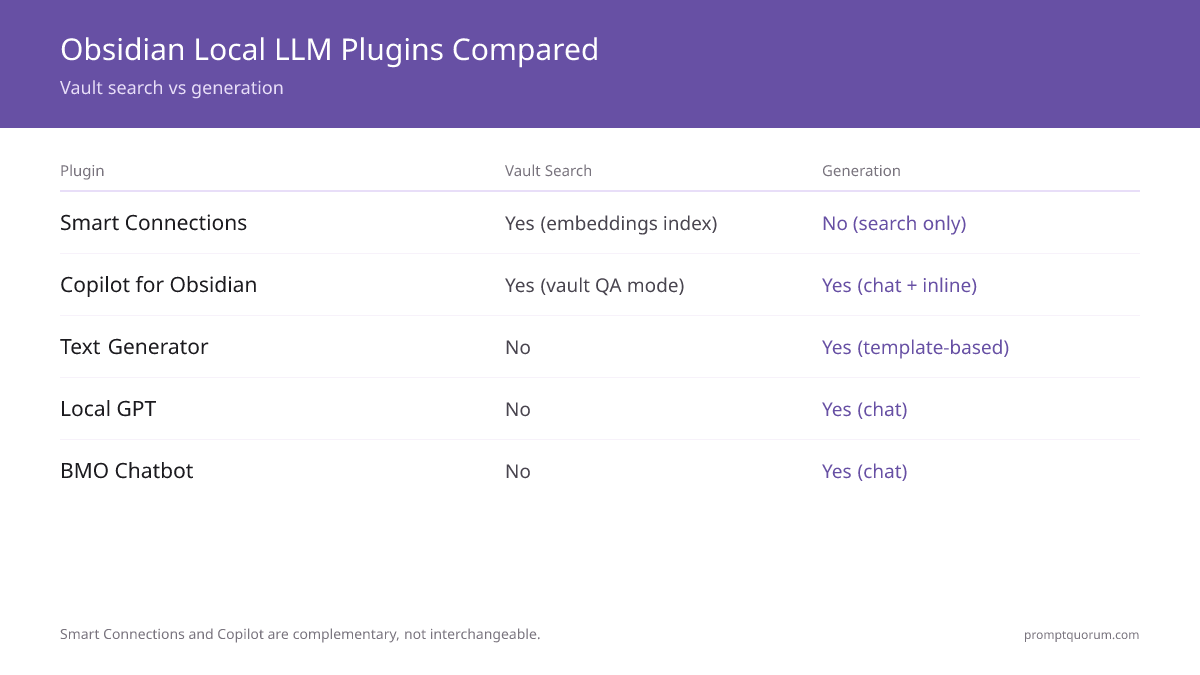
- Smart Connections + Copilot for Obsidian is the recommended combo for most users. Smart Connections handles semantic vault search with local embeddings; Copilot handles chat with vault context. Together they cover ~80% of "second brain" use cases without cloud calls.
- All five plugins work with Ollama via its OpenAI-compatible endpoint at
http://localhost:11434/v1. Configure each plugin's "API base URL" or equivalent setting to point at this address. The Ollama default model name (e.g.,llama3.2:3b) is what you enter in the plugin's model field. - Smart Connections is the only plugin that builds an embedding index of your entire vault. This makes related-notes search practical at 5,000+ notes. The index is stored in
.smart-env/inside the vault and syncs with Obsidian Sync; regenerate per-device when using iCloud or Git. - Text Generator is the best plugin for repeatable workflows. Daily-note summarisation, meeting-note expansion, and MOC (Map of Content) generation become single-keystroke actions via templates with frontmatter variables.
- For chat-only users, BMO Chatbot is lighter than Copilot. It does not build an index — context is just the current note. If you only chat about the open note, BMO is enough.
- Vault scale (with Smart Connections + nomic-embed-text): 1K notes index in ~2 min, 5K in ~10 min, 10K in ~25 min, 20K in ~75 min on Mac M3 Pro. Re-index time is small after the initial run because only changed notes are re-embedded.
- Recommended Ollama models in 2026: chat — Llama 3.2 3B (default) or Phi-4 Mini (smaller); embeddings — nomic-embed-text (768 dim, fast) or mxbai-embed-large (1024 dim, more accurate).
Quick Facts
- Plugins covered: Smart Connections, Copilot for Obsidian, Text Generator, Local GPT, BMO Chatbot.
- LLM backend: Ollama (recommended) or LM Studio — anything exposing an OpenAI-compatible endpoint at a local URL.
- Default Ollama endpoint:
http://localhost:11434/v1(chat) orhttp://localhost:11434/api/embeddings(embeddings). - Recommended chat models: Llama 3.2 3B, Phi-4 Mini, Gemma 3 4B (16 GB RAM systems); Qwen3 1.7B (8 GB RAM).
- Recommended embedding models: nomic-embed-text (768-dim, fast), mxbai-embed-large (1024-dim, more accurate).
- Vault size targets: all five plugins remain responsive at 5,000+ notes; Smart Connections re-indexing is the bottleneck above 20K notes.
- Mobile compatibility: chat plugins work on Obsidian Mobile if Ollama is reachable on the LAN; Smart Connections embedding generation runs only on desktop.
Which Plugin Combo Should You Install?
For most Obsidian users in 2026: install Smart Connections (semantic vault search) and Copilot for Obsidian (chat sidebar) — together they cover ~80% of "second brain" use cases. Add Text Generator if you want template-driven generation. Skip the others unless you specifically prefer their UI.
📍 In One Sentence
Install Smart Connections + Copilot for Obsidian, configure both to use Ollama at localhost:11434, and you have a private second-brain stack covering vault-wide semantic search and conversational queries.
💬 In Plain Terms
Think of Obsidian + AI as two jobs: finding related notes ("which other notes in my vault touch this idea?") and chatting about notes ("what did I write about this last quarter?"). Smart Connections does the first; Copilot does the second. Both use a local LLM via Ollama, so nothing leaves your machine. Add Text Generator if you do repeatable tasks (e.g., turning every meeting note into a summary). Skip Local GPT and BMO Chatbot unless you have a specific reason.
Decision: Which Obsidian Plugins?
Use a local LLM if:
- •You want vault-wide semantic search ("show me related notes") → Smart Connections
- •You want chat sidebar with note context → Copilot for Obsidian
- •You want template-driven generation (daily notes, meeting summaries) → Text Generator
- •You only chat about the current note (no vault search) → BMO Chatbot (lighter than Copilot)
- •You want chat with strict privacy guarantees + minimal features → Local GPT
Use a cloud model if:
- •You need GPT-5.5 quality on every chat response → cloud equivalents (the local stack is ~70% as capable)
- •Your vault is on a managed cloud service that blocks local network calls → cloud plugin
- •You want an iOS-native AI feature inside the Obsidian Mobile app without LAN access → not yet feasible in 2026 (mobile cannot reach localhost LLM without Tailscale or similar)
Quick decision:
- →Recommended combo: Smart Connections + Copilot for Obsidian
- →Add for templates: Text Generator
- →Lightweight alternative: BMO Chatbot (chat only)
💡Tip: Install Smart Connections and Copilot for Obsidian one at a time. Smart Connections needs to build an embedding index on first install (2–75 min depending on vault size). Letting it finish before adding Copilot avoids competing for CPU during the initial index. After both are running, RAM use is small (~200–400 MB combined) — Ollama is the heavy process, not the plugins.
Plugin Comparison Table
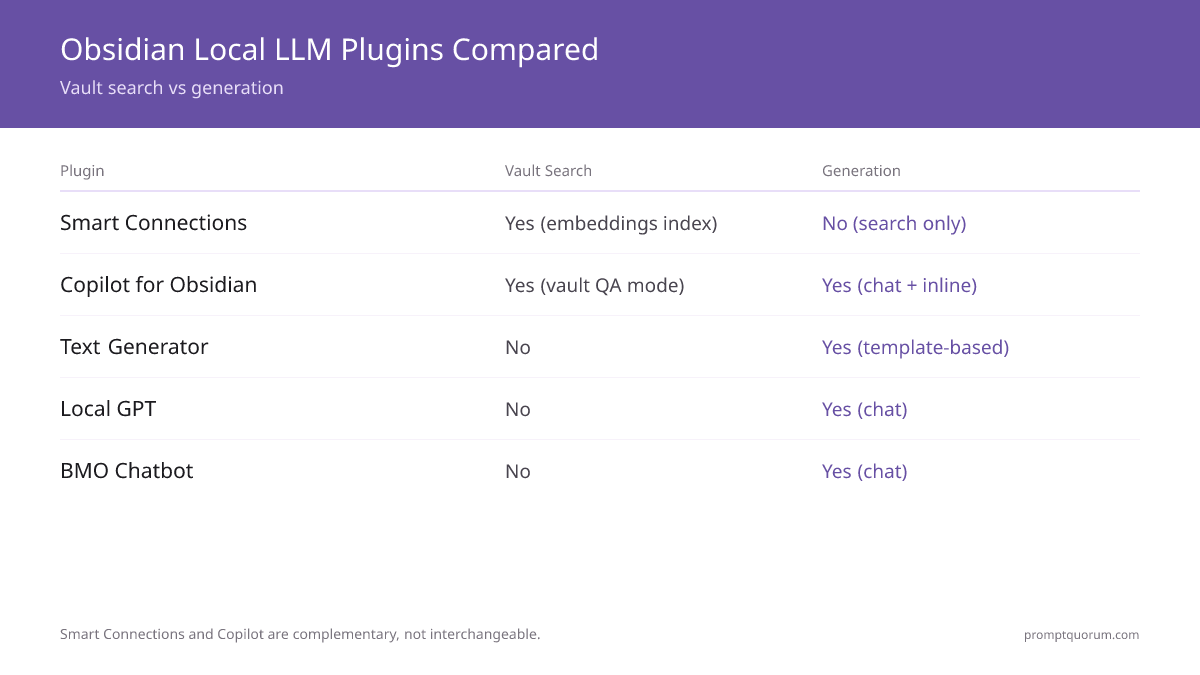
The five plugins differ on four axes that matter to most users: vault search depth, generation flexibility, mobile compatibility, and feature surface. Smart Connections and Copilot are not interchangeable — they solve different problems and complement each other.
📍 In One Sentence
Smart Connections is the only plugin that searches the whole vault with embeddings; the other four are chat or generation tools that operate on the current note or selected text.
💬 In Plain Terms
Two of these plugins (Smart Connections, Copilot) handle vault-wide context. The other three (Text Generator, Local GPT, BMO Chatbot) work on the current note or a specific selection. The most common reason to install more than one is that Smart Connections does not have a chat UI of its own — you need Copilot or one of the lighter chat plugins to actually talk to your vault.
Plugin | Vault search | Generation | Mobile sync | Best for |
|---|---|---|---|---|
| Smart Connections | Yes (embedding index) | No (search-only) | Index syncs with Obsidian Sync; regenerate per device with iCloud / Git | Semantic linking across notes |
| Copilot for Obsidian | Yes (with vault QA mode) | Yes (chat + inline) | Plugin syncs; Ollama must be LAN-reachable | Inline chat + writing assistance |
| Text Generator | No | Yes (template-driven) | Templates sync; Ollama must be LAN-reachable | Repeatable template generation |
| Local GPT | No | Yes (chat) | Plugin syncs; Ollama must be LAN-reachable | Privacy-first chat with current note |
| BMO Chatbot | No | Yes (chat) | Plugin syncs; Ollama must be LAN-reachable | Lightweight chat with current note |
💡Tip: For mobile use, the constraint is not the plugin — it is whether Obsidian Mobile can reach Ollama. Solutions: (1) run Ollama on a home server and expose it on the LAN at a static IP, then enter that IP in the plugin instead of localhost, (2) use Tailscale or another mesh VPN to reach a home Ollama from anywhere, (3) accept that AI features only work when the phone is on the home Wi-Fi.
Smart Connections: Semantic Vault Search
Smart Connections is the only Obsidian plugin in 2026 that builds an embedding index over the entire vault. This makes "show me related notes" practical at 5,000+ notes and is the single biggest "second brain" enabler in the plugin ecosystem.
- What it does: generates a vector embedding for every note (and configurable section) and shows a "Smart Connections" sidebar of semantically related notes for the active note.
- Install: Settings → Community plugins → Browse → "Smart Connections" → Install + Enable. Author: Brian Petro.
- Configure for Ollama: Settings → Smart Connections → Embedding Model → select "Local (Ollama)" → enter
http://localhost:11434/api/embeddings→ model namenomic-embed-text(ormxbai-embed-large). - First-run indexing: the plugin embeds every note. Time on Mac M3 Pro with nomic-embed-text: 1K notes ~2 min, 5K notes ~10 min, 10K notes ~25 min, 20K notes ~75 min. Re-index after edits is incremental (only changed notes).
- Storage: index lives in
.smart-env/inside the vault. Syncs cleanly with Obsidian Sync; with iCloud / Git you have to regenerate per device because the index is platform-specific binary. - Best embedding model 2026:
nomic-embed-text(137M params, 768 dim, fast) for most users.mxbai-embed-large(335M params, 1024 dim) is more accurate on technical content but takes ~2× the index time.
💡Tip: After the first index completes, leave Smart Connections enabled in the background. Subsequent edits trigger incremental re-embedding — usually under a second per saved note. You can also pause indexing during heavy edit sessions to avoid CPU competition with Ollama itself.
Copilot for Obsidian: Chat with Vault Context
Copilot for Obsidian provides the chat sidebar that Smart Connections lacks. Configure it to use Ollama and you get a private chat assistant that can answer questions using your vault as context, generate inline content, and run custom prompts on selections.
- What it does: chat sidebar, vault QA mode (chat with retrieved notes), inline chat, custom prompts on selections, command palette commands.
- Install: Settings → Community plugins → Browse → "Copilot" by Logan Yang → Install + Enable.
- Configure for Ollama: Settings → Copilot → API Settings → "Custom OpenAI" or "Ollama" provider → API base URL
http://localhost:11434/v1→ modelllama3.2:3b(or any Ollama model). - Vault QA mode: Copilot retrieves the most relevant notes using its own embedding pipeline (separate from Smart Connections), then sends the retrieved chunks to the chat model. Configure embeddings in Copilot settings — point to
http://localhost:11434/api/embeddingsand selectnomic-embed-text. - Inline commands: select text in a note → Cmd/Ctrl+P → "Copilot: …" — apply rewrites, summarisations, or custom prompt templates without opening the chat sidebar.
- Best for: users who want a chat interface AND vault-aware retrieval. If you only want chat about the current note, BMO Chatbot is lighter.
⚠️Warning: Copilot maintains its own embedding index separate from Smart Connections. Running both means two indexes over the same vault and roughly 2× the disk space (~200 MB of vector data per 5K notes). If disk space matters, configure Copilot to use the Smart Connections index, or accept that the two plugins do not currently share embeddings in 2026.
Text Generator: Template-Driven Generation
Text Generator is the best plugin for repeatable workflows: daily-note expansions, meeting-note summarisation, MOC generation, custom-format outputs. Templates use frontmatter variables and Markdown, so a single template can be triggered by a hotkey on any note.
Text Generator template: daily-note summariser
“--- name: Daily summary --- Summarise the following daily note in three concise bullet points. Focus on decisions made, blockers identified, and action items for tomorrow. Daily note ({{date}}): {{content}} Summary:”
Text Generator template: MOC (Map of Content) generator
“---
name: MOC for tag
---
Generate a Map of Content for all notes tagged with #{{selection}}. Group related notes into 3–5 thematic clusters, with a one-sentence description per cluster and a list of the notes inside each cluster.
Notes tagged #{{selection}}:
{{vault_search_result tag={{selection}}}}
MOC:”- What it does: runs a custom prompt template against the current note (or selection) using your local LLM. Templates support frontmatter variables, current-date insertion, and selection capture.
- Install: Settings → Community plugins → Browse → "Text Generator" → Install + Enable. Author: nhaouari.
- Configure for Ollama: Settings → Text Generator → Provider → "Ollama" or "Custom" → endpoint
http://localhost:11434/v1→ modelllama3.2:3b. - Templates: stored as Markdown files in a configured folder (e.g.,
Templates/). A template is just a prompt with{{title}},{{selection}},{{date}}placeholders. - Hotkey workflows: assign a hotkey to a specific template (Cmd/Ctrl+T → "Generate from template" → select template). One keystroke runs your template on the current note.
- Best for: workflows you do dozens of times — daily journal prompts, weekly review questions, meeting-note summaries, paper-reading notes.
💡Tip: Combine Text Generator templates with Obsidian QuickAdd to build a "daily review" sequence: a single QuickAdd command opens today's daily note, runs the daily-summary template, and inserts the result. Three plugins (Text Generator + QuickAdd + Templater for date math) let you build a workflow that takes 2 seconds to invoke and 10 seconds to complete.
Local GPT: Privacy-First Chat
Local GPT is a chat plugin built around the principle that no note content should leave the machine. It is functionally simpler than Copilot for Obsidian — no vault QA mode, no template library — but it is the most explicit about its privacy posture.
- What it does: chat with the current note (or selected text) using a local LLM. No cloud option exists in the plugin — only local providers.
- Install: Settings → Community plugins → Browse → "Local GPT" → Install + Enable. Author: pfrankov (verify in the listing — multiple plugins have similar names).
- Configure for Ollama: Settings → Local GPT → Provider → "Ollama" → URL
http://localhost:11434→ modelllama3.2:3b. - Chat scope: active note or selected text only. There is no embedding index — context is whatever you explicitly send.
- Best for: users who want chat over the current note, prefer the smallest possible feature surface, and want a plugin that cannot accidentally call a cloud service.
💡Tip: If you trust Copilot for Obsidian to stay local (it can be configured cloud or local), use Copilot. If you want the plugin's code itself to make cloud calls impossible, use Local GPT — its design constraint is "no cloud providers, ever". This is a meaningful distinction for healthcare, legal, and journalism workflows where any chance of accidental cloud egress is a problem.
BMO Chatbot: Lightweight Chat
BMO Chatbot is the minimalist chat plugin: a sidebar, a model selector, and a config field for your endpoint. No vault search, no templates, no inline commands. If you only chat about the active note, BMO is the lightest option.
- What it does: chat sidebar that includes the active note as context.
- Install: Settings → Community plugins → Browse → "BMO Chatbot" → Install + Enable. Author: longy2k.
- Configure for Ollama: Settings → BMO Chatbot → API → URL
http://localhost:11434/v1→ modelllama3.2:3b. - Context handling: the active note is automatically included in the chat context. Switching notes switches context.
- Best for: users who want a single chat plugin with the smallest possible setup, no embedding index, and a UI that fits in a narrow Obsidian sidebar.
💡Tip: BMO Chatbot is the right plugin for "I only want to chat about my current note." If you find yourself wanting "search across my whole vault" or "run this prompt template on every meeting note", you have outgrown BMO — switch to Copilot for Obsidian (vault QA) or Text Generator (templates).
The Recommended Combo: Smart Connections + Copilot
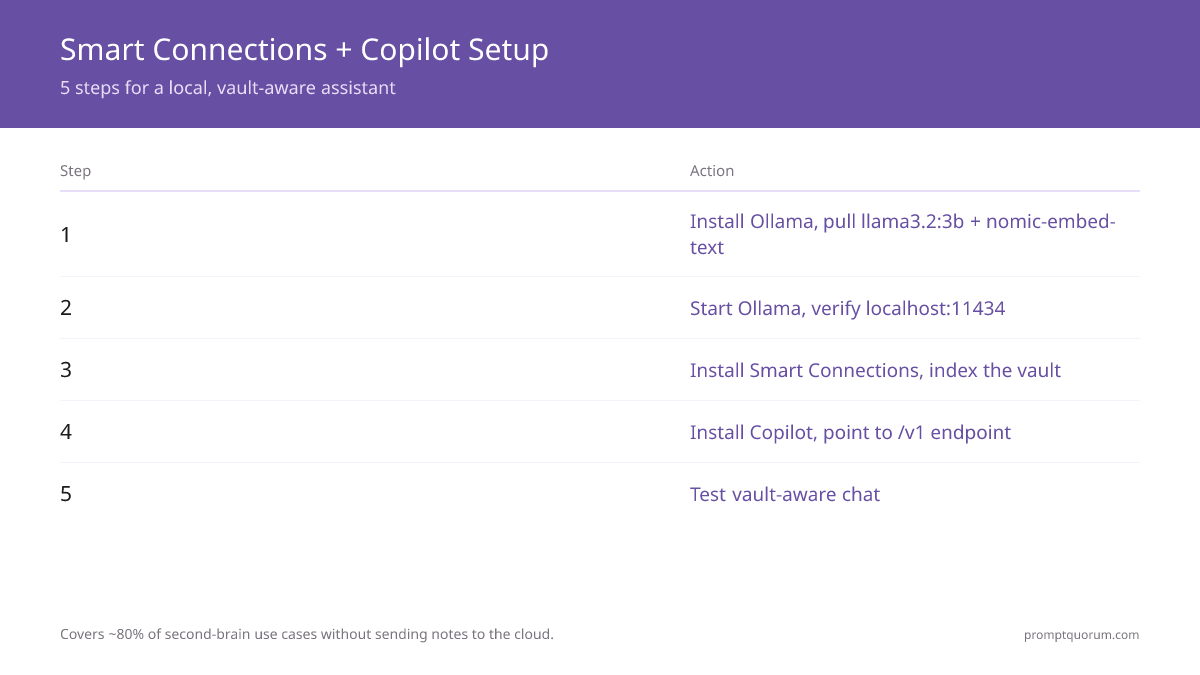
Install Smart Connections + Copilot for Obsidian, both pointing at Ollama. This combination handles the two distinct AI jobs Obsidian users want — semantic vault search and chat with vault context — and covers ~80% of "second brain" use cases without sending notes to a cloud.
- 1Install Ollama on your machine:
brew install ollama(macOS) or download from ollama.com (Windows / Linux). Pull the chat model:ollama pull llama3.2:3b. Pull the embedding model:ollama pull nomic-embed-text. - 2Start Ollama: it usually starts as a background service after install. Verify:
curl http://localhost:11434/api/tagsreturns JSON with your installed models. - 3Install Smart Connections in Obsidian → configure embeddings to use Ollama at
http://localhost:11434/api/embeddingswith modelnomic-embed-text. Let it index (2–75 min depending on vault size). - 4Install Copilot for Obsidian → configure provider to "Ollama" or "Custom OpenAI" → API base URL
http://localhost:11434/v1→ chat modelllama3.2:3b→ embedding modelnomic-embed-text(for vault QA). - 5Test: open a note → check Smart Connections sidebar for related notes → open Copilot chat → ask a question that requires vault knowledge ("summarise what I've written about [topic]") → verify the response references your actual notes.
- 6Optional third plugin: add Text Generator if you have repeatable workflows (daily-note summaries, meeting expansions, MOC generation). Configure with the same Ollama endpoint.
💡Tip: A common mistake is configuring Copilot with one model and Smart Connections with a different one — then wondering why responses feel inconsistent. Use the same chat model in both (Llama 3.2 3B for most users; Phi-4 Mini for 8 GB RAM systems). The only place to use a different model is the embedding model — that is always a separate model from the chat model.
Sample Workflows: Daily Notes, MOCs, Writing Assistance
Three concrete workflows that demonstrate the combo in action. Each builds on Smart Connections (for vault context) and Copilot (for chat) with Text Generator added for template work.
- Daily-note summarisation: in your daily note, select all → Copilot inline command → "Summarise this day in three bullets focused on decisions, blockers, and tomorrow's actions". Output replaces or appends below the selection. Save the prompt as a Text Generator template to make it a one-keystroke action.
- MOC (Map of Content) generation: open a tag page or topic note → Copilot → "Generate a Map of Content for this topic, grouping the related notes I have into 3–5 thematic clusters. Use the Smart Connections sidebar to identify related notes." → review and edit. Smart Connections provides the discovery layer; Copilot synthesises the structure.
- Contextual writing assistance: while drafting a note, open Copilot chat → ask "Given the notes I've written about [topic], what perspectives am I missing?" Copilot retrieves relevant notes via vault QA and proposes gaps. Useful for breaking out of single-perspective drafts.
- Weekly review: Text Generator template that runs against the past 7 daily notes → "Summarise the week into 3 bullets per category: progress, blockers, themes." Bind to a hotkey for one-keystroke review.
- Paper / book reading notes: open the source note → Copilot inline command → "Generate three Anki-style question/answer pairs from this note for spaced repetition." Output can be piped to the Spaced Repetition plugin.
- Linking dormant notes: Smart Connections sidebar shows related notes that may be untouched for months — prompts you to revisit and connect old material to current work.
💡Tip: The most underrated workflow is the daily Smart Connections review. Each morning, open the daily note → check the Smart Connections sidebar for unexpected related notes from your archive. The plugin surfaces forgotten notes that touch the same theme, which is exactly the "thinking partner" effect knowledge workers want from a second brain.
Mobile Sync: Obsidian Sync vs iCloud vs Git
Plugin compatibility on Obsidian Mobile depends on two factors: how your vault syncs, and whether your phone can reach a local Ollama server. Smart Connections embeddings are the most sync-sensitive component.
- Obsidian Sync (paid): the cleanest path. The
.smart-env/folder syncs end-to-end encrypted across devices, so Smart Connections does not need to re-index per device. Plugin settings sync too. Mobile chat plugins still need Ollama LAN access (see below). - iCloud Drive: vault syncs, but
.smart-env/is platform-specific binary and may corrupt or fail to sync correctly across iOS / macOS / Windows / Android. Practical solution: re-index Smart Connections per device, or exclude.smart-env/from sync and accept that mobile has no semantic sidebar. - Git (via Working Copy on iOS, Termux on Android): plain-text vault syncs cleanly;
.smart-env/should be added to.gitignorebecause the binary index would bloat the repo and cause merge conflicts. Re-index per device. - Ollama LAN access from mobile: by default Ollama listens on
localhost:11434only — not reachable from your phone. To use AI plugins on Obsidian Mobile: bind Ollama to your LAN withOLLAMA_HOST=0.0.0.0:11434 ollama serve, find the desktop's LAN IP (e.g.,192.168.1.20), enter that IP in the plugin instead of localhost. Phone must be on the home Wi-Fi. - Tailscale / mesh VPN: lets your phone reach the home Ollama from anywhere, not just home Wi-Fi. Tailscale is the most popular option in 2026 — install on desktop and phone, use the Tailscale IP in the plugin config.
- Smart Connections embedding generation runs only on desktop. Even with Obsidian Sync moving the index, the index has to be created somewhere — that is always a desktop-class machine. Mobile uses the synced index for read-only related-notes lookup.
⚠️Warning: If you use iCloud or Git for vault sync and want Smart Connections to work on multiple devices, the cleanest path is to designate one device as the "indexer" (your main desktop) and accept that Smart Connections only works fully there. On other devices you have either a stale index (iCloud) or no index (Git with .smart-env in .gitignore). Obsidian Sync is the only option that handles this correctly.
Vault Scale: 1K, 5K, 10K, 20K Notes
All five plugins remain responsive at 5,000+ notes; the bottleneck above 20K notes is Smart Connections re-indexing time, not query latency. Realistic numbers below are measured on Mac M3 Pro (16 GB unified memory) with nomic-embed-text embeddings and Llama 3.2 3B chat.
1,000 notes
- Smart Connections initial index:
- ~2 min
- Re-index per change:
- <1 sec
- Chat latency (Copilot):
- ~1–2 sec first token
- Notes:
- Comfortable on any modern hardware.
5,000 notes
- Smart Connections initial index:
- ~10 min
- Re-index per change:
- <1 sec
- Chat latency (Copilot):
- ~1–2 sec first token
- Notes:
- Sweet spot for most knowledge workers.
10,000 notes
- Smart Connections initial index:
- ~25 min
- Re-index per change:
- ~1–2 sec
- Chat latency (Copilot):
- ~2–3 sec first token (vault QA retrieval adds ~500 ms)
- Notes:
- Still fully usable; consider splitting if you notice slowdowns.
20,000 notes
- Smart Connections initial index:
- ~75 min
- Re-index per change:
- ~2–4 sec
- Chat latency (Copilot):
- ~3–5 sec first token
- Notes:
- Plan for an overnight initial index. Disk usage of
.smart-env/~800 MB–1.2 GB.
50,000+ notes
- Smart Connections initial index:
- 4–8 hours
- Re-index per change:
- ~5–10 sec
- Chat latency (Copilot):
- ~5–10 sec first token
- Notes:
- Edge of practical. Consider sub-vaults or upgrade to mxbai-embed-large for accuracy if quality matters more than speed.
💡Tip: Vault size has more impact on initial indexing than on day-to-day responsiveness. After the initial index, re-embedding only happens for changed notes — usually under a second per save even at 20K notes. The slow first-time experience is a one-time cost. Run the initial index overnight if your vault is large.
Common Mistakes
- Configuring two plugins with two different chat models. Smart Connections doesn't generate, but Copilot, Text Generator, Local GPT, and BMO all do. Using a different model in each makes responses feel inconsistent. Pick one chat model (Llama 3.2 3B is the default for most users) and configure all chat plugins to use it.
- Adding
.smart-env/to a Git-synced vault without.gitignore. The Smart Connections index is binary and changes on every edit. Without.gitignore, you get massive Git history and constant merge conflicts. Add.smart-env/to.gitignoreand re-index per device. - Expecting mobile Smart Connections to build its own index. Embedding generation requires a desktop-class machine. Mobile uses a synced index (Obsidian Sync) or has no index (iCloud / Git). Plan accordingly.
- Pointing the plugin at
http://localhost:11434/v1from a mobile device. Mobile cannot reach desktop's localhost. Bind Ollama to the LAN IP (OLLAMA_HOST=0.0.0.0:11434) and use that IP in the plugin config, or use Tailscale for off-network access. - Running both Smart Connections and Copilot indexes against the same vault. Two separate indexes consume ~2× the disk and CPU. The two plugins do not share embeddings. If disk pressure matters, use Smart Connections for retrieval and configure Copilot to use it (advanced — requires editing Copilot retrieval config to read the Smart Connections vector store).
Sources
- Smart Connections — github.com/brianpetro/obsidian-smart-connections (open-source Obsidian plugin).
- Copilot for Obsidian — github.com/logancyang/obsidian-copilot (open-source Obsidian plugin).
- Text Generator — github.com/nhaouari/obsidian-textgenerator-plugin (open-source Obsidian plugin).
- Ollama — ollama.com and github.com/ollama/ollama (local LLM runtime).
- Obsidian Mobile sync architecture — help.obsidian.md and Obsidian Sync documentation.
Frequently Asked Questions
What is the best local LLM for Obsidian?
Llama 3.2 3B is the best general-purpose local LLM for Obsidian on 16 GB RAM systems, run through Ollama and connected via Copilot for Obsidian or Text Generator. Phi-4 Mini is a strong alternative if you want a smaller, faster model with similar reasoning quality. For embeddings (used by Smart Connections for vault-wide semantic search), pair either chat model with nomic-embed-text (faster) or mxbai-embed-large (more accurate). On 8 GB RAM systems, use Qwen3 1.7B for chat instead. None of these models need a GPU — all run acceptably on CPU-only Mac M-series or a mid-range PC.
Which Obsidian plugin works best with Ollama?
For most users: Smart Connections (semantic vault search) + Copilot for Obsidian (chat). Both are configured to point at Ollama's endpoints (chat at http://localhost:11434/v1, embeddings at http://localhost:11434/api/embeddings). Smart Connections handles related-notes discovery; Copilot handles conversational queries with vault context. Add Text Generator as a third plugin if you have repeatable template workflows.
Can plugins handle a 10,000-note vault?
Yes. Smart Connections takes ~25 minutes for the initial embedding index on a Mac M3 Pro and ~1–2 seconds per change after that. Copilot vault QA latency is ~2–3 seconds first token. At 20K notes, plan for ~75 minutes initial indexing (run overnight). At 50K+ notes, indexing takes 4–8 hours and you should consider splitting into sub-vaults.
Do these plugins sync to mobile?
The plugins themselves sync via Obsidian's plugin sync. The constraints are: (1) Smart Connections embedding index — syncs cleanly with Obsidian Sync, requires re-indexing per device with iCloud or Git; (2) chat plugins need to reach Ollama, which means LAN access (replace localhost with the desktop's LAN IP after binding Ollama to 0.0.0.0) or a mesh VPN like Tailscale.
Can I use multiple AI plugins together?
Yes. Smart Connections + Copilot is the recommended combo. Adding Text Generator for templates is common. Adding more than 3 chat plugins (Copilot + Local GPT + BMO) is redundant — they all do the same job. Pick one chat plugin and stick with it.
Which plugin is best for writing inside notes?
Copilot for Obsidian — it has inline commands (Cmd/Ctrl+P → Copilot → rewrite / summarise / custom prompt) that operate on selected text. Text Generator is also strong for repeatable writing tasks via templates. For ad-hoc writing assistance ("rewrite this paragraph in a more formal tone"), Copilot is faster. For structured generation ("turn every meeting note into a summary using this template"), Text Generator is better.
How do I prompt across my entire vault?
Use Copilot for Obsidian's vault QA mode. It uses an embedding index (similar to Smart Connections) to retrieve the most relevant notes for a query, then sends those chunks to the chat model. Configure embeddings in Copilot settings to point at your local Ollama. Smart Connections itself does not have a chat UI — it shows related notes but doesn't synthesise across them.
Can I use these for daily journaling?
Yes. Two strong patterns: (1) Smart Connections sidebar surfaces forgotten related notes when you open today's daily note — a "thinking partner" effect. (2) Text Generator template runs at end-of-day to summarise the daily note into 3 bullets (decisions, blockers, action items). Combining both makes daily journaling more reflective.
Do plugins survive Obsidian updates?
Generally yes — well-maintained plugins (Smart Connections, Copilot, Text Generator) are updated within days of major Obsidian releases. Less-maintained plugins occasionally lag. Check the plugin's GitHub Issues page if a plugin breaks after an Obsidian update; the fix is usually a maintainer release within 1–2 weeks. The plugin manifest declares minimum Obsidian version compatibility.
Which has the best community support?
Smart Connections has the largest and most active community (~5K Discord members in 2026, regular dev calls). Copilot for Obsidian has a strong GitHub Issues community and active maintainer (Logan Yang). Text Generator has a smaller but engaged community. Local GPT and BMO Chatbot have smaller communities — fine for stable use, slower for issue resolution.
Can I run the AI plugin on a different machine?
Yes. Run Ollama on a more powerful home server (mini PC, NAS, or dedicated workstation), bind it to the LAN with OLLAMA_HOST=0.0.0.0:11434 ollama serve, then enter the server's LAN IP in each plugin's config (e.g., `192.168.1.20:11434/v1`). This lets a low-powered laptop or mobile device use full 70B models running on the home server. Pair with Tailscale to make it work from anywhere, not just home Wi-Fi.