Which Qwen Vision Model Should You Run?
Start with Qwen3-VL 8B if your Ollama is 0.12.7 or newer, and with Qwen2.5-VL 7B if it is older. Qwen describes Qwen3-VL as the most powerful vision-language model in the Qwen series to date; its Hugging Face card lists OCR for 32 languages, a native 256K context, and both Instruct and Thinking editions.
Qwen2.5-VL is the earlier generation. Its card highlights document, chart and layout understanding, structured output for scans of invoices, forms and tables, and visual localization with bounding boxes. In Ollama both generations accept text and images as input.
Qwen2-VL, the generation this page originally described, is history: it was released in 2024 and has been superseded by Qwen2.5-VL and Qwen3-VL. Nothing in this guide relies on it.
These are Qwen's own descriptions, not PromptQuorum measurements. Accuracy on your documents — especially small fonts, handwriting or low-quality scans — varies, so test a few representative pages before you build on it.
📍 In One Sentence
Run Qwen vision models locally with `ollama pull qwen3-vl:8b` (6.2 GB) or `ollama pull qwen2.5vl:7b` (6.0 GB); the old `qwen2-vl` tag is no longer in the official Ollama library.
💬 In Plain Terms
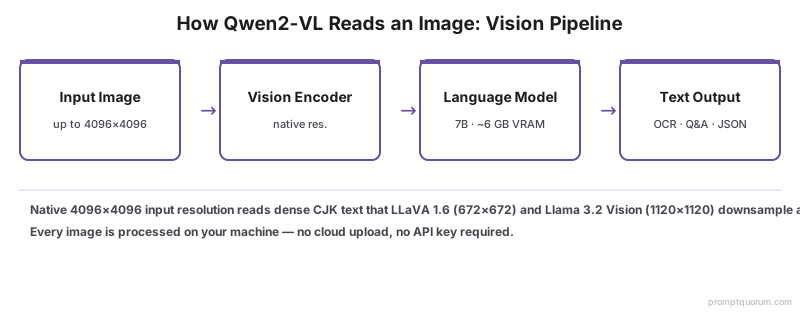
A vision-language model reads images instead of generating them. You give it a photo or a scanned page and it returns text — a description, an answer, or the extracted contents.
Qwen3-VL and Qwen2.5-VL Ollama Tags, Sizes and Licences
Sizes below are the download sizes shown on the Ollama library pages (qwen3-vl and qwen2.5vl); licences come from the Hugging Face model cards of the Instruct releases (Qwen on Hugging Face). Check both again before you rely on them, because libraries and licences change.
Model | Ollama tag | Download | Licence (HF card) |
|---|---|---|---|
| Qwen3-VL 2B | qwen3-vl:2b | 1.9 GB | Apache 2.0 |
| Qwen3-VL 4B | qwen3-vl:4b | 3.3 GB | Apache 2.0 |
| Qwen3-VL 8B | qwen3-vl:8b | 6.2 GB | Apache 2.0 |
| Qwen3-VL 30B-A3B (MoE) | qwen3-vl:30b | 20 GB | Apache 2.0 |
| Qwen3-VL 32B | qwen3-vl:32b | 21 GB | Apache 2.0 |
| Qwen3-VL 235B-A22B (MoE) | qwen3-vl:235b | 143 GB | Apache 2.0 |
| Qwen2.5-VL 3B | qwen2.5vl:3b | 3.2 GB | Qwen Research licence |
| Qwen2.5-VL 7B | qwen2.5vl:7b | 6.0 GB | Apache 2.0 |
| Qwen2.5-VL 32B | qwen2.5vl:32b | 21 GB | Apache 2.0 |
| Qwen2.5-VL 72B | qwen2.5vl:72b | 49 GB | Qwen licence |
Pick the size that fits your memory: Qwen3-VL 8B or Qwen2.5-VL 7B for most single-GPU machines, the 2B–4B or 3B tags for small GPUs, and the 30B+ tags only with a large GPU or a lot of unified memory. Ollama also publishes `-instruct` and `-thinking` Qwen3-VL tags (for example `qwen3-vl:8b-instruct`, 6.2 GB); use an Instruct tag when you want direct extraction output without reasoning text. The default tags have the same size as their `q4_K_M` variants — see LLM quantization explained.
Hardware Requirements for Qwen Vision Models
- Download sizes are weights only: Qwen3-VL 8B is 6.2 GB and Qwen2.5-VL 7B is 6.0 GB. The context cache and the image encoder need extra memory that grows with context length and image size, so leave headroom above the download size.
- Smaller options: Qwen3-VL 2B (1.9 GB) and 4B (3.3 GB) or Qwen2.5-VL 3B (3.2 GB) suit small GPUs and laptops; expect lower accuracy than the 7B–8B models.
- Larger options: Qwen3-VL 30B-A3B (20 GB), Qwen3-VL 32B and Qwen2.5-VL 32B (21 GB) and Qwen2.5-VL 72B (49 GB) need a large GPU, several GPUs, or Apple Silicon with large unified memory.
- Partial offload: when a model does not fit in VRAM, Ollama can place part of it in system RAM; this works but is noticeably slower.
- Software: Ollama 0.12.7+ for Qwen3-VL and 0.7.0+ for Qwen2.5-VL, as stated on the Ollama library pages.
📌Note: PromptQuorum has not benchmarked these models on specific GPUs for this guide, so no speed or exact VRAM figures are given. Run `ollama ps` after loading a model to see the memory it actually uses on your machine.
Setting Up Qwen2.5-VL and Qwen3-VL with Ollama
Ollama is the fastest way to run Qwen vision models locally. It downloads the model, manages quantization, and exposes an API at localhost:11434. Install it from ollama.com — or, if you are new to it, start with how to install Ollama.
- 1Install or update Ollama
Why it matters: Qwen2.5-VL needs Ollama 0.7.0 or newer and Qwen3-VL needs 0.12.7 or newer. Check with `ollama --version` and update if needed. Ollama is available for macOS, Linux, and Windows. - 2Pull a model with an explicit tag
Why it matters: Use `qwen3-vl:8b` or `qwen2.5vl:7b`. Do not use `qwen2-vl:7b` — it is not in the official Ollama library, so the pull fails. - 3Run the model and attach an image
Why it matters: In interactive mode, type the image file path inside your prompt. Ollama detects the path and loads the image. - 4Send images through the API
Why it matters: The /api/generate endpoint accepts a base64-encoded images array without a data: prefix. This is how applications — and PromptQuorum — send images programmatically. - 5Verify multilingual OCR
Why it matters: Send a Chinese or Japanese document scan and compare the extracted text with the source before you build on it.
# Step 1 — Install or update Ollama (Qwen3-VL needs 0.12.7+, Qwen2.5-VL needs 0.7.0+)
# macOS
brew install ollama

# Linux
curl -fsSL https://ollama.com/install.sh | sh

# Windows — download from https://ollama.com/download
ollama --version

# Step 2 — Pull a Qwen vision model (explicit tag)
ollama pull qwen3-vl:8b          # 6.2 GB
# or: ollama pull qwen2.5vl:7b   # 6.0 GB

# Step 3 — Run and attach an image (interactive)
ollama run qwen3-vl:8b
>>> Extract every line of text from ./invoice-jp.png

# Step 4 — Send an image through the API
# Encode the image first:  base64 -i scan.png   (macOS)
curl http://localhost:11434/api/generate -d '{
  "model": "qwen3-vl:8b",
  "prompt": "Extract every line of text from this document. Preserve line breaks.",
  "images": ["<base64-encoded-image>"],
  "stream": false
}'

# Step 5 — Verify multilingual OCR
ollama run qwen3-vl:8b
>>> Extract all text from this image: ./contract-zh.png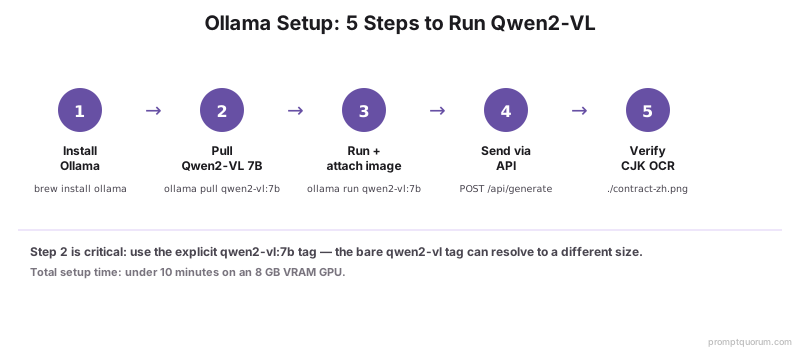
⚠️Warning: Send document images at 150 DPI or higher. Image quality is the biggest factor in OCR results — a blurry scan produces wrong characters no matter which model reads it.
Setting Up Qwen Vision Models with LM Studio
LM Studio runs vision models through a graphical interface with no CLI commands. Download it from lmstudio.ai, or see how to install LM Studio. Its model catalog changes over time, so check what it currently offers for Qwen.
- 1Download and install LM Studio
Why it matters: A cross-platform GUI for local model inference. No terminal required. - 2Search for Qwen vision models
Why it matters: Search "Qwen3-VL" or "Qwen2.5-VL" in the model browser and choose a build whose model card lists vision support. Match the quantization to your memory. - 3Load the model and attach an image
Why it matters: Use the image button in the chat input to upload a photo or scan. LM Studio passes it to the vision encoder. - 4Start the local server
Why it matters: The "Start Server" option exposes an OpenAI-compatible API at localhost:1234. Vision requests use the standard image_url content format.
// LM Studio — OpenAI-compatible vision request (localhost:1234)
{
  "model": "<model-id-shown-in-LM-Studio>",
  "messages": [
    {
      "role": "user",
      "content": [
        { "type": "text", "text": "Extract all text from this document." },
        {
          "type": "image_url",
          "image_url": { "url": "data:image/png;base64,<base64-encoded-image>" }
        }
      ]
    }
  ]
}
Document OCR for Chinese, Japanese, and Mixed-Language Files
Qwen vision models can extract text from Chinese, Japanese, Korean and mixed-language documents, but accuracy depends on scan quality and layout — test on your own documents. The Qwen3-VL model card lists OCR support for 32 languages, and the Qwen2.5-VL card describes structured output for scans of invoices, forms and tables.
The most reliable pattern is a specific extraction prompt. Ask for structure — "preserve the table layout", "return each field as key: value" — instead of a vague "read this".
📍 In One Sentence
To extract text from a CJK document, send the image at 150+ DPI to qwen3-vl:8b or qwen2.5vl:7b with a specific prompt that asks for structure, such as "return each field as key: value".
💬 In Plain Terms
OCR means turning a picture of text into editable text. The model looks at a scanned page and types out what it sees.
- Plain text extraction: "Extract every line of text from this image. Preserve line breaks and reading order."
- Structured fields: "This is a Japanese invoice. Return vendor, date, subtotal, tax, and total as key: value pairs."
- Table extraction: "Extract this table as CSV. Treat the first row as the header."
- Extract and translate in one pass: "Extract the Chinese text from this image, then translate it to English. Show both."
# Japanese invoice -> structured fields
ollama run qwen3-vl:8b
>>> This is a Japanese invoice. Extract vendor name, invoice date,
    subtotal, consumption tax, and total. Return as key: value pairs.
    ./invoice-jp.png

# Illustrative output format (not a measured result):
# vendor: <vendor name>
# date: <invoice date>
# subtotal: <amount> JPY
# tax: <amount> JPY
# total: <amount> JPY•Important: Always verify extracted numbers against the source document. Local vision models can misread a digit on a low-quality scan. Treat OCR output as a draft to confirm, not a final value, especially for invoices and financial documents.
Image Q&A, Screenshot Analysis, and Chart Reading
Beyond OCR, Qwen vision models describe photos, answer questions about screenshots and read charts. Results are best on clear input and weaker on cluttered or ambiguous scenes.
- Image Q&A: ask open questions about a photo — "What is in this image?" — and check the answers against the image.
- Screenshot and UI analysis: start with reading UI screenshots, error dialogs, and app states. Both model cards also describe GUI-agent abilities, which this guide does not cover.
- Chart and graph reading: describing chart structure and trends works better than extracting exact numbers; confirm exact figures against the underlying data.
- Multi-image comparison: send several images in one request to compare versions or batch-describe a set; how many fit depends on your memory and context size.
💡Tip: For a survey of other local vision models, see the local vision models comparison.
Qwen2-VL, Qwen2.5-VL and Qwen3-VL Compared
Qwen2-VL is the oldest of the three and the only one without an official Ollama library entry; Qwen2.5-VL and Qwen3-VL are the current options. The table summarizes what can be checked in the Ollama library and on the Hugging Face cards.
Generation | Released | Official Ollama tag | Licence (HF card) | Notes |
|---|---|---|---|---|
| Qwen2-VL | 2024 | None (library page returns 404) | Apache 2.0 (2B/7B); Qwen licence (72B) | History only |
| Qwen2.5-VL | 2025 | qwen2.5vl (3b, 7b, 32b, 72b) | Apache 2.0 (7B/32B); Qwen licences (3B/72B) | 125K context on Ollama |
| Qwen3-VL | 2025 | qwen3-vl (2b to 235b) | Apache 2.0 (all sizes checked) | 256K context; Instruct and Thinking |
The Qwen2-VL row reflects a check of ollama.com/library/qwen2-vl, which returned HTTP 404, at the time this page was last updated. Other local vision models exist; this page does not rank them — see the local vision models comparison.
Connecting a Local Qwen Vision Model to PromptQuorum
PromptQuorum can use a local Ollama server as one of its model endpoints. Ollama exposes an OpenAI-compatible API at `http://localhost:11434/v1`; point the local-model setting at that address and select the vision tag you pulled, for example `qwen3-vl:8b`. Check the in-app settings for the exact field names.
Image requests sent to a local endpoint are processed by your Ollama server instead of a cloud vision API, while cloud models stay available for other tasks. Which models you route to remains your choice, and any cloud model you add receives whatever you send to it.
📍 In One Sentence
Connect PromptQuorum to a local Qwen vision model by pointing its local endpoint at http://localhost:11434/v1 and selecting the pulled tag, such as qwen3-vl:8b.
Troubleshooting Qwen Vision Models
- "pull model manifest: file does not exist" or an unknown model: the tag is not in the official library. `qwen2-vl:7b` is not available — use `ollama pull qwen3-vl:8b` or `ollama pull qwen2.5vl:7b`.
- The pull succeeds but the model fails to load: update Ollama. Qwen2.5-VL needs 0.7.0+ and Qwen3-VL needs 0.12.7+.
- The image is ignored and the model answers as if no image was sent: confirm the file path is correct and readable. In the Ollama API, the `images` array must contain raw base64 *without* the `data:` prefix — the `data:` prefix is LM Studio and OpenAI format only.
- Garbled or missing CJK characters: the scan is probably too low-resolution. Re-scan at 150–300 DPI and compare the result.
- Out of memory: choose a smaller tag (for example `qwen3-vl:4b` or `qwen2.5vl:3b`), reduce the context size or the image resolution, or run on Apple Silicon, which shares unified memory between CPU and GPU.
- Wrong numbers extracted from an invoice or chart: local vision models can misread digits on noisy input. Increase scan quality and always verify numeric output against the source.
- A PDF will not load: Ollama's API takes images, not PDF files. Convert pages to PNG or JPEG first (with pdf2image or pypdfium2), then send each page as a separate image.
- LM Studio shows "failed to load model": either insufficient memory, or you downloaded a non-vision build. Confirm the model card lists vision support and try a smaller quantization.
💡Tip: Run `ollama ps` to see which models are loaded and how much memory each uses. Use `ollama stop qwen3-vl:8b` to unload a model before loading a larger one.
Frequently Asked Questions
Why does ollama pull qwen2-vl:7b fail?
Because Qwen2-VL has no entry in the official Ollama library — the library page returns HTTP 404. Use `ollama pull qwen2.5vl:7b` (Ollama 0.7.0+) or `ollama pull qwen3-vl:8b` (Ollama 0.12.7+) instead. Check ollama.com/library for the current list.
Should I use Qwen2.5-VL or Qwen3-VL?
Qwen3-VL is the newer generation (Qwen calls it the most powerful vision-language model in its series to date), but it needs Ollama 0.12.7 or newer. Qwen2.5-VL runs on Ollama 0.7.0+ and has a 3B to 72B range. Try both on a few of your own documents; accuracy depends on your material.
What is the minimum hardware to run these models?
There is no single figure. The Ollama download sizes are 1.9 GB (Qwen3-VL 2B), 3.3 GB (4B), 6.2 GB (8B) and 3.2 GB (Qwen2.5-VL 3B), 6.0 GB (7B). The context cache and image encoder need additional memory, so leave headroom, and use `ollama ps` to check actual usage on your machine.
Can these models read PDFs directly?
Not through Ollama: its API takes images. Convert each PDF page to a PNG or JPEG image first (using pdf2image or pypdfium2), then send each page as a separate image request and combine the results.
How do I send an image through Ollama?
Two ways. In interactive mode (`ollama run qwen3-vl:8b`), type the image file path inside your prompt — Ollama detects it and loads the image. Through the API, POST to /api/generate with a base64-encoded `images` array. The base64 string must not include the `data:` prefix.
Do the models run fully offline?
After the one-time model download, inference runs on your own machine without a cloud account, so the images you send are not uploaded to a cloud API by Ollama. Other software on the machine can still send data elsewhere, and data-protection obligations for your workflow still apply — this is not legal advice. See the Qwen local GDPR setup guide for more.
Can I use them commercially?
It depends on the size and the licence on the model card. The Hugging Face cards list Apache 2.0 for Qwen3-VL and for Qwen2.5-VL 7B and 32B, and Qwen licences for Qwen2.5-VL 3B and 72B. Read the current licence text before commercial use.
Why are the characters garbled in my OCR output?
Most often a low-resolution or blurry scan. Re-scan the document at 150–300 DPI and compare. Low-quality input is the single biggest cause of OCR errors on every local vision model.