Best Local LLM + Obsidian Integration in 2026
Use Obsidian with a local LLM through Ollama or LM Studio and a community plugin that talks to a local OpenAI-compatible endpoint. For most users, Obsidian + Ollama is the simplest private setup. Both the plugin and the model run entirely on your machine, so no note content ever leaves your device — and a 32GB-RAM machine is a comfortable hardware target for running a 7B–14B model alongside Obsidian.
This page contains links to third-party products for reference. PromptQuorum is not enrolled in any affiliate program — these are plain links that earn no commission. Clicking links and your next steps are entirely your own responsibility. These links do not represent any endorsement or verification by PromptQuorum.
Quick Answer
Obsidian + Ollama + a community plugin pointed at Ollama's local OpenAI-compatible endpoint is the simplest private setup. LM Studio works the same way if you prefer a GUI. Target 32GB of RAM for comfortable headroom running a 7B–14B model alongside Obsidian.
- ▸Best setup: Obsidian + Ollama, connected through a community plugin
- ▸Best plugin approach: any community plugin supporting a configurable OpenAI-compatible local endpoint
- ▸Best for privacy: keep both the model and the API endpoint on your own machine — verify it, don't assume it
- ▸Best hardware target: 32GB RAM for comfortable local LLM use alongside Obsidian
Key Takeaways
- ✓Best overall: Obsidian + Ollama, connected via a community plugin
- ✓Best alternative: Obsidian + LM Studio, if you want a GUI for testing models
- ✓No cloud API required — everything runs through a local endpoint once configured correctly
- ✓32GB RAM is a good hardware target for running Obsidian alongside a 7B–14B local model
- ✓Check plugin maintenance and confirm the local endpoint before trusting a plugin with your vault
Best Setup: Obsidian + Ollama
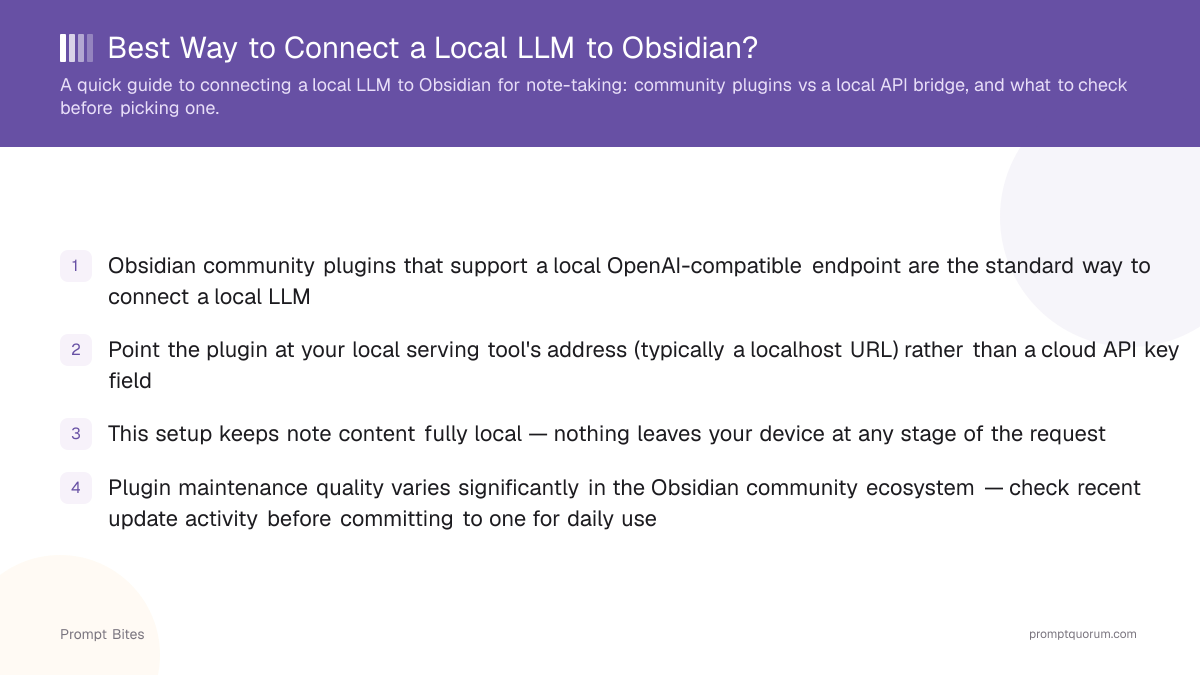
If you already use Obsidian and want private AI inside your vault, Obsidian + Ollama connected through a community plugin is the setup to start with. The chain is simple: Obsidian → a community plugin → Ollama → your local model. Ollama exposes an OpenAI-compatible API on your machine by default, and compatible Obsidian plugins talk to that same standard, so the request never leaves your device.
LM Studio works the same way and is the better pick if you want a graphical interface for downloading and testing models before wiring one into Obsidian — see the comparison below.
Use this if: you want a simple, well-documented local AI backend with broad plugin support. Skip it if: you need a GUI for model management, or you're not ready to check a community plugin's maintenance quality before relying on it daily.
Ollama vs LM Studio
Both expose a local OpenAI-compatible API and both work with Obsidian plugins that support a configurable endpoint. Choose Ollama if you want a simple, script-friendly local backend. Choose LM Studio if you prefer a graphical interface for browsing, downloading, and testing models before pointing a plugin at them.
| Ollama | LM Studio | |
|---|---|---|
| Local API | ✅ | ✅ |
| Obsidian-compatible | ✅ | ✅ |
| GUI | ❌ | ✅ |
| Scripting/automation | ✅ | ⭐⭐⭐ |
Which Plugin Should You Use?
Don't treat any single plugin as a permanent winner — the Obsidian community plugin ecosystem changes quickly, and maintenance quality varies considerably from one plugin to the next.
- ▸Update activity: a plugin last updated long ago may stop working as Ollama's or LM Studio's API changes over time.
- ▸Local endpoint support: verify the API endpoint field is genuinely configurable — some plugins claim general compatibility but are hard-coded to a specific cloud provider.
- ▸Streaming responses: a plugin that only supports non-streaming requests feels noticeably slower on longer replies.
- ▸Vault/context access: some plugins can pull context from your existing notes to include in prompts; others only work with manually typed input — decide whether that matters for your use case before picking one.
- ▸For a deeper walkthrough of specific plugins — including Smart Connections, Copilot for Obsidian, and Text Generator — with Ollama, see the full guide: Local LLM with Obsidian.
How Much Hardware Do You Need?
Obsidian itself is lightweight — the hardware requirement is really about the local model you run alongside it.
| RAM | Good for |
|---|---|
| 16GB | Smaller local models (up to ~7B, quantized) |
| 32GB | 7B–14B models with headroom, plus Obsidian |
| 64GB+ | Larger models and heavier local-AI workloads |
Is It Actually Private?
Yes — if the entire chain stays local: Obsidian → plugin → localhost → Ollama or LM Studio → your local model. Your notes never need to leave the machine.
Don't assume this automatically, though. Verify the plugin is pointed at a genuine localhost endpoint and isn't silently falling back to a cloud API — check its settings and, if you want to be certain, its network activity.
Related Reading
- ▸Local LLM with Obsidian: Full Setup Guide — Smart Connections, Copilot for Obsidian, and Text Generator walkthroughs with Ollama
- ▸Best Frontend for Ollama — comparing local chat UIs beyond Obsidian
- ▸Ollama vs LM Studio — a deeper comparison of both local serving tools
Frequently Asked Questions
Do I need an API key to connect a local LLM to Obsidian?▾
Will my notes leave my machine if I use a local LLM plugin in Obsidian?▾
Ollama or LM Studio — which should I use with Obsidian?▾
What hardware do I need to run a local LLM alongside Obsidian comfortably?▾
Related Prompt Bites