Key Takeaways
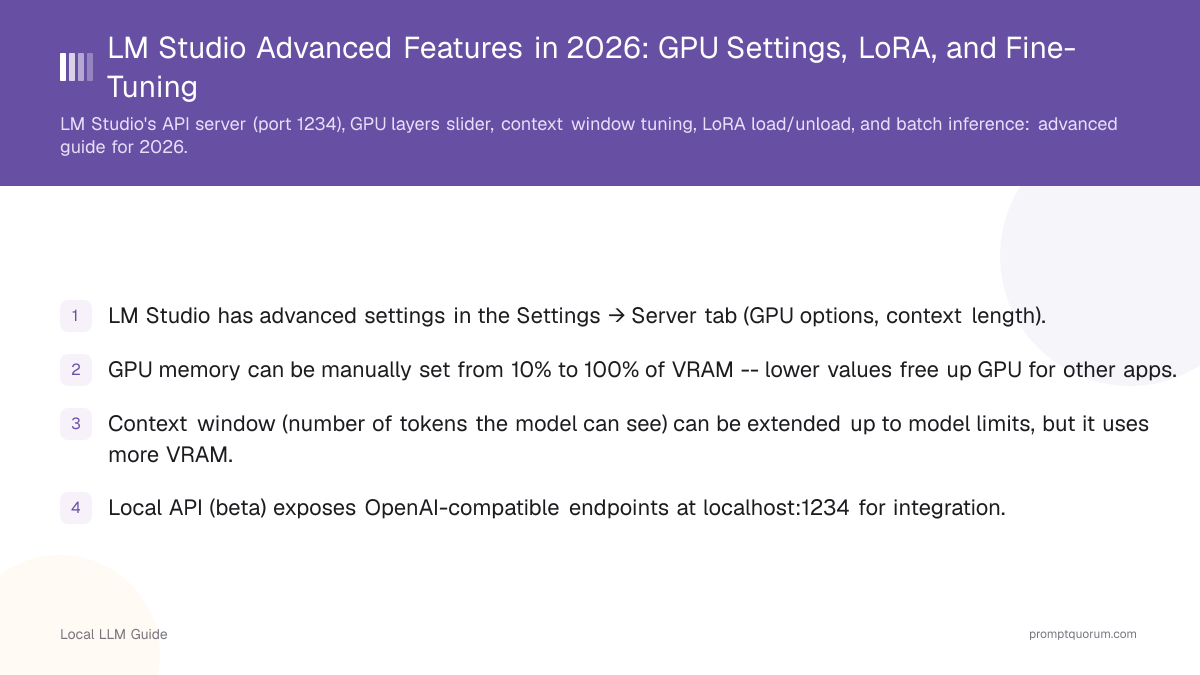
- LM Studio has advanced settings in the Settings → Server tab (GPU options, context length).
- GPU memory can be manually set from 10% to 100% of VRAM -- lower values free up GPU for other apps.
- Context window (number of tokens the model can see) can be extended up to model limits, but it uses more VRAM.
- Local API (beta) exposes OpenAI-compatible endpoints at localhost:1234 for integration.
- As of April 2026, LoRA fine-tuning is not yet built into LM Studio; use Text-Generation-WebUI or training scripts instead.
📍 In One Sentence
LM Studio's advanced features for developers include GPU memory configuration, context window adjustment, an OpenAI-compatible local API server, and the ability to load pre-trained LoRA adapters -- though LoRA training itself is not built in.
💬 In Plain Terms
Beyond its chat window, LM Studio has settings meant for developers: how much of the model runs on your GPU, how long a conversation it can remember, and a local API server other apps can connect to. It can also load a LoRA adapter someone else trained, though you can't train one from inside LM Studio itself -- that still requires a separate tool.
How Do You Configure GPU Memory in LM Studio?
LM Studio lets you control how much GPU VRAM the model uses:
- 1. Click Settings (bottom-left gear icon).
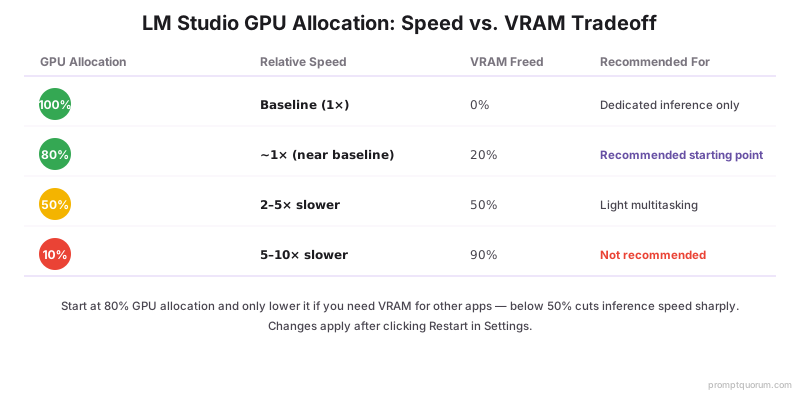
- 2. Find GPU acceleration slider (default: 100%).
- 3. Slide to 50% if you want the GPU to use 50% of VRAM, freeing up the rest for other applications.
- 4. Lower GPU allocation = slower inference speed, but more headroom for simultaneous apps.
- 5. Click Restart to apply changes.
How Do You Extend Context Window?
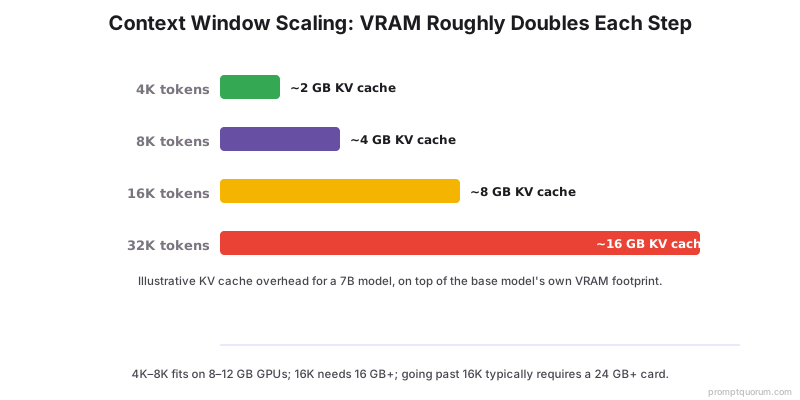
Context window is the maximum number of tokens (text) the model can read. Extending it allows longer conversations but uses more VRAM.
- 1. Open Settings → Server.
- 2. Look for Context length (default: model's built-in limit).
- 3. Increase to 4k, 8k, 16k, or 32k (depending on model support).
- 4. Each doubling of context length roughly doubles VRAM usage.
- 5. Test your extended context by starting a chat and providing long prompts.
How Do You Enable LM Studio's Local API (Beta)?
LM Studio's local API (beta as of April 2026) mimics OpenAI's API:
# 1. Open LM Studio Settings → Server
# 2. Turn on "Enable local API server"
# 3. API runs at http://localhost:1234/v1

# 4. Use it like Ollama:
from openai import OpenAI
client = OpenAI(
  base_url="http://localhost:1234/v1",
  api_key="not-needed"
)
response = client.chat.completions.create(
  model="llama-3.2-3b-gguf",
  messages=[{"role": "user", "content": "Hello"}]
)
print(response.choices[0].message.content)
Watch: Running Claude Code with LM Studio on Local Hardware
In this community walkthrough, a developer demonstrates running Claude Code with Qwen 3.5 on an RTX 5090, using LM Studio Link to connect a Linux GPU machine to a MacBook — no cloud API keys required. The video covers the full setup and builds a Next.js dashboard from scratch using only local AI inference.
Can You Fine-Tune Models With LM Studio?
As of April 2026, LM Studio does not have built-in LoRA fine-tuning. For fine-tuning, use:
- Text-Generation-WebUI (easiest for LoRA)
- LLaMA-Factory (advanced, production-grade)
- unsloth (fastest, optimal for VRAM usage)
LM Studio is suitable for applying pre-trained LoRA adapters but not for training new ones. Future versions may add LoRA training directly.
How Do You Run Batch Inference in LM Studio?
Batch inference means processing multiple prompts without waiting for responses between them. LM Studio does not have a built-in batch mode, but you can simulate it via the API or Python loop:
# Python: batch inference via LM Studio API
from openai import OpenAI
import json

client = OpenAI(base_url="http://localhost:1234/v1", api_key="x")

prompts = [
  "What is 2+2?",
  "Explain quantum computing",
  "How do transformers work?"
]

results = []
for prompt in prompts:
  response = client.chat.completions.create(
    model="llama-3.2-3b-gguf",
    messages=[{"role": "user", "content": prompt}]
  )
  results.append({
    "prompt": prompt,
    "response": response.choices[0].message.content
  })

with open("batch_results.json", "w") as f:
  json.dump(results, f, indent=2)
How Do You Benchmark Model Speed in LM Studio?
LM Studio includes a built-in benchmark tool:
- 1. Load a model in LM Studio.
- 2. Click Settings → Benchmark tab.
- 3. Click Run benchmark -- it measures tokens/second for your specific hardware.
- 4. Results show baseline performance without chat overhead.
- This helps you understand expected speed before deploying to production.
Common Mistakes With LM Studio Advanced Features
- Lowering GPU allocation too much and blaming slowness on the model. If you set GPU to 10%, inference will be 5-10× slower because it is running mostly on CPU. Test with 80%+ GPU allocation first.
- Extending context window beyond model support. Models have maximum supported context lengths. Extending beyond that does not add capability; it just wastes VRAM.
- Expecting LoRA training in LM Studio. As of April 2026, it is not available. Use Text-Generation-WebUI or training libraries.
- Forgetting that API needs explicit enable. The local API is off by default. Enable it in Settings → Server.
Common Questions About LM Studio Advanced Features
What is the difference between LM Studio API and Ollama API?
Both expose OpenAI-compatible endpoints. LM Studio API is on localhost:1234, Ollama on localhost:11434. Both work similarly. Choose whichever tool you prefer for chatting.
Can I use the LM Studio API in production?
It works, but Ollama API is more mature. LM Studio API is in beta. For production, Ollama is the safer choice.
Does lowering GPU allocation reduce VRAM requirements?
Yes. Lowering GPU allocation to 50% roughly halves VRAM usage, but inference is 2-5× slower because the model runs partially on CPU.
What is the impact of increasing the context window in LM Studio?
Longer context allows models to remember more conversation history, but increases VRAM usage and latency. A 2K context uses ~2× the VRAM of a 512-token context. Benchmark after each change.
Should I use 100% GPU acceleration in LM Studio?
Not always. Use 100% for maximum speed if only running LM Studio. Reduce to 50-75% if you need VRAM headroom for browsers, IDEs, or other GPU tasks. Measure inference speed at each level.
How do I use LM Studio as a backend for other apps?
Enable Local Server in Settings. It exposes OpenAI-compatible endpoints at localhost:1234. Point any OpenAI SDK (Python, Node.js) to this URL as base_url to use local models.
Does LM Studio support LoRA fine-tuning?
As of April 2026, LoRA fine-tuning is not built into LM Studio. Use Unsloth or llama.cpp training scripts for fine-tuning. LM Studio can load and run LoRA adapter files from disk.
How do I run batch inference in LM Studio?
Use the LM Studio Local API with a loop. Send multiple POST requests to /v1/chat/completions with different prompts. LM Studio processes each request sequentially as of April 2026.
How do I benchmark my model speed in LM Studio?
LM Studio shows tokens/sec in the status bar during inference. The Performance tab provides latency metrics, VRAM usage, and generation speed. Run a long prompt to get stable benchmarks.
Can I adjust temperature and top-p in LM Studio?
Yes. Click the Settings icon (gear) on the chat panel to access temperature, top-p, top-k, and repeat penalty sliders. Temperature 0.7 is default; lower values give more deterministic output.
How do I load a custom GGUF model in LM Studio?
Download the .gguf file manually and place it in your LM Studio models directory (~/.lmstudio/models on macOS/Linux). LM Studio scans this folder and lists custom models in the model selector.
What LM Studio settings improve speed for coding tasks?
Use Q4_K_M quantization for fastest inference. Set context window to 4K (enough for code files). Enable 100% GPU offload. Use a model with strong coding support (Qwen3-Coder, DeepSeek-Coder).
Can I disable chat history in LM Studio for testing?
Yes. Click "New Chat" to start fresh. For API-based testing, omit previous messages from the messages array and only send a system prompt + user message. This simulates zero-context inference.
Sources
- LM Studio Documentation -- lmstudio.ai/docs
- LM Studio Local Server (Beta) -- lmstudio.ai/docs/local-server/overview
- OpenAI API Compatibility -- platform.openai.com/docs/api-reference
- Advanced model parameters enable advanced prompting techniques. To unlock them: chain-of-thought prompting shows how to structure multi-step reasoning in local models.