Key Takeaways
- Home Assistant ships an official Ollama integration — no custom add-on needed
- Run Ollama on the Home Assistant host or another machine on your LAN
- Add integration → enter Ollama URL (default host:11434) → select a model
- Expose only the entities you want the model to control, then set it as the Assist agent
- Use a small function-calling model for low latency; link out for model/hardware depth
- Everything is local: no command or home state leaves your network
What Connecting Ollama to Home Assistant Gives You
It gives Home Assistant a local conversation agent: you speak or type a request and the model maps it to device actions, with no cloud assistant in the loop. This replaces the cloud voice agent (Alexa, Google) for natural-language control.
- Natural-language control: "turn off everything downstairs" maps to the right entities instead of a fixed phrase.
- Local and private: the model runs through Ollama on your hardware — see the local LLM smart home guide for the full architecture.
- Voice-ready: pair it with a local voice pipeline for a private Alexa replacement — see build a fully local voice assistant.
Prerequisites Before You Start
You need Home Assistant running, Ollama running on a reachable host, and one model pulled. This guide does not re-explain installing Ollama — link out for that.
- 1Home Assistant up and reachable on your LAN.
- 2Ollama installed and running on the same host or another machine — see how to install Ollama.
- 3At least one model pulled (a small instruction model is the right starting point).
- 4Network reachability: confirm Home Assistant can reach the Ollama URL (default port 11434).
How Do You Add the Ollama Integration?
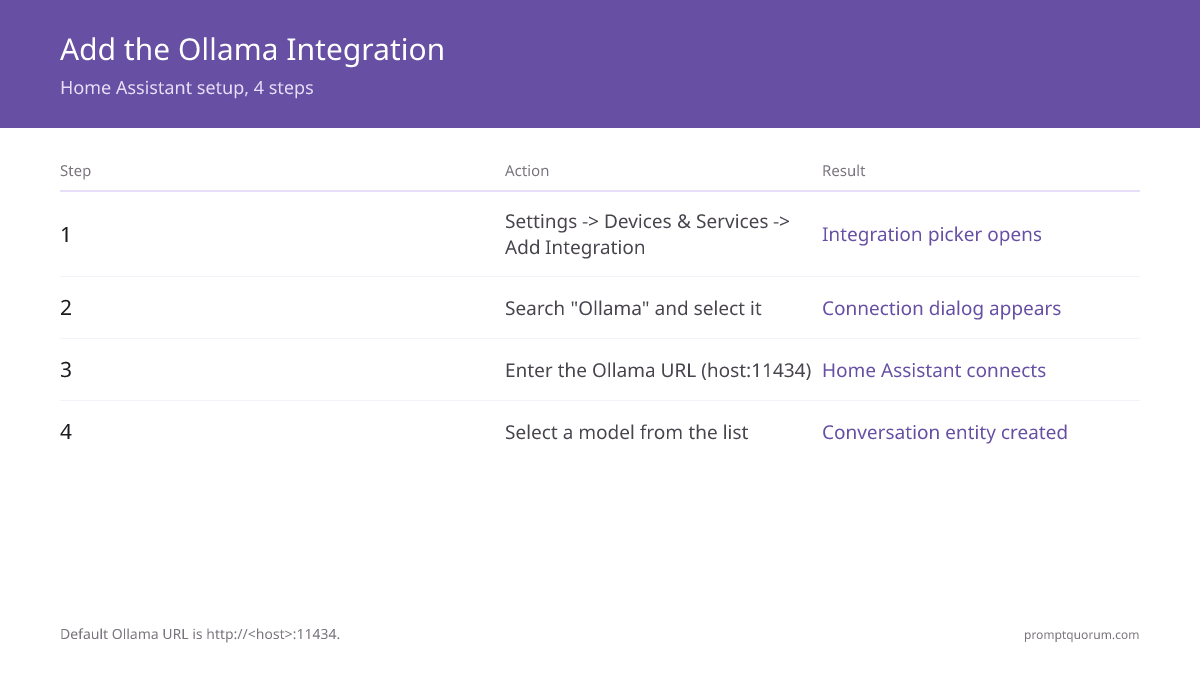
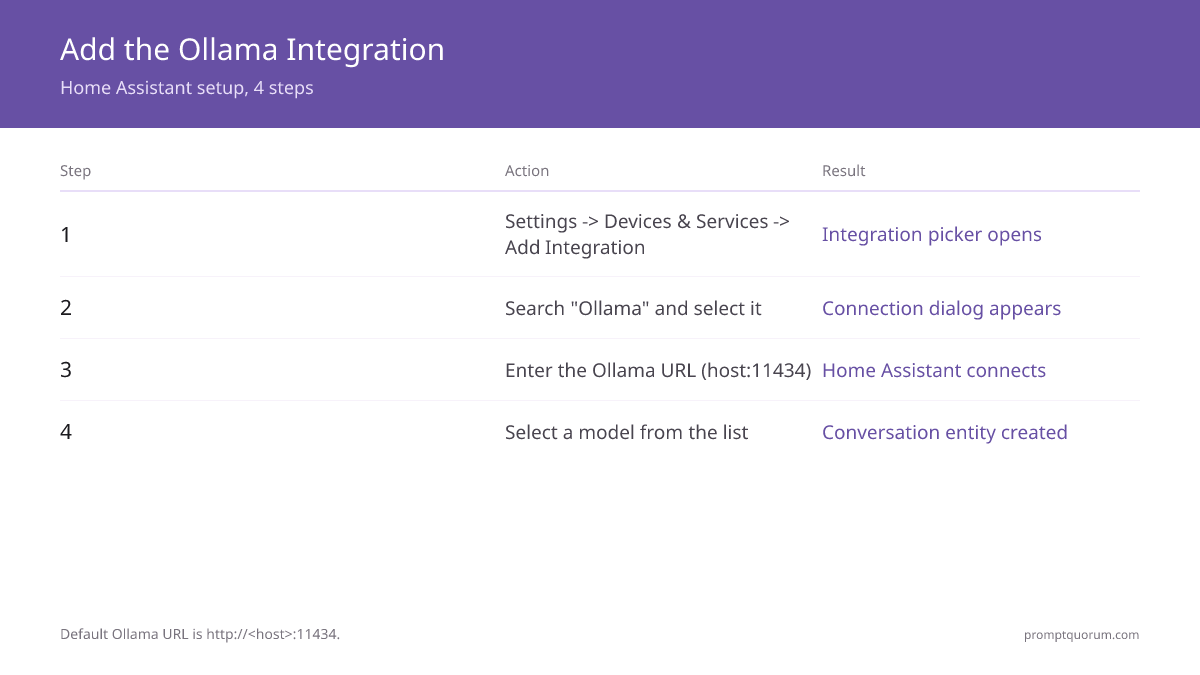
In Home Assistant go to Settings → Devices & Services → Add Integration → Ollama, then enter the Ollama URL. The default URL is http://<host>:11434.
Step | Action | Result |
|---|---|---|
| 1 | Settings → Devices & Services → Add Integration | Integration picker opens |
| 2 | Search "Ollama" and select it | Connection dialog appears |
| 3 | Enter the Ollama URL (host:11434) | Home Assistant connects to Ollama |
| 4 | Select a model from the list | A conversation entity is created |
Which Model Should You Choose?
Choose a small, fast, instruction-following model with function-calling for home control — not the largest model you can run. Latency matters more than raw capability here.
- Use a small model if you want snappy responses on modest hardware.
- Prioritise function-calling/tool support so the model can emit device actions reliably.
- For a smart-home-specific shortlist, see best local LLM models for smart home control.
- For deeper model mechanics, link out to best local LLMs for coding and the local-llms cluster — this guide does not re-rank models.
Configure the Conversation Agent
Set the Ollama conversation entity as the agent in your Assist pipeline, and expose only the entities you want it to control. Exposure is what lets the model act on devices.
- 1Open Settings → Voice assistants and edit (or create) an Assist pipeline.
- 2Set the conversation agent to the Ollama entity created by the integration.
- 3Under Assist exposure, expose the specific entities the model may control.
- 4Optionally add a custom prompt to constrain tone and scope.
- 5Save, then test from the Assist chat box before adding voice.
Control Devices by Voice or Text
Once the agent is set and entities are exposed, type or speak a request in Assist and the model performs the action. Keep deterministic safety automations as plain rules, not model-driven.
- Test with simple commands first ("turn on the office light"), then natural phrasing.
- The model only controls entities you exposed — unexposed devices are untouched.
- Add a local voice front-end for hands-free use — see local voice assistant.
- For context-aware automations beyond direct commands, see AI automations with a local LLM.
Troubleshooting Common Issues
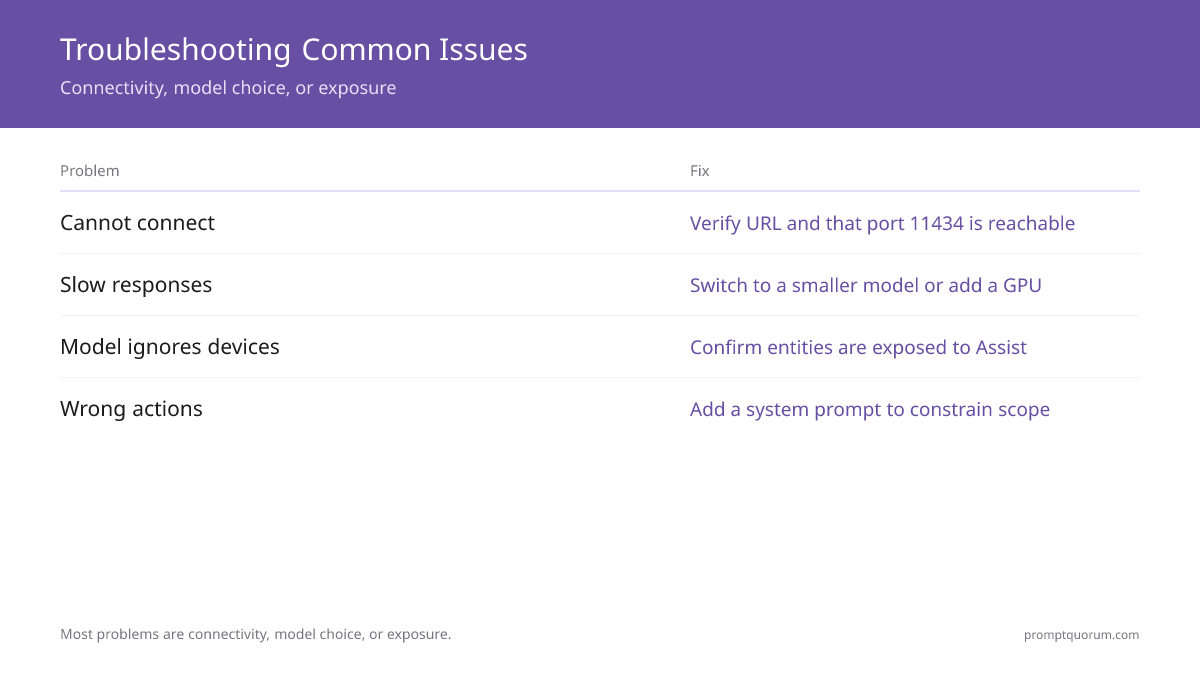
Most problems are connectivity, model choice, or exposure. Work through these in order.
- Cannot connect: verify the Ollama URL and that port 11434 is reachable from Home Assistant; bind Ollama to 0.0.0.0 if on another host.
- Slow responses: switch to a smaller model or add a GPU/NPU — see best hardware for a local smart home.
- Model ignores devices: confirm the entities are exposed to Assist and the Ollama entity is the active agent.
- Wrong actions: add a system prompt constraining scope, or reduce the number of exposed entities.
Frequently Asked Questions
What is Home-LLM (acon96) and how is it different from the Ollama integration?
Home-LLM (github.com/acon96/home-llm) is a separate, community-built HACS custom integration with its own small models fine-tuned specifically for Home Assistant device control, rather than a general-purpose chat model. The Ollama integration this guide covers is the official, built-in path: point Home Assistant at any model Ollama is already serving. Home-LLM is a purpose-built alternative worth evaluating if you want a model trained specifically for structured device commands, but it requires installing a separate HACS component rather than using the integration that ships with Home Assistant.
Which model should I pick for Home Assistant?
A small instruction-following model with function-calling support is the best starting point because home control needs fast, structured responses. The right size depends on your hardware; see the best local LLM models for smart home guide for current options.
Do I need a GPU to run Ollama with Home Assistant?
No, but it helps. A small model runs on a modern CPU or integrated GPU; a discrete GPU or NPU lowers latency so the assistant feels snappier. Match model size to your hardware.
Can the model control any device in Home Assistant?
Only entities you explicitly expose to Assist. Exposure is opt-in, so the model cannot act on devices you have not shared with it, which keeps control predictable and safe.
Does the Ollama integration work offline?
Yes. Ollama runs the model locally and Home Assistant controls devices over your LAN, so the assistant works with no internet. Only remote access from outside the home needs connectivity.