Key Takeaways
- Continue.dev acquired by Cursor (June 2026) — v2.0.0-vscode is the final release, repo read-only, cloud data deleted after July 15, 2026; still runs locally with Ollama but no longer maintained
- Cline is now the best maintained free BYOK alternative: VS Code + the full JetBrains family (PyCharm, Rider, CLion, GoLand, WebStorm, RustRover), agentic file editing, MCP tools, 5M+ installs
- Bodega One Code is a free-for-personal-use, local-first standalone IDE with a built-in coding agent and bring-your-own-LLM (BYOL) support — full offline/air-gap operation with no forced subscription
- Tabby runs its own inference server (1–3B models) — lowest latency autocomplete for teams, self-hosted under Apache 2.0
- Aider is the terminal-first option — git-commit-aware, multi-file rewrites, 44K+ GitHub stars
- Cursor (free Hobby / $20 Pro / $60 Pro+ / $200 Ultra per month) acquired both Supermaven and Continue.dev; SpaceX completed its $60B acquisition of Cursor in August 2026
- All tools work fully offline against a local backend (Ollama, LM Studio, or a self-hosted server); only Cursor requires a cloud-connected app even when using local models for inference
Compare All Six at a Glance
Every plugin here connects to a local model — the differences are what kind of coding you do and how much of a commercial ecosystem you want around it.
Plugin | Best for | Local backend | Price | Get it |
|---|---|---|---|---|
| Cline | Most users / agentic tasks | Ollama, LM Studio, 30+ APIs | Free (BYOK) / $9.99+/mo | Install free → |
| Bodega One Code | Offline / air-gapped / compliance | Ollama, LM Studio, llama.cpp, 10+ | Free (personal) / $39 one-time | Try free → |
| Continue (legacy) | Existing Continue users only | Ollama, LM Studio, llama.cpp | Free (unmaintained) | Continue.dev → |
| Tabby | Fastest self-hosted autocomplete | Own inference server (1–3B) | Free, open-source | Self-host free → |
| Aider | Terminal + git workflow | Ollama, LM Studio, OpenAI-compat | Free, open-source | Install free → |
| Cursor | Polished IDE, cloud + local mix | Ollama, LM Studio (Custom API) | Free Hobby / $20–$200/mo | Start free → |
Skip all six if you have no local model running yet — pick hardware and a backend (Ollama or LM Studio) first, then come back to this table. Every link above is a plain product link with no current affiliate relationship — see the disclosure note at the top of this page.
Start With Cline: Install It in the Next 2 Minutes
Cline is the default recommendation on this page. Here is why, and how to get it installed right now.
- Free and open-source — bring your own key or point it at a local endpoint, no forced subscription (ClinePass at $9.99+/mo is optional, for managed routing without your own API key).
- Works in VS Code and the full JetBrains family — IntelliJ IDEA, PyCharm, WebStorm, PhpStorm, GoLand, Rider, CLion, RustRover, RubyMine, and DataGrip.
- Connects natively to Ollama and LM Studio — plus 30+ other OpenAI-compatible providers, with no cloud dependency required.
- Actually agentic — reads/writes files, runs terminal commands, and uses MCP tools, not just inline autocomplete.
- Limitation: reliable multi-step agentic tasks need a 32B-class local model (24 GB+ VRAM); 14B models handle simpler edits but struggle with complex multi-file refactors.
Which One Should You Use?
Match your priority to a plugin — all six are covered in full detail further down this page.
- Easiest overall, want it working today → Cline — free, agentic, VS Code + JetBrains.
- Fully offline, air-gapped, or under a compliance mandate → Bodega One Code — standalone IDE with no cloud component at all.
- Fastest autocomplete for a team, self-hosted → Tabby — its own inference server, sub-200ms completions.
- Terminal-first, git-aware workflow → Aider — multi-file edits, auto-commits.
- Want a polished commercial IDE with an occasional local option → Cursor — cloud-first by design, local models via Ollama/LM Studio in its Custom API setting.
- Already using Continue → it still installs and runs (Ollama, BYO-LLM), but the project has been unmaintained since the June 2026 Cursor acquisition — plan a move to Cline when convenient, not urgently.
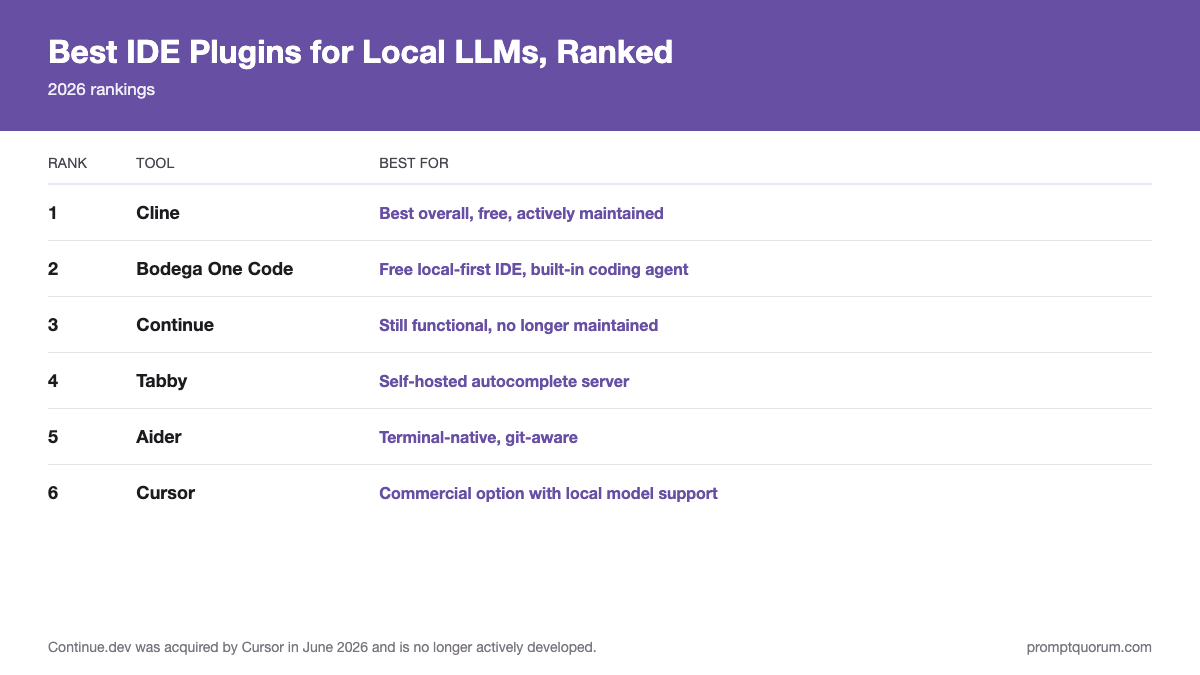
Best IDE Plugins for Local LLMs — Ranked
📍 In One Sentence
Cline is the best IDE plugin for local LLMs in 2026 because it supports Ollama natively, works in both VS Code and JetBrains, and adds agentic file editing and MCP tools without any cloud dependency — Continue, the former #1 pick, was acquired by Cursor in June 2026 and is no longer actively developed.
💬 In Plain Terms
An IDE plugin for local LLMs connects your code editor (VS Code, IntelliJ) to a model running on your own machine (via Ollama, LM Studio, or llama.cpp). The model sees your code and responds — no code leaves your computer, no API fees, no usage limits.
Cline — Best Overall (Free, Open-Source, Actively Maintained)
Cline (formerly Claude Dev) is the best-maintained agentic coding plugin for local LLMs in 2026 — it took the top spot after Continue was acquired by Cursor in June 2026. It reads and writes files, runs terminal commands, browses the web (via browser tool), and uses MCP servers. With Ollama + Qwen2.5-Coder 32B, Cline can implement entire features from a prompt. Limitations: 32B models are required for reliable multi-step agentic tasks; 14B models work for simple tasks. Pricing: free (BYOK — bring your own API key from Anthropic, OpenAI, or 30+ providers); ClinePass at $9.99/month (intro $4.99 first month) for managed routing with no API key needed; Teams at $20/user/month (first 10 seats free). VS Code and the full JetBrains family: IntelliJ IDEA, PyCharm, WebStorm, PhpStorm, GoLand, Rider, CLion, RustRover, RubyMine, and DataGrip. Compatible backends: Ollama, LM Studio, LiteLLM proxy, and 30+ cloud providers. 5M+ installs across VS Code, JetBrains, and other editors.
Bodega One Code — Best Free Local-First IDE With a Built-In Coding Agent
Bodega One Code is a local-first AI IDE built around a coding agent from the ground up, rather than an assistant bolted onto an existing editor. It supports bring-your-own-LLM (BYOL) across 10+ backends, including Ollama, LM Studio, llama.cpp, LocalAI, KoboldCpp, GPT4All, and MLX for local models, plus direct cloud providers if you want them: point it at any backend and it runs the agent loop — planning, editing, and executing — entirely against that model, with no lock-in to a single provider. The entire application runs on your machine, including a full offline and air-gap mode that blocks outbound network connections so no telemetry or model calls leave the machine, so it works in network-isolated environments where cloud-connected tools like Cursor or GitHub Copilot cannot run at all. Pricing: free for personal use during the current open beta, including commercial-use rights for now; a paid one-time Pro tier (price still to be announced) is planned for full release, adding commercial-use rights, unlimited workspaces, and a second machine, but is not yet available for purchase. There is no subscription and no usage metering for local-model use. This makes it a strong fit for regulated industries, government and defense contractors, and any team whose security policy prohibits sending code to a third-party server — the same audience that reaches for local inference in the first place. Compared to Cline, which is a plugin layered onto VS Code, Bodega One Code is a standalone IDE designed around the agent from the start; teams already committed to VS Code will find Cline the easier drop-in, while teams starting fresh or needing guaranteed offline operation get a purpose-built environment with Bodega One Code.
Continue — Still Functional, No Longer Maintained [Acquired by Cursor, June 2026 — Final v2.0.0-vscode]
Continue was the leading open-source AI coding assistant for local LLMs before its June 2026 acquisition by Cursor. It connects to Ollama, LM Studio, llama.cpp, and any OpenAI-compatible API. Features: inline chat (Cmd+L), autocomplete (Tab), model context protocol (MCP) tools, codebase indexing, and custom slash commands. VS Code extension has 2M+ installs. JetBrains plugin works in IntelliJ IDEA, PyCharm, GoLand, WebStorm, and Rider — it does not cover CLion or RustRover. Best local models: Qwen2.5-Coder 14B (coding), Llama 3.1 8B (chat). Setup: install extension, set provider to Ollama, choose model — done in 2 minutes. Note (June 2026): Continue was acquired by Cursor. Version 2.0.0-vscode, released June 19, 2026, is the final release; the GitHub repo is now read-only, and Continue-hosted cloud data was deleted after July 15, 2026. The extension still installs and runs fully offline with Ollama and BYO-LLM — but no further development from the original team. Community forks are active.
Tabby — Best Self-Hosted Autocomplete Server
Tabby is a self-hosted coding assistant, built in Rust under Apache 2.0, that runs its own inference server (separate from Ollama). It uses small, specialized code completion models (1–3B parameters) trained specifically for fill-in-the-middle (FIM) autocomplete — significantly faster than using a general 7B model. Current stable release is v0.32.0, with roughly 33K GitHub stars. Tabby IDE extensions exist for VS Code, JetBrains, Vim/Neovim, and Emacs. Best for: teams of 5–50 developers, especially regulated or IP-sensitive teams that want fast (<200ms) autocomplete without sending code to the cloud. Requires a dedicated server or powerful desktop machine — free to self-host with unlimited users, no per-seat fee.
Aider — Best Terminal-Native AI Coding
Aider is a terminal-based AI pair programmer that integrates with git. It understands your full repository structure, makes multi-file edits, and commits changes automatically. Works with Ollama (via --model ollama/qwen2.5-coder:14b), LM Studio, or any OpenAI-compatible API. Best local models: Qwen2.5-Coder 32B (architect mode) + Qwen2.5-Coder 7B (editor mode). Aider uses a two-model approach: a large model plans changes, a small model implements them. 44K+ GitHub stars. Cost: free and open-source. Note: Aider is still in 0.x versioning as of 2026, so CLI flags and the .aider.conf.yml format occasionally change between minor releases — check the changelog after upgrading.
Cursor — Best Commercial Option with Local Model Support
Cursor is a VS Code fork with AI features built in. Cursor supports local models via Ollama and LM Studio in its "Custom API" setting. However, Cursor's most powerful features (Agent mode with web search, full codebase awareness) require cloud models. The local model integration is functional for chat and simple completions but falls behind Cline for privacy-focused workflows, since Cursor itself remains a cloud-connected application even when inference runs locally. Pricing: Hobby (free, local model use included); Pro at $20/month ($16/month billed annually, includes a $20/month AI credit pool for frontier models; Auto mode is unlimited at no credit cost); Pro+ at $60/month (3x the usage credits); Ultra at $200/month (20x usage); Teams at $40/user/month with centralized billing and SSO. Note: Cursor acquired Supermaven (2024) and Continue.dev (June 2026). SpaceX completed its $60 billion acquisition of Cursor in August 2026, days after SpaceX's own IPO — Cursor's annualized revenue reportedly grew from around $100 million in early 2025 to more than $4 billion by June 2026. This consolidation makes Cursor the dominant commercial force in AI coding tools — but raises long-term questions about open-source alternatives.
Pros
- +Polished, familiar VS Code fork — near-zero learning curve for existing VS Code users
- +Local models via Ollama or LM Studio through the Custom API setting
- +Free Hobby tier includes local model use, not just a trial
Cons
- –The strongest features (Agent mode, full codebase awareness) require cloud/frontier models, not local ones
- –Now owned by SpaceX/xAI — a materially different vendor profile than an independent open-source tool
Quick Setup: Cline + Ollama in VS Code
Ready to install Cline? → Install Cline free. Follow these steps to connect it to Ollama — the fastest way to start local LLM coding with the current #1 pick:
- 1Install Ollama:
curl -fsSL https://ollama.com/install.sh | sh - 2Pull a coding model:
ollama pull qwen2.5-coder:14b(orqwen3-coder:32bfor agentic tasks) - 3In VS Code, install Cline from the Extensions marketplace
- 4Open the Cline sidebar and click the settings gear icon
- 5Set API Provider to "Ollama", Base URL to
http://localhost:11434, and Model ID to your pulled model - 6Restart VS Code — the Cline icon appears in the sidebar
- 7Type a task in the Cline chat panel — it can read/write files and run terminal commands directly
Quick Setup: Aider + Ollama (Terminal)
Ready to install Aider? → Install Aider free. For terminal-native, git-aware AI coding — Aider official docs: aider.chat/docs/llms/ollama.html
- 1Install Ollama and pull a model:
ollama pull qwen2.5-coder:32b - 2Install Aider:
python -m pip install aider-install && aider-install - 3Set the Ollama API base:
export OLLAMA_API_BASE=http://127.0.0.1:11434 - 4Run Aider pointed at your local model:
aider --model ollama/qwen2.5-coder:32b - 5For the two-model architect/editor setup, add
--architect-model ollama/qwen2.5-coder:32b --editor-model ollama/qwen2.5-coder:7b - 6Aider auto-commits each change to git — review with
git logorgit diff HEAD~1
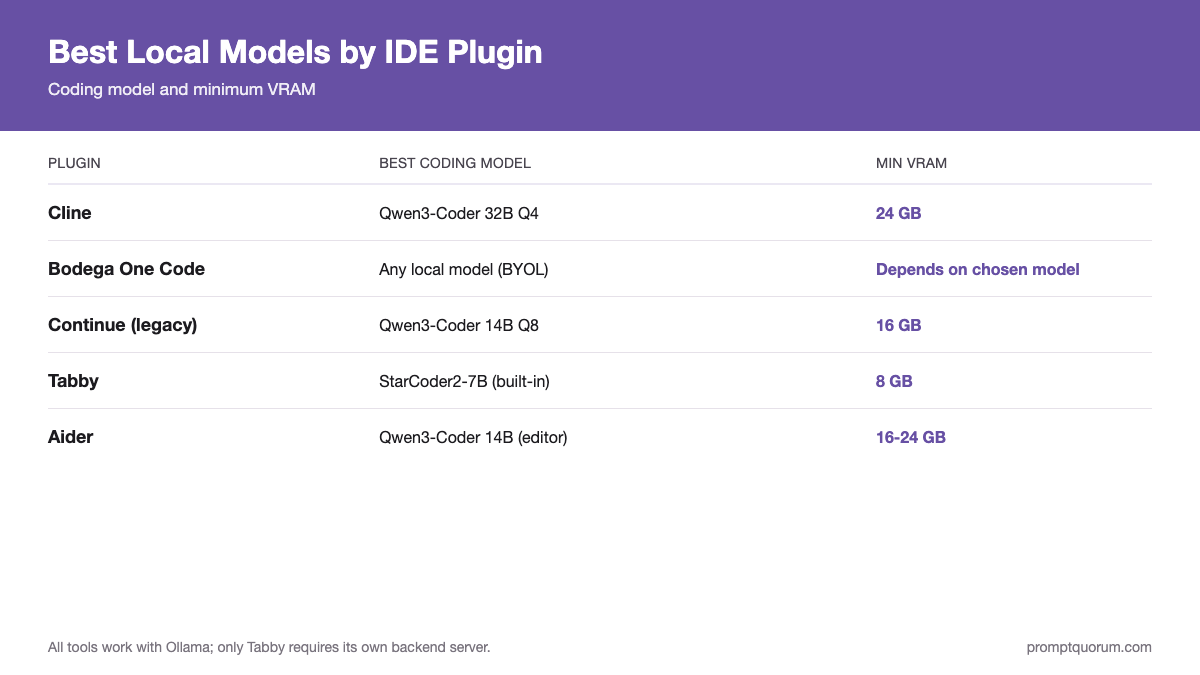
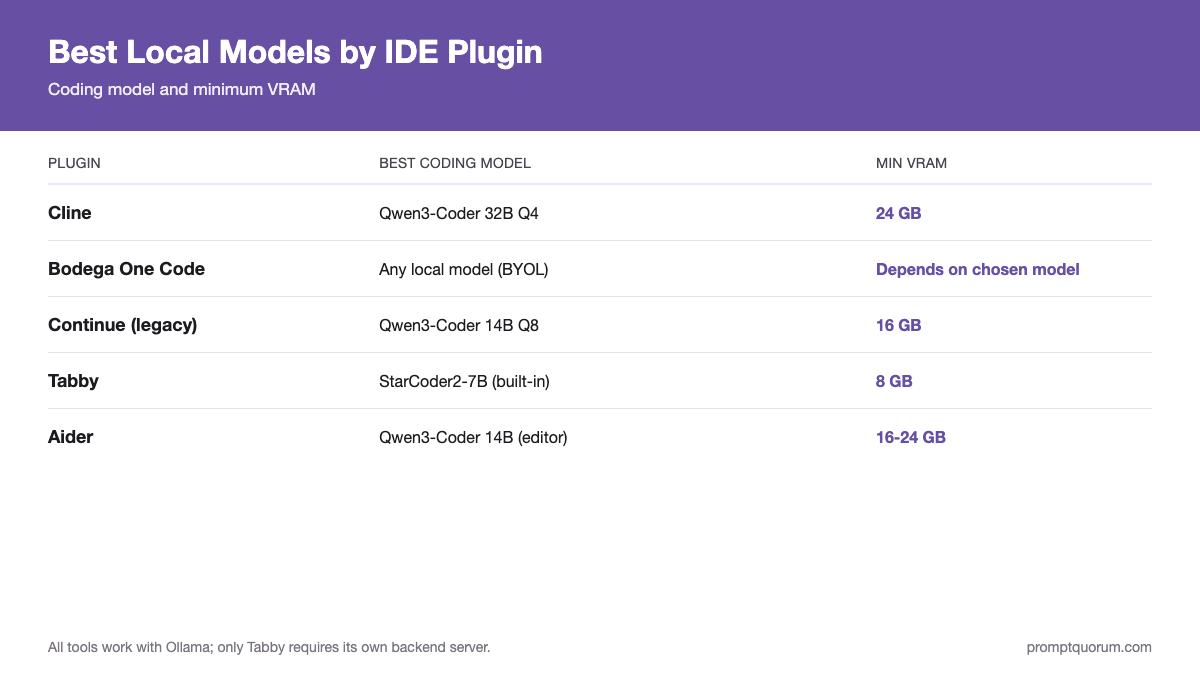
Best Local Models by Plugin and Task
Plugin | Best Coding Model (Local) | Best Chat Model (Local) | Min VRAM |
|---|---|---|---|
| Cline | Qwen2.5-Coder 32B Q4 | Qwen3 32B Q4 | 24 GB |
| Bodega One Code | Any local model (BYOL) | Any local model (BYOL) | Depends on chosen model |
| Continue (legacy) | Qwen2.5-Coder 14B Q8 | Llama 3.1 8B Q4 | 16 GB |
| Tabby | StarCoder2-7B (built-in) | N/A (code only) | 8 GB |
| Aider | Qwen2.5-Coder 14B (editor) | Qwen2.5-Coder 32B (architect) | 16–24 GB |
| Cursor | DeepSeek-Coder-V2 (via Ollama) | Qwen3 14B | 16 GB |
Need hardware for these models? 8 GB VRAM covers Tabby's small completion models; 16 GB handles most 14B coding models (Continue, Aider editor mode, Cursor's local option); 24 GB+ is the realistic minimum for reliable 32B agentic work with Cline or Aider's architect mode. See Best GPUs for Local LLMs for the full picks, or Best Budget GPUs for Local LLMs if you're starting under 16 GB.
Best LM Studio Plugins (Not the Same as IDE Plugins)
This is a different question from "which IDE extension connects to LM Studio" (covered above) — and one worth answering directly, since LM Studio is one of the two backends every plugin in this guide connects to. LM Studio has had its own plugin system since late 2024: plugins run inside LM Studio itself — currently as TypeScript/JavaScript code on Node.js in a sandboxed worker, with Python support still in development — and can intercept inference requests, add prompt processors, attach tool-calling backends, or add new UI panels. Install them from the curated marketplace at lmstudio.ai/plugins; each plugin declares required permissions (network access, file-system read) up front, and you can revoke them later from Settings without uninstalling. Common categories as of 2026: web search plugins, RAG/document-retrieval preprocessors, OCR preprocessors, agentic toolset plugins, shell/file-access tools, and memory plugins.
- Web search plugins: let a local model in LM Studio pull live web results into its context — useful since local models have no built-in internet access.
- RAG / document plugins: index a local folder of PDFs or text files and retrieve relevant chunks automatically per query.
- Agentic toolset plugins: give the model shell access, file read/write, or multi-step task execution directly inside LM Studio's chat UI — the same category of capability Cline provides for VS Code, but running inside LM Studio instead of an editor.
- Memory plugins: persist context across chat sessions instead of starting fresh each time.
Can Continue replace GitHub Copilot entirely for local use?
Continue has been acquired by Cursor and v2.0.0-vscode (released June 19, 2026) is the final release; the repo is read-only and Continue-hosted cloud data was deleted after July 15, 2026. The extension still installs and runs offline with Ollama and BYO-LLM, but receives no further development from the original team. For a maintained open-source alternative, Cline is the recommended replacement — it offers the same BYOK model, works in VS Code and the full JetBrains family, and adds agentic file editing. GitHub Copilot Pro costs $10/month with $15/month in AI credits; Cline is free with your own API key.
Which plugin works best for multi-file refactoring?
Cline or Aider. Both can read multiple files, understand dependencies, and make coordinated edits across a codebase. Cline works inside VS Code or JetBrains (better for visual feedback); Aider works in the terminal (better for CI/CD integration and git-aware commits). For 30B+ models with 24 GB VRAM, Cline with Qwen2.5-Coder 32B handles complex refactoring reliably.
Does Tabby work without a GPU?
Yes — Tabby can run on CPU with small models (1–3B). However, autocomplete latency on CPU is 500ms–2s, which feels sluggish compared to the <200ms target for smooth coding. For CPU-only machines, Cline + Ollama with a fast 1B or 3B model gives better latency control.
Can I use these plugins with LM Studio instead of Ollama?
Yes. LM Studio exposes an OpenAI-compatible API on port 1234 by default. Set your plugin provider to "openai" with base URL http://localhost:1234/v1 and use any model name from your LM Studio library. Cline, Continue, Aider, and Bodega One Code all support this configuration. Note this is different from LM Studio's own plugin system (see the LM Studio Plugins section above) — that's for extending LM Studio itself, not connecting an external IDE to it.
Does Cline work in PyCharm, Rider, GoLand, WebStorm, CLion, and RustRover?
Yes — Cline's JetBrains plugin, installed from the JetBrains Marketplace, supports the full JetBrains family: IntelliJ IDEA, PyCharm, WebStorm, PhpStorm, GoLand, Rider, CLion, RustRover, RubyMine, and DataGrip. Configure the same Ollama or LM Studio provider settings as the VS Code version. Continue's JetBrains plugin (unmaintained since the June 2026 Cursor acquisition) covers a narrower set — IntelliJ IDEA, PyCharm, GoLand, WebStorm, and Rider — but not CLion or RustRover.
Which JetBrains IDEs support local LLM plugins?
Cline and Continue both ship JetBrains plugins. Cline covers the whole family: IntelliJ IDEA, PyCharm, PhpStorm, WebStorm, GoLand, Rider, CLion, RustRover, RubyMine, and DataGrip. Continue covers IntelliJ IDEA, PyCharm, PhpStorm, WebStorm, GoLand, and Rider only. Install from the JetBrains Marketplace (not the VS Code Marketplace) and configure the same Ollama/LM Studio provider settings as the VS Code version. Tabby also has JetBrains support for autocomplete-only use.
Which of these tools work fully offline for GDPR, HIPAA, or air-gapped environments?
Bodega One Code is built for this specifically: full offline operation with local models, plus an air-gap mode that blocks all outbound network connections so no telemetry or model calls leave the machine. Cline, Continue, Tabby, and Aider all work fully offline too, as long as you point them at a local backend (Ollama, LM Studio, or a self-hosted Tabby server) instead of a cloud API — none of them phone home when configured this way. Cursor's local model support (via its Custom API setting) still runs inside a cloud-connected application, so it is not a fit for network-isolated environments.
What is Bodega One Code, and how is it different from Cline?
Bodega One Code is a standalone local-first AI IDE with a built-in coding agent, free for personal use during its current open beta — unlike Cline, which is a plugin added to VS Code or JetBrains, Bodega One Code is a full IDE built around the agent from the start. It supports bring-your-own-LLM (BYOL) across 10+ backends, and it runs entirely offline with air-gap support. A paid one-time Pro tier for commercial use is planned but not yet available for purchase. It is a good fit for regulated or network-isolated environments where a cloud-connected editor cannot be used at all.
My 2026 Recommendations
Six tools, one page — here is the short version if you just want the answer:
- Best overall → Cline — free, agentic, VS Code + the full JetBrains family. Install it first.
- Best fully offline / compliance → Bodega One Code — standalone IDE, no cloud component.
- Best autocomplete → Tabby — self-hosted, sub-200ms.
- Best terminal workflow → Aider — git-aware, multi-file.
- Best commercial IDE → Cursor — start free on the Hobby tier, add local models via Ollama/LM Studio.