Key Takeaways
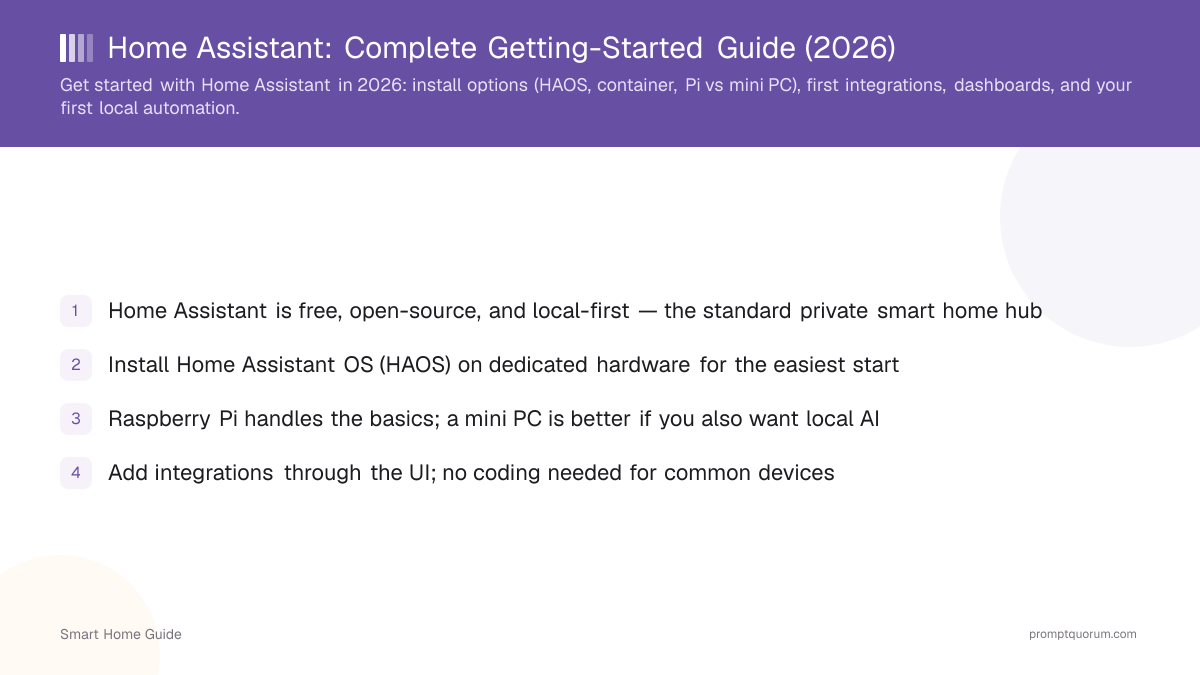
- Home Assistant is free, open-source, and local-first — the standard private smart home hub
- Install Home Assistant OS (HAOS) on dedicated hardware for the easiest start
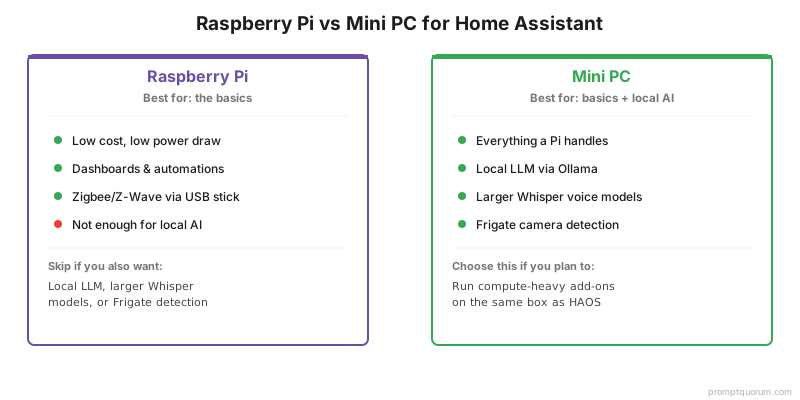
- Raspberry Pi handles the basics; a mini PC is better if you also want local AI
- Add integrations through the UI; no coding needed for common devices
- Add a Zigbee or Z-Wave coordinator (USB stick) for local protocols
- Add a local LLM brain later — link out for the LLM mechanics
Why Home Assistant?
Home Assistant is the foundation of a local smart home because it runs on your own hardware, speaks every major local protocol, and keeps automations working offline. It is the most flexible and private hub.
- Local-first: control and automations run without the cloud.
- Broad support: thousands of integrations across brands and protocols.
- Foundation for local AI — see running your smart home on a local LLM.
Which Install Option Should You Choose?
Use Home Assistant OS (HAOS) on dedicated hardware for the simplest setup, a container install if you already run a server, and choose a Raspberry Pi for basics or a mini PC if you want local AI. HAOS includes the add-on system you will want.
- For hardware sizing including a local LLM, see best hardware for a local smart home.
Install method | Difficulty | Best for |
|---|---|---|
| HAOS on dedicated device | Easiest | Most users; full add-on support |
| HAOS on Raspberry Pi | Easy | Basics, low power |
| HAOS on mini PC | Easy | Basics + local AI |
| Container (Docker) | Moderate | Existing home servers/NAS |
Installing Home Assistant on Windows, macOS, or Linux
Windows and macOS can run Home Assistant only as Home Assistant OS inside a virtual machine; Linux can run HAOS or the Container install directly. Home Assistant OS is a purpose-built operating system for home automation, and a desktop PC works for testing but is a poor 24/7 host.
- Windows: create a UEFI virtual machine in VirtualBox, VMware Workstation, or Hyper-V with at least 2 GB RAM and 2 vCPUs, attach the HAOS disk image, and set the network to bridged. Hyper-V cannot pass USB Zigbee or Z-Wave sticks through to the VM.
- macOS: use a hypervisor such as VirtualBox (Apple silicon uses the ARM 64-bit option) with the same bridged-network setup.
- Linux: run HAOS in a VM (for example KVM) or use the Container install with Docker Compose. Container has no apps (formerly add-ons), so Thread and Z-Wave need separate setup.
- Once the VM boots, open the Home Assistant web interface on port 8123 of the VM in any browser; because you control it through a browser, it works from any desktop operating system.
- For always-on use, choose a dedicated device — Home Assistant Green (recommended price $199 / €179, 4 GB RAM, 32 GB storage) or a Raspberry Pi 4 or 5 with at least 2 GB RAM — so the hub keeps running when your PC sleeps. See the official installation guide.
Adding Your First Integrations
Add integrations through Settings → Devices & Services; many devices are auto-discovered on your network. For Zigbee or Z-Wave devices, add a coordinator first.
- Auto-discovery finds many Wi-Fi and Matter devices automatically.
- Add a Zigbee coordinator (and the ZHA or Zigbee2MQTT integration) for Zigbee devices — see smart home protocols explained.
- Expose only the entities you want, especially before connecting voice or AI.
The Dashboard
Home Assistant auto-generates a dashboard you can customise with cards for your devices. Start with the default and refine it over time.
- The default dashboard lists your devices and areas automatically.
- Add cards for the controls you use most.
- Create per-room views as your setup grows.
Your First Automation
Create a simple automation in Settings → Automations using the visual editor — for example, turn on a light at sunset. No coding is required for common rules.
- 1Open Settings → Automations & Scenes → Create Automation.
- 2Choose a trigger (time, sunset, or a sensor state).
- 3Choose an action (turn on a light, send a notification).
- 4Save and test it, then refine.
- 5For context-aware rules later, see AI automations with a local LLM.

Adding AI Later
Once the basics work, add a local LLM as a conversation agent — but do that after your devices and automations are stable. This guide does not re-explain Ollama; link out for that.
- Wire a local model via the Ollama integration.
- For Ollama setup and model choice, see how to install Ollama (cross-cluster).
- Add a local voice front-end with the local voice assistant guide.
Frequently Asked Questions
Raspberry Pi or mini PC for Home Assistant?
A Raspberry Pi runs Home Assistant well for typical smart home use. Choose a mini PC if you also want to run a local LLM, larger Whisper models, or Frigate camera detection on the same box, since those need more compute.
Is Home Assistant free?
Yes. Home Assistant is free and open-source. You only pay for the hardware it runs on and any optional extras (for example, a cloud relay for easy remote access). Core local control needs no subscription.
Do I need to code to use Home Assistant?
No. Common setups, dashboards, and automations are built through a graphical interface. YAML configuration is available for advanced automations but is optional for getting started.
Can Home Assistant run AI?
Yes. Home Assistant integrates with Ollama so a local model can act as a conversation agent, and it supports local voice with Whisper and Piper. Running these on a mini PC keeps everything local. See the Ollama integration guide for setup.
Can I install Home Assistant on Windows or macOS?
Yes, but only as Home Assistant OS inside a virtual machine (VirtualBox, VMware, or Hyper-V on Windows). Give the VM at least 2 GB RAM and 2 vCPUs, UEFI boot, and a bridged network. Linux can also run the Container install directly.
What is Home Assistant OS?
Home Assistant OS (HAOS) is a minimal operating system built only to run Home Assistant. It includes apps, backups, and one-click updates, and it is the installation type Home Assistant recommends for most users.